A Chromebook runs ChromeOS, and that changes the mouse decision in one specific way: the companion software that Windows gamers take for granted does not run on it. There is no G HUB, no Synapse, and no desktop app to remap buttons, tune lighting, or build profiles. So the mouse has to work the moment it is plugged in, with its buttons, sensor, and DPI steps doing their job without a settings panel open in the background.
This guide is for Chromebook owners who play cloud games, browser games, and Android games on their laptop, plus students and workers who want one mouse for classwork and play. The four mice below were chosen from the names and specifications on their Amazon listings, covering wired plug-and-play picks, a wireless receiver mouse, and shapes that suit long sessions at a small desk.
Our Top Picks


Top 3 picks at a glance

Quick Picks
As an Amazon Associate, we earn from qualifying purchases.
| Product | Best for | Key spec from title |
|---|---|---|
| Logitech G502 HERO | Button-heavy games and everyday work | HERO 25K sensor, 25,600 DPI, 11 buttons |
| Logitech G305 LIGHTSPEED | Wireless play without a cable | HERO 12K sensor, 12,000 DPI, 250-hour battery |
| Razer DeathAdder Essential | A classic ergonomic shape on a Chromebook | 6,400 DPI optical sensor, 5 programmable buttons |
| Logitech G203 LIGHTSYNC | Lightweight wired play with RGB lighting | 8,000 DPI sensor, LIGHTSYNC RGB, 85 grams |
How to Choose
Start with the connection, not the sensor
Every mouse here connects in a way ChromeOS understands out of the box: a wired USB plug or a small 2.4 GHz receiver that lives in a USB port. Those two options behave the same on a Chromebook as they do on a Windows laptop, with no driver install and no setup screen. Bluetooth mice also pair through ChromeOS settings, but a receiver connection usually feels steadier in fast games, and it leaves Bluetooth free for headphones. Before buying, count the USB ports on the Chromebook. Many models ship with one USB-A port and one or two USB-C ports, so a receiver mouse may need a hub if the single USB-A port is already taken by something else.
Check what works without the companion app
The biggest Chromebook trap is a mouse whose best features live inside software that does not run on ChromeOS. Logitech G HUB and Razer Synapse are Windows and Mac programs, so anything that needs them — button remapping, lighting profiles, macro recording — cannot be changed from the Chromebook itself. That is why on-board memory matters so much here: a mouse that stores its settings on the device keeps them when it moves between computers. If you have access to a Windows or Mac machine, set the DPI stages and button layout there first, save them to the mouse, and then plug it into the Chromebook. Otherwise, pick a mouse whose defaults already suit you.
Match the shape to your hand and grip
Sensor numbers get the attention, but shape decides whether a mouse feels good after an hour. Palm grip players rest the whole hand on the mouse and usually want a taller, longer shell, while claw and fingertip players hold the mouse with arched fingers and often prefer a lower, shorter body. A mouse that is too large forces the fingers to stretch for the side buttons, and a mouse that is too small leaves the palm hanging off the back. Weight matters too: a heavy mouse feels planted and steady for slow, precise aiming, while a light mouse moves faster with less wrist effort. If possible, compare the length and weight in the listing with a mouse you already own.
Decide how many buttons you actually use
Extra buttons are only useful if you press them, and on a Chromebook the two side buttons usually default to forward and back in the browser, which is genuinely handy for schoolwork and web games. Mice with six buttons cover the basics — left, right, wheel, two side buttons, and a DPI switch — and every one of those works without software. Mice with eleven buttons suit players who juggle weapons, items, and abilities in cloud games, but the extra buttons only do what their defaults say unless they were programmed on another computer first. Count the buttons you already use on your current mouse before paying for a grid of extras you will never touch.
The 4 Best Options
Logitech G502 HERO

The G502 HERO is the button-heavy pick for Chromebook owners who want one mouse for games and everything else. Its right-handed ergonomic shell suits palm and claw grips, and the eleven buttons give cloud-game players room for weapons, items, and shortcuts without reaching for the keyboard. The HERO 25K sensor tracks cleanly at up to 25,600 DPI, and the dual-mode scroll wheel switches between a notched step for games and a free spin for long documents. Five small tuning weights let the balance be adjusted to taste, and the on-board memory holds up to five profiles set on another computer.
Specs
- HERO 25K sensor, up to 25,600 DPI
- 11 programmable buttons
- Dual-mode hyper-fast scroll wheel
- Adjustable weight system with five 3.6-gram weights
- On-board memory for up to 5 profiles
- Wired USB connection, 121 grams
Best for: Button-heavy games and everyday work on a Chromebook where one mouse has to do it all.
Watch out for: The G502 HERO is a large, right-handed mouse, so small hands and left-handed players should check the shape first.
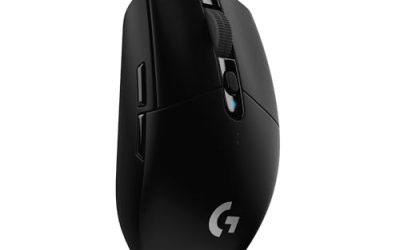
Logitech G305 LIGHTSPEED
The G305 is the wireless pick for Chromebook owners who hate cables and want a mouse that simply works when the receiver is plugged in. It connects through Logitech’s LIGHTSPEED receiver, so there is no Bluetooth pairing step and no laggy connection to fight in fast games. The HERO 12K sensor runs up to 12,000 DPI, the six buttons cover the essentials plus a DPI switch, and the single AA battery lasts up to 250 hours, which means months of school or play between changes. At a light weight with a compact, ambidextrous-leaning shape, it suits claw and fingertip grips and slips easily into a laptop sleeve.
Specs
- HERO 12K sensor, up to 12,000 DPI
- LIGHTSPEED wireless connection via USB receiver
- 6 programmable buttons
- Up to 250 hours of battery life on one AA battery
- On-board memory
- Lightweight, compact shape
Best for: Wireless play on a Chromebook without a cable, and for bags where a small receiver mouse travels well.
Watch out for: The receiver occupies a USB-A port, so Chromebooks with a single USB-A port may need a hub for other accessories.
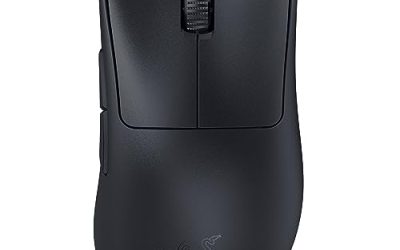
Razer DeathAdder Essential
The DeathAdder Essential is the straightforward pick: a classic ergonomic wired mouse with nothing to configure and nothing to go wrong. Its 6,400 DPI optical sensor handles browser games, Android games, and cloud games without fuss, and the five buttons — left, right, wheel, and two side buttons — all work the moment the USB plug goes in. Rubber side grips keep the hand steady during long sessions, and the mechanical switches are rated for many millions of clicks. For Chromebook owners who want the simplest possible setup, this is the mouse that asks the least and still feels like a proper gaming mouse.
Specs
- 6,400 DPI optical sensor
- 5 programmable buttons
- Mechanical switches
- Rubber side grips
- Wired USB connection
- Classic ergonomic right-handed shape
Best for: A classic ergonomic shape on a Chromebook for players who want plug-and-play with no setup at all.
Watch out for: Deeper button remapping needs Razer Synapse on a Windows or Mac machine, so the side buttons keep their defaults on a Chromebook.
Logitech G203 LIGHTSYNC

The G203 LIGHTSYNC is the light wired pick for Chromebook owners who want RGB lighting and a fast, nimble feel. It weighs 85 grams, so it moves quickly with little wrist effort, and the 8,000 DPI sensor covers everything from careful aiming to fast flicks. LIGHTSYNC RGB runs through the logo and a light strip along the base, giving the desk some color without any software running on the Chromebook — the lighting cycles through its default effects on its own. Six programmable buttons, on-board memory, and a 1000 Hz polling rate round out a mouse that is simple to plug in and easy to live with.
Specs
- Gaming-grade optical sensor, 200 to 8,000 DPI
- LIGHTSYNC RGB lighting
- 6 programmable buttons
- On-board memory
- 1000 Hz polling rate
- 85 grams, wired USB connection
Best for: Lightweight wired play with RGB lighting on a Chromebook, especially for smaller hands and fast games.
Watch out for: Changing the lighting pattern or button layout needs G HUB on a Windows or Mac machine, since the software does not run on ChromeOS.
Which One Fits Your Situation
You play cloud games on your Chromebook
Pick the Logitech G305 LIGHTSPEED. Cloud games stream the action, so a steady wireless link matters more than raw sensor numbers, and the LIGHTSPEED receiver gives a stable connection without a cable dragging across the desk. The 250-hour battery means the mouse is ready whenever a session starts, and the compact shape travels well with a Chromebook. Keep the receiver in a USB-A port and the mouse stays connected through long sessions.
You want one mouse for schoolwork and games
Pick the Logitech G502 HERO. The eleven buttons and the free-spinning scroll wheel make long documents and research tabs faster, while the HERO 25K sensor and the weight tuning suit evening games. Its on-board memory holds profiles set on another computer, so the button layout survives the move to the Chromebook. Just confirm the large right-handed shell fits the hand before committing to it as a daily driver.
You want the simplest plug-and-play mouse
Pick the Razer DeathAdder Essential. There is no receiver to lose, no battery to change, and no software to miss: plug the USB cable in and every button works. The ergonomic shape and rubber grips suit long homework sessions, and the 6,400 DPI sensor is more than enough for browser and Android games. It is the right choice when the goal is a mouse that disappears into the setup and never needs attention.
You want a light wired mouse with lighting
Pick the Logitech G203 LIGHTSYNC. At 85 grams it is the lightest mouse here, so fast movements take less effort, and the RGB light strip adds color to the desk without any app running. The 8,000 DPI sensor and 1000 Hz polling rate keep tracking sharp in quick games, and the six buttons cover the essentials. It suits smaller hands and players who like a nimble, low-drag feel.
Common Mistakes
- Buying a mouse that needs its companion app for basic DPI changes, then finding the app does not run on ChromeOS.
- Choosing a Bluetooth-only mouse for fast games and blaming the Chromebook when the connection feels laggy.
- Forgetting to count USB ports, then finding the receiver has nowhere to plug in without a hub.
- Picking a heavy, oversized mouse for a small Chromebook bag and a cramped desk.
- Assuming every extra button works in browser games, when unprogrammed buttons may do nothing at all.
Frequently Asked Questions
Do gaming mice work on a Chromebook?
Yes. ChromeOS treats a gaming mouse like any standard USB mouse, so wired models and 2.4 GHz receiver models work as soon as they are plugged in, with no driver install. Bluetooth models pair through ChromeOS settings the same way. The only features that do not carry over are the ones that need Windows or Mac companion software, such as button remapping and lighting profiles.
Can I change DPI without installing software?
Yes, on most gaming mice. The DPI button behind the scroll wheel cycles through preset sensitivity stages with no software at all, and those presets are stored on the mouse. For finer control, set the exact DPI stages on a Windows or Mac computer using the maker’s app, save them to the mouse’s on-board memory, and they will carry over to the Chromebook.
Is a wireless receiver mouse better than Bluetooth on a Chromebook?
For games, usually yes. A 2.4 GHz receiver connection tends to feel steadier and more responsive than Bluetooth, which matters in fast cloud and browser games. Bluetooth is fine for schoolwork and casual play, and it frees up a USB port, but it can introduce slight lag and occasional dropouts. A receiver mouse is the safer pick when gaming comes first.
Do I need the mouse software at all?
Not on a Chromebook. The mouse works with its defaults for pointing, clicking, scrolling, and the side buttons, which usually act as forward and back in the browser. Software only matters for changing defaults, such as remapping buttons or tuning RGB lighting, and that can be done once on a Windows or Mac machine if the mouse has on-board memory to store the changes.
Related guides
More from Amazon
Programs that pair well with the guide above. Offers and eligibility are set by Amazon and may change.
Free shipping on eligible items, Prime Video and more. Eligible new members can start with a free trial.
Start a Prime free trialAd-free music streaming. Eligible new subscribers can start with a free trial.
Try Music Unlimited freeA Prime membership for ages 18-24 with a trial period. Eligibility is set by Amazon.
See Prime for Young AdultsAudiobooks and podcasts to listen to on the go. Eligible new members can start with a free trial.
Try Audible freeAs an Amazon Associate we earn from qualifying purchases.