Here is the short version, because most people arrive at this problem mid-session and want it solved rather than explained. The Xbox app does not contain an audio mixer. It never has. Volume balancing, per-application output selection and the audio widget all live in the Game Bar overlay, and the Xbox app just points you at it. If Game Bar is switched off, stripped out by a cleanup script or sitting in a damaged state, the pointer has nowhere to point and the audio section either disappears or tells you it is unavailable.
So the fix depends entirely on which of two completely different problems you actually have. One is a missing control surface: sound works, you just cannot adjust it where you expected to. The other is silence: a title produces no audio at all and you went looking for the mixer to find out why. Those need opposite approaches, and conflating them is why this issue has such a reputation for being unfixable.
As an Amazon Associate we earn from qualifying purchases at no extra cost to you.




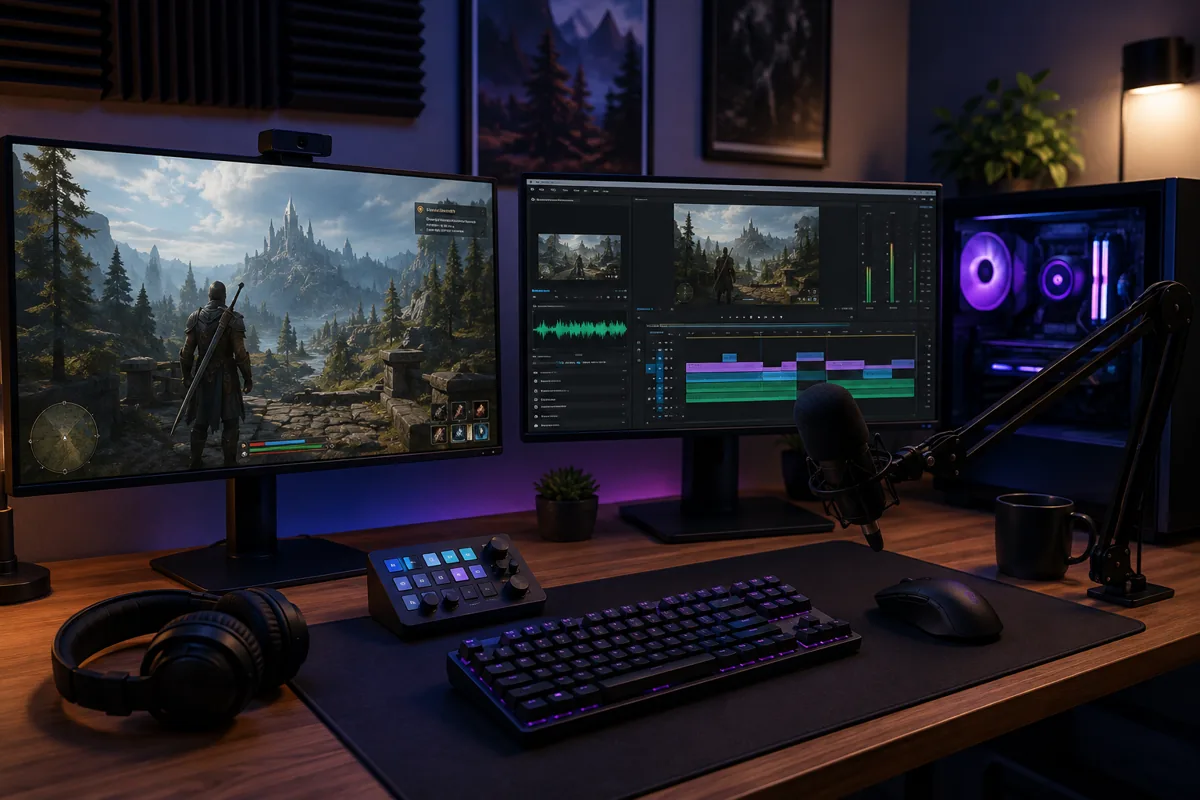
Our Top Picks


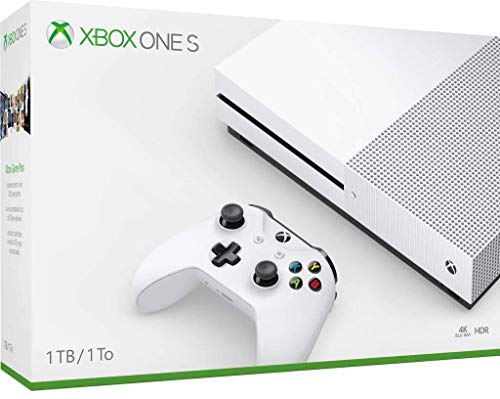

Top 3 picks at a glance
Work out which problem you have first
Play any audio at all through the machine. A browser video is fine. If you can hear it, and the game you care about also makes noise but at the wrong level or through the wrong device, you have the control problem and you should go to the next two sections. If the game is completely silent while other applications are audible, skip ahead to the silence sections; the mixer is a red herring and restoring Game Bar will not put sound back.
This split takes fifteen seconds and it saves an hour. I sort a lot of audio complaints in a play space where a headset, a pair of desk speakers and a capture path all fight over the same default endpoint, and the single most common mistake I see is someone reinstalling components for two hours to fix a routing problem that a per-application override solves in one click.
Restoring the missing audio controls
If your problem is the missing mixer, the repair order is short. Open Windows Settings, go to Gaming, and check whether Game Bar is enabled. This toggle gets flipped by feature updates, by system tuning utilities and by anyone who ran a debloat script on the installation. Turning it back on restores the overlay and the audio widget with it, usually without a restart.
If the toggle is already on but the overlay opens with blank or missing widgets, the package is in a bad state rather than disabled. Reset it through the installed apps list first, which clears its stored data without uninstalling. If that does not help, re-register the package. Only after both of those fail is a full removal and reinstall from the store worth attempting, and it is worth noting that a full reinstall of the Xbox app itself does nothing here, since the mixer was never part of it.
Where a cleanup tool has been run, the components may be genuinely absent rather than broken. The tell is that nothing appears at all: no overlay, no widget list, no error. In that case reinstalling from the store is the only route back, and you may need to reinstall more than one package because the overlay depends on shared runtime components that the same script often removes.
The alternative that does not need the overlay at all
Before you spend time repairing packages, ask whether you need the overlay. Windows has a volume mixer in the sound settings that does everything the Game Bar audio widget does for volume, and one thing it does better: it lets you set a per-application output device and a per-application input device that persist across sessions.
That per-app override is the setting most people never find, and it is the correct fix for the overwhelming majority of routing complaints. Instead of relying on the system default device, which changes whenever a headset wakes up or a display with speakers is connected, you pin a specific title to a specific endpoint. It stays pinned. The headset can come and go, the default can shuffle, and the game keeps writing to the device you chose.
The one thing you lose is convenience: you cannot adjust it without leaving the game, whereas the overlay lets you do it in place. For a title you play daily, setting it once and forgetting it is arguably better anyway.
Silence, cause one: the output override points somewhere else
Now the other problem. If a single title is silent while everything else works, start with output routing rather than drivers. Open the Windows volume mixer while the game is running and producing sound, find its entry, and look at the assigned output device. If it names an endpoint you are not currently listening through, that is your answer and it takes one dropdown to fix.
This happens more often than it should because endpoints multiply quickly. A machine driving a headset, a monitor over a display cable, a set of desk speakers and a virtual device for capture can easily present five or six outputs. Each display with speakers is an endpoint. Each headset mode, wired and wireless, can be a separate endpoint. A game that was launched while one of them was default will keep using it.
Note also that a silent application may not appear in the mixer at all until it produces audio. If the entry is missing, trigger a sound in the game first, then look. An entry that never appears despite the game clearly attempting to play something points at a deeper problem, covered below.
Silence, cause two: exclusive mode has taken the device
Windows lets an application take exclusive control of an audio endpoint, locking out everything else. This is a legitimate feature used by low-latency audio software, and it is a frequent cause of one application going quiet while another sounds fine. If you run any audio production software, a virtual mixing tool, or a communications app configured for minimum latency, one of them may be holding the device.
The fix is in the device properties for the endpoint, where you can disallow applications from taking exclusive control. Turning that off costs you a small amount of latency in the applications that wanted it, on the order of a few milliseconds in typical configurations, and buys reliable shared access for everything else. On a machine used mainly for playing games, that is an easy trade.
The diagnostic is straightforward: close every audio-related utility, restart the silent title, and see if sound returns. If it does, reintroduce the utilities one at a time until it breaks. The one that breaks it is holding exclusive mode.
Silence, cause three: a sample-rate mismatch
Endpoints have a configured format, typically 48 kilohertz at 24 bits for a modern headset or 44.1 kilohertz at 16 bits for older hardware. Games generally target 48 kilohertz. When the endpoint is configured for something the audio engine cannot resample cleanly, or when a virtual device sits between the game and the hardware with a different rate on each side, you can get silence, crackling, or audio that plays at the wrong speed.
Set the endpoint to 48 kilohertz at 24 bits as a baseline and retest. If you have a virtual audio device in the chain for capture or routing, make sure both of its sides use the same rate; mismatched rates across a virtual cable are a reliable way to produce a dead channel. Anything running at 96 kilohertz for a gaming headset is almost certainly gaining you nothing and adding a resample step that can go wrong.
Silence, cause four: spatial audio processing
Spatial audio formats insert a processing layer between the game and the endpoint. That layer needs to be present, licensed and working. When it is half-installed, expired, or applied to a device that cannot support the requested channel layout, the result can be complete silence in titles that request surround output while stereo applications continue to work normally.
Turn spatial processing off at the endpoint and retest. If sound returns, you have narrowed it precisely and can decide whether reinstalling the spatial component is worth the effort.
Channel layout is the related trap. A game configured for a 5.1 or 7.1 layout writing to a stereo endpoint that is not doing a downmix can produce silence on the channels you can actually hear. Set the game to stereo, confirm sound, then work back up.
Headsets, dongles and the endpoint that keeps moving
Headsets are the worst offenders in this category, and the mechanism is simple: the headset only exists as an audio endpoint while it is awake. Put it down, it sleeps and the endpoint disappears, so Windows moves the default elsewhere. Pick it up, it wakes and often reclaims the default. Anything launched in between is now pointing at whichever device happened to be default at launch time.
Wireless dongles add a second layer, because some of them present the headset as a different endpoint than the wired connection does, and switching between them mid-session moves the target again. If your audio is fine until you connect wirelessly and then silent afterwards, the game did not break; the endpoint it was writing to went away.
Two habits solve this permanently. Pin every game you care about to a specific output using the per-app override rather than the system default. And put the headset on and let it fully wake before launching anything, so the endpoint list is stable at launch time. Neither is glamorous; both eliminate a whole category of complaint. If you are still choosing hardware and want fewer endpoint surprises, the tradeoffs are worth reading about in our guide to choosing a headset.
A symptom table for faster sorting
Match your symptom, then go to the matching section rather than working through everything.
| Symptom | Actual cause category | Where to fix it | Time |
|---|---|---|---|
| Audio section missing in the Xbox app | Game Bar disabled or removed | Gaming settings, then package reset | 2 min |
| Overlay opens with blank widgets | Damaged package | Reset, then re-register | 10 min |
| Sound works but through the wrong device | Output routing | Per-app override in sound settings | 1 min |
| One game silent, everything else fine | Override, exclusive mode or layout | Volume mixer, then device properties | 5 min |
| Crackling or wrong-speed playback | Sample-rate mismatch | Endpoint format settings | 2 min |
| Silence only in surround-capable titles | Spatial processing layer | Disable spatial audio at the endpoint | 2 min |
| Audio dies when the headset wakes | Default endpoint moved | Pin the app to a fixed output | 1 min |
| No application entry in the mixer at all | Audio service or driver state | Restart audio services, then driver | 10 min |
The last row is the one worth flagging: an application that never appears in the mixer even while attempting to play is a different class of problem from one that appears and is muted. The first suggests the audio engine never accepted the stream; the second is a routing or level issue you can fix in seconds.
Communications apps and the ducking problem
One more failure looks like broken audio and is not. Voice chat applications commonly ship with an automatic attenuation feature that lowers other applications when someone speaks. Set aggressively, or left in a stuck state after a crash, it can hold game audio at a fraction of its normal level indefinitely, which reads as “the game is nearly silent” rather than “something is turning it down”.
Windows has its own version of this in the communications tab of the sound settings, where the default behaviour reduces other sounds when it detects communication activity. Between the two, a game can be attenuated twice. Set the Windows option to do nothing, and check the attenuation setting in whichever voice application you use, before you conclude that a title has an audio bug.
The tell is level rather than absence: you can hear the game if you turn everything up, and the balance snaps back to normal after closing the voice application. If that describes your situation, no amount of package repair will help, because nothing is broken.
What the audio path actually looks like
It helps to picture the chain, because every cause above lives at a specific link in it. The game produces audio and hands it to the Windows audio engine. The engine applies per-application volume and any per-application device override. The stream goes to a session on an endpoint, where the endpoint format determines the sample rate and bit depth. Any spatial processing layer sits there. Then the driver hands the result to hardware, which may be a headset, a display over a video cable, a set of speakers, or a virtual device feeding a capture application.
Five links, five failure modes. The game can be muted at the engine. The override can point at a dead endpoint. The format can mismatch. The spatial layer can drop it. The hardware can be asleep or claimed exclusively. The reason the overlay mixer feels like the answer is that it exposes the first two links in a convenient place, but it has no visibility into the last three, which is exactly where silence usually originates.
Once you can name the link, the fix is nearly always a single setting rather than a reinstall. That is the practical payoff of thinking about it this way, and it is why I sort by symptom before touching anything.
Why the split between the app and the overlay exists
It is worth understanding the design, because it explains why so much troubleshooting advice for this misses. The Xbox app is a library and storefront. It installs titles, manages a subscription, handles cloud saves and launches things. The overlay is a system-level surface that draws over whatever is running, which is why it hosts the widgets that need to work regardless of which application is in front: capture, performance readouts, communications and audio.
Audio control belongs in the second category, not the first, because you want to change the balance between a game and a voice chat while the game is running, not after alt-tabbing to a storefront. Once you internalise that division, the error message stops being confusing. The app is not broken and is not missing a feature. It is telling you the feature lives one layer up, and that layer is currently unavailable.
It also explains why reinstalling the storefront is such a common and futile step. You can remove and reinstall it five times and the mixer will still be absent, because it was never in there. The same logic applies to a lot of adjacent advice: repairing the launcher does not repair the overlay, and clearing the store cache does not restore a component that was deliberately removed.
Repairing the components without breaking more
If you do need to repair, do it in increasing order of destructiveness. Reset the app data first. Re-register the package second. Reinstall from the store third. Only consider a system-level repair install after all three, and only if other store applications are also misbehaving, which suggests a broader problem than one overlay.
Avoid the shotgun approach of running every registry tweak and command you can find. Several widely circulated commands re-register every store package on the machine, which can leave unrelated applications in a worse state than they started, and a couple of the more aggressive suggestions disable the very services the overlay depends on. Targeted repair of one package is safe; bulk re-registration on a working system is not worth the risk.
Keep an eye on the account state as well. Some overlay behaviour is tied to being signed in, and a stale sign-in can produce widgets that load but do nothing. Signing out and back in is quick and occasionally resolves what looks like a corrupted install.
Verifying the fix so it does not come back next week
A fix you cannot reproduce is a coincidence. Build a two-minute test and run it after any change: play a browser video, launch the problem title, confirm audio in both, then put the headset down for thirty seconds, pick it back up, and confirm audio again. That last step is the one that catches endpoint migration, and it is the step almost nobody performs, which is why so many of these problems appear to return on their own.
If you also capture footage, add a third check: start a recording and confirm both the game audio and the microphone land in the file at sensible levels. Audio routing changes have a habit of looking fine in real time and revealing themselves only in the recording, when one channel turns out to be silent. Our walkthrough on capturing headset gameplay covers the routing side of that in more detail.
The configuration I keep to avoid all of this
After enough sessions lost to endpoint shuffling, I settled on a setup that simply does not have this failure mode. Every title I use regularly is pinned to a specific output with a per-application override, so nothing depends on the system default. Spatial processing stays off except where I have specifically tested that a title benefits from it. Every endpoint I use is set to 48 kilohertz at 24 bits so nothing resamples unnecessarily. Exclusive mode is disallowed on the endpoints my games use.
I keep the overlay enabled because the in-game mixer is genuinely convenient, but I treat it as a convenience rather than infrastructure. If it breaks, the sound settings still do the job and nothing stops working. That is the useful mental model to take away from this: the overlay is a nicer interface to controls that exist elsewhere, so a missing overlay is an inconvenience, not a fault, and silence is a separate problem that lives at the device layer.
Sort those two apart at the start and the whole thing becomes a five-minute job rather than an afternoon.
Frequently asked questions
Why does the Xbox app say Game Bar is needed for audio?
Because the Xbox app contains no audio mixer at all. Volume balancing, per-application output selection, and the audio widget all live in the Game Bar overlay, and the app merely points to it. If Game Bar is disabled, removed by a cleanup script, or damaged, the pointer has nowhere to point, so the audio section disappears or reports as unavailable.
Will reinstalling the Xbox app restore the audio mixer?
No. The mixer was never part of the Xbox app, so reinstalling it does nothing. The controls belong to the Game Bar overlay. Instead, enable Game Bar under Windows Settings in Gaming, then reset the package through the installed apps list, then re-register it, and only reinstall from the store if all of those fail.
Why doesn’t my silent game appear in the Windows volume mixer?
A silent application may not appear in the mixer until it actually produces audio. Trigger a sound in the game first, then check again. If the entry never appears despite the game clearly trying to play something, that points at a deeper problem such as exclusive mode holding the endpoint, a sample-rate mismatch, or broken spatial audio processing.
Does turning off exclusive mode hurt audio performance?
Only slightly. Disabling exclusive control costs a few milliseconds of latency in typical configurations for applications that wanted it, and in return everything else gets reliable shared access to the endpoint. On a machine used mainly for playing games, the article describes that as an easy trade worth making.
What sample rate should I set my headset to for gaming?
Set the endpoint to 48 kilohertz at 24 bits as a baseline, since games generally target 48 kilohertz. Anything running at 96 kilohertz for a gaming headset gains almost nothing and adds a resample step that can go wrong. If a virtual audio device sits in the chain, make sure both sides use the same rate.
Related guides
- Retro Gaming Controllers Nintendo Switch Pc
- Handheld Gaming Pc Battery Life Explained
- How To Build A Diy Retro Gaming Console
Related guides
- Best Free MMOs on Steam: Subscription Limits, Pay-to-Win and Time Cost (2026)
- Best Free Horror Games on Steam: How to Pick One That Fits Your PC and Your Nerves (2026)
- Black Frame Insertion vs VRR: Which Smoothness Feature Should You Use?
- Best Webcams for Streaming: 11 Listings Compared by Resolution, Focus and Light (2026)