Streaming VR gameplay well requires solving a problem flat-screen streamers don’t face: the same GPU rendering two views per frame for your eyes also has to encode a third output for viewers, and any resource contention between those tasks shows up as dropped frames in your headset, not just on the stream. Getting a clean stream means offloading encoding to dedicated hardware, choosing the right capture method for your content, and setting up audio and camera separately from a normal desktop streaming workflow.
Tomas Berger streams and records comparison footage across every headset on his test bench, and the setup differences between VR and flat-game streaming trip up even experienced streamers moving into VR content for the first time. This guide covers hardware requirements, the two main capture approaches, encoder settings, and the audio and camera setup specific to streaming while wearing a headset.
As an Amazon Associate we earn from qualifying purchases at no extra cost to you.



Our Top Picks


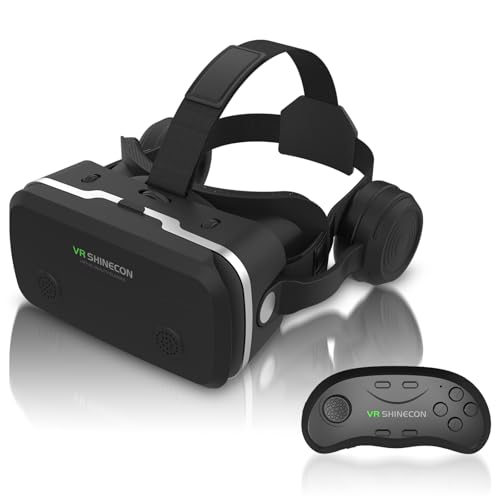


Top 3 picks at a glance
Why Streaming VR Gameplay Is Fundamentally Different From Flat-Screen Streaming
A flat-screen game streaming setup only needs to render and encode one view: whatever’s on the monitor. VR streaming needs to render two slightly offset views, one per eye, at a target frame rate that’s non-negotiable in a way flat games aren’t, because dropped frames in VR don’t just look choppy, they can trigger motion sickness for the wearer within seconds. This changes the entire risk calculus around what resources you can safely dedicate to encoding.
Most modern headsets target 90Hz or higher, meaning the GPU needs to produce a new frame roughly every 11 milliseconds to avoid the headset’s compositor falling back to reprojection, a technique that reuses and reprojects the previous frame to fill the gap when a new one isn’t ready in time. Reprojection makes the in-headset experience feel smoother than it technically is, but it does nothing for stream quality, meaning your viewers can see stutter and judder that you personally don’t feel while wearing the headset.
This disconnect between what you experience and what viewers see is the single most common streaming complaint from new VR streamers: “the stream looks bad but I didn’t notice anything wrong while playing.” It’s rarely a viewer connection issue and almost always a genuine frame rate or encoding problem that reprojection was masking on the headset side.
The second major difference is that you can’t see your stream overlay, chat, or alerts while wearing the headset, unlike flat-screen streaming where the streamer typically has a second monitor showing chat in real time. VR streamers either rely entirely on audio cues (text-to-speech chat readers) or periodically remove the headset to check in, both of which change stream pacing and interaction style compared to flat-game streaming.
Finally, VR game visuals often don’t translate well to a flat spectator feed without extra setup, since much of what makes VR compelling, the sense of scale and presence, doesn’t come through on a 2D screen. This is why many successful VR streamers invest specifically in mixed reality capture, covered later in this guide, to give viewers a more engaging picture of what’s actually happening than a raw spectator view alone provides.
Spectator View Versus Mixed Reality Capture: Choosing Your Capture Method
Spectator view, sometimes called mirror mode, sends the same or a slightly adjusted version of the in-headset image to a monitor and, by extension, to your capture software. This is the simplest capture method, requires zero additional hardware, and is supported natively by SteamVR, the Meta Quest Link app, and most standalone VR games through Windows Mixed Reality or OpenXR runtimes.
The downside of pure spectator view is that viewers are essentially watching over your shoulder at a first-person view they have no control over, often with the headset’s field-of-view distortion still baked into the image if the game doesn’t provide an undistorted spectator mode specifically. Some games offer a dedicated “spectator camera” mode that corrects for this, worth checking in a title’s video or streaming settings before assuming raw mirror output is the only option.
Mixed reality capture (MRC) composites a real camera feed of you, physically playing while wearing the headset, in front of the virtual game world rendered from a separate, calibrated third-person camera angle. This is the format popularized by VR streamers who appear to be “standing inside” the game world on stream, and it requires green screen setup, camera calibration software, and precise position tracking of the physical camera relative to the VR play space.
MRC setup complexity varies significantly by headset and game support. SteamVR-based systems (Valve Index, HTC Vive) have the most mature MRC tooling through tools like LIV, which handles camera calibration and compositing for a large library of supported titles. Meta Quest headsets support MRC through both LIV and Meta’s own Mixed Reality Capture tools when tethered via Link, though the initial calibration process, positioning a tracked controller or object at specific reference points, takes some trial and error the first time.
For streamers just starting out, spectator view is the reasonable default, since it requires no additional hardware or software beyond what’s already needed to play. MRC is worth the added setup investment specifically for streamers building a consistent VR-focused channel where the more dynamic, “player visible in the game world” presentation meaningfully improves viewer engagement and retention.
Hardware Requirements For Streaming VR Without Sacrificing In-Headset Performance
The core hardware decision is whether to stream from the same PC rendering the VR game (single-PC setup) or offload encoding to a second machine (dual-PC setup) that only handles capturing the spectator feed and pushing it to your streaming platform. Dual-PC setups eliminate encoding load from the gaming PC entirely, which is the safest option for consistently high in-headset frame rates, but require an HDMI or USB capture card and a second capable machine, adding meaningful cost.
Single-PC streaming is viable and common as long as the GPU has a dedicated hardware encoder separate from its rendering cores. NVIDIA GPUs from the RTX 20-series onward include NVENC, a hardware encoder chip that handles video compression without competing for the same shader cores used to render the VR scene, meaning encoding overhead on frame rate is typically in the low single-digit percentage range rather than a major hit. AMD’s equivalent, AMF/VCE on Radeon cards, and Intel’s Quick Sync on supported CPUs offer similar dedicated encoding paths.
CPU headroom matters more for VR streaming than for flat-game streaming because VR runtimes (SteamVR, Oculus/Meta runtime) already place higher CPU demands on tracking, reprojection, and audio spatialization than a typical flat game engine. A CPU that’s already near its limit rendering the VR game with little headroom left will show encoding-related stutter even with a hardware encoder handling the actual video compression, since CPU-side tasks like scene composition still need to happen alongside encoding.
The table below outlines rough hardware tiers for VR streaming, based on testing across common PC VR configurations.
| Setup Tier | GPU | Approach | Expected Result |
|---|---|---|---|
| Minimum viable | RTX 3060 / RX 6600 or better | Single-PC, NVENC/AMF hardware encode | Streamable, occasional dropped frames in demanding scenes |
| Comfortable single-PC | RTX 4070 or better | Single-PC, NVENC, capped stream resolution | Consistent in-headset performance, good stream quality |
| Dual-PC (recommended for content creators) | Any VR-capable GPU + separate capture PC | HDMI/USB capture card to second PC | Zero encoding impact on VR performance |
Capture cards for dual-PC setups need to support the resolution and refresh rate of your spectator output, typically 1080p at 60fps is sufficient even though the headset itself runs at a higher internal refresh rate, since spectator feeds are rarely output at native headset refresh. USB-C capture devices are convenient for portable setups; internal PCIe capture cards offer lower latency for a dedicated permanent streaming station.
Software Setup: OBS, SteamVR Spectator And Quest Casting
OBS Studio remains the standard streaming software for PC VR capture regardless of headset brand, since it can capture a specific application window, a full display, or a capture card input interchangeably. For single-PC SteamVR setups, adding a “Window Capture” or “Game Capture” source targeting the game’s spectator window, rather than capturing the entire desktop, avoids accidentally streaming your desktop taskbar or other windows if you alt-tab during a session.
SteamVR exposes a dedicated spectator window automatically for most titles, accessible through the SteamVR status window’s display options, and this window can be resized and repositioned on your monitor before setting up the OBS capture source. Some games offer additional in-game spectator camera controls, letting you choose between a first-person mirror, a fixed third-person angle, or a free camera mode independent of what you’re seeing in the headset.
Meta Quest headsets tethered via Link or Air Link expose a similar spectator window through the Meta Quest Link desktop app, functioning the same way as SteamVR’s spectator output for OBS capture purposes. For untethered casting directly from a standalone Quest without a PC, the Meta Horizon (formerly Oculus) mobile app supports casting to Facebook directly, and Quest software updates have progressively added more direct RTMP streaming support for Twitch and YouTube, though feature availability changes between software versions and is worth checking against your headset’s current OS release notes.
For MRC setups using LIV or similar compositing software, that software typically runs as its own OBS source or a virtual camera output that OBS then captures, adding one more link in the software chain compared to simple spectator capture. Each additional layer (game, MRC compositor, OBS) adds a small amount of latency and potential failure point, so testing the full chain in a low-stakes practice stream before going live for real is worthwhile.
Scene setup in OBS should account for the fact that you can’t see chat or alerts while wearing the headset; positioning webcam overlays, alert boxes, and chat displays in a layout that makes sense to viewers even without your active real-time adjustment, since you won’t be watching the preview during actual gameplay the way flat-game streamers typically do.
Encoder Settings That Protect In-Headset Frame Rate
For single-PC setups, the encoder preset choice is the biggest lever for minimizing performance impact. Faster presets (labeled “Quality” or lower numbered presets in NVENC, “Speed” in AMF) use less GPU time per frame at a modest cost to compression efficiency, meaning a slightly larger file size or bitrate is needed for the same visual quality compared to a slower preset. For VR streaming, prioritizing a fast preset over maximum visual compression efficiency is almost always the right tradeoff.
Stream output resolution doesn’t need to match your VR render resolution, and in most cases shouldn’t. Streaming at 1080p or 1440p while the headset renders at a higher per-eye resolution reduces encoder workload without any visible quality loss for viewers, since most streaming platforms compress heavily on their end regardless of source resolution, and 4K streaming remains rare on major platforms outside specific opt-in tiers.
Bitrate should be set according to your upload bandwidth and target platform’s recommended range rather than pushed as high as possible; Twitch recommends 6000 kbps or lower for most non-partner accounts, while YouTube allows higher bitrates for higher resolution streams. Exceeding a platform’s effective bitrate ceiling doesn’t improve viewer-side quality since the platform re-encodes anyway, and only adds unnecessary local encoding load.
Frame rate for the stream output can reasonably be set lower than your VR render target; streaming at 60fps while the headset runs at 90 or 120Hz internally is standard practice and invisible to viewers, since very few platforms and viewer setups meaningfully benefit from streams above 60fps for typical gameplay content.
For dual-PC setups where encoding happens entirely on the second machine, none of these GPU-side tradeoffs apply to the gaming PC at all, which is the core reason dual-PC remains the gold-standard recommendation for streamers who plan to stream VR regularly rather than occasionally.
Audio Setup For Commentary While Wearing A Headset
Microphone positioning for VR streaming has a unique constraint: the headset strap and facial interface cover a significant portion of your head, which can interfere with headset-mounted or nearby boom microphones more than it would for flat-screen streaming where nothing sits between your mouth and a desk-mounted mic. A boom arm mic positioned to clear the front of the headset, angled slightly below mouth level to avoid the headset’s front housing, generally works better than a mic positioned directly in front where headset movement during gameplay can cause it to bump the mic.
Some headsets, including the Valve Index and various PC VR headsets, include a built-in microphone, and while convenient, these are generally lower quality than a dedicated external mic due to their small size and proximity to the headset’s own fan and speaker components. For serious streaming, an external mic remains the better choice even with a headset-integrated option available.
Game audio and voice chat routing needs explicit setup in OBS’s audio mixer, separating game sound, your microphone, and any Discord or in-game voice chat into distinct tracks so you can balance levels appropriately and mute specific sources without affecting others. This setup is identical in principle to flat-game streaming but worth double-checking specifically for VR titles, since some VR games route audio through the headset’s own audio output rather than the system default device, which can cause a source to appear silent in OBS if the wrong device is selected.
Text-to-speech chat readers, software that reads incoming chat messages aloud through your headset or a connected speaker, solve the problem of not being able to see chat while wearing the headset. Several third-party tools integrate directly with Twitch and YouTube chat APIs for this purpose, and setting one up before your first VR stream prevents the common early-stream problem of appearing unresponsive to chat simply because you have no way to see it.
Spatial or positional audio settings within VR games, while beneficial for the wearer’s immersion, don’t always translate cleanly to a stereo stream mix; testing your specific game’s audio output in a short practice recording helps catch cases where important sound effects or dialogue end up too quiet or panned oddly in the final stream compared to how they sound in the headset.
Camera Placement And Green Screen Setup For Mixed Reality Capture
Camera placement for MRC requires positioning a real camera at a fixed point relative to your VR play space boundary, since the compositing software calculates the virtual camera’s position and angle based on that fixed real-world reference. Most MRC tools, including LIV, guide you through an initial calibration process using a tracked controller or headset held at specific marked points to establish this relationship, and the calibration needs to be redone if the camera or play space boundary is moved.
Green screen quality directly affects how clean the final composite looks; wrinkles, uneven lighting, and shadows on the green fabric all increase the chance of visible compositing errors around your body’s edges, commonly called “green spill” or edge haloing. Even, diffuse lighting across the entire green screen surface, avoiding direct light that creates hot spots or shadows, produces noticeably cleaner keying results than a single overhead light source.
Physical space constraints matter more for MRC than for simple spectator capture, since the camera needs a clear, consistent view of your entire play area without obstruction, and most setups benefit from at least 1.5 to 2 meters of distance between the camera and the play space center to capture full-body movement without excessive cropping during large gestures or lunges in physically active games.
Camera settings should prioritize a fast shutter speed to avoid motion blur during quick VR gameplay movements, since blur on the real camera feed looks visually inconsistent against the cleanly rendered virtual scene behind you. A dedicated webcam or camcorder with manual exposure and shutter control generally outperforms a basic built-in laptop camera for this reason.
Testing the full MRC composite in a short recorded clip before going live catches calibration drift, lighting problems, or tracking dropout issues that are much easier to fix before an audience is watching than to troubleshoot live mid-stream.
Common Stream Quality Problems And How To Fix Them
The table below covers the most frequent VR streaming problems reported by streamers and their typical root cause and fix.
| Symptom | Likely Cause | Fix |
|---|---|---|
| Stream choppy, headset feels smooth | Reprojection masking dropped frames | Lower stream resolution, check GPU headroom, reduce in-game settings |
| Black or frozen spectator window | Wrong capture source or window minimized | Re-select capture source in OBS, keep spectator window unminimized |
| Audio out of sync with video | Encoder buffering delay or wrong audio device | Adjust audio sync offset in OBS, verify correct output device selected |
| Green screen edges look rough | Uneven lighting or wrinkled fabric | Add diffuse lighting, steam/iron green screen fabric flat |
| Frame rate drops only while streaming | Encoder competing for GPU resources | Switch to hardware encoder (NVENC/AMF), lower encoder preset quality |
Most of these issues share a common diagnostic first step: reproduce the problem in a private test stream or local recording rather than troubleshooting live, since isolating whether an issue is on the encoding, network, or platform side takes methodical elimination rather than guesswork under live pressure.
Troubleshooting: Persistent Stream Problems That Survive Basic Fixes
If frame drops persist even after switching to a hardware encoder and lowering stream resolution, check whether background applications, particularly other GPU-accelerated software like a second recording tool or an overlay app, are competing for the same encoder hardware, since some GPUs support only a limited number of simultaneous NVENC sessions and a second active encode can silently degrade both.
If viewers report the stream looks fine but you experience new discomfort or disorientation only while streaming, check whether an MRC compositor or additional capture layer is adding processing latency that’s indirectly affecting the game’s own frame pacing, and try a simpler spectator-only setup as a diagnostic baseline to isolate whether the MRC pipeline itself is the source.
Persistent audio sync drift that gets progressively worse over a long stream, rather than being present from the start, usually indicates a clock drift issue between your capture source and audio device rather than a one-time configuration problem; restarting OBS and the specific audio device’s driver periodically during very long streaming sessions is a practical workaround while investigating the root cause.
If a dual-PC capture card setup shows a consistent few-frame delay between actual gameplay and what appears on the capture PC, confirm the capture card’s own passthrough or preview latency settings, since some cards default to a buffered mode optimized for recording quality over the lowest possible latency, which is the wrong tradeoff for live streaming.
For issues that persist across multiple troubleshooting attempts, isolate variables one at a time: test spectator capture without any streaming software running to confirm the base VR performance is clean, then add OBS alone, then add your specific encoder settings, then finally add any MRC or overlay software, checking in-headset performance at each step to identify exactly where the impact begins.
Frequently Asked Questions
Do I need a second PC to stream VR without lag?
Not strictly, but a dual-PC setup or a GPU with a dedicated hardware encoder like NVENC removes nearly all encoding load from the main GPU rendering the VR scene, which matters more for VR than flat games because dropped frames in a headset cause motion sickness rather than just visual stutter.
What’s the difference between spectator view and mixed reality capture?
Spectator view mirrors the exact image being sent to the headset lenses, including any distortion correction, while mixed reality capture composites a real camera feed of the player with a separately rendered third-person view of the virtual scene, requiring calibration and usually a green screen.
Why does my stream look choppy even though my in-headset performance feels smooth?
The headset’s reprojection technology can smooth out dropped frames for the wearer’s eyes without that correction reaching the encoded stream output, so the viewer sees the true underlying frame rate while you experience an artificially smoothed version.
Can I stream standalone Quest gameplay without a PC at all?
Yes, Quest headsets support direct casting to Facebook/Meta’s platforms and some support native RTMP output to Twitch or YouTube in later software versions, though quality and encoding options are more limited than a PC-tethered streaming setup.
Will streaming VR gameplay hurt my frame rate in the headset?
It can if the encoder competes with the game for the same GPU resources, but using a hardware encoder, capping stream resolution below your render resolution, and keeping encoder presets on a faster setting all minimize the performance hit to a level most players won’t notice.
If encoding load is the bottleneck, upgrading to a dedicated VR ready gaming PC with a modern hardware encoder solves most single-PC streaming issues at the source. For console-based mixed reality capture and dual-device setups, see our best capture card for console guide. Headset selection for streaming-friendly PC VR is covered in best VR headset for PC, and general accessory picks are in best VR headset.