Bazzite is a free, community-maintained operating system that brings a SteamOS-style interface to handhelds that don’t have official Valve support, and it’s worth using if your device is on its supported hardware list and your library is mostly Steam and Proton-friendly games. It’s built on Fedora Linux with an atomic update system, meaning updates apply as a whole image rather than piecemeal package changes, which makes it more resistant to breaking itself over time than a typical Linux desktop install.
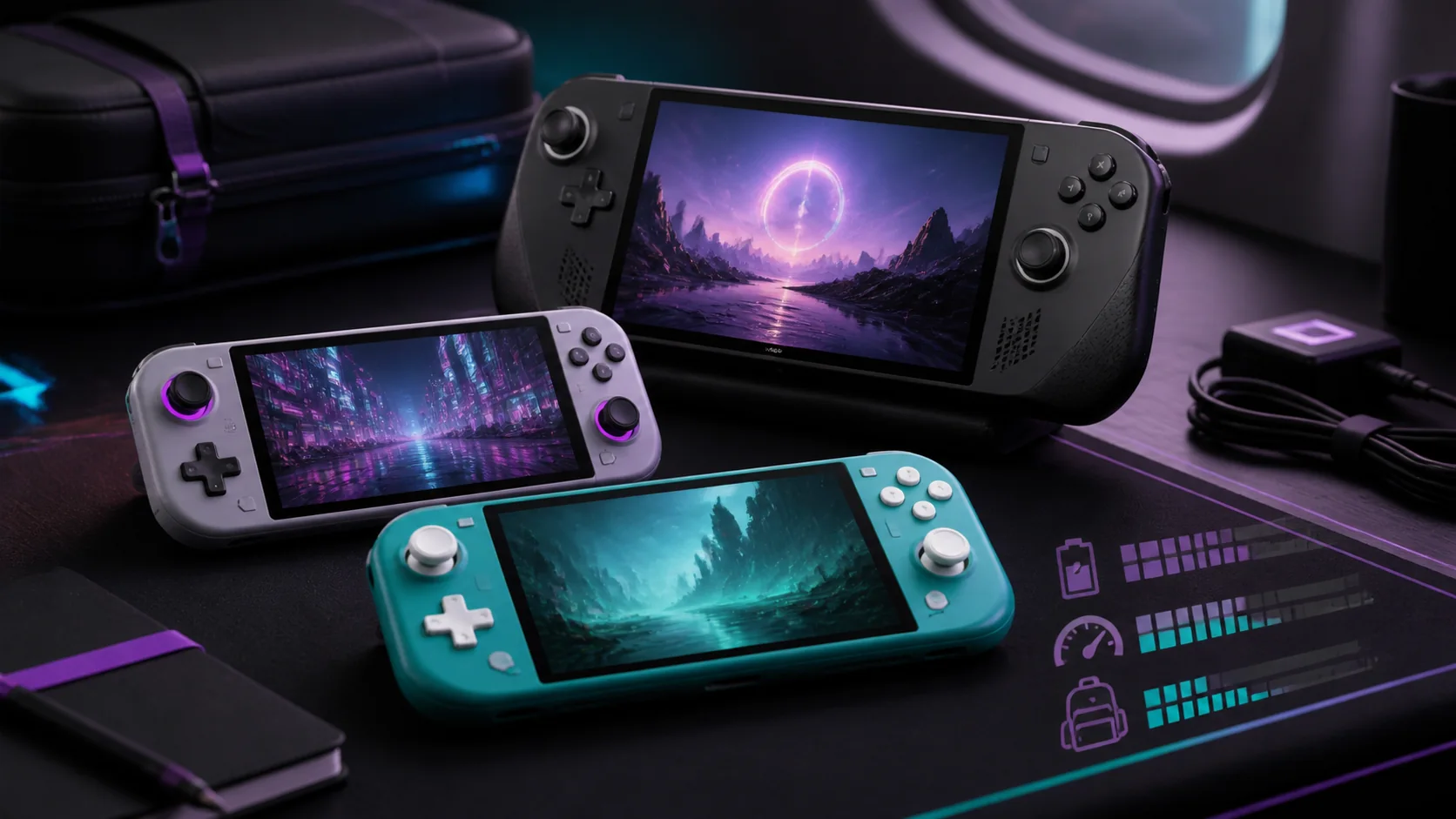
Our Top Picks


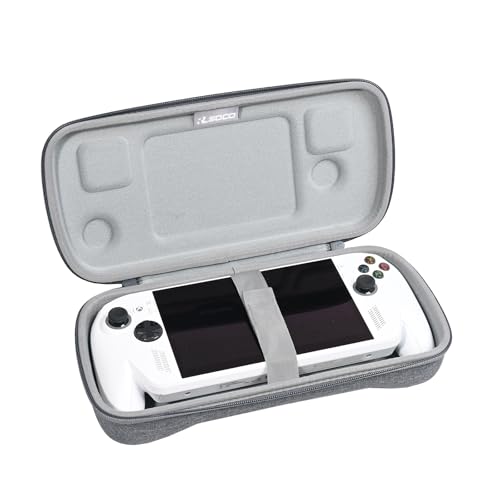
Top 3 picks at a glance
Quick answer
Install Bazzite if your handheld isn’t officially supported by SteamOS but you still want that controller-first, battery-friendly experience, and your games are mostly Steam library titles without kernel-level anti-cheat. Stick with the stock Windows install if you rely on anti-cheat multiplayer games, niche Windows-only software, or want zero risk of compatibility surprises.
As an Amazon Associate we earn from qualifying purchases at no extra cost to you.


| Factor | Bazzite | Stock Windows |
|---|---|---|
| Cost | Free, community-maintained | Usually preinstalled |
| Interface | SteamOS-style, controller-first | Vendor overlay on desktop Windows |
| Anti-cheat games | Frequently blocked | Fully supported |
| Update model | Atomic image-based | Traditional Windows Update |
What Bazzite is and how it differs from stock SteamOS
Bazzite takes the same core idea as SteamOS — a Linux base with a controller-first shell layered over it and Proton handling Windows game compatibility — and extends it to hardware Valve hasn’t officially supported. It’s built on Fedora’s atomic desktop technology, so the base operating system is delivered as a single image that updates as a unit rather than as thousands of individually managed packages, reducing the chance that one broken update leaves the system half-updated.
Where it diverges from SteamOS is scope and control. Bazzite is maintained by an open community rather than a single company with hardware to protect, which means broader device support but less guaranteed testing against any one specific handheld model before an update ships. It also ships with extra tools preinstalled that SteamOS either lacks or handles differently, including performance overlays and a plugin ecosystem for adding features Valve hasn’t built in.
The interface itself will feel immediately familiar to anyone who has used a Steam Deck: a big-picture library view, controller-navigable settings, and a desktop mode a button press away for anything needing precision input. Under the hood, Bazzite also includes tuned kernel settings intended to improve frame pacing and reduce input latency on supported chips, though the actual improvement varies by hardware and game.
Hardware compatibility and supported devices
Bazzite maintains an official compatibility list because handheld hardware varies significantly in areas like fan control, RGB lighting, and power management chips, all of which need specific driver support to work correctly. Devices on that list get tested images with hardware-specific fixes baked in; devices outside it may still run Bazzite through a generic image, but expect rougher edges around sleep states, fan curves, or button remapping.
Before installing, check your exact model and revision against the current compatibility list rather than assuming a similar model’s support carries over, since even minor hardware revisions can change which components need dedicated drivers. This is the single most common source of frustration reported by new Bazzite users — installing on a device that’s close to but not exactly on the supported list.
Steam Deck itself can also run Bazzite instead of stock SteamOS, which some users prefer for the extra tools and faster community patch turnaround, though you give up Valve’s own testing and support in exchange.
If your handheld is older or budget-focused, check our guide to handhelds under $500 for models known to have solid community OS support.
Installing Bazzite: what the process involves
Installation follows the same general pattern as installing any alternative OS: you download the installer image from Bazzite’s official site, write it to a USB drive using dedicated flashing software, then boot your handheld from that USB drive and follow the on-screen installer to select your target drive and confirm the install. The installer handles partitioning and driver setup automatically for supported devices.
- Back up your saves, screenshots, and any files you care about, since installation will erase the existing operating system on the target drive.
- Download the correct image for your specific handheld model from Bazzite’s official download page, not a generic image, if a model-specific build is offered.
- Write the image to a USB drive using a flashing tool, then boot the handheld from that USB drive using its dedicated boot-select method.
- Follow the installer’s on-screen prompts to choose your install target and begin the installation.
- After the first boot, sign in to your Steam account and let the system finish any first-run setup and driver checks before installing games.
The exact boot-to-USB method differs by handheld manufacturer, so check your device’s own recovery or boot-menu documentation rather than assuming a universal key combination works across brands.
Built-in gaming tools and performance features
Bazzite bundles several tools that would otherwise need manual installation on a bare Linux system. A performance overlay shows frame rate, frame time, CPU and GPU load, and battery draw during gameplay, similar in purpose to third-party overlays on Windows but tuned specifically for handheld screens.
A game-mode style background service automatically adjusts CPU scheduling and power behavior when a game launches, aiming to reduce stutter caused by background processes competing for resources. This runs automatically without needing to be configured for each game individually.
Bazzite also supports a plugin-style extension system for adding features after install, covering things like additional controller profiles, alternate launcher integrations, and emulation front-ends. Plugin quality varies since they’re community contributed, so stick to well-reviewed, actively maintained plugins rather than installing everything available.
For players tracking frame consistency specifically, our explainer on frame timing and reprojection covers the underlying concepts these overlays are measuring, even though that piece focuses on VR headsets specifically.
Tomas Berger, our VR & Handheld Editor, cross-checked Bazzite’s built-in overlay readings against his own frame-timing capture rig on a supported handheld, and the numbers tracked closely enough to trust the in-OS overlay for day-to-day tuning decisions.
Update model and long-term maintenance
Bazzite’s atomic update system means the entire base operating system image updates as one unit, and if an update causes a problem, you can typically roll back to the previous working image rather than trying to manually undo individual package changes. This rollback capability is one of the more underrated practical benefits for handheld use specifically, since it means a bad update doesn’t leave you stuck troubleshooting a broken system with no clean way back to a known-good state. This is a meaningful reliability advantage over traditional Linux distributions, where a bad package update can leave a system in an inconsistent state.
Updates apply automatically or on a manual trigger depending on your configuration, and a restart is required to boot into the new image. Because updates are community-built, turnaround on fixing newly discovered bugs depends on contributor availability rather than a company’s release schedule, which can mean either faster or slower fixes than official SteamOS depending on the specific issue.
Game and app updates within Steam or other launchers work independently of the OS update cycle, so you won’t need to wait for a system update to get a new game patch.
Emulation and non-Steam game support
One reason Bazzite has become popular beyond just SteamOS-alternative use is its strong out-of-box support for emulation front-ends, which are often preinstalled or a single click away through its software catalog. This appeals to handheld owners who split time between modern PC games and retro emulation without wanting to manage two separate systems.
Non-Steam launchers like Epic Games Store or GOG’s client can be installed through the same compatibility layer approach SteamOS uses, with varying success depending on the specific launcher and whether it requires anti-cheat-protected processes to run. Battle.net and similar clients generally install fine for non-competitive titles but may hit the same anti-cheat wall as SteamOS for protected games.
If your handheld doubles as a portable console-style device, see our console vs gaming PC comparison for how handheld Linux gaming stacks up against dedicated console hardware more broadly.
Cloud gaming services accessed through a browser also run reasonably well on Bazzite, since they don’t depend on Proton compatibility at all, just a working browser and a stable connection. This is worth considering as a fallback for specific titles that hit anti-cheat walls through Proton, letting you keep those games in rotation without switching operating systems entirely just for a handful of blocked titles.
Comparing Bazzite to stock Windows for handhelds
Windows remains the more universally compatible option, since it’s the platform every game and every anti-cheat system is built to support first. Bazzite trades some of that compatibility for battery life, a more controller-native interface, and freedom from Windows’s background overhead, similar to the tradeoffs SteamOS makes versus Windows.
The practical difference between choosing Bazzite versus stock SteamOS mostly comes down to hardware support and desired flexibility: if your device officially supports SteamOS, there’s less reason to switch to Bazzite unless you specifically want its extra tools or faster community patching. If your device doesn’t support SteamOS at all, Bazzite is often the closest thing available to that experience.
Community support and troubleshooting resources
Because Bazzite is community maintained, its support model looks different from a company-backed product. Instead of an official support ticket system, most troubleshooting happens through community chat spaces and forum threads, where both the core maintainers and experienced users answer questions. This can actually be faster than official support for common issues, since community members often diagnose and share fixes for a newly surfaced bug within hours or days rather than waiting on a formal support queue.
Documentation quality has improved significantly as the project has grown, covering installation, common hardware quirks by device, and general troubleshooting steps. Reading through your specific device’s documentation page before installing is worth the time, since hardware-specific gotchas are usually flagged there rather than being something you discover the hard way mid-install.
Release notes for each Bazzite update typically list known issues alongside fixes, which is worth checking before updating if you’re mid-way through something important, since occasionally a specific update introduces a regression for a particular device that gets fixed in a following release. Waiting a few days after a major update before installing it, unless it addresses a problem you’re actively having, is a reasonable practice for anyone who wants to avoid being an early tester of a new release’s edge cases.
Backing up your configuration and any custom plugin setups before a major update is good practice generally, since atomic updates protect the base system from corruption but don’t automatically preserve every user customization in a way that survives every possible update scenario without at least some manual verification afterward.
When Bazzite doesn’t work well
If your handheld isn’t on Bazzite’s compatibility list, expect real friction: fan curves that run too aggressively or not enough, RGB lighting that doesn’t respond to system controls, or sleep states that drain the battery instead of properly suspending. These aren’t guaranteed to happen, but they’re common enough on unsupported hardware that it’s worth researching your specific model’s community reports before committing.
If your gaming time is dominated by anti-cheat-protected competitive titles, no amount of Bazzite tuning fixes that limitation, since it’s the anti-cheat vendor’s decision to support Linux, not something the OS can work around. Similarly, if you need specific Windows-only creative or productivity software alongside gaming, Bazzite’s desktop mode won’t replace that software the way a real Windows install would.
Warranty and support conversations can also get more complicated on an OS the manufacturer didn’t ship, so factor that in if your handheld is still under warranty and you’re not comfortable reimaging back to stock before a repair claim.
Troubleshooting common Bazzite issues
Handheld won’t boot from the USB installer: confirm the USB drive was written correctly with a checksum-verified flashing tool, and double-check you’re using your device’s correct boot-to-USB method, since these differ by manufacturer.
Fan runs loud or doesn’t respond to load changes: this usually means the specific fan control driver for your model isn’t fully supported yet. Check the Bazzite compatibility list and community forums for your exact model for any known workaround or pending fix.
A specific game refuses to launch: check whether the game uses kernel-level anti-cheat first, since that’s the most common cause. If it doesn’t, try selecting a different Proton compatibility version for that title, as some older or newer versions handle specific games better.
Battery drains fast in sleep/suspend: confirm no background download or update is queued, and check community reports for your specific handheld model, since suspend behavior is one of the most hardware-dependent parts of any Linux handheld install.
System feels unstable after a plugin install: remove recently installed plugins one at a time to isolate the cause, since third-party plugins are the most common source of instability on an otherwise solid atomic-update base system.
Frequently asked questions
What exactly is Bazzite OS?
Bazzite is a free, community-built Linux operating system based on Fedora, designed to bring a SteamOS-style, controller-first gaming experience to handhelds and PCs that don’t officially support SteamOS. It bundles gaming tools like MangoHud, GameMode, and Decky Loader-style plugin support out of the box.
Is Bazzite the same as SteamOS?
No. Bazzite is a separate project built by community developers, not Valve. It borrows the same controller-first interface style and Proton-based compatibility approach, but it’s maintained independently and supports a wider range of hardware than official SteamOS currently does.
Does Bazzite run Windows games?
Most Windows games run through Proton, the same compatibility layer SteamOS uses. Games with kernel-level anti-cheat are the main exception and frequently won’t launch, which is a limitation of the anti-cheat vendor’s Linux support rather than something Bazzite itself controls.
Will installing Bazzite void my handheld’s warranty?
Installing a different operating system doesn’t physically damage hardware, but it can complicate warranty support conversations since you’re running unsupported software from the manufacturer’s perspective. Most handhelds let you reimage back to the stock OS before sending a device in for service.
Do I need a lot of Linux experience to use Bazzite?
No. Bazzite is specifically built to minimize command-line work for everyday gaming use, with most day-to-day tasks handled through the same controller-friendly interface style as SteamOS. Advanced tweaks still require terminal familiarity, but they’re optional for normal play. For a broader look at how this compares to running Windows on the same hardware, see our SteamOS vs Windows on handhelds comparison.
Related guides
- Best Free MMOs on Steam: Subscription Limits, Pay-to-Win and Time Cost (2026)
- Best Free Horror Games on Steam: How to Pick One That Fits Your PC and Your Nerves (2026)
- Black Frame Insertion vs VRR: Which Smoothness Feature Should You Use?
- Best Webcams for Streaming: 11 Listings Compared by Resolution, Focus and Light (2026)