Getting surround sound right on PS5 is less about cranking everything to maximum and more about matching the console’s output to what your hardware can actually decode. The PS5 can send Linear PCM, Dolby, DTS, and 3D Audio, but picking the wrong format for your soundbar, receiver, or headset creates lag, flattened imaging, or missing channels. Prioritize three things in order: 1) correct output format for your connection type, 2) accurate channel mapping and speaker placement, 3) low-latency decoding with dynamic range appropriate to your room. Get those right and games will place footsteps, reloads, and directional cues exactly where they should be, without the hollow or compressed sound that comes from mismatched settings.
For most setups in 2026, the cleanest path is HDMI to a receiver or soundbar that supports uncompressed audio, and USB or wireless dongle for a dedicated headset with Tempest 3D Audio. Optical is gone on PS5 itself, so adapters and TV passthrough introduce their own rules. This guide gives you concrete menu paths and values that work across AV receivers, soundbars, and headsets, with trade-offs so you can tune for competitive clarity or cinematic immersion.
As an Amazon Associate we earn from qualifying purchases at no extra cost to you.



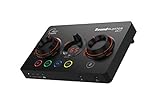

Our Top Picks
 Acoustic Audio AA5170 Home Theater 5.1 Bluetooth Speaker12.3 x 27.2 x 13.1 Inches20 poundsCheck on Amazon


Top 3 picks at a glance
Quick Recommended Settings
| Setting | Recommended value | Why |
|---|---|---|
| Settings > Sound > Audio Output > Output Device | HDMI Device (AV amplifier) for TV/receiver/soundbar; Headphones (USB/Wireless) for headset | Ensures PS5 routes the correct processing path for speakers vs. 3D Audio for headphones |
| Settings > Sound > Audio Output > HDMI Device Type | AV amplifier (even if using a soundbar with rear speakers) | Unlocks 5.1 and 7.1 channel selection; TV type often locks you to 2ch PCM |
| Settings > Sound > Audio Output > Number of Channels | Match physical speakers: 5.1 for 5.1 systems, 7.1 for 7.1 systems, 2ch for stereo soundbars | Prevents upmixing artifacts or missing surround channels |
| Settings > Sound > Audio Output > Audio Format (Priority) | Linear PCM for HDMI to eARC receiver/soundbar; Bitstream (Dolby/DTS) only if receiver cannot handle multichannel PCM | Linear PCM is uncompressed and lowest latency; Bitstream re-encodes and adds delay |
| Settings > Sound > Audio Output > Enable 3D Audio for Headphones | On for headsets; Off when using HDMI speakers | Tempest 3D Audio is designed for headphones and conflicts with virtual surround on speakers |
| Settings > Sound > Audio Output > 3D Audio Profile + Measure Room Acoustics | Run Personalize 3D Audio (Ear photos) and Adjust 3D Audio if available on PULSE series; select profile where overhead noise sounds most centered | Tunes HRTF to your ears for precise height and front-back positioning |
| TV Settings > Sound/Audio Output > eARC / HDMI-eARC Mode | Auto or On; Digital Sound Out: Pass Through / Auto | Allows TV to pass multichannel PCM or Bitstream without downmixing to stereo |
| Receiver/Soundbar Mode | Direct / Straight / Standard; disable extra Virtual, Night Mode, and DRC for gaming | Preserves original channel mix and dynamic range |
Setting-by-Setting
Output Device: HDMI Device vs. Headphones
Exact value: Settings > Sound > Audio Output > Output Device > HDMI Device (AV amplifier) for any speaker system connected via HDMI, or USB Headset / Wireless Headset when using a headset.
Trade-off: HDMI Device disables Tempest 3D Audio processing and outputs channel-based surround. Headphones enables 3D Audio but disables discrete 5.1/7.1 over HDMI. If you leave it on Headphones while using a soundbar, you will get a stereo-downmixed signal with virtualized cues that sound narrow and phasey. For streamers who swap often, you must toggle this manually; the PS5 does not auto-switch correctly when a USB dongle remains plugged in.
HDMI Device Type: AV amplifier vs. TV vs. Sound Bar
Exact value: Settings > Sound > Audio Output > HDMI Device Type > AV amplifier.
Trade-off: AV amplifier exposes the full Number of Channels selector (2ch, 5.1ch, 7.1ch). Sound Bar and TV often restrict you to 2ch or use the TV’s EDID which reports stereo only, even if the bar supports 5.1. Choosing AV amplifier when you have a true 2.0 bar can cause missing center channel dialogue because the PS5 will send 5.1 and the bar will fold it down poorly. Use 2ch in that specific case.
Number of Channels: 2ch, 5.1ch, 7.1ch
Exact value: Set to your physical layout. Use 5.1ch if you have front L/R, center, surround L/R, and subwoofer. Use 7.1ch only if you have side surrounds plus rear surrounds. For a 3.1 or 2.1 soundbar without rears, use 2ch or 5.1ch depending on how your bar handles upmixing; test both.
Trade-off: 7.1ch on a 5.1 system does not add detail; it duplicates side and rear channels causing smeared panning behind you. 5.1ch on a 7.1 system leaves the two rear channels silent, collapsing rear imaging. Check with Settings > Sound > Audio Output > Test channels is not available, so verify in-game via a title with a built-in audio test like Call of Duty: Modern Warfare III > Settings > Audio > Test Surround layout or Astro’s Playroom sound demo.
Audio Format (Priority): Linear PCM vs. Dolby vs. DTS
Exact value: Settings > Sound > Audio Output > Audio Format (Priority) > Linear PCM. Change to Dolby or DTS only if your receiver or TV shows No Signal or PCM 2.0 when Linear PCM 5.1/7.1 is selected.
Trade-off: Linear PCM sends 5.1/7.1 uncompressed up to 7.1 channels at 48 kHz with the lowest latency because no encode/decode step is needed. Dolby Digital and DTS are lossy Bitstream formats that compress to 5.1 max and add 80 to 150 ms of encode latency, which makes gunshots feel delayed. Use Bitstream only as a compatibility fix for older soundbars or when routing through an optical extractor that cannot carry multichannel PCM.
Enable 3D Audio for Headphones and 3D Audio Profile
Exact value: Settings > Sound > Audio Output > Enable 3D Audio for Headphones > On. Then Settings > Sound > Audio Output > Adjust 3D Audio Profile > try Profile 1 through 5 and choose the one where the demo tone feels at ear level and centered. If you own PULSE Explore or PULSE Elite, use Settings > Sound > 3D Audio for Headphones > Personalize 3D Audio and follow the ear photo scan.
Trade-off: 3D Audio uses a Head-Related Transfer Function to simulate 360-degree sound including height. It is exceptional for headphones, especially in competitive games, but it is stereo-based virtualization. If you enable it while also turning on a headset’s own virtual surround button or app-based spatial audio, double processing makes everything echoey and imprecise. Turn off headset virtual surround when PS5 3D Audio is on.
TV eARC and Digital Output
Exact value: On your TV, go to Settings > Sound > Sound Out / Audio Output > Use Wired Speaker / HDMI ARC, then Additional Settings / Expert Settings > eARC Support > Auto, HDMI Input Audio Format > Bitstream, Digital Sound Out > Pass Through.
Trade-off: Pass Through preserves the PS5’s Linear PCM 5.1/7.1 or Dolby/DTS Bitstream without the TV re-encoding to stereo. Auto may re-encode to Dolby Digital, which adds latency and limits to 5.1. If your TV does not support eARC, only ARC, multichannel PCM will be limited to 2ch or compressed Dolby; in that case connect PS5 directly to the receiver/soundbar HDMI In and then HDMI Out (ARC/eARC) to the TV.
AV Receiver Listening Mode and Dynamic Range
Exact value: On receiver remote, press STRAIGHT or DIRECT or PURE DIRECT to disable upmixers. Set DRC / Dynamic Range Control > Off, Adaptive DRC > Off, Night Mode > Off, Dialogue Level > 0 dB. Subwoofer crossover 80 Hz to 120 Hz if manual.
Trade-off: Straight modes keep the original 5.1/7.1 placement intact. Dolby Surround or DTS Neural:X upmixers synthesize height channels and can pull footsteps to the ceiling. DRC compresses explosions and boosts whispers, which is good for late-night TV but kills directional punch for gaming.
By Hardware Tier
Low Tier: TV Speakers, Stereo Soundbar, or Budget 2.1 Bar (No Rears)
Use HDMI Device > AV amplifier > 2ch and Audio Format (Priority) > Linear PCM. Turn Enable 3D Audio for TV Speakers > On if you sit centered and want virtualized height, off if the room is very reflective. On the TV, set sound mode to Game or Standard and disable Virtual Surround and DTS Virtual:X.
Why this works: Most budget bars advertise surround but only have two or three drivers. Sending 5.1 forces the bar to downmix, often drowning the center channel. Linear PCM 2ch with the TV’s Game mode keeps dialogue centered and latency low. If you later add rear speakers, switch to 5.1ch and re-test eARC Pass Through.
Mid Tier: 5.1 Soundbar with Rears, HDMI eARC Bar, or Mid-Range AV Receiver with 5.1 Speakers
Connect PS5 > HDMI > Receiver or Soundbar HDMI In (if available), then HDMI Out (eARC) > TV HDMI eARC port. Set HDMI Device Type > AV amplifier > 5.1ch > Linear PCM. On soundbar, select Standard or Surround mode, turn off Night Mode, set rear speaker level +2 to +4 dB to compensate for couch placement, subwoofer near 4 to 6 on the bar’s 0-12 scale.
Why this works: Direct connection bypasses TV downmixing. Linear PCM 5.1 avoids the extra encode delay of Bitstream. Standard mode respects discrete surrounds so rear cues stay behind you. This tier benefits most from reducing vibration: place subwoofer on a hard floor corner loaded, not on a shelf, and set TV eARC to Pass Through.
High Tier: 7.1 / 5.1.2 Atmos Receiver, Discrete Speakers, or Premium Headset (PULSE Elite, SteelSeries Arctis Nova Pro, Astro A50 X)
For speakers: PS5 > HDMI > Receiver HDMI In (Game port, 4K 120Hz capable) > HDMI Out eARC > TV. Set AV amplifier > 7.1ch if you have four surrounds, otherwise 5.1ch > Linear PCM. Set receiver to Straight, enable eARC, set HDMI Signal Format to Enhanced. Configure speaker levels with receiver mic calibration (Audyssey, YPAO, DCAC) then manually lower LFE by 2 dB if calibration over-boosts bass.
For headset: Plug wireless dongle to PS5 front or rear USB-A port, set Output Device > Headphones, Enable 3D Audio > On, adjust Profile, set Output to Headphones > Chat Audio for party mix. On PC software for the headset, disable any surround toggle and set EQ to flat or Competitive preset. Note PS5 does not output Dolby Atmos for games; Tempest 3D Audio replaces it, and Linear PCM is still the correct speaker format even on an Atmos receiver.
Why this works: High-end receivers handle multichannel PCM cleanly and preserve object-based cues as channel-based surround. Mic calibration handles distance and level per speaker, while Straight prevents artificial height synthesis from muddying footstep placement. For headsets, single processing path (Tempest only) gives the most accurate vertical imaging without latency.
Common Mistakes
Mistake 1: No rear sound after setting 5.1 or 7.1
What causes it: TV ARC without eARC or TV Digital Sound Out set to PCM instead of Pass Through, so the TV folds 5.1 PCM to 2.0 before it reaches the bar.
How to check: Play a game with rear audio like Horizon Forbidden West, pause, then on your receiver/soundbar display or app check Input Signal. If it shows PCM 2.0 / Stereo while PS5 is set to 5.1 Linear PCM, the TV is downmixing. Also check PS5 Settings > Sound > Audio Output > Audio Format (Priority) still reads Linear PCM.
What to do: On TV set eARC Support > Auto and Digital Sound Out > Pass Through. If no eARC port, move PS5 HDMI cable from TV to soundbar/receiver HDMI In. On PS5, re-select HDMI Device Type > AV amplifier > 5.1ch.
How to undo: Move PS5 HDMI back to TV, set TV Digital Sound Out back to Auto, and on PS5 change Audio Format (Priority) to Dolby.
Mistake 2: Audio lag where gunshots are late
What causes it: Audio Format (Priority) set to Dolby or DTS Bitstream over ARC, which requires encode on PS5 and decode on receiver.
How to check: Go to Settings > Sound > Audio Output > Audio Format (Priority). If it shows Dolby or DTS and your receiver front panel shows Dolby Digital, you are in Bitstream. Test by clapping in the PS5 home menu navigation click; if clicks feel delayed behind button presses, latency is high.
What to do: Switch to Linear PCM, set TV Digital Sound Out to Pass Through, set receiver to Direct/Straight, and enable Game Mode on TV (Settings > General > External Devices > Game Mode > On).
How to undo: Set Audio Format (Priority) back to Dolby/DTS if your older bar only decodes Bitstream and shows no audio on Linear PCM.
Mistake 3: Hollow, echoey sound with headset
What causes it: Double spatial processing; both PS5 3D Audio and headset’s own Virtual 7.1 / Sonar / Waves NX are active.
How to check: Look for a physical 7.1 button on the dongle or headset, or open the headset app on PC/Mac. If virtual surround is toggled on while PS5 Settings > Sound > Enable 3D Audio for Headphones is also On, you have double processing.
What to do: Leave PS5 Enable 3D Audio for Headphones > On and turn off headset virtual surround in the app and on the dongle. Set headset EQ to Stereo or Pure Direct.
How to undo: Turn Enable 3D Audio for Headphones > Off and re-enable headset virtual surround if you prefer the headset’s tuning for music or movies.
Mistake 4: Dialogue too quiet, explosions too loud
What causes it: Receiver Dynamic Range Control, Night Mode, or Center Level set too low combined with 7.1 sent to a 5.1 layout.
How to check: On receiver, press Option/Status and look for DRC, Adaptive DRC, or Dynamic Range. If set to Auto/On or Max, compression is active. Verify PS5 Number of Channels matches your speaker count.
What to do: Set DRC > Off, Night Mode > Off, set Center Channel Level +1 to +3 dB, and set PS5 Number of Channels to your actual layout (5.1ch for five speakers plus sub). If using a soundbar, set Voice Enhance / Clear Voice to +1 not +3 to avoid harsh sibilance.
How to undo: Re-enable DRC to Low and set Center Level back to 0 dB for late-night listening in apartments.
FAQ
Should I use Linear PCM or Dolby for surround on PS5?
Use Linear PCM when your receiver, soundbar, or TV with eARC supports multichannel PCM. It is uncompressed, supports 7.1, and has the lowest latency because the PS5 decodes internally and sends PCM directly. Use Dolby Bitstream only if you get silence or stereo on Linear PCM, which means your device cannot handle multichannel PCM over your current connection. Dolby is limited to 5.1 and introduces encode delay, so treat it as a compatibility fallback, not a quality upgrade.
Why does Dolby Atmos not show on my receiver when gaming?
PS5 games do not output Dolby Atmos as Bitstream; they use Tempest 3D Audio. For HDMI speakers, PS5 renders 3D objects to 5.1 or 7.1 Linear PCM and sends that. Your Atmos receiver will display Linear PCM 5.1/7.1 or Multich In, not Atmos, and that is correct. Atmos on PS5 is available for Blu-ray and select streaming apps when Audio Format (Priority) is set to Bitstream and the app’s audio track is set to Atmos, but not for gameplay. Do not chase an Atmos light for games.
How do I get 3D Audio with speakers or a soundbar?
Tempest 3D Audio has a limited implementation for TV speakers: go to Settings > Sound > Audio Output > Enable 3D Audio for TV Speakers > On, then Measure Room Acoustics with the DualSense controller microphone. It virtualizes height for stereo speakers but cannot replace discrete surrounds. For true surround with height, keep 3D Audio for TV Speakers off and use 5.1/7.1 Linear PCM. For headphones, use Enable 3D Audio for Headphones exclusively.
What is the correct PS5 and TV setup for 120Hz and surround at the same time?
Connect PS5 to the TV’s HDMI 2.1 Game port labeled 4K 120Hz, then TV eARC to receiver/soundbar eARC. Set PS5 Enable 120 Hz Output > Automatic under Settings > Screen and Video > Video Output, VRR > Automatic if your TV supports it, HDMI Device Type > AV amplifier > 5.1ch/7.1ch, and Audio Format > Linear PCM. On TV, set HDMI Input Format > Enhanced / 8K Enhanced, Game Mode > On, eARC > Auto, Digital Sound Out > Pass Through. If your receiver is HDMI 2.1 capable, you can also go PS5 > Receiver HDMI Game In > Receiver Out eARC > TV, which often preserves 120Hz with less TV passthrough risk.