The ROG Strix XG43UQ Xbox Edition is a strong choice for Xbox Series X and PC users who want a 43-inch 4K screen with HDMI 2.1 and 120Hz console support, but it needs a deep desk, has limited viewing-angle flexibility, and its active cooling can produce audible fan noise.
As an Amazon Associate we earn from qualifying purchases at no extra cost to you.



Our Top Picks
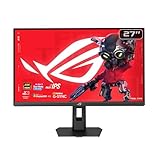
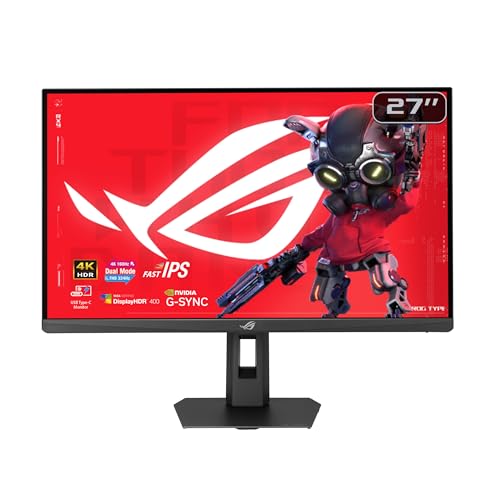
 ASUS ROG XG27UCGR-W 27 Inch 4K 162Hz White14.4" x 24.2" x 3.4"7.4 x 24.17 x 19.8 inches14.99 PoundsCheck on Amazon
 ASUS ROG Strix XG27UCGR 27 Inch 4K 162Hz14.4" x 24.2" x 3.4"7.4 x 24.17 x 19.8 inches14.99 PoundsCheck on Amazon
Top 3 picks at a glance
ROG Strix XG43UQ Xbox Edition: key specifications
| Specification | What it means in practice |
|---|---|
| Panel size | 43 inches, 16:9 |
| Native resolution | 3840 × 2160, or 4K UHD |
| Maximum refresh rate | Up to 144Hz on a compatible PC; 120Hz on Xbox Series X |
| Panel type | Fast VA LCD with LED backlighting |
| HDR certification | DisplayHDR 1000 |
| Variable refresh | Adaptive-Sync and console-oriented VRR support |
| HDMI | HDMI 2.1 inputs for 4K at 120Hz, plus additional video inputs depending on regional configuration |
| PC connection | DisplayPort 1.4 with Display Stream Compression support |
| Built-in audio | Integrated stereo speakers and a headphone output |
| Stand adjustment | Primarily tilt adjustment; no height-adjustable monitor arm mechanism |
The headline feature is the combination of 4K resolution, high refresh rate, and HDMI 2.1. The Xbox Edition is designed around Xbox Series X connectivity rather than simply being a large PC monitor with an Xbox-themed name.
4K 120Hz performance on Xbox Series X
Xbox Series X can output 4K at 120Hz when a game supports that mode. The monitor’s HDMI 2.1 connection provides the necessary bandwidth, while variable refresh rate helps smooth frame-rate changes below 120 frames per second.
There is an important distinction between the console’s output capability and a game’s actual performance. A title may render at a dynamic resolution or use a 40, 60, or 120fps performance mode. The monitor will still accept a 4K 120Hz signal, but that does not turn a 60fps game into a 120fps game.
A useful bandwidth calculation explains why HDMI 2.1 matters. Uncompressed 3840 × 2160 at 120Hz requires:
3840 × 2160 × 120 × 24 bits per pixel = approximately 23.9Gbps of active video data.
Blanking intervals and protocol overhead raise the connection requirement, which is why older HDMI 2.0 links generally rely on compromises such as 4:2:0 chroma or reduced refresh rates for 4K. HDMI 2.1 has enough capacity for 4K 120Hz with normal console signal formats, although the console and display may negotiate chroma and color depth depending on the selected options.
Recommended Xbox Series X setup
- Connect the console directly to one of the monitor’s HDMI 2.1 ports.
- In Xbox settings, select 4K UHD resolution and allow 120Hz.
- Enable “Allow variable refresh rate” if the option is available.
- Run the Xbox 4K TV details check to identify any disabled features.
- Use the monitor’s Game or Racing picture mode as a starting point, then adjust brightness and color temperature.
- Use the supplied HDMI cable or another certified Ultra High Speed HDMI cable; older cables can cause intermittent black screens at 4K 120Hz.
If 4K is available but 120Hz is missing, check the HDMI input first, then replace the cable and temporarily disable HDR to isolate a bandwidth or handshake problem. A soundbar, receiver, or capture device in the chain can also limit the negotiated signal, so direct connection is the best diagnostic step.
PC gaming at 4K and up to 144Hz
On PC, the ROG Strix XG43UQ Xbox Edition is more demanding than a conventional 1440p gaming monitor. Rendering 4K at high frame rates requires a powerful graphics card, and the monitor’s DisplayPort 1.4 connection generally depends on DSC for the highest refresh-rate modes.
DSC is visually lossless compression designed to fit high-resolution, high-refresh video through the available DisplayPort link. It is not the same as reducing the game’s image quality. If a graphics card or cable does not negotiate DSC correctly, the practical limit may fall to a lower refresh rate or require reduced color depth.
For PC use, enable Adaptive-Sync in the monitor menu and select the monitor’s maximum refresh rate in Windows or the graphics driver. Cap frame rates a few frames below the refresh ceiling—for example, around 141fps for a 144Hz configuration—to reduce the chance of hitting the upper VRR boundary.
PC settings that make sense for this panel
- Competitive games: use 4K, 120–144Hz, Adaptive-Sync, and a frame-rate cap near 117fps or 141fps depending on the selected refresh rate.
- Single-player games: use HDR when the game has good HDR support, and prioritize image quality over reaching 144fps.
- Older or mid-range graphics cards: consider 4K at 60–100Hz or use resolution scaling rather than expecting native 4K at 144fps.
- Text-heavy desktop work: sit farther back than you would from a 27-inch monitor and use Windows scaling around 100–125% based on viewing distance.
DisplayHDR 1000: bright highlights, not OLED-level black
DisplayHDR 1000 is one of the monitor’s major advantages over ordinary HDR displays. The specification indicates a much higher peak brightness class, making sunlight, explosions, fire, and bright interface elements more convincing than on a typical 300–400-nit screen.
However, this remains a VA LCD rather than an OLED. Dark scenes can show some blooming or haloing around bright objects, especially because the backlight cannot control every pixel independently. VA technology usually delivers deeper native contrast than IPS, but viewing angle and transition behavior still matter.
For HDR, use the monitor’s HDR mode and complete the Xbox HDR calibration process rather than copying SDR brightness settings. For SDR desktop use, a brightness level around 25–40 is a reasonable starting range in a normally lit room; the correct value depends on ambient light and personal comfort. Running full brightness all day can make the screen unnecessarily harsh and increases power use.
Desk depth and viewing distance
The 43-inch size is the practical issue many specifications omit. A 16:9 43-inch screen is approximately 37.4 inches wide and 21.0 inches tall before accounting for bezels and the stand. The stand also extends behind the display, so a shallow 24-inch desk can leave the screen uncomfortably close to your face.
| Desk depth | Likely result | Recommendation |
|---|---|---|
| 24 inches or less | Very close viewing distance; large head movement and eye fatigue are more likely | Only consider with a deep monitor arm or wall mounting |
| 28–30 inches | Usable, but the screen still dominates the desk | Acceptable for gaming if the seating position can move back |
| 32–36 inches | More comfortable for full-screen gaming and desktop use | Best conventional desk range |
| 36 inches or more | Comfortable distance with room for keyboard, speakers, and accessories | Ideal for a dedicated gaming desk |
Allow additional rear clearance for cables and airflow. If the front edge of the stand occupies about 10 inches of a 32-inch desk, only roughly 22 inches remain for the keyboard and mouse area unless the keyboard is placed partly underneath the screen. A VESA-compatible arm or wall mount can solve the depth problem, but it must be rated for a large, heavy 43-inch display.
Fan noise and ELMB trade-offs
The monitor’s active cooling system can create a low fan hum. Noise is most noticeable in a quiet room, at high brightness, or after extended HDR gaming. It is not necessarily a fault: a high-brightness 43-inch display generates more heat than a smaller office monitor, and internal airflow helps manage that heat.
Placement affects how noticeable it is. Avoid pushing the rear of the monitor directly against a wall, keep ventilation openings clear, and leave space behind the display. If the sound changes from a steady hum to clicking, rattling, or a rising-and-falling grind, that is different from normal fan operation and warrants support investigation.
ELMB, ASUS’s motion-blur reduction feature, is another setting with clear compromises. It uses backlight strobing to reduce persistence blur, but it can lower brightness, introduce visible flicker for some users, and may not operate with every refresh-rate or VRR combination. ELMB Sync attempts to combine strobing with Adaptive-Sync, but the result is not automatically better than ordinary VRR.
For most Xbox users, use VRR without ELMB first. Try ELMB only in a game that stays near a stable refresh rate, such as 120Hz. If the picture becomes dim, flickers, or shows double images during motion, turn ELMB off. Consistent frame pacing is often more valuable than maximum theoretical motion clarity.
Who should buy it?
| Your situation | Verdict |
|---|---|
| Xbox Series X player wanting 4K 120Hz and HDR | Good fit, provided the desk is deep enough |
| PC gamer with a high-end GPU and large viewing distance | Good fit for immersive 4K gaming |
| Small desk or close-up competitive setup | Poor fit; a 27–32-inch display is easier to manage |
| Quiet-room user sensitive to electronic noise | Consider a passively cooled display or test the unit’s acoustic behavior during the return period |
| OLED buyer prioritizing perfect blacks | Choose an OLED class display instead; HDR 1000 LCD brightness is not the same as pixel-level contrast |
Frequently asked questions
Does the monitor make every Xbox game run at 120 frames per second?
No. The Xbox Series X can output 4K at 120Hz when a game supports that mode, but individual games may use dynamic resolution or 40, 60, or 120fps performance modes. The monitor can accept a 4K 120Hz signal, but that does not convert a 60fps game into a 120fps game.
What should I check if 4K 120Hz is unavailable on Xbox?
Check that the console is connected directly to an HDMI 2.1 input and that Xbox settings allow 4K UHD and 120Hz. Use the supplied cable or a certified Ultra High Speed HDMI cable. If necessary, replace the cable, temporarily disable HDR, and remove receivers, soundbars, or capture devices from the connection chain.
Is this monitor suitable for normal desktop work?
Yes, but the 43-inch screen needs more viewing distance than a 27-inch monitor. For text-heavy work, sit farther back and use Windows scaling around 100–125%, depending on your distance. A deep desk is especially helpful because the display and stand can leave limited room for the keyboard and mouse area.
Can I mount the monitor on a wall or monitor arm?
A VESA-compatible arm or wall mount can help solve the desk-depth problem, but it must be rated for a large, heavy 43-inch display. Mounting also requires attention to rear cable clearance and airflow. Avoid placing the rear directly against a wall, and keep the ventilation openings clear so the active cooling system can operate properly.
Should I use HDR all the time?
No. Use HDR mode and complete Xbox HDR calibration for games with good HDR support, where bright highlights can look more convincing. For ordinary SDR desktop use, brightness around 25–40 is a reasonable starting range in a normally lit room. Full brightness all day can make the screen unnecessarily harsh and increases power use.
Final verdict
The ROG Strix XG43UQ Xbox Edition makes the most sense as a large-format gaming monitor for an Xbox Series X and a capable gaming PC. Its HDMI 2.1 ports enable the console’s 4K 120Hz mode, DisplayHDR 1000 gives HDR highlights real impact, and 144Hz PC support adds headroom beyond the Xbox’s 120Hz limit.
The trade-offs are equally clear: plan for at least a 30-inch desk depth, preferably 32–36 inches; expect some active-cooling noise; and treat ELMB as a specialized option rather than a universal upgrade. If those limitations fit your room and setup, it offers a more immersive console-and-PC experience than a conventional desk monitor.
Related guides
- Best Streaming Gear for Twitch: Webcams, Capture Card, Backdrop and Light (2026)
- Best Over Ear Headphones: 9 Closed, Open-Back and Bluetooth Picks Explained (2026)
- Best Monitor for Console Gaming: Eight 1080p and 1440p Screens Compared by HDMI and Refresh Rate (2026)
- Best Monitors for PS5 Pro 4K 120Hz: Eight Screens and the HDMI Bandwidth Check (2026)