Your console can only look and feel as good as the TV settings allow, and out of the box most televisions are tuned for showroom brightness, not responsive gaming. A few adjustments cut input lag, sharpen motion and unlock features your console already supports. This guide walks through the settings that matter most, why they help, and how to find them in the usual menus.
Our Top Picks
 Nordivale 70” High-Glossy TV Stand with 2 Side70inch70 x 22.24 x 12.8 inches133 PoundsCheck on Amazon
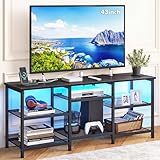
 YOSHOOT Modern TV Stand with LED Lights &66 X 15.7 X 24in66.73 x 15.75 x 21.26 inches41.45 PoundsCheck on Amazon


Top 3 picks at a glance


The single most important setting: Game Mode
Why it matters
Game Mode disables heavy image processing that adds a delay between your controller input and what appears on screen. Without it, input lag can climb past 100 milliseconds, which is enough to make timing-based games feel sluggish. With Game Mode on, many modern TVs drop to around 10 to 20 milliseconds, a night-and-day difference for reaction-heavy play.
As an Amazon Associate we earn from qualifying purchases at no extra cost to you.



Where to find it
Look under picture settings for a Game or Game Mode preset, or enable an automatic low-latency mode that switches on when it detects a console. Some TVs apply this per input, so set it on the HDMI port your console uses.
| Setting | Recommended | Benefit |
|---|---|---|
| Game Mode | On | Lowest input lag |
| Motion smoothing | Off | Removes lag and artifacts |
| VRR / ALLM | On if supported | Tear-free, auto low latency |
| HDR | On for HDR games | Wider brightness range |
| Sharpness | Low to moderate | Avoids fake edges |
Motion, refresh and modern features
Turn off motion smoothing, sometimes called the soap-opera effect, because it introduces lag and artifacts in fast games. If your TV and console support variable refresh rate, enable it to eliminate screen tearing when frame rates fluctuate. Auto low latency mode is worth switching on so the TV drops into Game Mode automatically whenever the console wakes.
HDMI and resolution
Use an HDMI 2.1 port and a certified high-speed cable if you want 4K at 120Hz, since older ports and cables cap you at lower refresh rates. Confirm in the console’s video settings that it detects the higher refresh and HDR capabilities of the TV.
Picture quality without hurting responsiveness
Enable HDR for games that support it to expand the range between bright highlights and deep shadows, then run any on-console HDR calibration so the image is neither crushed nor washed out. Keep sharpness modest, since cranking it adds artificial edges rather than real detail. Set the color temperature to the warmer, more accurate preset once your eyes adjust.
FAQ
Does Game Mode reduce picture quality?
Slightly, because it skips some processing, but the trade for far lower input lag is worth it for gaming. Most players cannot notice the picture difference during play, while the responsiveness improvement is obvious.
Should I always leave HDR on?
Enable HDR for content and games that support it, and calibrate it on the console for the best result. For non-HDR material some TVs handle the switch automatically, so you rarely need to toggle it manually.
Calibrating without a disc or meter
Quick manual tuning
You do not need professional gear to get a good picture. Start from the Game or Cinema preset rather than the punchy Vivid mode, set backlight to a comfortable level for your room, and leave contrast and brightness near their default midpoints before nudging them. Use a familiar game with both bright and dark scenes to check that you can see shadow detail without the image looking washed out. Run the console’s built-in HDR calibration screens carefully, matching the on-screen instructions so highlights are bright but not clipped. These few minutes of manual tuning close most of the gap to a properly calibrated display for gaming.
Bottom line
Turn on Game Mode, disable motion smoothing, and enable variable refresh rate and auto low latency mode if your TV supports them. Use an HDMI 2.1 port for high refresh rates, switch HDR on for compatible games, and keep sharpness modest. These settings cut input lag and sharpen motion, making your console feel as responsive and clear as it was designed to be.