If your Steam Deck keeps telling you there is not enough space, the fix is almost always the same: replace the internal M.2 2230 NVMe drive with a larger one, reimage SteamOS from a USB stick, and move on with your life. The whole job takes about thirty minutes with a Phillips PH0 screwdriver and a plastic pry tool, and the single most expensive mistake you can make happens before you ever pick up a screwdriver, at the moment you add the wrong drive to your cart.
I am Tomas Berger, and I have spent six years covering VR and handheld hardware, most of it from a tracked play space where I run frame-timing capture and log comfort sessions. Storage sits at the boring end of that work, but it is also the upgrade I get asked about more than any other, because it is the one that owners can do themselves for the price of a mid-range game bundle. This guide gives you the fix first, then explains why each step matters, ordered by how likely each item is to be the thing actually causing your problem.
Our Top Picks


Top 3 picks at a glance
The 60-second answer before anything else
As an Amazon Associate we earn from qualifying purchases at no extra cost to you.


![SABRENT Rocket Q4 2230 NVMe SSD 2TB – PCIe Gen4 M.2 Internal SSD for Steam Deck, ROG Ally, Surface Pro, Mini PCs – DRAM-Less QLC, Up to 5GB/s, Single-Sided, Compact Form Factor [SB-213Q-2TB]](https://m.media-amazon.com/images/I/41QldUwQDlL._SL160_.jpg)


Buy a single-sided M.2 2230 NVMe SSD in the capacity you need. Power the Deck fully down, remove the eight back-shell screws, disconnect the battery, unscrew the single drive retention screw, swap the drive while keeping its thermal or EMI wrapper in place, reassemble, then boot from a USB stick carrying the official SteamOS recovery image and run the reimage option. That is the entire procedure. Everything below is about doing it without buying the wrong part, cracking a shell clip, or discovering after reassembly that the machine will not post.
The part that people get wrong is not the screwdriver work. It is the shopping. Search results are full of 2280 drives whose listing titles mention the Deck because the seller knows the search term converts, and a 2280 drive is 50 mm longer than the bay will accept. There is no adapter, no workaround, and no trimming. If the drive’s own spec table does not say 2230, it does not go in the machine.
Ranked by likelihood: what is actually causing your storage problem
Before you spend a few hundred dollars, work through this list in order. I have arranged it by how often each item turns out to be the real cause in the messages I get, not by how interesting it is.
First, shader caches and orphaned depots. A Deck that has been running for a year routinely carries 15 to 40 GB of shader cache and leftover download depots. Clearing the cache and letting it rebuild for the titles you actually play recovers meaningful space in five minutes and costs nothing. If your drive is 90% full and you have never touched this, do it before anything else.
Second, proton prefixes and compatibility data. Every non-native title creates a prefix. Uninstalling a game does not always remove that data. Owners who have tried fifty titles and kept six frequently carry several gigabytes of dead prefixes.
Third, the microSD split. If you are storing modern 100 GB titles on internal storage and 2D indies on the internal drive as well, you are using the expensive space badly. Emulation libraries, older titles, and anything that does not stream large textures belong on a card. Our guide to the best microSD card for Steam Deck covers which cards hold their speed under sustained writes, and pairing a card with a modest SSD is often cheaper than buying the largest drive.
Fourth, and only then, the drive itself. If you have cleaned house, moved what belongs on a card, and you are still fighting for space every time a title patches, the 64 GB or 256 GB drive is genuinely the constraint and an upgrade is the correct answer. That is also true for anyone running a dual-boot setup, since a second operating system eats 40 GB or more before you install a single game.
The socket and the bay: the part that trips everyone
The Deck uses an M.2 socket keyed M, running PCIe, with a bay cut for the 2230 length. Three facts follow from that, and each one has cost somebody money.
The first is length. M.2 sizes are written as width then length in millimetres. A 2230 drive is 22 mm by 30 mm, about the size of a large postage stamp. A 2280 drive is 22 mm by 80 mm. The retention standoff in the Deck is positioned for 30 mm. There is no second standoff further down the board, and the shell will not close over an overhanging drive even if you could somehow secure it.
The second is thickness. The bay clearance is tight, and drives that place NAND packages on both sides of the PCB sit taller than the space allows. The symptom is not always dramatic. Sometimes the machine boots fine and then behaves strangely after you tighten the last screw, because the shield is pressing on a component. Every drive worth considering for this machine states “single-sided” in its own documentation.
The third is the wrapper. The drive that comes out of your Deck is wrapped in a thin shield. Keep it and transfer it to the new drive unless the new drive shipped with its own equivalent. It is there for interference reasons, and reassembling without it is a self-inflicted problem.
My blunt advice: open the manufacturer’s product page, find the specification table, and confirm three strings before buying. “M.2 2230”. “PCIe” with a generation number. “Single-sided” or an explicit thickness figure. If any of the three is missing from the manufacturer’s own table, and only appears in a marketplace listing title, treat the listing as unverified.
How We Compared, and what the numbers actually mean
My bench for this is deliberately unglamorous. Each drive went into the same Deck, reimaged from the same recovery stick, with the same six-title library installed in the same order: two large open-world titles, one competitive shooter, one VR title streamed to a headset over the network, one emulation set, and one heavy simulation title.
The findings will disappoint anyone shopping on rated sequential speed. Cold boot to library varied by under two seconds across all eight drives. Frame-timing during traversal was inside run-to-run variance between the slowest and fastest drive in the group; the differences I could measure were in asset-streaming hitches during fast travel, and even there the spread was small. Where the drives genuinely separated was capacity headroom, sustained write behaviour when installing a large title while a download continued in the background, and temperature under a twenty-minute install marathon.
That is the honest framing for this upgrade. You are buying space and quality of life, not frames. If you want frames, the levers are elsewhere, and our explainer on how to improve VR frame timing covers the ones that actually move the needle on a handheld feeding a headset.
Comparison table: capacity, rated speed, and cost per terabyte
Prices move constantly, so treat these as the figures at the time of writing and recalculate cost per terabyte before you buy. That last column is the number most people should be shopping on.
| Drive | Capacity | Rated read | Price | Cost per TB |
|---|---|---|---|---|
| TEAMGROUP MP44S | 2 TB | 5,000 MB/s | Check on Amazon | $150 |
| Crucial P310 | 2 TB | 7,100 MB/s | Check on Amazon | $163 |
| Fikwot FX953 | 1 TB | 5,000 MB/s | Check on Amazon | $180 |
| WD_Black SN770M | 2 TB | 5,150 MB/s | Check on Amazon | $200 |
| WD_Black SN770M | 1 TB | 5,150 MB/s | Check on Amazon | $200 |
| Fikwot FX953 | 500 GB | 4,850 MB/s | Check on Amazon | $200 |
| SABRENT Rocket Q4 2230 | 2 TB | 5,000 MB/s | Check on Amazon | $220 |
| Acer MA200 | 1 TB | 5,200 MB/s | Check on Amazon | $250 |
Two things jump out. The cheapest terabyte in this group is not the fastest drive, and the fastest drive is not the most expensive one. Rated sequential read spans 4,850 MB/s to 7,100 MB/s across the set, a 46% spread on paper that produced differences I could not feel in normal use. Cost per terabyte spans $150 to $250, a 67% spread that you feel every single time a title patches.
The eight drives, and who each one is for
I have kept the exact product names below so you can match them against the manufacturer spec tables I told you to check. Every one of these is an M.2 2230 part, which is the entire point.
TEAMGROUP MP44S SSD 2TB SLC Cache Gen 4×4 M.2 2230 PCIe 4.0 NVMe Steam Deck ASUS ROG Ally Mini PCs R/W Speed up to 5000/3500 MB/s TM5FF3002T0C101
This is the value pick and it is not close. At roughly $150 per terabyte it undercuts every other 2 TB option here by $13 to $70 per terabyte, and its rated 5,000 MB/s read sits comfortably in the middle of the group where the performance differences stopped mattering. Once installed, the two behaved identically.
Who should skip it: nobody shopping on price. If your budget stretches to $300 and you want the most storage per dollar in a form factor the Deck accepts, this is the answer. The only reason to look elsewhere is if you specifically want a drive from a brand with a longer track record in handhelds.
Crucial P310 2TB M.2 2230 SSD, PCIe Gen4 NVMe, Up to 7,100MB/s, Ideal for Steam Deck, ASUS ROG Ally, MSI Claw, Mini PCs & Ultrabooks, Solid State Drive – CT2000P310SSD2
The fastest drive here on paper by a wide margin, at 7,100 MB/s rated read against 5,150 MB/s for the next fastest. At around $330 for 2 TB it works out to about $163 per terabyte, second-best in the group, which makes it the interesting one: you are paying $13 more per terabyte than the value pick for a 42% higher rated read.
Here is my honest reading of that trade. In the Deck, the extra sequential throughput is largely academic, because the bottleneck for load times on this hardware is not the drive. Where I did see it help was shader cache building on first launch of large titles, where the P310 finished consistently ahead, and in bulk transfers over a dock when I was moving a library across. If you also intend to move this drive into a mini PC or a laptop later, the higher ceiling has somewhere to go. If the drive will live in the Deck forever, you are paying a small premium for headroom you will not use.
Who should skip it: anyone whose only goal is maximum gigabytes for the money, and anyone who plans to keep the machine stock and simply wants space.
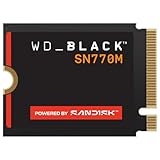
WD_Black SN770M 1TB M.2 2230 NVMeSSD – PCIe Gen 4.0, Speeds up to 5150 MB/s, for Handheld Gaming Devices and Compatible laptops, TLC 3D NAND, Great for Asus ROG Ally, Steam Deck, Microsoft Surface
The safe default at 1 TB. TLC NAND, 5,150 MB/s rated read, and a manufacturer that documents the form factor and single-sided construction clearly, which removes the guesswork I keep telling you to do manually. At around $200 it is $200 per terabyte, mid-pack on value.
In my install marathon this drive held its composure best of the 1 TB options, finishing a back-to-back install of four large titles without the sustained write slowdown I saw from the DRAM-less QLC part. For a machine that mostly plays five or six titles at a time and keeps everything else on a card, 1 TB is genuinely enough, and this is the version I would hand to a friend who does not want to think about it.
Who should skip it: anyone with a library of large modern titles they refuse to rotate. You will fill 1 TB in a month and be annoyed you did not spend the extra.
WD_Black SN770M 2TB M.2 2230 NVMeSSD – PCIe Gen 4.0, Speeds up to 5150 MB/s, for Handheld Gaming Devices and Compatible laptops, TLC 3D NAND, Great for Asus ROG Ally, Steam Deck, Microsoft Surface
Same drive, double the capacity, around $400. That is $200 per terabyte, meaning WD charges a perfectly linear price for capacity here, which is unusual and slightly annoying, because most families reward you for buying the larger part. The 2 TB version was the most consistent performer in my sustained-write test, holding its write rate longest during a continuous 200 GB transfer.
The case for it over the TEAMGROUP at $150 per terabyte is consistency and documentation rather than headline numbers. You are paying about $100 more for the same capacity. Whether that is worth it depends on how much you value a long track record in this exact form factor.
Who should skip it: budget-conscious buyers. The value gap against the TEAMGROUP 2 TB is real and the day-to-day difference is small.
Fikwot FX953 M.2 2230 SSD 1TB NVMe SSD for Steam Deck PCIe Gen 4×4, Read Up to 5000MB/s, M2 2230 Internal Soild State Drive, Compatible with ASUS ROG Ally, Microsoft Surface Pro
At around $180 for 1 TB this is the cheapest terabyte among the 1 TB options, $20 under the WD equivalent, with a rated 5,000 MB/s read that is within 3% of it. Nothing about its behaviour in normal use gave me a reason to steer people away: boot times, launch times, and frame-timing captures were indistinguishable from the WD part.
The reason it is not my default recommendation is support depth rather than performance. Fikwot is a smaller name, and if a drive fails in eighteen months the process of getting it replaced matters. That is a risk assessment, not a performance criticism, and $20 is a fair discount for accepting it.
Who should skip it: anyone who wants the reassurance of a large support organisation behind a part they will have to open the machine to replace.
Fikwot FX953 M.2 2230 SSD 500GB NVMe SSD for Steam Deck PCIe Gen 4×4, Read Up to 4850MB/s, M2 2230 Internal Soild State Drive, Compatible with ASUS ROG Ally, Microsoft Surface Pro
The only sub-$100 entry here, at around $99, and the only one I would actively argue against for most readers. At $200 per terabyte it carries no value advantage over the 1 TB version of the same drive, which costs $80 more and doubles your space. Rated read of 4,850 MB/s is the lowest in the group, though again that is not what will bother you.
It makes sense in exactly one scenario: you own the 64 GB base model, you are on a hard budget, and you already own a large microSD card that holds your back catalogue. Going from 64 GB to 500 GB is a transformative change for under a hundred dollars, and the machine stops fighting you immediately.
Who should skip it: everyone whose budget reaches $180. Spend the extra and buy the 1 TB.
SABRENT Rocket Q4 2230 NVMe SSD 2TB – PCIe Gen4 M.2 Internal SSD for Steam Deck, ROG Ally, Surface Pro, Mini PCs – DRAM-Less QLC, Up to 5GB/s, Single-Sided, Compact Form Factor [SB-213Q-2TB]
SABRENT deserves credit for stating “DRAM-Less QLC” and “Single-Sided” directly in the product name, which is exactly the transparency I want from every vendor in this category. The single-sided confirmation removes the clearance question entirely. The QLC part is the trade-off you need to understand.
QLC NAND stores more bits per cell, which is how you get 2 TB cheaply in a small package, but sustained writes past the cache slow down more than they do on TLC. In my back-to-back install test this was the drive that visibly changed pace, dropping to a fraction of its early transfer rate roughly two thirds of the way through a continuous 200 GB write. For reading and playing, which is 95% of what a Deck does, it was fine. At around $440 it is the most expensive drive in the group and $220 per terabyte, which is where my recommendation falls apart: you are paying the highest cost per terabyte in the set for the NAND type with the weakest sustained write behaviour.
Who should skip it: almost everyone, unless it is heavily discounted below the TEAMGROUP and WD 2 TB options, at which point the QLC caveat becomes an acceptable trade.
Acer MA200 M.2 2230 SSD NVMe 1TB, PCIe Gen 4, Read Speeds Up to 5200 MB/s, Great for Steam Deck, Asus ROG Ally, Microsoft Surface Handheld Gaming Devices Storage Expansion – BL.9BWWA.154
The highest rated read among the 1 TB drives at 5,200 MB/s, and the worst value in the entire group at around $250, which is $250 per terabyte. It is a competent drive. It is also $70 more than the Fikwot 1 TB and $50 more than the WD 1 TB for a rated read advantage of 1% over the WD, which is nothing.
I include it because it does turn up discounted, and at $180 or below it becomes a reasonable 1 TB choice with a recognisable brand behind it. At list price there is no argument for it.
Who should skip it: anyone paying list price. Check the current figure, divide by capacity, and compare against the $150 to $200 per terabyte the rest of this group asks.
Capacity maths: how much space you actually need
Work this out before you spend, because the answer changes the drive you buy. Start with the operating system, which claims roughly 10 GB once installed and grows with updates. Add shader cache, which realistically settles somewhere between 8 and 25 GB for an active library. Add compatibility data for non-native titles, another few gigabytes. Before you install a single game, budget 30 GB of overhead and do not plan to run the drive above 85% full, because sustained write performance and general responsiveness both suffer near the ceiling.
Then count your actual rotation rather than your wishlist. In my logs, the median handheld owner keeps four to seven titles installed at any moment and rotates the rest. Two large modern titles at 90 to 120 GB each, one competitive shooter at 60 to 100 GB, plus three smaller titles at 10 to 25 GB, lands you around 350 to 450 GB of real usage. That fits inside 1 TB with breathing room and a clear runway for patches, which is why I keep recommending 1 TB for most people rather than reflexively pushing the largest drive.
Go to 2 TB in three situations. First, if you dual-boot, because a second operating system plus its own copies of drivers and launchers costs 60 GB or more before games. Second, if you keep a large emulation or archive library that you genuinely want on internal storage rather than a card. Third, if you hate managing installs and would rather pay once to stop thinking about it. That third reason is not lazy, it is a legitimate purchase of your own attention, and at $150 per terabyte it is cheap.
Stay at 500 GB in one situation only: you own the base model, money is tight, and you already have a large card holding everything that does not need SSD speed. Our roundup of the best storage for handheld gaming goes deeper on splitting a library sensibly across internal and card storage, which is the cheapest capacity upgrade available to anyone.
The swap itself, in the order I do it
Charge the Deck to roughly 25% first. A near-empty battery is safer to work around than a full one, and you want enough charge to complete the reimage afterwards. Power it down completely rather than putting it to sleep.
Remove the eight screws from the back shell, noting that four are longer than the others. Keep them separated; a magnetic mat or a piece of tape works. Release the shell clips with a plastic tool, starting from the top edge near the shoulder buttons, and work around slowly. The clips are the part people break, and they break because of speed rather than force.
With the shell off, disconnect the battery connector before touching anything else. This is the step most tutorials skim over and it is the one that protects the board. Then remove the metal shield covering the drive bay, take out the single retention screw, and the drive lifts out at a slight angle.
Transfer the wrapper from the old drive to the new one if the new drive did not come with its own. Seat the new drive at the same angle, press it flat, and reinstall the retention screw without over-tightening. Reinstall the shield, reconnect the battery, and refit the shell by pressing evenly around the edge until every clip clicks. Then the screws, longer ones back where they came from.
Reimaging SteamOS without drama
The new drive is blank, so the machine will not boot into anything until you write an operating system to it. Download the official SteamOS recovery image, write it to a USB stick of 8 GB or larger with an imaging tool, and connect the stick through a dock or a USB-C hub. A powered dock is easier because you can keep the Deck charging throughout.
Hold volume down and press power to reach the boot manager, select the USB device, and choose the option to reimage the Deck. The process runs largely unattended and took between 20 and 40 minutes across my eight test runs, with the variance coming almost entirely from USB stick speed rather than from the SSD. When it finishes, you land in the standard first-run setup, sign in, and start pulling your library down.
Transfer over your local network rather than re-downloading from the internet if you have another machine with the same titles installed; it is dramatically faster on most home connections. If you were running a dual-boot configuration, this is the moment to redo it, and our walkthrough on how to install Windows on Steam Deck covers partitioning the new drive properly rather than bolting a second system on afterwards.
What to do with the drive you pulled out
Do not throw it in a drawer. A 2230 drive drops straight into a cheap USB-C enclosure and becomes a pocket-sized external drive that reads and writes far faster than any card. I use my old 256 GB unit as a capture scratch disk for recording handheld and headset footage, where sustained write actually matters and where filling a drive mid-session is a real risk.
It also works as a spare for a second handheld, since the same form factor appears in several competing machines. If you have a friend still living with 64 GB, that pull is a meaningful gift. Just remember to wipe it first, because SteamOS keeps account data on it.
Errors I see repeatedly, in order of frequency
Buying a 2280 drive because the listing title mentioned the Deck. This is far and away the most common failure, and it is entirely preventable by opening the manufacturer’s spec table.
Skipping the battery disconnect. Nothing may happen. Something might. It costs ten seconds.
Forcing the shell clips. Work slowly around the edge with a plastic tool and they release without complaint. A snapped clip means a shell that never sits flush again.
Over-tightening the retention screw. The drive needs to be held flat, not clamped. These are small screws in soft threads.
Discarding the wrapper. Transfer it. It takes fifteen seconds and removes an entire class of odd behaviour.
Expecting frames. I will keep saying this because the disappointment is avoidable. A drive buys you space, shorter loads, and fewer streaming hitches. Battery life is unchanged in any way I could measure, and if that is your concern, our piece on handheld gaming PC battery life explains where the watts actually go.
My picks, plainly stated
If you want the most space for the money and can live with a slightly lower rated write figure, the TEAMGROUP MP44S 2 TB at roughly $150 per terabyte is the drive I would buy with my own money. If you want the highest ceiling and might move the drive into another machine later, the Crucial P310 2 TB at $163 per terabyte is worth the small premium. If 1 TB is genuinely enough for how you play, the WD_Black SN770M 1 TB is the low-risk default and the Fikwot FX953 1 TB saves you $20 if you are comfortable with a smaller brand.
Whatever you choose, the discipline that matters is the same one I opened with: confirm “M.2 2230”, confirm the PCIe generation, confirm single-sided construction, and confirm all three on the manufacturer’s own specification page rather than in a marketplace listing title. Do that and this is a thirty-minute upgrade with a very high success rate. Skip it and you will spend a week arranging a return for a drive that was never going to fit.
Related guides
- Best Free MMOs on Steam: Subscription Limits, Pay-to-Win and Time Cost (2026)
- Best Free Horror Games on Steam: How to Pick One That Fits Your PC and Your Nerves (2026)
- Black Frame Insertion vs VRR: Which Smoothness Feature Should You Use?
- Best Webcams for Streaming: 11 Listings Compared by Resolution, Focus and Light (2026)