Improving VR frame timing means first figuring out whether your CPU or GPU is the bottleneck, then addressing that specific bottleneck directly rather than randomly lowering settings. Frame timing problems show up as stutter or micro-judder even when average frame rate looks fine, because it’s the consistency between frames, not the average, that determines how smooth VR actually feels.
As an Amazon Associate we earn from qualifying purchases at no extra cost to you.


Our Top Picks

Top 3 picks at a glance
Quick answer
Use a performance overlay to check whether your CPU or GPU is closer to maxed out during the stutter. If GPU-bound, lower render resolution or in-game graphics settings. If CPU-bound, close background processes, check for thermal throttling, and reduce simulation-heavy settings like physics or NPC density where the game allows it.
| Bottleneck | What to try first | What won’t help |
|---|---|---|
| GPU-bound | Lower render resolution, reduce graphics settings | Closing background CPU tasks |
| CPU-bound | Close background apps, check thermals, reduce simulation load | Lowering render resolution alone |
| Unclear/both | Check overlay under actual gameplay load, not menus | Guessing without data |
Why frame timing matters more than average FPS in VR
A frame rate counter showing a healthy average can still hide a problem: if most frames render quickly but a small percentage take noticeably longer, your average looks fine while your actual experience includes visible stutter every time one of those slow frames hits. This inconsistency, called frame time variance, is what a dedicated frame-timing view captures that a simple average FPS number doesn’t.
VR is more sensitive to this than flat-screen gaming because your visual system and inner ear are both receiving motion information simultaneously, and any mismatch between what your eyes see and what your body expects can register as discomfort even if you can’t consciously point to “that one frame” as the cause. This is part of why VR headsets target a specific, consistent frame rate rather than just “as high as possible.”
Our explainer on VR frame time and reprojection covers the underlying mechanics of why this happens in more depth; this guide focuses specifically on the practical steps to improve it once you understand why it matters.
Diagnosing whether you’re CPU-bound or GPU-bound
Before changing any settings, use a performance overlay that shows both CPU and GPU load simultaneously during actual gameplay, not just in a menu or loading screen, since load patterns often differ significantly once you’re in active gameplay with physics, AI, and rendering all happening at once. Watch which resource is consistently closer to its limit during the moments stutter occurs.
If GPU usage is pegged near maximum while CPU has clear headroom, you’re GPU-bound, and settings that reduce rendering workload will have the most impact. If CPU usage on one or more cores is spiking near maximum while GPU has headroom, you’re CPU-bound, and rendering-focused settings will do little to help.
Some scenes are more CPU-demanding than others within the same game — crowded areas with many active objects or characters tend to shift load toward the CPU even in games that are GPU-bound during quieter scenes. Recognizing this pattern ahead of time means you can anticipate where in a game you’re likely to see the biggest frame timing swings and test your settings specifically in those higher-demand moments rather than being surprised by a stutter you didn’t reproduce during initial testing. This is why testing in the actual location where you experience stutter matters more than testing in a simple, empty area.
Tomas Berger, our VR & Handheld Editor, uses frame-timing capture on his tracked play space rig to separate CPU-bound from GPU-bound stutter before recommending a fix, since guessing from feel alone frequently pointed him toward the wrong setting during early testing.
He specifically flags that the instinct to immediately lower resolution when something feels off is worth resisting until the overlay data actually confirms a GPU bottleneck, since a CPU-bound stutter left untouched by a resolution change can leave a player convinced the game is simply poorly optimized when a background process was the real, fixable cause.
Lowering render resolution and per-app graphics settings
If you’ve confirmed a GPU bottleneck, render resolution is usually the single most impactful setting to adjust, since it scales GPU workload more directly than most individual graphics options. Reduce it in steps rather than dropping it drastically at once, testing frame timing after each change so you can find the point where stutter resolves without giving up more visual quality than necessary.
Many games also expose their own in-game graphics settings independent of the platform-level render resolution, and features like shadow quality, particle density, and reflection quality are often disproportionately expensive for the visual difference they provide in VR specifically. Test lowering these before assuming you need to sacrifice overall resolution.
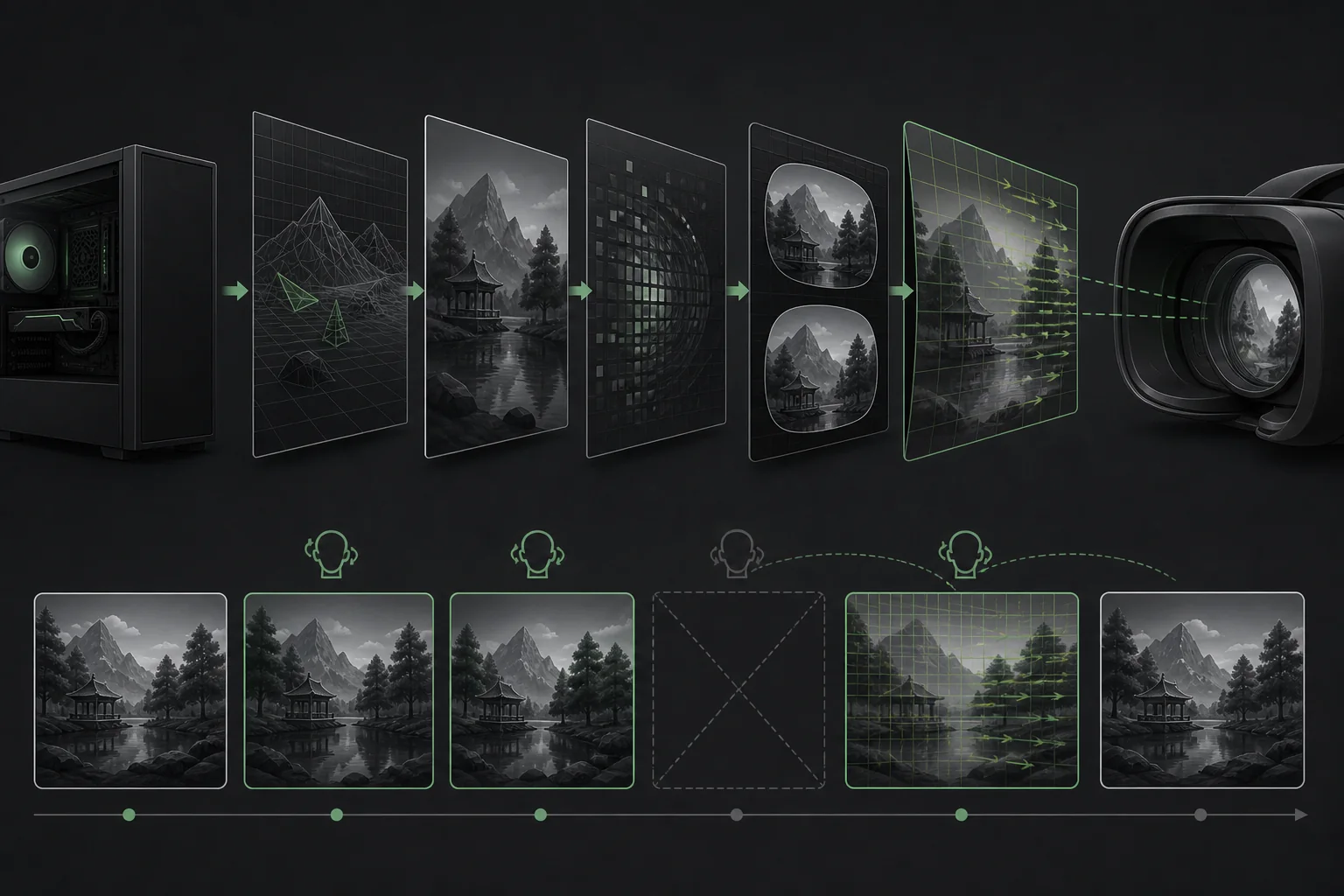
Fixed foveated rendering, where supported, reduces rendering detail toward the edges of your vision where you’re less likely to notice it, and can meaningfully reduce GPU load with a smaller perceived visual cost than a flat resolution reduction. Availability and effectiveness of this feature vary by headset and game.
Addressing CPU-bound bottlenecks
If you’re CPU-bound, start by closing background applications you don’t need running during play, since even modest background CPU usage can eat into the tight frame budget VR games need to hit consistently. This includes browser tabs, chat overlays, and any capture or recording software you’re not actively using.
Check for thermal throttling on your CPU during extended sessions, since sustained load in a poorly cooled system can cause your CPU to reduce its clock speed to manage temperature, which shows up as frame timing getting progressively worse the longer you play rather than being consistent from the start.
Where a game exposes settings related to simulation complexity — NPC density, physics detail, view distance for active objects — reducing these targets the actual CPU-bound workload more directly than graphics settings would. Not every game exposes these separately from graphics settings, but check before assuming none are available.
Keeping drivers and firmware current
GPU driver updates frequently include performance and stability improvements for specific games, and running an outdated driver is a surprisingly common, easily overlooked cause of frame timing problems that appear to be hardware limitations but aren’t. Check for updates periodically rather than assuming your driver is current just because you installed it recently.
Headset firmware updates can also affect frame timing behavior, particularly around how motion smoothing or reprojection features are implemented at the driver level. Keep your headset’s firmware and companion software current alongside your GPU driver.
After any driver or firmware update, retest frame timing in the same scenario where you previously experienced stutter, since updates occasionally change behavior in ways that are worth reconfirming rather than assuming automatically improved.
Motion smoothing as a safety net, not a primary fix
Motion smoothing, or reprojection depending on platform terminology, generates intermediate frames to mask a missed frame target, improving perceived smoothness without addressing the actual cause of the missed frame. Leaving it on automatic is generally the right call, since it only engages when needed and otherwise stays out of the way.
Treat motion smoothing as a safety net for occasional dropped frames, not a substitute for fixing a consistent bottleneck. If it’s engaging constantly rather than occasionally, that’s a sign your settings are too demanding for your hardware at a fundamental level, and adjusting render resolution or graphics settings will give a better result than relying on smoothing to paper over a persistent gap.
Forcing motion smoothing off entirely can be useful as a diagnostic step, letting you see your true, unassisted frame timing to judge how big the underlying gap actually is before deciding how much to adjust settings.
Wired vs wireless considerations for frame timing
Wireless PCVR streaming adds its own layer of potential frame timing inconsistency on top of your PC’s rendering performance, since network conditions can introduce irregular delays independent of how well your PC is running the game itself. If you’re troubleshooting frame timing on a wireless setup, rule out network-related causes separately from GPU or CPU bottlenecks.
A wired connection removes this variable entirely, which is why it’s often the more reliable choice for isolating whether a frame timing issue is coming from your PC’s rendering or from your wireless streaming setup. If you suspect your network might be a factor, temporarily testing with a wired connection is a useful diagnostic step even if you plan to return to wireless normally.
Tracking whether your changes are actually helping
Make one change at a time and record what you changed before testing again, since it’s easy to lose track of which specific adjustment fixed or worsened frame timing if you change several settings between tests. A simple running note, even just a few words per test, saves real time compared to relying on memory across a longer troubleshooting session.
Test in the same location and scenario each time you compare settings, since frame timing can vary meaningfully between different areas of the same game, and comparing a busy scene under one setting against a quiet scene under another will give you a misleading picture of what actually improved. Pick one repeatable test scenario and stick with it through your troubleshooting process.
Give each change a fair, extended test rather than judging after a few seconds, since some frame timing issues are intermittent and only show up over a longer play session, particularly ones related to thermal throttling that build up gradually rather than appearing immediately.
Quick diagnostic checklist
- Enable a performance overlay showing CPU and GPU load, and reproduce the stutter while watching which resource is closer to maxed out.
- If GPU-bound, lower render resolution first, testing in steps rather than one large drop.
- If CPU-bound, close background applications and check for thermal throttling during extended play.
- Confirm GPU drivers and headset firmware are both up to date.
- If on wireless, temporarily test with a wired connection to rule out network-related timing issues.
- Leave motion smoothing on automatic as a safety net once the underlying bottleneck is addressed, not as your primary fix.
When frame timing issues aren’t fixable through tuning
If your hardware is genuinely below a game’s practical requirements for VR, no amount of settings adjustment will produce fully consistent frame timing, since some games are simply too demanding for certain GPU or CPU tiers to run smoothly in VR regardless of resolution scaling. In this case, the realistic options are upgrading hardware or accepting reduced settings as a permanent tradeoff for that specific title.
Some games also have poorly optimized VR implementations independent of your hardware, where frame timing issues persist even on strong systems due to how the game itself was built. Community reports and patch notes for a specific title are worth checking before assuming the problem is entirely on your end.
If you’re consistently hitting CPU bottlenecks across multiple demanding VR titles, this may point to needing a stronger CPU rather than continuing to chase software settings; our guide to VR-ready gaming PCs covers what actually matters for headroom in CPU-demanding VR titles specifically.
Troubleshooting frame timing problems
Stutter only happens in crowded areas or busy scenes: this points to a CPU bottleneck tied to scene complexity rather than a GPU or overall settings issue, and reducing simulation-related settings where available will help more than graphics settings.
Frame timing gets worse the longer I play: check for thermal throttling, since this pattern is a classic sign of a CPU or GPU reducing clock speed as it heats up during an extended session rather than a settings problem.
Frame timing is fine wired but bad wireless: this confirms a network-related cause rather than a PC performance issue; troubleshoot your wireless streaming setup and network conditions separately.
Motion smoothing is engaged almost constantly: your current settings are too demanding for consistent full-rate performance. Lower render resolution or graphics settings rather than relying on smoothing to compensate indefinitely.
Frame timing was fine before a recent update, now it isn’t: check whether the update was to the game, your GPU driver, or your headset firmware, and look for known issues reported by others after that specific update before assuming a hardware problem.
Frame timing looks fine on the overlay but the game still feels off: some perceived smoothness issues stem from input latency rather than rendering frame timing specifically; check for background input-processing software or an unusually high mouse or controller polling interval that could be adding a separate source of perceived lag.
Frequently asked questions
Why does my VR feel stuttery even though my FPS counter shows a high number?
Average FPS hides frame-to-frame inconsistency. A game can average a high number while still producing occasional slow frames spaced irregularly, and those irregular frames are what your eyes and inner ear notice as stutter, not the average itself.
Does lowering render resolution always fix frame timing problems?
It helps most when your GPU is the bottleneck, since it directly reduces GPU workload. If your CPU is the limiting factor instead, lowering resolution won’t meaningfully improve frame timing, since the CPU workload for game logic and physics stays roughly the same.
Is motion smoothing a real fix or just a band-aid?
It’s a mitigation, not a fix. Motion smoothing generates in-between frames to hide missed frame targets, which helps perceived smoothness but doesn’t address the underlying cause of a frame being missed. Fixing the actual bottleneck gives a better result when possible.
Can background apps really affect VR frame timing that much?
Yes, more than many players expect. Even lightweight background apps can cause brief CPU spikes that translate directly into a missed VR frame, since VR’s frame budget is much tighter than standard gaming due to the need to hit a consistent target every single frame.
Should I overclock my CPU or GPU to fix frame timing?
Overclocking can help if you’re confident in your cooling and stability testing, but it’s a more advanced step best tried after the simpler fixes here, since an unstable overclock can cause its own timing inconsistencies that are harder to diagnose than the original problem. If your tracking also feels inconsistent alongside frame timing, see our guide to fixing SteamVR tracking issues as these are sometimes mistaken for one another.
Related guides
- Best Free MMOs on Steam: Subscription Limits, Pay-to-Win and Time Cost (2026)
- Best Free Horror Games on Steam: How to Pick One That Fits Your PC and Your Nerves (2026)
- Black Frame Insertion vs VRR: Which Smoothness Feature Should You Use?
- Best Webcams for Streaming: 11 Listings Compared by Resolution, Focus and Light (2026)