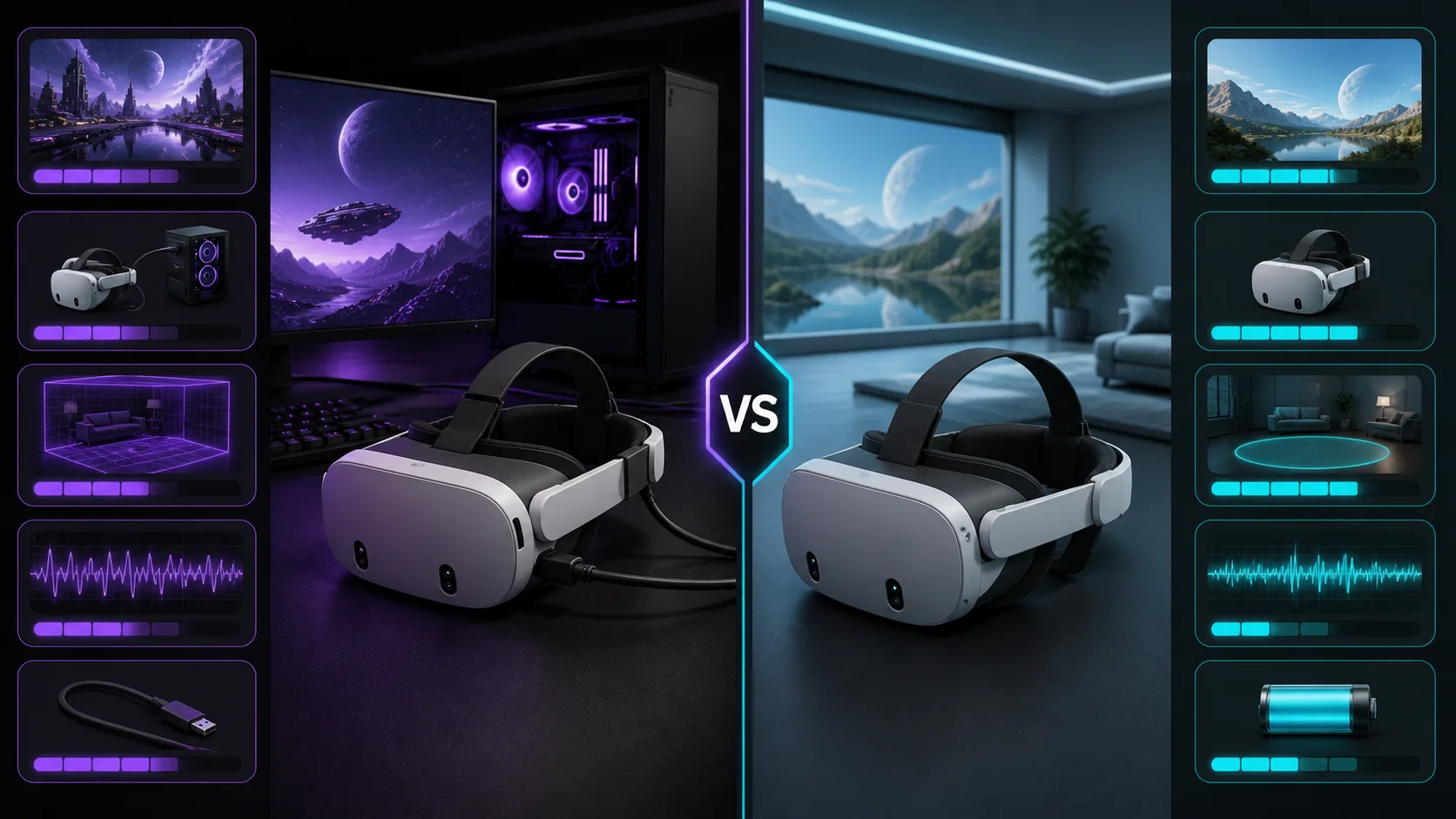
Virtual Desktop is a paid third-party app with a longer track record of configurable, low-latency PCVR streaming, while Steam Link is Valve’s free official app that’s improved significantly but still trails Virtual Desktop in some advanced tuning options. If your Wi-Fi setup is solid, either can deliver a genuinely good wireless PCVR experience; if your network is marginal, the choice matters less than fixing the network itself.
Our Top Picks
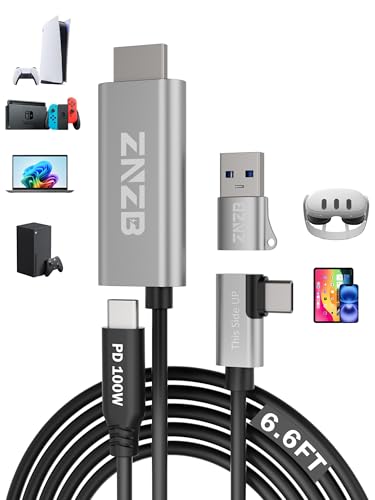

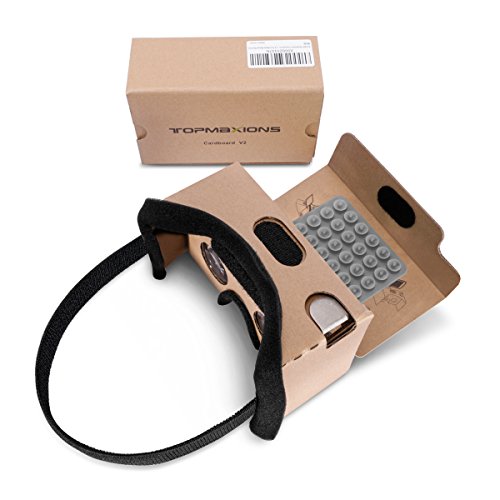
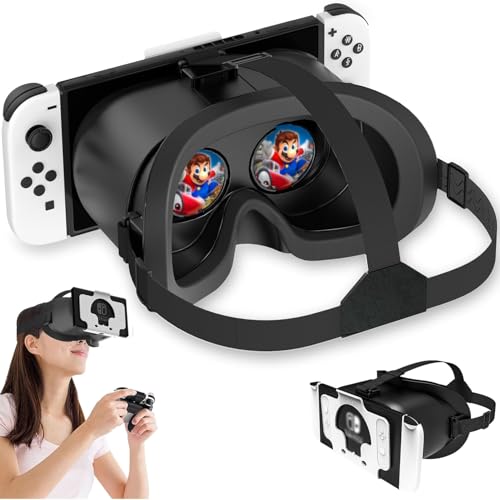

Top 3 picks at a glance
Quick answer
Choose Virtual Desktop if you want more granular control over bitrate, resolution, and codec settings, and don’t mind a one-time purchase. Choose Steam Link if you want a free, officially supported option and your network conditions are already good, or if you’d rather avoid managing a third-party app alongside SteamVR.
As an Amazon Associate we earn from qualifying purchases at no extra cost to you.


| Factor | Virtual Desktop | Steam Link |
|---|---|---|
| Cost | One-time paid purchase | Free |
| Maker | Third-party developer | Valve, official |
| Configurability | More manual tuning options | Simpler, fewer manual options |
| Network needs | Strong 5GHz/6GHz recommended | Strong 5GHz/6GHz recommended |
What each app actually streams
Both apps do fundamentally the same job: they compress the video and audio your PC’s GPU renders through SteamVR, send it over your network to a standalone headset, and decode it there in real time so you can walk around wirelessly instead of being tethered by a cable. Neither app processes VR content itself — they’re transport layers between your PC’s actual game rendering and your headset’s display.
Virtual Desktop was built specifically around this streaming use case from early on and has accumulated a longer history of tuning specifically for PCVR latency and image quality. It also offers a standalone mode for content that doesn’t need a PC at all, which is a separate feature from its PCVR streaming function.
Steam Link is Valve’s own app, originally built for streaming standard PC games to other devices, later extended to support PCVR streaming to compatible standalone headsets. Because it’s built and maintained by Valve, it integrates tightly with SteamVR without needing a separate account or licensing step.
Both require SteamVR to be running on your PC, since that’s what actually renders the VR content being streamed; neither app replaces SteamVR, they sit alongside it as the wireless delivery method.
Setup and pairing process
Setting up either app follows a similar general pattern: install the companion app on your PC, install the headset-side app from your headset’s app store, connect both to the same network, and pair them, usually by selecting your PC from a list shown in the headset app once both are running and discoverable on the network.
Virtual Desktop’s setup includes more visible configuration options presented during or shortly after initial pairing, including choices around streaming quality presets and codec selection, which can feel like more decisions to make upfront compared to Steam Link’s more streamlined defaults.
Steam Link’s setup leans on SteamVR’s existing configuration more directly, which can feel simpler if you’ve already gone through SteamVR setup, since fewer new concepts are introduced. Our guide to setting up SteamVR properly covers the PC-side configuration both streaming apps depend on.
Whichever app you choose, complete SteamVR’s own room setup and video configuration before layering a streaming app on top, since a poorly configured base SteamVR setup will cause problems that look like streaming issues but aren’t.
First-time pairing occasionally takes a couple of attempts even when everything is configured correctly, particularly if your router recently restarted or your headset was previously paired to a different network. Restarting both the PC-side app and the headset-side app before trying again resolves most pairing hiccups faster than troubleshooting deeper network settings first.
Video quality and bitrate control
Virtual Desktop generally exposes more manual control over bitrate, resolution scaling, and which video codec is used for encoding, which matters if you’re trying to push image quality as high as your network and headset can sustain, or conversely trying to reduce bitrate to fix stutter on a weaker connection. This granularity is genuinely useful for players willing to experiment, but it also means there are more settings that can be misconfigured.
Steam Link takes a somewhat more automated approach, adjusting streaming parameters based on detected network conditions with fewer manual override options exposed to the user. This is friendlier for players who don’t want to tune settings but can be limiting if you know your network can handle more than Steam Link defaults to.
Both apps’ actual achievable image quality depends heavily on your headset’s native resolution, your GPU’s encoding capability, and your network’s real sustained throughput, not just the app’s software design. A high-end headset on a weak network will look worse through either app than a modest headset on an excellent network.
If image quality specifically during fast head movement matters most to you — a common concern in sim racing or fast-paced shooters — test both apps directly in your specific games rather than relying on general reputation, since perceived quality varies by content type.
Latency and network requirements
Both apps can achieve latency low enough to feel responsive under good conditions, typically in a range most players find comfortable, though the exact number depends on your specific router, PC hardware, and headset rather than being a fixed value either app guarantees. Latency is dominated by network conditions far more than by which app you’re running.
A dedicated 5GHz or, where supported, 6GHz wireless network with minimal interference from neighboring networks and other devices is the single biggest factor in getting consistent low latency from either app. Connecting your PC to your router by ethernet, even though the headset itself is wireless, removes one potential bottleneck from the chain.
Router placement matters more than most players expect: a router in another room with walls between it and your play space will hurt both apps roughly equally, since the physical wireless signal path is the same regardless of software. If you’re serious about wireless PCVR, a router positioned with clear line of sight to your play space, or a dedicated access point just for VR streaming, solves more latency complaints than switching between these two apps ever will.
Tomas Berger, our VR & Handheld Editor, tested both apps back to back on the same tracked play space and network, logging frame-timing data for each session, and found the two apps closer in real-world feel than their reputations suggested once the network itself was already solid.
Cost and platform support
Steam Link is free, which makes it the obvious starting point if you’re not sure wireless PCVR streaming will work well for your setup before spending money. Virtual Desktop requires a one-time purchase through your headset’s app store, positioned as a paid upgrade rather than a subscription in most cases.
Both apps support a broad range of standalone headsets capable of PCVR streaming, though exact supported device lists change as new headsets release, so check current compatibility for your specific headset model before assuming either app works with it. If you’re weighing whether to buy a headset partly based on its streaming software compatibility, checking recent community reports for that exact model is more reliable than general marketing claims, since real-world compatibility and performance quality can lag behind a headset’s official specification sheet. Neither app is useful without a headset capable of standalone operation that can also run a companion streaming app, which rules out headsets that are PC-only and tethered by design.
Stability and dropped connections
Both apps can experience dropped connections or quality drops when network conditions degrade mid-session, typically from interference, another device suddenly using significant bandwidth, or simply moving out of strong signal range within your play space. Neither app is immune to this since it’s fundamentally a wireless networking challenge rather than a software bug.
Virtual Desktop’s longer track record with PCVR specifically means more community-documented workarounds exist for common stability issues, which can be genuinely useful when troubleshooting an edge case. Steam Link benefits from tighter first-party integration with SteamVR updates, meaning compatibility issues after a SteamVR update tend to get addressed quickly since both are maintained by Valve.
If dropped connections are a recurring problem regardless of which app you use, the underlying cause is almost always network-related rather than app-related, and troubleshooting your Wi-Fi setup will fix more than switching streaming apps.
Both apps generally handle a brief connection interruption more gracefully than a full network outage, attempting to reconnect automatically rather than ending your session outright. How well this automatic recovery works in practice depends on how long the interruption lasts and how quickly your network conditions recover, so a household with genuinely unstable Wi-Fi will still see more disruptive drops than either app’s reconnection handling can fully mask. If dropped connections happen at a predictable time, like when a specific household device turns on, that’s a strong signal the interference source is identifiable and fixable rather than an inherent limitation of wireless PCVR streaming generally.
Codec and hardware encoding considerations
Both apps rely on your PC’s GPU to encode video in real time before sending it over the network, and the specific video codec used affects both achievable quality and how much GPU headroom is left over for the game itself. Newer codecs generally offer better quality at a given bitrate than older ones, but require both your GPU and headset to support them, so availability depends on your specific hardware combination rather than being universal.
Virtual Desktop typically exposes codec choice more directly in its settings, letting you select between available options if your GPU supports more than one. Steam Link tends to make this choice more automatically based on detected hardware capability, again reflecting its more streamlined, less manually configured approach compared to Virtual Desktop.
If your GPU is also under heavy load rendering the game itself, encoding for wireless streaming adds an additional task competing for the same hardware, which is a separate consideration from the network-side latency and bandwidth factors discussed above. On a GPU with plenty of headroom this is rarely noticeable, but on a GPU already close to its limit for a demanding VR title, encoding overhead can be the difference between smooth and inconsistent frame timing. This is a case where lowering in-game graphics settings slightly, rather than only adjusting streaming settings, can meaningfully improve overall smoothness.
When wireless streaming doesn’t make sense
If your play space is far from your router with no realistic way to improve signal strength, or your household network is heavily congested with other high-bandwidth devices during your play hours, wireless streaming through either app will underperform regardless of configuration. A wired connection, where your headset supports one, sidesteps network variability entirely and is worth considering if consistent low latency matters more to you than freedom of movement.
Competitive or precision-demanding games where even small latency spikes matter are also a case where a wired connection to a PC, or a headset with native PC tethering, will outperform either wireless streaming app under real-world conditions, even a well-tuned one.
If you’re using a headset without standalone streaming capability at all, this comparison doesn’t apply, since both apps require a headset that can run its own companion app independent of the PC connection.
Troubleshooting streaming issues
Video looks blocky or compressed during fast movement: lower resolution scaling before lowering bitrate, since resolution has a bigger visible impact on perceived sharpness during motion for most headsets. If using Virtual Desktop, try a different codec option if your GPU supports it.
Connection drops randomly during a session: check for other devices on the same network suddenly using bandwidth, and confirm you’re on 5GHz or 6GHz rather than 2.4GHz, since 2.4GHz networks are far more prone to interference in typical households.
Headset can’t find the PC to pair: confirm both devices are on the exact same network, not just the same Wi-Fi name if your router broadcasts separate 2.4GHz and 5GHz networks under one name, and check that your PC’s firewall isn’t blocking the streaming app.
Noticeable input lag despite good video quality: this points to network latency rather than video encoding, since these are handled somewhat separately. Reducing distance to the router or switching to a wired PC connection to the router usually helps more than adjusting video settings.
Audio out of sync with video: restart both the PC-side app and the headset-side app rather than just the game, since desync is more often a streaming session issue than a SteamVR audio routing issue covered in general setup.
Image looks fine when standing still but smears during head movement: this points to either resolution scaling set too aggressively for your network’s sustained throughput, or a codec setting mismatched to your GPU’s actual capability; lowering resolution scaling one notch is the faster of the two to test first.
Frequently asked questions
Is Virtual Desktop worth paying for over free Steam Link?
For most players streaming PCVR wirelessly, yes. Virtual Desktop generally offers more configurable video and latency options and has a longer track record specifically for VR streaming, while Steam Link is free and improving but still catching up in some areas. If your network and headset already perform well on Steam Link, the paid upgrade matters less.
Do both apps require a wireless router with specific capabilities?
Both perform meaningfully better on a dedicated 5GHz or 6GHz wireless network with minimal interference, ideally with your PC connected by ethernet. Neither works well on a crowded 2.4GHz network shared with many other devices.
Can I use Virtual Desktop or Steam Link with a wired connection instead?
Virtual Desktop supports a wired USB connection as an alternative to wireless streaming on some headsets. Steam Link is primarily wireless-focused, though wired PCVR is generally handled through the headset manufacturer’s own official cable and software rather than through Steam Link itself. See our guide to VR cables for wired connection options.
Which app has lower latency?
Both apps can achieve low, playable latency under good network conditions, and the gap between them varies by headset, router, and specific game rather than being fixed. Network quality affects latency far more than which app you choose.
Do I need SteamVR installed to use either app?
Yes, both stream your PC’s SteamVR content to your headset, so SteamVR needs to be installed and configured on the PC side regardless of which streaming app you use to receive it wirelessly. If you haven’t finished that setup yet, our guide to streaming VR gameplay covers related capture and output considerations.
Related guides
- Best Free MMOs on Steam: Subscription Limits, Pay-to-Win and Time Cost (2026)
- Best Free Horror Games on Steam: How to Pick One That Fits Your PC and Your Nerves (2026)
- Black Frame Insertion vs VRR: Which Smoothness Feature Should You Use?
- Best Webcams for Streaming: 11 Listings Compared by Resolution, Focus and Light (2026)