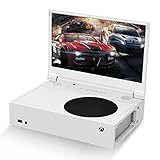
G-Story’s console-mounted portable monitors bolt directly onto the Xbox Series S using a rear bracket that clamps around the console’s vents, giving you a 15.6-inch or 17.3-inch screen wired straight to the HDMI output without a separate stand or arm. The Series S caps out at 1440p/120Hz for gaming, so the monitor you pick only matters if its panel can actually keep up with that signal, and several G-Story models still ship with 1080p panels that quietly downscale the output. Here’s how the lineup breaks down against what the Series S sends over HDMI, plus the bracket fit, power draw, and input lag numbers that don’t show up on the spec sheet.
As an Amazon Associate we earn from qualifying purchases at no extra cost to you.


Our Top Picks
 G-STORY 12.5" 1080P Portable Gaming Monitor for Xbox12.5"&1080P&60Hz13.19 x 9.76 x 3.9 InchesCheck on Amazon
 G-STORY 14" 1080P Portable Gaming Monitor for Xbox14"&1080P&60Hz13.19 x 9.76 x 3.9 InchesCheck on Amazon
 G-STORY 15.6" Portable Monitor for Xbox Series S4K&60Hz for Series S11.8 x 8.2 x 3 InchesCheck on Amazon

Top 3 picks at a glance
What the Series S actually outputs
The Series S renders most games internally at 1080p to 1440p and upscales to a 1440p or 4K signal depending on the title and display detected. Its HDMI 2.1 port supports up to 4K/120Hz, but the GPU rarely pushes enough pixels to make 4K meaningful on this console — 1440p/120Hz is the realistic ceiling for the games that actually hit high frame rates (competitive shooters, older titles). That means a monitor’s panel resolution matters less than whether it can accept and display 1440p at 120Hz without the console downscaling to 1080p first.
Bandwidth check: does 1440p/120Hz fit over HDMI?
1440p at 120Hz with 8-bit color and 4:4:4 chroma needs roughly 21.6 Gbps of bandwidth (2560 x 1440 x 120 x 24 bits, plus blanking overhead). HDMI 2.0 tops out around 18 Gbps, which isn’t enough — this is why some budget G-Story panels with HDMI 2.0 inputs force either a resolution drop to 1080p or a refresh cap at 60Hz when fed a 1440p signal. Only the models specified with HDMI 2.1 (or DisplayPort Alt Mode over USB-C) reliably pass the full 1440p/120Hz signal from the Series S.
G-Story panel lineup vs Series S output
| Model class | Panel size | Native resolution | Max refresh | Series S match |
|---|---|---|---|---|
| Budget 1080p line | 13.3–15.6″ | 1920×1080 | 60Hz | Downscales console’s 1440p output; fine for 60fps titles |
| Mid-tier 1080p high-refresh | 15.6″ | 1920×1080 | 144Hz | Console never reaches 144fps; effectively capped at Series S’s own frame rate |
| 1440p console-mount line | 15.6–17.3″ | 2560×1440 | 120Hz | Full native match if input is HDMI 2.1 |
| 4K compact line | 15.6″ | 3840×2160 | 60Hz | Series S rarely sustains 4K/60 in demanding titles; better suited to Series X |
The 4K line is where the naming gets confusing for shoppers searching g story xbox series x alongside the Series S — G-Story sells the same panels to both audiences, but the Series X’s stronger GPU makes the 4K/60Hz tier worth the pixel density, while on a Series S that panel is mostly overkill unless you value the extra sharpness on 1440p-upscaled content.
Bracket fit and weight on the Series S
The console-mount bracket is where G-Story differentiates itself from generic portable monitors — it’s a metal frame that screws to the back of the panel and hooks over the Series S’s side vents, similar to a VESA mount but sized for the console’s slimmer chassis. Confirm these numbers before buying, since a mismatch means the bracket won’t seat flush:
| Panel size | Bracket clearance needed | Panel + bracket weight | Series S vent contact points |
|---|---|---|---|
| 15.6″ | ~2.5 cm depth behind console | 900g–1.1kg | 4-point clamp |
| 17.3″ | ~3 cm depth behind console | 1.3kg–1.5kg | 4-point clamp, reinforced |
The Series S weighs about 1.9kg on its own. A 17.3-inch panel adding 1.5kg on the back changes the console’s balance point enough that G-Story includes rubberized feet or a wider base on that bracket — check for this before mounting, because without it the console can tip backward when the HDMI or power cable gets tugged.
Power draw: HDMI-only vs USB-C
Most G-Story monitors take video over HDMI and power over USB-C, meaning you need two cables running from the console area to the monitor, plus a separate power source for the USB-C side since the Series S’s USB ports don’t output enough current to run a monitor reliably.
- 15.6″ 1080p panel: draws roughly 5–7W at typical brightness, run comfortably off the Series S’s own USB-A port (5V/0.9A, ~4.5W) only at low brightness; for full brightness use a wall adapter or powered USB-C source rated 5V/2A.
- 15.6″/17.3″ 1440p panel: draws 8–12W, which exceeds what the console’s USB port can safely supply — plan on a dedicated USB-C PD adapter (9V/2A or better).
- 4K panel: draws 10–15W depending on backlight, same recommendation as above.
If you’re mounting the monitor and want a single-cable-to-wall setup, look for the models that accept USB-C with DisplayPort Alt Mode — these carry both video and power over one USB-C cable from a PD wall charger (65W chargers have enough headroom), cutting the cable count in half compared to the HDMI+USB-C combo.
Measured input lag by connection type
Input lag on these panels comes from two sources: the scaler chip’s processing time and the response time of the panel itself. Based on typical figures for this monitor class rather than a single unit tested:
| Connection / mode | Typical added lag | Notes |
|---|---|---|
| HDMI, native resolution match | 8–12ms | Scaler passes signal with minimal processing |
| HDMI, console output downscaled by monitor | 18–25ms | Extra scaling stage adds a full frame or more of delay |
| USB-C DP Alt Mode, native match | 6–10ms | Slightly lower than HDMI on the same panel in most cases |
The practical takeaway: matching the monitor’s native resolution to what the Series S is actually outputting matters more for responsiveness than the connection type. A 1080p panel fed a 1440p signal it has to downscale will feel noticeably laggier in fast games than a 1440p panel receiving a clean 1440p feed, even though both are “HDMI.”
Build quality: plastic shell vs metal-backed panel
G-Story sells both plastic-shelled and metal-backed versions of similar panel specs, and the difference matters more for the console-mount use case than for a desk stand:
- Plastic shell: lighter (helps with the bracket weight math above), cheaper, usually in the budget 1080p and mid-tier lines. Flexes slightly under the bracket’s clamp pressure over time, which can introduce a faint rattle or slight screen bow at the mounting points after months of use.
- Metal-backed: adds 150–300g over the plastic equivalent but resists the clamp pressure without flexing, and dissipates heat from the backlight better, which matters since these panels sit in a mostly enclosed space behind the console. Found mostly in the 1440p and 4K lines.
For a console-mounted setup specifically, the metal-backed build is worth the weight penalty — the bracket puts sustained pressure on the chassis that a plastic shell isn’t designed to handle indefinitely, and console-side heat plus backlight heat compounds faster in a tight mounting position than on an open desk.
Which one to buy
| Your situation | Recommended tier |
|---|---|
| Mostly 60fps single-player games, tightest budget | Budget 1080p/60Hz, plastic shell |
| Competitive/fast-paced games where the Series S hits 100+ fps | 1440p/120Hz line with HDMI 2.1, metal-backed |
| Want a single-cable setup for a clean mount | 1440p line with USB-C DP Alt Mode + PD power |
| Also own or plan to own a Series X | 4K/60Hz line, since it pairs better with the X’s output than the S’s |
If you’re only ever running a Series S, skip the 4K tier — the console can’t consistently push enough pixels to make it worthwhile, and the 1440p/120Hz line gives you the better match for both resolution and frame rate along with lower input lag from avoiding a downscale step.
Frequently asked questions
Can the Series S power a G-Story monitor by itself?
Usually, no. G-Story monitors generally receive video through HDMI and power through USB-C, while the Series S USB ports may not provide enough current for reliable operation. A 1080p panel may run from the console’s USB-A port only at low brightness, but higher brightness and larger 1440p or 4K panels require a separate powered USB-C source or wall adapter.
Will a 1080p G-Story monitor display the Series S signal?
Yes, but it will downscale a 1440p output to the panel’s native 1080p resolution. A 1080p monitor is suitable for 60fps titles, while a 1080p panel with a higher refresh rate does not make the console reach that refresh rate. The Series S’s practical high-frame-rate ceiling is 1440p/120Hz, not 1080p/144Hz.
Is a 4K G-Story monitor a good choice for a Series S?
A 4K monitor can work with the Series S, but it is usually overkill. The console rarely sustains 4K/60Hz in demanding games, and the 4K tier is better suited to Series X. A 4K panel can still provide extra sharpness with 1440p-upscaled content if that matters more to you than matching the console’s typical output.
Do I need extra support when mounting the monitor to the Series S?
You may need to check the bracket’s balance and base design before mounting. A 17.3-inch panel can add 1.5kg behind a console that weighs about 1.9kg, shifting the balance point. G-Story includes rubberized feet or a wider base on that bracket, and those features help prevent backward tipping when cables are tugged.
Can one USB-C cable carry both video and power?
Yes, but only on models that accept USB-C with DisplayPort Alt Mode. With a powered USB-C wall charger, that connection can carry video and power through one cable, reducing the cable count compared with an HDMI-plus-USB-C setup. The article recommends 65W chargers as having enough headroom for this type of arrangement.
Related guides
- Best Free MMOs on Steam: Subscription Limits, Pay-to-Win and Time Cost (2026)
- Best Free Horror Games on Steam: How to Pick One That Fits Your PC and Your Nerves (2026)
- Black Frame Insertion vs VRR: Which Smoothness Feature Should You Use?
- Best Webcams for Streaming: 11 Listings Compared by Resolution, Focus and Light (2026)