Our Short List of 3

- Best for: MacBook Pro owners with Apple silicon who unlock and approve prompts all day from a fixed desk.
- Connectivity: Bluetooth, with USB-C for pairing and charging
- Touch ID sensor for Mac computers with Apple silicon
- Extended layout with document navigation controls and numeric keypad
- Rechargeable internal battery

- Best for: Heavy typists who move between a MacBook Pro and other Apple devices through the day.
- Mac key layout in Space Grey finish
- Bluetooth Low Energy, pairs with up to three devices
- Backlit keys with hand proximity detection and automatic brightness
- USB-C rechargeable internal battery

- Best for: Small desks, shared workspaces and anyone who carries a keyboard with their MacBook Pro.
- Compact minimalist layout without a numeric keypad
- Bluetooth connection, pairs with up to three devices
- Backlit keys with automatic adjustment
- USB-C rechargeable internal battery
All 5 Picks at a Glance
| Product | Specs | Action |
|---|---|---|
| Apple Magic Keyboard with Touch ID and Numeric Keypad |
| Check price on Amazon |
| Logitech MX Keys S for Mac |
| Check price on Amazon |
| Logitech MX Keys Mini for Mac |
| Check price on Amazon |
 Keychron K3 Max |
| Check price on Amazon |
 Satechi Slim X3 Bluetooth Backlit Keyboard |
| Check price on Amazon |
The real decision when you dock a MacBook Pro is not key feel in the abstract. It is whether the board on your desk behaves like the one built into the laptop: Command and Option where your thumbs expect them, a function row that runs macOS shortcuts instead of generic F-keys, and a way to unlock the machine without reaching over to the laptop every time it sleeps. A Windows-first keyboard gets all three of those slightly wrong, and you feel the friction dozens of times a day.
This roundup is for MacBook Pro owners building a desk setup, people who split time between a laptop and an iPad, and anyone who wants a mechanical board without giving up Mac shortcuts. Every pick below was chosen from its Amazon listing by name and stated specifications, and each one carries a printed Mac layout rather than relying on remapping software to fake it.
Our Top Picks
Top 3 picks at a glance
Quick Picks
As an Amazon Associate we earn from qualifying purchases
| Product | Best for | Key spec from title |
|---|---|---|
| Apple Magic Keyboard with Touch ID and Numeric Keypad | Unlocking with Touch ID at a fixed desk | Touch ID sensor and full numeric keypad |
| Logitech MX Keys S for Mac | Long typing days across several Apple devices | Backlit Mac layout, USB-C rechargeable |
| Logitech MX Keys Mini for Mac | Small desks and bags that travel | Compact Bluetooth layout with backlit keys |
| Keychron K3 Max | A mechanical feel that stays slim | 2.4 GHz and Bluetooth 5.1 with QMK/VIA |
| Satechi Slim X3 Bluetooth Backlit Keyboard | A full-size backlit board for Mac and iPad | Backlit keys with numeric keypad, multi-device sync |
How to Choose
Start With the Mac Layout, Not the Switch
A printed Mac layout decides whether shortcuts stay automatic. On a genuine Mac board, Command sits beside the space bar where your thumb lands, Option and Control follow the order macOS expects, and the top row carries icons for brightness, Mission Control, Spotlight, dictation and media instead of plain F-numbers. Windows-layout boards can be remapped in settings, but the keycaps still lie to you every time you glance down. If you touch-type in the dark and rarely look, this matters less. For everyone else, the legend printed on the cap is the feature you use most.
Decide Whether Touch ID Matters to You
Only Apple’s own keyboard puts a Touch ID sensor on an external board, and it changes the rhythm of a docked setup more than any key switch does. Wake the MacBook Pro, touch the key, and you are in, with the same fingerprint flow approving purchases and password prompts through the day. The catch is compatibility: the sensor works only with Macs running Apple silicon, so an older Intel MacBook Pro gains nothing from it. If your machine is Intel-based, skip the premium for Touch ID and put the money toward backlighting or a better typing platform instead.
Match the Footprint to Your Desk and Your Work
Full-size boards with numeric keypads suit spreadsheet work, data entry and anyone who lives in keyboard shortcuts that assume a separate number row, but they push your mouse far to the right and can strain a shoulder over long sessions. Compact layouts pull the mouse closer and free desk space, at the cost of the keypad and sometimes full-size arrow keys. A MacBook Pro on a stand beside an external monitor usually pairs best with whichever width keeps the board centered on the screen rather than on the laptop. Measure your tray or desk before ordering, not after.
Check How It Connects and How It Charges
Every MacBook Pro from recent years has Bluetooth built in, so a Bluetooth board needs no dongle and leaves your USB-C ports free. Boards that also offer a 2.4 GHz receiver can feel steadier in crowded wireless environments, yet most receivers are still USB-A, which means an adapter on a USB-C-only laptop. Charging matters just as much: USB-C rechargeable boards share the cable already on your desk, while replaceable batteries add a drawer item to manage. Multi-device pairing is worth having if an iPad or a second Mac shares your desk, because one keypress then moves the board between machines.
The 5 Best Options
Apple Magic Keyboard with Touch ID and Numeric Keypad
- Best for: MacBook Pro owners with Apple silicon who unlock and approve prompts all day from a fixed desk.
- Connectivity: Bluetooth, with USB-C for pairing and charging
- Touch ID sensor for Mac computers with Apple silicon
- Extended layout with document navigation controls and numeric keypad
- Rechargeable internal battery
MacBook Pro owners with Apple silicon who unlock and approve prompts all day from a fixed desk.
There is no backlighting, and Touch ID does nothing on Intel-based Macs, so confirm your chip before paying for the sensor.
If your MacBook Pro stays closed on a stand all day, this is the board that removes the most friction. The Touch ID key wakes and unlocks an Apple silicon machine exactly like the sensor on the laptop itself, and the extended layout adds document navigation keys plus a proper numeric keypad for anyone who enters figures. The typing action is shallow and quiet, close to the MacBook Pro’s own keyboard, so moving between desk and couch never means relearning key travel. White keys on the silver frame also match the laptop’s look without trying.
Logitech MX Keys S for Mac
- Best for: Heavy typists who move between a MacBook Pro and other Apple devices through the day.
- Mac key layout in Space Grey finish
- Bluetooth Low Energy, pairs with up to three devices
- Backlit keys with hand proximity detection and automatic brightness
- USB-C rechargeable internal battery
Heavy typists who move between a MacBook Pro and other Apple devices through the day.
The Mac version ships without a USB receiver in the box, so plan on Bluetooth unless you already own a Logi Bolt receiver.
Logitech built this one for people whose MacBook Pro is the hub of a wider Apple setup. The Mac-specific layout pairs with backlighting that wakes as your hands approach and adjusts to the room, and the board can sit on three Bluetooth channels at once, hopping between a MacBook Pro, an iPad and a second Mac from dedicated keys. The dished keycaps guide fingers to center without looking, which suits long writing or coding sessions. It charges over USB-C, and Logitech Options software on macOS lets you reassign the function row to match the apps you actually open.
Logitech MX Keys Mini for Mac
- Best for: Small desks, shared workspaces and anyone who carries a keyboard with their MacBook Pro.
- Compact minimalist layout without a numeric keypad
- Bluetooth connection, pairs with up to three devices
- Backlit keys with automatic adjustment
- USB-C rechargeable internal battery
Small desks, shared workspaces and anyone who carries a keyboard with their MacBook Pro.
There is no numeric keypad and no included USB receiver, so number-heavy work and dongle-based setups are both poor fits.
Desk space is the whole argument here. The Mini keeps the Mac layout, the backlighting and the sculpted keys of its full-size sibling, then cuts the numeric keypad and trims the frame so a mouse can sit close to your shoulder line. Dedicated keys for dictation, emoji and microphone mute suit people who spend their day in calls and documents on a MacBook Pro, and the compact body slides into a laptop bag without dominating it. Bluetooth pairing covers up to three devices, so the same small board can serve a MacBook Pro at the office and an iPad at home.
Keychron K3 Max
- Best for: MacBook Pro users who want mechanical typing and deep remapping in a board that still travels well.
- Compact 75 layout with low-profile mechanical Gateron switches
- 2.4 GHz wireless, Bluetooth 5.1 and wired USB-C connection modes
- QMK/VIA support for remapping and macros
- Keycaps for macOS and Windows layouts included
MacBook Pro users who want mechanical typing and deep remapping in a board that still travels well.
Switch type and backlight vary by listing option, so check the exact variant selected on the page before ordering.
Most mechanical boards are thick enough to demand a wrist rest, but the K3 Max uses low-profile Gateron switches in a slim aluminum frame, so it brings a mechanical feel to a MacBook Pro desk without raising your hands. A hardware switch flips the board between macOS and Windows layouts, and keycaps for both systems come in the box. QMK and VIA support lets you remap any key and build macros that survive across machines, since the layout lives on the keyboard itself. Three connection modes cover the desk: 2.4 GHz wireless, Bluetooth 5.1 for up to three devices, and wired USB-C when the battery runs low.
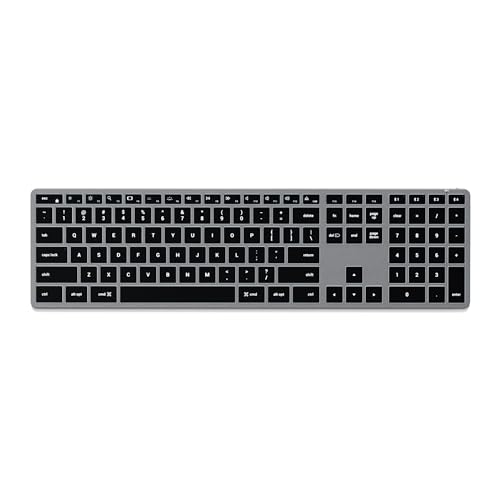
Satechi Slim X3 Bluetooth Backlit Keyboard
- Best for: MacBook Pro and iPad owners who want a full-size backlit Mac keyboard for a tidy desk.
- Bluetooth multi-device sync across Mac and iPad
- Backlit keys with adjustable brightness
- Extended layout with numeric keypad
- USB-C rechargeable internal battery
MacBook Pro and iPad owners who want a full-size backlit Mac keyboard for a tidy desk.
There is no Touch ID sensor, and the listing calls for macOS 12 Monterey or later, so check your system version first.
Satechi aims squarely at the Apple desk aesthetic: a thin aluminum body, Mac legends on every key, and an extended layout that keeps the numeric keypad the Mini gives up. The backlit keys offer several brightness levels for evening work, and the board remembers multiple Bluetooth devices, so one keyboard can drive a MacBook Pro and an iPad in turn. It charges over USB-C with the same cable style the laptop uses. For MacBook Pro owners who want the full-size layout and backlighting without Apple’s Touch ID pricing, this is the straightforward alternative, provided your Mac runs a recent macOS version.
Which One Fits Your Situation
Your MacBook Pro Lives Docked at One Desk
Choose the Apple Magic Keyboard with Touch ID and Numeric Keypad. A closed laptop on a stand makes the built-in fingerprint sensor unreachable, and this board restores it while adding the keypad your desk work probably wants. The MX Keys S for Mac is the fallback if backlighting matters more to you than fingerprint unlock, since it keeps the full layout and adds light for evening sessions.
You Split the Day Between MacBook Pro, iPad and a Second Mac
Take the Logitech MX Keys S for Mac. Three Bluetooth channels with dedicated switching keys make it the calmest way to move one keyboard around an Apple-heavy desk, and the backlighting holds up in dim rooms. The Satechi Slim X3 also syncs across devices and costs its size in desk width, so pick it when a numeric keypad matters more than Logitech’s typing platform.
Your Desk Is Small or Your Keyboard Travels
The Logitech MX Keys Mini for Mac was drawn for this. It keeps the Mac legends and backlight while freeing the space a keypad would take, and it disappears into a bag next to a MacBook Pro. If you would rather have mechanical switches for the same journeys, the Keychron K3 Max is nearly as compact and adds a 2.4 GHz mode for stubborn wireless environments.
You Want to Remap Everything and Keep a Mechanical Feel
The Keychron K3 Max stands alone in this list for customization. QMK and VIA remapping, macros stored on the board, and swappable low-profile switches let you shape it around a coding or editing workflow on macOS. Just confirm the switch variant on the listing before you order, because the feel changes completely between the linear, tactile and clicky options.
Common Mistakes
- Buying a Windows-layout board and assuming remapping fixes everything, when the printed legends still fight your muscle memory.
- Paying for the Touch ID Magic Keyboard while using an Intel MacBook Pro, where the sensor cannot work.
- Choosing a full-size keypad model for a narrow desk tray, then typing off-center from the monitor all day.
- Forgetting that most 2.4 GHz receivers are USB-A, which a USB-C-only MacBook Pro cannot accept without an adapter.
- Overlooking the macOS version a keyboard requires, then finding newer function features unavailable on an older system.
Frequently Asked Questions
Does Touch ID on an external keyboard work with every MacBook Pro?
No. Apple’s Magic Keyboard with Touch ID works only with Macs that have Apple silicon, and the listing states that requirement directly. On an Intel MacBook Pro the keyboard still types over Bluetooth, but the fingerprint sensor stays inactive, so the standard version or a third-party board makes more sense there.
Will a Windows wireless keyboard work with a MacBook Pro?
It will type, and macOS lets you swap the modifier keys in settings, but the printed legends remain in Windows order and the function row rarely matches macOS shortcuts. Most people adapt within a week. If you use Command shortcuts constantly, a board with a printed Mac layout removes a small frustration you would otherwise feel every day.
Can one wireless keyboard serve a MacBook Pro and an iPad?
Yes, if it supports multiple Bluetooth channels. The MX Keys S for Mac, MX Keys Mini for Mac, Satechi Slim X3 and Keychron K3 Max all pair with several devices and switch from the keyboard. Pair each device once, then use the channel keys to move between them without opening Bluetooth settings again.
Do these keyboards need a USB dongle in a MacBook Pro port?
Not for Bluetooth models, which cover most of this list and connect to the MacBook Pro directly. Only the 2.4 GHz mode on boards like the Keychron K3 Max uses a receiver, and that receiver is USB-A, so it needs an adapter on current MacBook Pro models. Bluetooth avoids the adapter entirely and keeps both ports free.
Related guides
More from Amazon
Programs that pair well with the guide above. Offers and eligibility are set by Amazon and may change.
Free shipping on eligible items, Prime Video and more. Eligible new members can start with a free trial.
Start a Prime free trialAd-free music streaming. Eligible new subscribers can start with a free trial.
Try Music Unlimited freeA Prime membership for ages 18-24 with a trial period. Eligibility is set by Amazon.
See Prime for Young AdultsAudiobooks and podcasts to listen to on the go. Eligible new members can start with a free trial.
Try Audible freeAs an Amazon Associate we earn from qualifying purchases.