A 3D render can fail in two ways. It can run slowly, which is an annoyance, or it can stop dead because the scene no longer fits in video memory, which is a wall. That second failure is why buying a graphics card for rendering is a different exercise from buying one for games, and why a 16GB gaming board, a 32GB workstation board and a 48GB workstation board can each be the right answer for a different person.
This guide covers eight cards in three tiers: mainstream boards for hobbyists and freelancers who also game, mid-tier workstation boards, and high-capacity workstation boards for production scenes. It is written for Blender, Octane, V-Ray and Redshift users who must decide how much memory to buy first and which vendor their renderer supports well, with 2026 purchases in mind. Every card detail below comes from the listing title, so confirm the rest on the product page before you commit.
Our Top Picks
 ASUS Dual GeForce RTX 5060 Ti 16GB GDDR7RTX5060Ti|OC|16GB9 x 4.7 x 2 inches1.4 poundsCheck on Amazon


Top 3 picks at a glance
Quick Picks
As an Amazon Associate we earn from qualifying purchases at no extra cost to you.


| Product | Best for | Key spec from the title |
|---|---|---|
| MSI GeForce RTX 5080 Ventus 3X OC | One card for rendering plus gaming and streaming | 16GB GDDR7, PCIe Gen 5 |
| AMD Radeon Pro W7800 | Larger scenes on a workstation board | 32GB GDDR6, 45 TFLOPS, 260W TDP |
| AMD Radeon Pro W7900 | Memory-hungry production scenes on AMD | 48GB GDDR6, 61 TFLOPS, 295W TDP |
| ASRock Radeon AI PRO R9700 Creator | Rendering mixed with local AI work | 32GB GDDR6, RDNA 4, PCIe 5 |
| ASUS Dual GeForce RTX 5060 Ti 16GB | Entry point with a 16GB ceiling | 16GB GDDR7, 2.5-slot, PCIe 5.0 |
| NVIDIA RTX PRO 4000 Blackwell | Compact workstation builds | 24GB GDDR7 ECC, single slot |
| NVIDIA RTX PRO 5000 Blackwell | Large scenes on NVIDIA | 48GB GDDR7 ECC, dual slot |
| ASUS ProArt GeForce RTX 4080 Super OC | Creator desktops that want a longer warranty | 16GB GDDR6X, 3 year warranty |
The 8 Best Options
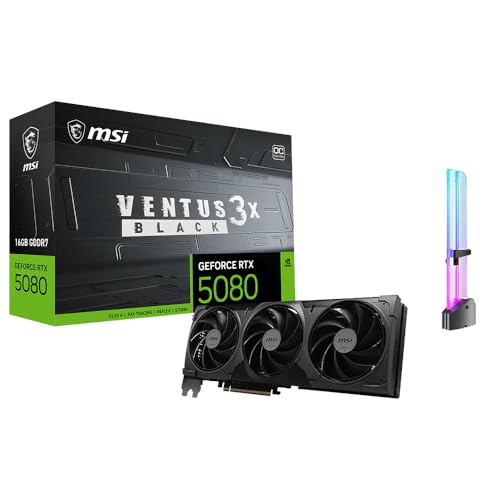
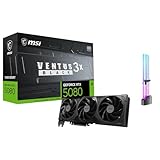
MSI GeForce RTX 5080 Ventus 3X OC
This is a gaming-class card whose listing names 3D rendering and AI content creation outright. The title shows 16GB of GDDR7, a PCIe Gen 5 interface, a factory overclock and a triple-fan Ventus 3X cooler with RGB lighting. It suits the freelancer or solo studio that renders by day and games or streams at night, and wants one GPU to handle every job on the desk.
Because the board is built for 4K gaming as well, the viewport should stay responsive while you sculpt or light a scene, and the same silicon is useful for AI-assisted denoising and content tools. The limit is the memory pool, which is the same size you will find on much cheaper boards in this guide.
- 16GB of GDDR7 is workable headroom for product visualization, interiors and character scenes.
- PCIe Gen 5 matches current motherboards, so the slot is not a bottleneck.
- One card covers gaming, streaming and content creation, so money is not tied up in a rendering-only part.
- 16GB sits well below the 32GB and 48GB boards, so very large scenes will not fit.
- The title mentions no ECC memory or certified professional drivers.
Skip it if your scenes carry dense geometry, many large textures or heavy volumetrics that outgrow 16GB, or if a client demands certified workstation drivers. Next in line, the Radeon Pro W7800 gives up the gaming focus and doubles the memory.
AMD Radeon Pro W7800
A professional board that the title labels for workstation, AI and 3D rendering work. The listing shows 32GB of GDDR6, DisplayPort 2.1, AV1 support, 45 TFLOPS, 70 compute units, a 260W TDP and 8K output. It is for users whose scenes have already spilled past 16GB and who want a clear step up in capacity without jumping to the largest board.
Think of it as the sensible middle of the AMD workstation range, with enough room to grow and a power draw that ordinary cases can handle. Interiors with dense furniture and foliage, or character scenes with many 4K textures, often land in the 20GB to 30GB zone, and this is the card sized for that gap.
- 32GB of memory is double what the gaming-class cards in this guide offer.
- The 260W TDP is modest for the capacity, which eases power supply and cooling planning.
- DisplayPort 2.1 and 8K output suit color-critical, multi-monitor setups.
- GDDR6 is the older memory type compared with the GDDR7 on the newer cards.
- AMD boards depend on your renderer supporting AMD’s compute path, so check the compatibility list first.
Skip it if your main renderer is built around NVIDIA-only features. Compared with the next pick, the W7900, it saves 16GB of capacity and about 35W of listed power draw in exchange for a lower memory ceiling.
AMD Radeon Pro W7900
The W7900 is the largest AMD board in this group. The title lists 48GB of GDDR6, AV1, 61 TFLOPS, 96 compute units, a 295W TDP, 8K output and a single Mini DisplayPort connection. It is built for production artists whose scenes are limited by memory first and speed second: large environments, heavy simulation caches and texture-rich hero assets.
The value of 48GB is not that every job needs it, but that the jobs which do need it simply cannot run elsewhere. Teams that previously split a shot into layers to fit memory can often render it in a single pass on a board this size.
- 48GB is the largest capacity on the AMD side and keeps very large scenes entirely in memory.
- 61 TFLOPS and 96 compute units are the highest figures among the AMD boards listed.
- The 295W TDP remains manageable on a quality 850W-class power supply.
- Only one Mini DisplayPort connector is listed, so multi-monitor desks need adapters or a second GPU.
- Like the W7800, it relies on the renderer supporting AMD hardware.
Skip it if you rarely exceed 24GB, because the extra capacity then sits idle and the draw on your power supply is higher for no benefit. It leads naturally to the ASRock R9700 Creator, which keeps AMD’s platform but changes the architecture and the audience.
ASRock Radeon AI PRO R9700 Creator
This card is aimed at creators who also run local AI models. The listing shows 32GB of GDDR6, a 2920 MHz boost clock, AMD RDNA 4, AI accelerators, DisplayPort 2.1a and PCIe 5. It makes sense for a one-person studio that renders in the afternoon and experiments with image or language models in the evening on the same board.
It shares the 32GB capacity of the W7800 but is built on a newer architecture, and the Creator label points at content workflows rather than pure CAD. Buyers should check that their renderer and AI tools both support the RDNA 4 generation before purchase.
- 32GB of GDDR6 matches the W7800 while using the newer RDNA 4 design.
- Dedicated AI accelerators are named in the title, which suits mixed workloads.
- PCIe 5 and DisplayPort 2.1a make it a modern fit for new builds.
- The title does not state a TDP, so confirm power connectors and supply headroom on the product page.
- Newer architectures can take time to gain full renderer support.
Skip it if you need the 48GB ceiling or must run a renderer with NVIDIA-only acceleration. The next card, the ASUS RTX 5060 Ti 16GB, moves to the NVIDIA side at a gentler tier.
ASUS Dual GeForce RTX 5060 Ti 16GB
The entry point in this guide, and the card to consider if you are learning to render or building scenes that stay modest. The title shows 16GB of GDDR7, an OC edition, PCIe 5.0, HDMI 2.1b, DisplayPort 2.1b, a 2.5-slot design and Axial-tech fans with 0dB technology.
That 16GB figure is the headline. Plenty of beginners hit memory limits on 8GB cards within weeks, and moving to 16GB removes the most common early frustration. It will not be the fastest renderer here, but it will open scenes that smaller cards refuse to load.
- 16GB of GDDR7 matches the memory of the far more expensive gaming flagship in this guide.
- The 2.5-slot dual-fan layout fits many mid-tower cases without trouble.
- 0dB technology lets the fans stop at light loads, which helps during quiet modeling sessions.
- It is a gaming card, so there is no ECC memory and no workstation certification.
- The GPU is a mid-tier part, so long renders will take noticeably longer than on the higher cards.
Skip it if you deliver client renders on deadline every day. If you outgrow it, the compact RTX PRO 4000 Blackwell is the next step up in memory while staying slim.
NVIDIA RTX PRO 4000 Blackwell
A workstation card built to fit small spaces. The title lists 24GB of GDDR7 with ECC, PCIe 5.0 x16, four DisplayPort 2.1b outputs and a single-slot, full-height design for AI workstation use. It is for users building compact or multi-GPU systems where slot width, not raw size, limits the choice.
The ECC memory is the quiet advantage. Overnight batch renders and long simulations are exactly the jobs where a single memory error can ruin hours of work, and workstation buyers pay for protection against that.
- 24GB of ECC memory protects long renders and simulations from memory errors.
- A single-slot body lets several cards share one chassis.
- Four DisplayPort 2.1b outputs support a wide desk of monitors.
- 24GB is only 8GB above the 16GB cards, so confirm your scenes truly need the jump.
- Single-slot cooling in a workstation chassis calls for good case airflow.
Skip it if you want the biggest memory pool or a gaming-friendly card with RGB styling. Its bigger sibling comes next.
NVIDIA RTX PRO 5000 Blackwell
The top NVIDIA workstation card in the group. The title shows 48GB of GDDR7 with ECC, PCIe 5.0 x16, four DisplayPort 2.1b outputs and a dual-slot, full-height form factor for AI workstation duty. It targets studios that cannot afford a failed render late in a project and need the largest NVIDIA memory pool in this guide.
It pairs the same capacity as the W7900 with newer GDDR7 memory and the NVIDIA software ecosystem, which many renderers treat as the default path. For teams whose pipeline is already built on NVIDIA tools, that continuity can matter more than any single figure.
- 48GB of ECC memory is the largest capacity on the NVIDIA side of the list.
- It keeps the CUDA-style compatibility many renderers expect from NVIDIA hardware.
- Four DisplayPort outputs and a dual-slot body suit a full production desk.
- This is premium-tier hardware, and the cost only makes sense when scenes truly need the capacity.
- Dual-slot width and workstation power needs rule it out of small cases.
Skip it if your scenes sit under 24GB. Compared with the W7900, it offers the same 48GB on the NVIDIA platform; compared with the last pick, it steps up to a far more current design.
ASUS ProArt GeForce RTX 4080 Super OC
The ProArt line is aimed at creators, and this model is described with 16GB of GDDR6X, PCIe 4.0, DLSS 3, HDMI 2.1a, DisplayPort 1.4a and a three-year warranty. It suits a creator desktop that wants a gaming-grade GPU with a longer warranty and a restrained look.
It is the oldest design in the guide, which can be an advantage if you find it discounted: 16GB of fast memory is still a useful rendering size, and the card remains a capable viewport and render engine for mainstream scenes.
- The three-year warranty is explicitly listed, which is useful for a card that works for a living.
- 16GB of GDDR6X is the same capacity as the newer gaming picks.
- DLSS 3 helps if the same machine doubles as a gaming rig.
- PCIe 4.0 and DisplayPort 1.4a are a generation behind the newer boards here.
- Its architecture is older than the 50-series cards in this guide.
Skip it if you are buying for the long haul at full cost, since the newer 16GB cards offer the same capacity with newer connections. At a good deal it is a respectable middle path.
Who Needs a Dedicated Rendering GPU
Almost every GPU renderer asks one question before it asks about speed: does the scene fit? Anyone moving from CPU rendering to GPU rendering, anyone adding AI denoising or upscaling to a workflow, and anyone who wants to watch changes appear live in the viewport benefits from a capable card. The kind of work matters more than the job title.
A useful habit is to write down the three heaviest scenes you have opened in the past year, note how much video memory each one used, and add a third on top for growth. That one number narrows the list faster than any comparison chart.
Freelancers and hobbyists
People who model, texture and render product shots or small interiors can live comfortably on a 16GB card. The RTX 5080 Ventus and the RTX 5060 Ti 16GB cover that ground, and a gaming-class card also helps with viewport performance while sculpting, painting textures or editing video between projects.
Small studios and architecture visualization
Scenes full of furniture, vegetation and high-resolution textures eat memory quickly. A 24GB or 32GB workstation board gives breathing room and reduces the need to optimize every asset by hand. ECC memory is a bonus for overnight batch renders that nobody is watching.
Production and simulation teams
Artists working with large environments, fluid caches or volumetrics should look at the 48GB boards. Time lost to out-of-memory failures usually costs more than the difference between a 32GB and a 48GB card, and a bigger pool also leaves room for tools running alongside the renderer.
How to Choose
Video memory comes first
Treat 16GB as the floor for serious 3D work today, 24GB to 32GB as the comfortable middle, and 48GB as the production tier. If a scene does not fit, many renderers either fail or fall back to slower system memory. Buy for the largest scene you expect in the next two years, not the average one. Cards with 8GB or less belong in light modeling machines, not render nodes.
Match the vendor to the renderer
NVIDIA cards are reached through CUDA and OptiX in most renderers, while AMD cards use HIP or other paths where supported. Before buying, read your renderer’s supported hardware list and any notes on newer architectures. A fast card with limited support is slower in practice than a modest card with full support.
Compute throughput
Speed still counts once memory is settled, and it is the part most people over-weight. The titles give TFLOPS and compute-unit counts for the AMD workstation boards: 45 TFLOPS and 70 units on the W7800, 61 TFLOPS and 96 units on the W7900. Use those only to compare within one family, because raw figures do not translate across vendors or architectures. Within the same maker, more compute units generally shorten render time once the scene fits in memory.
Power, size and slots
Check the card’s TDP where listed, such as 260W and 295W on the AMD boards, then pair it with a quality power supply with real headroom: roughly 750W for mid-tier cards and 850W to 1000W for the largest. Measure case clearance for 2.5-slot designs and remember that single-slot workstation cards depend on airflow supplied by the case rather than their own fans alone.
ECC and drivers
ECC memory, named in the NVIDIA RTX PRO titles, guards against memory errors in long jobs. Gaming drivers update often and favor new games, while professional drivers emphasize stability and certification for production software. Choose by asking how costly a failed overnight render would be for you, how often your software updates, and whether your studio or clients require certified drivers.
Where budget models cut corners
Entry cards cut memory capacity, memory bandwidth and professional driver support first. They also tend to use simpler coolers that get loud under sustained render loads, and many have no ECC at all. Ignore boost-clock marketing on its own, RGB lighting and box-art claims; focus on memory size, vendor support and cooling. A listing that gives no chip name or memory size at all is a warning sign.
Gaming-Class vs Workstation Cards for Rendering
Every buyer of this keyword ends up here: spend on a gaming card with a strong GPU, or on a workstation card with more memory and professional features. The table summarizes the cards in this guide.
| Factor | Gaming-class card | Workstation card |
|---|---|---|
| Memory in this guide | 16GB | 24GB, 32GB or 48GB |
| ECC memory | Not listed | Named on the RTX PRO titles |
| Gaming use | Primary purpose | Possible but not the focus |
| Cooling style | Multi-fan, 2.5-slot designs | Single or dual slot, built for chassis airflow |
| Cost tier | Budget to premium | Premium |
The simplest way to frame the choice is by failure cost. A gaming card that runs out of memory costs you a re-export and an afternoon. A workstation card that is oversized costs you money once. Which of those two mistakes hurts more depends entirely on your deadlines.
When gaming-class wins
If your scenes fit in 16GB and you also game, stream or edit video, a gaming-class card offers the best versatility. The MSI RTX 5080 and ASUS RTX 5060 Ti 16GB are built for exactly that mix, and the extra headroom in everyday viewport work is a plus. You also get more fan and cooler choice, and a wider range of case-friendly designs.
When workstation wins
If one failed render can cost a deadline, or your scenes already exceed 16GB, workstation memory and ECC protection pay for themselves. The W7800, W7900, R9700 Creator and the two RTX PRO cards are the logical choices, with the decision driven by capacity, form factor and renderer support rather than brand loyalty.
Setup, Compatibility and Upgrade Tips
What to check before buying
Confirm the physical length and slot width against your case, the power connectors against your supply, and the PCIe slot on your motherboard. Read your renderer’s documentation for supported GPUs and driver versions, and confirm the display outputs match your monitors, since the W7900 lists only one Mini DisplayPort. Verify that the listing is the exact model you want, because similar names are common.
Do not overlook storage and cooling either. Large scene files and texture libraries load faster from a fast NVMe drive, and a case with two or three intake fans keeps long renders from throttling a card that is working at full load for hours.
What to upgrade first
If renders stop with memory errors, the GPU is the right upgrade. If viewport work stutters but renders complete, look at the CPU and system RAM instead. System memory of 32GB is a sensible minimum for a rendering workstation, and 64GB is more comfortable for large scenes, simulation caches and several applications open at once.
If you plan to add a second GPU later, count the free PCIe slots, the spacing between them and the extra power connectors your supply can offer. Planning for that on day one is far cheaper than replacing a case and supply a year from now, and it keeps the option of a dedicated display card open.
Common compatibility traps
New architectures may need updated drivers or renderer versions before they work properly, so read the release notes. Mixing AMD and NVIDIA cards in one machine can complicate driver setup. Single-slot cards in tight cases can overheat without proper airflow, and a weak power supply may cause crashes under sustained load. Finally, a PCIe 5.0 card works in an older slot, but at the slower speed of that slot.
Which One Fits Your Situation
You game, stream and render product shots
Versatility matters most when one machine does everything. The MSI GeForce RTX 5080 Ventus 3X OC covers all three jobs with 16GB of GDDR7 and the cooling a gaming board brings. Pair it with 32GB of system memory and a roomy case.
You are learning Blender on a tight budget
Learning projects rarely need exotic hardware, but they do need enough memory to avoid constant errors. The ASUS Dual GeForce RTX 5060 Ti 16GB offers the same 16GB memory ceiling in a quieter, smaller package, and you can add a larger card later when your projects demand it.
You build large environments for clients
Memory is the deciding factor here, and idle capacity is cheaper than a failed delivery. The NVIDIA RTX PRO 5000 Blackwell gives 48GB of ECC memory on the NVIDIA platform, and the AMD Radeon Pro W7900 matches the capacity if your renderer supports AMD hardware.
You need a slim card for a compact workstation
Space, not speed, is the constraint in a small chassis. The NVIDIA RTX PRO 4000 Blackwell packs 24GB of ECC memory into a single-slot body, which suits tight chassis and multi-GPU layouts better than any bulky gaming board.
Common Mistakes
- Buying on gaming frame rates alone and ignoring how much video memory the biggest scene needs.
- Assuming every renderer supports every GPU architecture on day one.
- Comparing TFLOPS figures across different vendors as if they were equal.
- Pairing a 295W-class card with a bargain power supply.
- Forgetting to measure case clearance for 2.5-slot cards or airflow for single-slot cards.
- Paying for 48GB when scenes never exceed 16GB.
Related guides
- How To Clean Quest 3 Lenses And Facial Interface
- Vr Facial Interfaces For Glasses Wearers
- Micro Sd Cards For Samsung Galaxy Phones
Frequently Asked Questions
How much VRAM do I need for 3D rendering?
Sixteen gigabytes handles many product and interior scenes. Larger environments, heavy textures and simulations are safer on 24GB to 48GB. Buy for your biggest expected scene, not the average one.
Is a gaming card good enough for rendering?
Yes, for scenes that fit in its memory, and plenty of working artists rely on them. The MSI RTX 5080 listing even names 3D rendering. Workstation cards add more memory, ECC and certified drivers for production work.
NVIDIA or AMD for rendering?
It depends on your renderer. NVIDIA is widely supported through CUDA and OptiX, and AMD is supported through HIP in many programs. Read the supported hardware list before you buy.
Does ECC memory matter?
It matters for long unattended jobs where a memory error could ruin hours of work. The RTX PRO Blackwell titles list ECC. For short renders it is a bonus rather than a necessity.
Can I use two cards?
Many renderers can use multiple GPUs, but memory is usually not pooled, so each card must hold the whole scene. Single-slot cards like the RTX PRO 4000 Blackwell make dual setups easier to fit.
Is the cheapest listing in this category worth considering?
Be wary of listings with vague titles, such as a bare 3D rendering label with no chip or memory size, and no stated memory or chip details. A card should clearly name its GPU, memory size and type. A basic display card is not a rendering card, however the keywords are arranged, and a very old low-end board will struggle to open even a simple scene.
Final Words
Pick memory first, vendor support second and speed third. A 16GB card is a fine place to begin learning and handle modest scenes, 24GB to 32GB covers most studio work, and 48GB is for production scenes that would otherwise fail outright. Read the renderer’s supported hardware list, size the power supply honestly, and leave room in the case for airflow. A card that fits your biggest scene will serve you longer than one that is merely fast. Whichever tier you choose, confirm every detail on the live product page, because listings change and titles only tell part of the story.