As a home editor, I often look at our living spaces through the lens of organization, spatial efficiency, and physical clutter. However, in the modern smart home, digital clutter is just as real as a pile of unorganized magazines on your coffee table. The PlayStation 5 is a masterpiece of home entertainment, but its internal storage fills up incredibly fast. Between system files and massive game installs, the standard console leaves you with very little breathing room.
If you find yourself constantly deleting old games to make room for new ones, it is time to expand your storage. Adding an internal M.2 NVMe Solid State Drive (SSD) is the cleanest way to upgrade your console without adding messy external cords or bulky drives to your media console. But how much SSD storage do you actually need for your PS5, and how do you ensure the physical drive fits into your console’s dedicated expansion bay?
As an Amazon Associate we earn from qualifying purchases at no extra cost to you.

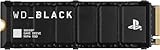


Our Top Picks

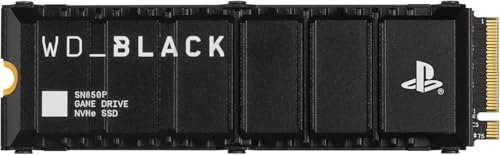


Top 3 picks at a glance
The Short Answer
For the vast majority of households, a 1TB or 2TB M.2 SSD is the ideal sweet spot. If you are a casual gamer who plays a mix of two or three titles at a time alongside family streaming apps, a 1TB drive (costing between $150 and $240) will easily double your usable space. If you share your console with kids or roommates, or if you regularly play massive, file-heavy games like Call of Duty or Grand Theft Auto, a 2TB drive (ranging from $400 to $470 for premium licensed models) is highly recommended. This ensures you will not have to manage digital storage limits well into 2026 and beyond.
Standard Sizes
When shopping for a PS5 SSD, you cannot just look at digital capacity; you must also look at the physical dimensions of the drive and its heatsink. Sony has strict physical size requirements for the PS5’s internal expansion slot. The drive must be an M.2 NVMe PCIe Gen4 x4 SSD, and it must have a heatsink to prevent overheating inside your media cabinet.
Below are the standard capacities, physical drive measurements, and average price ranges for compatible PS5 SSDs:
| Capacity & Product Type | Physical Form Factor | Length (Inches / cm) | Width with Heatsink (Inches / cm) | Height with Heatsink (Inches / cm) | Average Price Range |
|---|---|---|---|---|---|
| 1TB Entry-Level (e.g., Fikwot FX991) |
M.2 2280 | 3.15 in / 8.0 cm | 0.87 in / 2.2 cm | 0.39 in / 1.0 cm | $130 – $160 |
| 1TB Premium/Licensed (e.g., WD_BLACK SN850P, Fanxiang) |
M.2 2280 | 3.15 in / 8.0 cm | 0.95 in / 2.4 cm | 0.35 in / 0.9 cm | $180 – $240 |
| 2TB Premium/Licensed (e.g., WD_BLACK SN850P) |
M.2 2280 | 3.15 in / 8.0 cm | 0.95 in / 2.4 cm | 0.35 in / 0.9 cm | $400 – $470 |
| Max Allowed PS5 Slot Limit (Sony Specification) |
M.2 2230, 2242, 2260, 2280, 22110 | Up to 4.33 in / 11.0 cm | Up to 0.98 in / 2.5 cm | Up to 0.44 in / 1.125 cm | N/A |
How to Measure Your Space
Before purchasing an SSD, you need to understand how it fits into your home console setup. The PS5 has a dedicated metal bay designed to house these drives. If you buy an SSD with a heatsink that is too tall or too wide, the metal expansion cover will not screw back on, leaving your console exposed to dust and poor airflow. Follow these steps to measure and verify your space:
- Power Down and Prep Your Workspace: Turn off your PS5, unplug all cables, and let it cool down for at least 10 minutes. Place the console flat on a soft, clean surface (like a microfiber towel or a clean desk) to avoid scratching the outer shell.
- Remove the Console Cover: For the original PS5, gently pull up on the back corner of the cover plate where the PlayStation logo is not located, and slide the plate down toward the bottom of the console. For the PS5 Slim, pop off the top-right glossy panel.
- Locate the Expansion Slot: You will see a rectangular metal cover secured with a single screw marked with the iconic PlayStation symbols (Cross, Circle, Triangle, Square). Use a standard Phillips #1 screwdriver to remove this screw and lift off the metal cover.
- Check the Length Markers: Inside the bay, you will see a green circuit board with several screw holes labeled 30, 42, 60, 80, and 110. These correspond to standard M.2 lengths in millimeters. Most consumer SSDs (including the WD_BLACK and Fanxiang options) are size 2280 (80mm or 3.15 inches long).
- Verify Heatsink Clearance: If you are buying a third-party heatsink separately to attach to a bare drive, measure its total height from the bottom of the chip to the top of the metal fins. The total thickness cannot exceed 11.25 mm (0.44 inches). Crucially, no more than 8.0 mm (0.31 inches) of that height can be above the top of the board, and no more than 2.45 mm (0.09 inches) can be underneath the board.
By Room or Use Case
Your physical living space, family dynamics, and how you use your media center play a major role in deciding how much storage you need. Here is a breakdown of SSD recommendations based on different home environments:
The Casual Family Media Room (1TB Upgrade)
If your PS5 sits in the main living room media console, serving as a shared hub for family movie nights, streaming apps, and casual gaming, a 1TB SSD upgrade is perfect. In this setting, the console usually hosts a rotating selection of multiplayer party games, active sports titles, and media apps. A 1TB drive like the Fikwot FX991 or the fanxiang 1TB with pre-installed heatsink offers a budget-friendly way to double your console’s capacity, keeping the entertainment center organized and free from external drive clutter.
The Dedicated Gaming Den or Teen Bedroom (2TB Upgrade)
For a dedicated gaming setup, home office desk, or a teenager’s bedroom where the console gets daily heavy use, a 2TB SSD upgrade is the ideal standard. Active gamers tend to keep multiple massive “live-service” games installed at the same time, along with large single-player adventures. A premium 2TB drive, such as the officially licensed WD_BLACK SN850P, ensures that there is plenty of room for system updates and game recordings without ever needing to open the console up for another upgrade down the road.
The High-End Home Theater & Media Closet (4TB+ Upgrade)
If you have a dedicated home theater room with custom cabinetry, a projector, and a high-end audio receiver, you likely treat your PS5 as a premium media server. Power users who record gameplay in crisp 4K resolution, download massive digital game libraries, and want to completely eliminate download waiting times should look at a 4TB SSD. This keeps your entire digital collection instantly accessible, matching the premium, seamless experience of a luxury smart home theater.
Common Sizing Mistakes
Upgrading a console’s storage is a straightforward project, but it is easy to make a few common physical and technical mistakes if you are not careful:
- Buying an SSD Without a Heatsink: The PS5’s internal bay relies on passive airflow. Running a high-speed PCIe Gen4 SSD without a heatsink will cause the drive to overheat, leading to thermal throttling (which slows down your game load times) or even permanent hardware damage inside your console.
- Forgetting to Check the Total Height: Many generic M.2 heatsinks designed for desktop PCs are far too thick to fit inside the PS5’s slim expansion bay. If the heatsink is taller than 11.25 mm (0.44 inches), you will not be able to reattach the metal slot cover, which disrupts the console’s internal air pressure and cooling design.
- Selecting the Wrong Speed: Sony requires a minimum read speed of 5,500 MB/s. Buying an older PCIe Gen3 drive or a slower Gen4 drive will result in an error message on your screen, and the console may refuse to boot until the drive is removed. Stick to reputable drives rated for 7,000 MB/s or higher.
- Ignoring the Standout Spacer: When installing the SSD, many users forget to move the small metal spacer (the silver ring) to the correct length hole (usually the “80” marker) before screwing down the drive. Screwing the SSD directly down to the green board without this spacer will bend and permanently damage the drive’s connector pins.
FAQ
Can I use an external USB hard drive instead of an internal M.2 SSD?
Yes, but with major limitations. You can store PS5 games on an external USB hard drive or external SSD, but you cannot play them directly from there because external USB ports are too slow. To play a PS5 game stored externally, you must first copy it back over to your console’s internal storage. An internal M.2 NVMe SSD allows you to download, store, and play PS5 games directly with zero lag.
Does installing an internal SSD void my PlayStation 5 warranty?
No, installing an M.2 SSD does not void your warranty. Sony intentionally designed the console with an easily accessible expansion bay and has published step-by-step video guides showing users how to install a drive themselves. Just be careful to use the correct screwdriver so you do not strip the internal screws.
What is the minimum speed required for a PS5 M.2 SSD?
Sony recommends an M.2 NVMe SSD with a sequential read speed of at least 5,500 MB/s. Most high-quality Gen4 SSDs on the market today, such as the WD_BLACK SN850P, Fikwot FX991, and fanxiang models, easily exceed this requirement, reaching speeds up to 7,000 MB/s to 7,300 MB/s. These fast speeds ensure games load even faster than they do on the console’s built-in factory drive.
How much usable storage space does the PS5 actually come with out of the box?
The original launch edition PS5 comes with an 825GB internal drive, but after reserving space for the operating system and system files, you are only left with about 667GB of actual usable storage. The newer PS5 Slim models upgraded the internal drive to 1TB, which gives you about 848GB of actual usable space. Given that single modern games can take up over 150GB, this space disappears quickly without an expansion drive.
Related guides
- Best Free MMOs on Steam: Subscription Limits, Pay-to-Win and Time Cost (2026)
- Best Free Horror Games on Steam: How to Pick One That Fits Your PC and Your Nerves (2026)
- Black Frame Insertion vs VRR: Which Smoothness Feature Should You Use?
- Best Webcams for Streaming: 11 Listings Compared by Resolution, Focus and Light (2026)