Upgrading your PlayStation 5 storage is one of the most practical home-entertainment upgrades you can make. However, stepping into the world of solid-state drives (SSDs) can feel like deciphering a foreign language. Many console owners make the expensive mistake of buying the first drive they see with a high number on the packaging, only to find it does not fit inside the console’s narrow expansion bay, or worse, causes the system to overheat and throttle performance during an intense gaming session.
The most common pitfall is focusing solely on raw, advertised sequential read speeds. While Sony specifies a baseline speed requirement, real-world performance in your living room depends on a delicate balance of thermal management, controller architecture, and physical dimensions. If an SSD gets too hot, its internal controller will automatically slash its operating speed to protect the hardware, rendering that advertised “ultra-high-speed” marketing claim useless. To avoid wasting hundreds of dollars, you must understand how these drives actually operate inside the tight, passively cooled confines of the PS5.
As an Amazon Associate we earn from qualifying purchases at no extra cost to you.


Our Top Picks


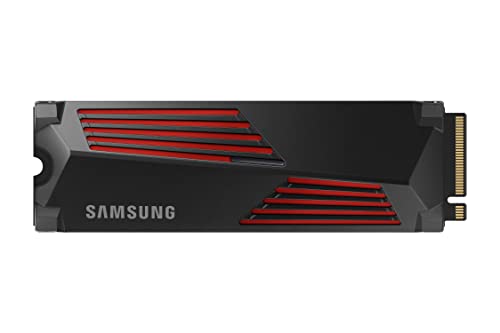
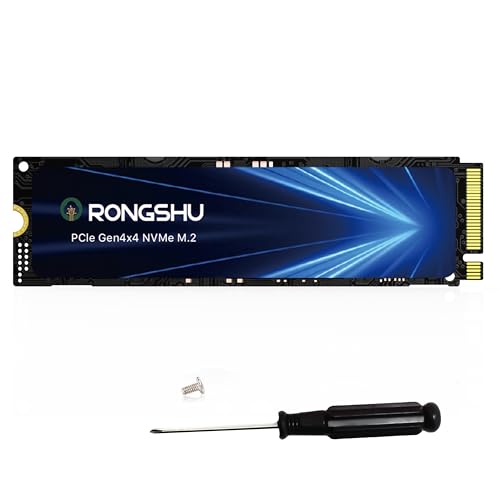
Top 3 picks at a glance
Decide These 3 Things First
Before diving into the technical specifications of individual drives, you need to establish three baseline parameters for your home setup. Making these decisions early will instantly filter out 80% of the incompatible or overpriced drives on the market.
- Your Target Capacity (1TB vs. 2TB vs. 4TB): Modern triple-A games regularly exceed 100GB to 150GB in size. A 1TB drive offers a decent entry point, but a 2TB drive is the absolute sweet spot for long-term convenience, allowing you to keep 30 to 40 major titles downloaded simultaneously without constantly managing storage.
- Pre-Installed vs. DIY Heatsink: The PS5 requires a heatsink to operate safely. You must decide whether you want to pay a slight premium for a drive with a pre-installed, factory-tested heatsink, or buy a bare drive and attach an aftermarket heatsink yourself. The DIY route can save $15 to $30 but requires steady hands and careful alignment.
- Your True Budget Range: Drive pricing varies wildly based on brand reputation and performance tiers. Decide if you are looking for a budget-friendly expansion in the $80 to $160 range, a mid-tier workhorse between $160 and $280, or a premium, top-tier drive that commands $280 to $450 or more for maximum capacity and elite cooling.
1. Physical Dimensions and the M.2 Form Factor
The physical size of the drive is a non-negotiable factor. The PS5 expansion slot is designed specifically for M.2 NVMe PCIe Gen4 SSDs. Specifically, the console supports standard widths of 22mm, but can accommodate various lengths: 2230, 2242, 2260, 2280, and 22110. Almost every high-performance gaming drive on the market uses the 2280 format (22mm wide by 80mm long).
However, the real challenge is the height, including the heatsink. The total thickness of the drive and its cooling structure must not exceed 11.25mm (0.44 inches). Specifically, there must be no more than 8.0mm of structure above the SSD card, and no more than 2.45mm below it. If you purchase a drive with an oversized heatsink designed for open-air PC towers, the PS5’s metal expansion bay cover will not close, or the drive will physically jam against the slot connector, risking permanent damage to your console’s motherboard.
2. Thermal Construction and Heatsink Materials
Because the PS5’s expansion bay is a sealed, metallic pocket with minimal active airflow, heat is the ultimate enemy of sustained high read speeds. When an SSD controller chips exceed temperatures of roughly 70 to 80 degrees Celsius, they trigger thermal throttling, dropping read speeds to a fraction of their maximum capability.
When evaluating heatsink construction, look for solid aluminum or high-grade copper alloys. Aluminum heatsinks with deep, carved fins or ridges are ideal because they maximize the surface area exposed to what little air moves through the console’s chassis. Cheap, thin metal stickers (often marketed as “graphene thermal pads”) are insufficient for the sustained workloads of modern gaming. A robust, solid-metal block heatsink ensures that heat is rapidly pulled away from the NAND flash memory chips and the controller, keeping operating temperatures safely below 60 degrees Celsius even during multi-hour gaming sessions.
3. NAND Flash Memory Type
Not all solid-state memory is created equal. The digital storage units inside an SSD are called NAND flash cells. For a PS5 expansion drive, you will primarily choose between TLC (Triple-Level Cell) and QLC (Quad-Level Cell) NAND.
TLC NAND is the gold standard for high-performance gaming. It stores three bits of data per cell, offering an exceptional balance of fast read/write speeds, thermal efficiency, and long-term durability. QLC NAND, which stores four bits per cell, is cheaper to manufacture and allows for higher capacities at lower prices. However, QLC drives suffer from significantly slower sustained write speeds and degrade faster over time. For a high-read-speed PS5 drive, stick exclusively to TLC NAND (often advertised as “3D TLC NAND”) to ensure your drive can handle the continuous, rapid data streaming demanded by modern console architectures.
4. Read and Write Performance Standards
Sony’s official guidelines state that an expansion SSD must have a sequential read speed of at least 5,500 MB/s. While drives that barely hit this limit will work, targeting a drive that reaches 7,000 MB/s to 7,450 MB/s provides crucial futureproofing as games become more complex heading toward 2026.
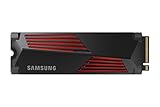
Keep in mind that advertised speeds are “up to” values. A premium drive like the Samsung 990 PRO or the MOVE SPEED HB7450 boasts read speeds up to 7,450 MB/s, which ensures that loading screens are virtually instantaneous. Write speeds are less critical for game playback but highly important when downloading or copying massive game files from the main console storage. Look for write speeds of at least 5,000 MB/s to 6,300 MB/s to match your high read speeds, ensuring a balanced, high-speed file transfer experience.
5. DRAM Cache vs. DRAM-less Architectures
One of the most overlooked technical specifications is the presence of an onboard DRAM (Dynamic Random-Access Memory) cache. The DRAM acts as a lightning-fast index or map for the SSD, telling the controller exactly where specific files are located on the NAND storage chips.
Drives with a dedicated DRAM chip (typically 1GB of DRAM for every 1TB of storage) can locate and retrieve files much faster than “DRAM-less” drives. DRAM-less drives are cheaper but must rely on Host Memory Buffer (HMB) technology or basic system memory to keep track of files. While DRAM-less drives can work in a PS5, they often experience performance stutters or sudden drops in read speeds when searching for random, scattered assets in open-world games. For a premium, seamless home gaming experience, always choose a drive with an integrated physical DRAM cache.
6. Price Tiers and Value Propositions
To help you budget for your home media setup, SSDs generally fall into three distinct price tiers based on their capacity, speed, and cooling hardware:
- Budget Tier ($80 – $160): Typically offers 1TB of storage with speeds ranging from 5,000 MB/s to 7,000 MB/s. These often require a separate DIY heatsink purchase. Examples include entry-level brands or drives like the RONGSHU 1TB (around $150), which offer solid performance but fewer luxury features.
- Mid-Range Tier ($160 – $280): The sweet spot for most households. Here you will find highly reliable 1TB to 2TB drives with pre-installed, console-compatible heatsinks and read speeds pushing 7,400 MB/s. Examples include the MOVE SPEED HB7450 2TB (around $280) or the Samsung 990 PRO 1TB with Heatsink ($280).
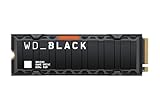
- Premium Tier ($280 – $450+): Offers maximum performance, massive 2TB to 4TB capacities, elite custom heatsinks, and top-tier brand warranties. The WD_BLACK SN850X 2TB with Heatsink (around $450) sits comfortably in this category, providing ultimate peace of mind and maximum sustained performance.
7. Warranty and Terabytes Written (TBW)
An SSD is a long-term investment for your home entertainment system. You should look for a manufacturer’s warranty of at least 5 years. Along with the warranty period, check the “Terabytes Written” (TBW) rating. TBW measures how much total data can be written to the drive before the memory cells begin to wear out.
A reliable 1TB drive should have a rating of at least 600 TBW, while a 2TB drive should offer 1,200 TBW or higher. Unless you are constantly deleting and reinstalling 100GB games every single day, a drive with these ratings will easily outlive the operational lifespan of your PlayStation 5 console.
Spec Checklist
Use this quick-reference table to compare key specifications across the three major market tiers before making your final purchase.
| Specification | Budget Tier | Mid-Range Tier | Premium Tier |
|---|---|---|---|
| Sequential Read Speed | 5,500 – 6,500 MB/s | 7,000 – 7,400 MB/s | 7,400 – 7,450+ MB/s |
| Sequential Write Speed | 4,000 – 5,000 MB/s | 6,000 – 6,500 MB/s | 6,500 – 7,000+ MB/s |
| Storage Capacity | 1TB | 1TB to 2TB | 2TB to 4TB |
| Heatsink Status | Often DIY (Not included) | Included (Basic Aluminum) | Included (Advanced/Custom Alloys) |
| DRAM Cache | DRAM-less (or small cache) | Dedicated (1GB per 1TB) | Dedicated (High-speed LPDDR4) |
| Warranty / Durability | 3 Years / 400 TBW | 5 Years / 600–1,200 TBW | 5 Years / 1,200–2,400+ TBW |
Red Flags to Avoid
When shopping online or in retail stores, stay alert for these warning signs that indicate a drive is unsuitable for your PS5:
- PCIe Gen3 Specifications: If the packaging or description mentions “Gen3” or “PCIe 3.0,” do not buy it. These older drives max out at around 3,500 MB/s and will not be recognized by the PS5’s expansion slot.
- Missing Heatsink Warning: Avoid running any M.2 drive in your PS5 without a heatsink. Even if a drive claims to run “cool,” the unventilated expansion bay will quickly cause it to overheat, leading to game crashes or system shutdown.
- Extremely Cheap Off-Brand 2TB/4TB Drives: If you spot a 2TB drive priced under $60, it likely uses low-grade QLC memory with recycled controller chips. These drives often lack a DRAM cache and will suffer from severe lag during gameplay.
- Heatsink Height Over 11.25mm: Always double-check the exact physical dimensions. Many popular PC-centric drives have bulky, decorative heatsinks that are too thick to allow the PS5’s metal bay cover to close properly.
FAQ
Do I really need a heatsink for my PS5 SSD?
Yes. Sony explicitly states that a heatsink is required for all M.2 SSDs installed in the PS5. Because the expansion bay is enclosed and receives very little air circulation, an SSD without a heatsink will rapidly overheat under load, causing performance throttling, data corruption, or emergency system shutoffs to protect the hardware.
What happens if I install an SSD with a read speed below 5,500 MB/s?
While the PS5 may boot up and allow you to format a slower PCIe Gen4 drive, you will likely experience performance issues. Games designed specifically for the PS5 rely on fast asset streaming; a slow drive can cause textures to pop in late, audio to desynchronize, or loading screens to hang indefinitely.
Can I use an external USB SSD to play PS5 games?
No. You can store PS5 games on an external USB hard drive or SSD, but you cannot play them directly from there. Because USB connections are too slow to handle the immediate data demands of modern games, you must copy the games back to the internal console storage or an approved internal M.2 SSD to play them.
Is it easy to install an internal SSD myself?
Yes, the installation process is straightforward and does not void your console’s warranty. All you need is a Phillips #1 screwdriver. After removing the PS5’s outer plastic cover, you unscrew the metal expansion bay plate, insert the SSD at a 30-degree angle, secure it with the included spacer and screw, and replace the covers. The console will automatically prompt you to format the drive when you turn it on.
Related guides
- Best Free MMOs on Steam: Subscription Limits, Pay-to-Win and Time Cost (2026)
- Best Free Horror Games on Steam: How to Pick One That Fits Your PC and Your Nerves (2026)
- Black Frame Insertion vs VRR: Which Smoothness Feature Should You Use?
- Best Webcams for Streaming: 11 Listings Compared by Resolution, Focus and Light (2026)