The storage capacity of the Xbox Series X is impressive out of the box, but with modern game files ballooning to massive proportions, that internal 1TB SSD (which offers only about 802GB of usable space) fills up incredibly fast. When you decide to expand your storage, the market is flooded with external options claiming seamless compatibility. However, many console owners make crucial, costly mistakes when figuring out how to choose an external drive for xbox series x.
The most common error is buying a standard external USB drive with the expectation that it will run Xbox Series X optimized games directly. Because of the Xbox Velocity Architecture, Series X|S optimized games require the ultra-high speeds of the internal custom SSD or the official proprietary expansion cards to play. If you buy a USB-connected external hard drive (HDD) or solid-state drive (SSD), it can only store these optimized games (acting as “cold storage”) or directly run older, backwards-compatible Xbox One, Xbox 360, and original Xbox games.
Another frequent mistake is overlooking physical integration—buying a loud, bulky desktop drive that requires its own wall outlet and clutters your clean media console, or choosing a drive with a cable so short it dangles awkwardly from your console’s USB ports. Understanding these distinctions is the key to selecting the right storage solution for your living space and gaming habits.
Our Top Picks
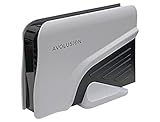
 Avolusion HD250U3-WH 1TB USB 3.0 Portable External Gaming1TB5 x 3 x 0.5 Inches0.6 poundsCheck on Amazon


Top 3 picks at a glance

Decide These 3 Things First
Before diving into specific technical specifications, narrowing your choices down based on your daily habits will save you time and money. Answer these three fundamental questions first:
- What is your primary storage goal? Decide whether you want a “cold storage” vault to archive massive Series X games so you do not have to redownload them, or if you want an active drive to play backwards-compatible games directly without wasting precious internal SSD space.
- Where will the drive physically live? Consider your entertainment center’s layout. Do you want a tiny, bus-powered portable drive that tucks invisibly behind the console, or a high-capacity desktop drive that sits permanently on your shelf and requires its own AC power outlet?
- What is your target budget-to-capacity ratio? Determine if you want to maximize sheer storage volume (such as a 4TB hard drive for under $130) or prioritize transfer speeds (such as a 1TB external SSD for around $100) to move files back and forth in minutes rather than hours.
Drive Type and Speed: SSD vs. HDD Performance
The choice between a Solid-State Drive (SSD) and a Hard Disk Drive (HDD) dictates how fast you can transfer games and load older titles. USB external SSDs utilize flash memory, offering read and write speeds ranging from 400 MB/s to over 1,050 MB/s. In contrast, traditional HDDs rely on spinning physical platters, usually operating at 5,400 RPM or 7,200 RPM, which limits their speeds to roughly 120 MB/s to 140 MB/s.
While neither option can run Series X optimized games directly, speed dramatically impacts “cold storage” transfers. Moving a 100GB game from an external HDD back to the internal SSD can take 12 to 15 minutes. On an external USB SSD, that same transfer takes just 2 to 3 minutes. Furthermore, if you run backwards-compatible Xbox One or Xbox 360 games directly from the external drive, an SSD will cut loading screens by up to 60 percent compared to an HDD, offering a much smoother gaming experience.
Capacity and Size: How Much Storage Do You Actually Need?
When planning your setup, look at your current library and future needs. As we look ahead toward 2026, game install sizes are only projected to grow, with standard AAA releases regularly exceeding 150GB.
- 1TB Capacity: Adds enough space for roughly 8 to 12 modern AAA games or dozens of smaller indie titles. This is ideal for casual gamers who want to avoid redownloading games but do not mind occasional library management.
- 2TB Capacity: The sweet spot for most households, storing around 15 to 25 large games. It offers an excellent balance of cost-per-gigabyte and physical footprint.
- 4TB and Above: Perfect for power users, households with multiple gamers, or those with slower internet connections who prefer to keep their entire game library downloaded. A 4TB drive can easily hold 40 to 60 major titles.
Physically, portable 2.5-inch drives are highly compact, measuring roughly 4.5 x 3.1 x 0.5 inches and weighing under 6 ounces. Desktop 3.5-inch drives are much larger, often measuring around 6.7 x 1.9 x 5.0 inches and weighing over 2 pounds, requiring dedicated space on your media console.
Casing Materials and Thermal Management
Because external drives can run hot during prolonged file transfers, enclosure construction matters for both longevity and home integration.
Plastic enclosures are common in budget-friendly drives. While lightweight, plastic is a poor thermal conductor. Under heavy workloads, a plastic-housed drive can run warm to the touch (up to 115 degrees Fahrenheit), which can trigger thermal throttling, temporarily slowing down your transfer speeds to protect the internal components.
Premium drives often feature anodized aluminum or metal enclosures. Metal acts as a natural heatsink, drawing heat away from the internal drive components and dissipating it into the surrounding air. This keeps the drive running cooler (usually under 95 degrees Fahrenheit) and maintains peak performance. From an interior design perspective, a sleek matte-black or mineral-white aluminum drive coordinates beautifully with the minimalist design of the Xbox Series X, whereas cheap, glossy plastic enclosures scratch easily and attract dust.
Power Requirements and Cable Setup
Cable management is crucial for keeping your gaming area organized and visual clutter to a minimum. External drives fall into two power categories:
Bus-powered (Portable): These drives draw all necessary power directly from the Xbox Series X console’s USB ports (which output 5V at up to 0.9A, or 4.5 watts). They require only a single USB cable, reducing cable clutter behind your media console.
Externally powered (Desktop): High-capacity drives (typically 4TB and larger 3.5-inch models) require an external AC power adapter plugged into a wall outlet or power strip. These drives draw between 10 to 18 watts of power.
Pay attention to cable length. Many portable drives ship with extremely short cables (around 12 to 18 inches). If you plan to hide the drive behind your console or route it through a media console wire-management grommet, you may need to purchase a longer, high-quality USB 3.0 or 3.2 cable.
Price Tiers and Value Metrics
The external storage market is highly competitive, but prices correlate closely with speed and capacity.
- Budget Tier ($50 to $80): Typically offers 1TB to 2TB of mechanical HDD storage. These drives are excellent for gamers on a tight budget who prioritize capacity over speed and do not mind longer transfer times.
- Mid-Range Tier ($90 to $150): This tier gives you a choice between a high-capacity mechanical drive (such as a 4TB HDD) or a fast, compact entry-level external SSD (usually 1TB).
- Premium Tier ($160 to $250+): Features ultra-fast external SSDs (2TB or larger) with ruggedized aluminum casings, or massive desktop HDDs (8TB to 12TB) designed to archive an entire generation of games.
Warranty, Reliability, and Out-of-Box Setup
A drive’s warranty is an indicator of the manufacturer’s confidence in its hardware. Mechanical HDDs are prone to physical wear and tear over time due to their moving parts, making a robust warranty highly valuable if the drive is bumped or dropped. Look for drives offering at least a 2-year limited warranty, though premium options often extend this to 3 or 5 years.
Additionally, look for drives labeled “Pre-formatted for Xbox.” While any USB 3.0 drive can be formatted by the Xbox Series X dashboard in under a minute, pre-formatted drives eliminate setup friction, allowing you to plug the drive into one of the console’s rear USB ports and immediately start moving files.
Spec Checklist
| Spec | Budget | Mid-Range | Premium |
|---|---|---|---|
| Drive Type | Mechanical HDD (5,400 RPM) | High-Capacity HDD or Entry SSD | High-Speed NVMe SSD / Large Desktop HDD |
| Typical Capacity | 1TB to 2TB | 2TB to 4TB (HDD) or 1TB (SSD) | 2TB to 4TB (SSD) or 8TB+ (HDD) |
| Read/Write Speed | 120 MB/s – 140 MB/s | 140 MB/s (HDD) or 500 MB/s (SSD) | 1,050 MB/s+ (SSD) or 200 MB/s+ (Desktop HDD) |
| Power Source | Bus-powered (USB 5V) | Bus-powered (USB 5V) | Bus-powered (SSD) or AC Wall Adapter (Desktop HDD) |
| Casing Material | ABS Plastic | Reinforced Plastic or Aluminum Accent | Anodized Aluminum / Rugged Rubberized Shell |
| Price Range | $50 – $80 | $90 – $150 | $160 – $250+ |
Red Flags
When shopping for an external drive, protect your data and your wallet by avoiding these common warning signs:
- Suspiciously Low Prices on High Capacities: Be wary of unbranded drives offering massive capacities (like 16TB SSDs) for $30 to $40. These are almost always scams containing cheap, slow SD cards glued inside a weighted shell.
- No USB 3.0 or 3.2 Specification: The Xbox Series X requires a minimum of USB 3.0 to format a drive for game storage. Avoid older USB 2.0 drives, as they will only be recognized for media playback (music and videos), not games.
- Misleading “Optimized for Series X” Labels on USB Drives: Some manufacturers print “Series X|S” logos on standard USB external hard drives. While they work for storage, they cannot play Series X games directly. Always check the fine print.
- No Manufacturer Warranty: If a brand does not offer at least a 1-year warranty with accessible customer support, avoid it. Drives hold your precious gaming data; reliability is paramount.
FAQ
Can I play Xbox Series X optimized games directly from an external USB drive?
No. Xbox Series X|S optimized games require the ultra-fast speeds of the console’s internal custom NVMe SSD or the official proprietary expansion card slot. External USB drives (both HDDs and SSDs) can only be used to store these games or to directly play older, backwards-compatible games from the Xbox One, Xbox 360, and original Xbox generations.
What is the difference between a USB external SSD and the official Expansion Card?
The official Expansion Card plugs directly into a proprietary PCIe slot on the back of the console, matching the internal SSD’s speed and allowing you to play Series X optimized games directly. A USB external SSD connects via a standard USB port, which is limited by USB interface speeds, meaning it can only be used as storage for Series X titles or active play for older games.
As an Amazon Associate we earn from qualifying purchases at no extra cost to you.


Does the external drive need its own power outlet?
It depends on the drive size. Most portable 2.5-inch external hard drives and external SSDs are bus-powered, meaning they draw all the power they need directly from the console’s USB port. However, large 3.5-inch desktop external drives (usually 4TB or larger) require their own dedicated AC power adapter plugged into a wall outlet.
How do I format an external drive for my Xbox Series X?
When you plug a compatible USB 3.0 or higher drive into one of the Xbox Series X’s USB ports, a pop-up menu will automatically appear on your screen. The console will ask if you want to use the drive for “Media” (pictures and music) or “Games & Apps.” Select “Format Storage Device,” give the drive a name, and the console will complete the formatting process in a few seconds.
Related guides
- Best Free MMOs on Steam: Subscription Limits, Pay-to-Win and Time Cost (2026)
- Best Free Horror Games on Steam: How to Pick One That Fits Your PC and Your Nerves (2026)
- Black Frame Insertion vs VRR: Which Smoothness Feature Should You Use?
- Best Webcams for Streaming: 11 Listings Compared by Resolution, Focus and Light (2026)