Upgrading your console’s storage is one of the first things many homeowners do to keep their media centers clean and clutter-free. No one wants a stack of external hard drives and messy USB cables spilling out of their entertainment console. But when you slide off the white outer plates of the console to reveal the expansion bay, you are faced with a critical hardware decision: do you need a heatsink for ps5 ssd expansion?
As a home tech and design editor, I look at gear not just through the lens of raw performance, but also through the lens of longevity, noise, and safety within your living space. If you are wondering whether you can skip this extra piece of metal, here is the honest, unfiltered truth about how to protect your console and your wallet.
As an Amazon Associate we earn from qualifying purchases at no extra cost to you.

Our Top Picks
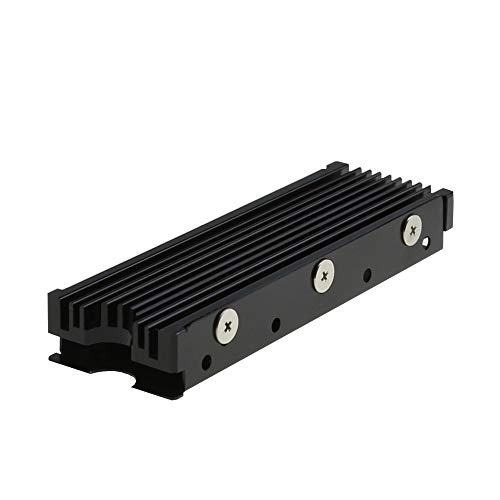 MHQJRH M.2 2280 SSD heatsink for PC /Double Side Heatsink(black)3 x 0.95 x 0.4 Inches0.1 poundsCheck on Amazon

The Short Answer
Yes, you absolutely need a heatsink. The single condition under which you do not need to buy an aftermarket heatsink is if you purchase an expansion drive that already has a compatible heatsink pre-installed from the factory. Otherwise, if you are installing a bare M.2 NVMe SSD into the internal expansion slot, Sony explicitly requires a thermal dissipation structure (a heatsink or heat transfer sheet) that meets their strict physical dimensions.
What You Actually Get
To understand why this small piece of metal is so critical, you have to look at how the console is engineered. The expansion slot is a small, rectangular metal pocket located directly beneath the main intake fan. However, this pocket is largely sealed off from the console’s primary airflow path once the metal expansion cover is screwed back into place.
When a PCIe Gen 4×4 SSD operates at the high speeds required by the console—typically reading data at 5,500 MB/s to 7,300 MB/s—it draws between 6 and 9 watts of power. Without a thermal management system, that electrical energy is converted directly into intense, localized heat. Within minutes of loading a demanding game, a bare SSD controller chip can easily exceed 80°C (176°F).
By installing a heatsink, you get three major physical benefits:
- Thermal Mass: An aluminum or copper heatsink acts as a thermal sponge, absorbing rapid spikes in heat from the SSD’s controller and NAND flash memory chips.
- Surface Area Expansion: The grooved fins of a high-quality heatsink multiply the surface area available for heat dissipation, allowing what little passive air moves through the chamber to carry the heat away.
- Throttling Prevention: When an SSD gets too hot, its internal firmware automatically slashes read and write speeds to prevent physical damage. A heatsink keeps the drive below its thermal threshold, ensuring your games run smoothly without sudden framerate drops or loading pauses.
Pros
- Sustained Peak Performance: Keeps your drive running at its maximum rated speed (up to 7,300 MB/s) even during long, multi-hour gaming sessions.
- Hardware Protection: Prevents extreme heat from radiating into the console’s main motherboard, protecting delicate internal capacitors and power delivery systems.
- Extended Drive Lifespan: Silicon degradation accelerates at high temperatures. Keeping your drive’s controller cool can add years to its operational life.
- Silent Operation: Because the heatsink is a passive cooling solution, it requires no moving parts, keeping your living room or media center whisper-quiet.
- Warranty Compliance: Using a heatsink ensures you remain fully compliant with Sony’s official hardware installation guidelines.
Cons
- Installation Precision Required: You must carefully apply thermal pads of the correct thickness (usually 0.5mm to 1.5mm) to ensure flush contact between the chips and the metal shield.
- Strict Clearance Limitations: The expansion bay has a very tight ceiling. The combined height of the SSD and its heatsink cannot exceed 11.25mm (0.44 inches), meaning many bulky desktop PC heatsinks will not fit.
- Added Initial Cost: Whether you buy a pre-built drive or a separate cooling attachment, it adds a small premium to your overall storage upgrade budget.
Who Should Buy It
You should buy a heatsink (or an SSD with one pre-installed) if you plan to play modern, graphically intense games directly from your expanded storage. Looking ahead toward 2026, upcoming next-generation titles will rely even more heavily on continuous asset streaming, which taxes your solid-state drive heavily. If your console sits inside a closed media cabinet or an entertainment center with limited ventilation, a heatsink is mandatory to keep internal temperatures from spiraling out of control.
Who Should Skip It
The only people who should skip buying a standalone heatsink are those who are purchasing an all-in-one expansion kit. Premium options like the SIX NVME M.2 SSD PCIe 4.0-1TB (priced around $180) come with a custom-engineered heatsink pre-attached to the circuit board. If you buy a bundled drive like this, you do not need to purchase a separate cooling cover. You should also skip it if you are only using an external USB hard drive for storing older legacy games, as external drives do not use the internal M.2 bay and run at much lower speeds.
Cheaper Alternatives
If you want to save money, you do not have to buy an expensive, pre-assembled SSD package. You can buy a “bare” SSD and pair it with a budget-friendly, third-party cooling plate. Below is a comparison of your options, ranging from premium pre-built units to budget-friendly DIY setups.
| Option | Approximate Cost | Trade-off |
|---|---|---|
| Pre-installed Premium SSD | around $150 – around $190 (e.g., SIX NVME 1TB) | Zero installation hassle and guaranteed fit, but carries a higher price premium per gigabyte. |
| Bare SSD + Basic Aftermarket Heatsink | around $75 – around $110 (SSD) + around $6 (MHQJRH Heatsink) | Highly cost-effective. Requires you to manually apply thermal pads and screw the metal plates together yourself. |
| Bare SSD + Metal Expansion Cover Replacement | around $75 – around $110 (SSD) + around $12 – around $18 (Cover) | Replaces the entire slot door with a giant thermal plate. Excellent cooling, but slightly more involved installation. |
FAQ
Will the PS5 run if I don’t install a heatsink on the SSD?
Yes, the console will boot up and recognize the drive without a heatsink. However, once you start playing a game that streams high-fidelity assets directly from the expansion drive, the SSD will rapidly heat up. Within 10 to 15 minutes, you will likely experience thermal throttling, resulting in stuttering gameplay, long loading screens, or even sudden system crashes to protect the hardware.
What are the exact dimensions a PS5 heatsink needs to be?
According to Sony’s official specifications, the entire assembly (SSD plus heatsink) must not exceed 110mm in length, 25mm in width, and 11.25mm in height. Specifically, there can be no more than 8.0mm of height above the SSD board and no more than 2.25mm of height below the board. Buying a dedicated model like the MHQJRH M.2 2280 heatsink ensures you stay within these sub-millimeter tolerances.
Can I use a computer heatsink instead of a specialized console heatsink?
You can use a PC heatsink only if it meets the strict 11.25mm height limit. Many high-end motherboard heatsinks designed for desktop PCs feature tall fins or miniature fans that can stand 20mm to 30mm tall. These will physically prevent you from closing the console’s metal expansion bay cover or reinstalling the outer plastic shell.
Does installing a third-party heatsink void my console’s warranty?
No. Sony designed the console with a user-accessible expansion bay specifically so owners could upgrade their own storage. As long as you do not damage the internal motherboard, strip the mounting screws, or puncture the main warranty seals inside the fan housing, installing an aftermarket drive and heatsink will not void your manufacturer’s warranty.
Related guides
- Best Free MMOs on Steam: Subscription Limits, Pay-to-Win and Time Cost (2026)
- Best Free Horror Games on Steam: How to Pick One That Fits Your PC and Your Nerves (2026)
- Black Frame Insertion vs VRR: Which Smoothness Feature Should You Use?
- Best Webcams for Streaming: 11 Listings Compared by Resolution, Focus and Light (2026)