Our Short List of 3

- Best for: presenters and managers who want the sharpest, most polished picture on client and leadership calls.
- Resolution: Ultra HD 4K at 30 fps; 1080p at 60 fps
- Sensor: 8.5 megapixel
- Focus: autofocus
- Microphones: dual noise-reducing mics

- Best for: trainers, teachers and presenters who stand, move and demonstrate while they talk.
- Resolution: 4K at 30 fps; 1080p at 60 fps
- Sensor: 1/1.5-inch CMOS
- Tracking: AI tracking with motorised pan and tilt, auto focus
- Controls: voice control and gesture control

- Best for: hybrid workers who want one dependable camera for a full week of scheduled meetings.
- Resolution: Full HD 1080p at 30 fps; 720p at 60 fps
- Sensor: 4 megapixel
- Field of view: adjustable 90, 78 or 65 degrees (diagonal)
- Light correction: RightLight 4 with auto-framing and Show Mode
All 4 Picks at a Glance
| Product | Specs | Action |
|---|---|---|
| Logitech MX Brio |
| Check price on Amazon |
| OBSBOT Tiny 2 |
| Check price on Amazon |
| Logitech Brio 500 |
| Check price on Amazon |
 Anker PowerConf C200 |
| Check price on Amazon |
The real decision when buying a webcam for Teams is not the headline resolution. It is whether the camera keeps you looking clear and natural in the light you actually have, frames you without fuss when you shift in your chair, and works the moment Teams opens, with no extra software standing between you and the call. A camera that needs constant adjusting or makes you look washed out undermines every meeting it joins.
This guide is for hybrid workers who live in scheduled Teams calls, managers who present to clients and leadership, and home office users replacing a dim laptop camera. The four webcams below were picked from their Amazon product pages, comparing the sensor, resolution, field of view, microphone and mounting details stated in each listing, so every specification quoted here traces back to what the manufacturer publishes on the page.
Our Top Picks
Top 3 picks at a glance
Quick Picks
As an Amazon Associate we earn from qualifying purchases.
| Product | Best for | Key spec from title |
|---|---|---|
| Logitech MX Brio | Client-facing presenters who want the sharpest image | Ultra HD 4K with 1080p at 60 FPS |
| OBSBOT Tiny 2 | Presenters who move around while they talk | 4K PTZ with AI tracking and a 1/1.5-inch sensor |
| Logitech Brio 500 | Everyday hybrid workers | Full HD 1080p with auto light correction |
| Anker PowerConf C200 | Second desks and spare rooms | 2K QHD with AI noise-canceling mics |
How to Choose
Resolution and frame rate
Teams calls are forgiving about resolution and unforgiving about consistency. A steady 1080p picture at 30 frames per second looks better than a 4K feed that keeps hunting for exposure, so treat headline resolution as headroom rather than a promise: extra pixels help when the app crops your frame or downscales, and 60 frames per second at 1080p keeps movement smooth when you gesture or hold items up. Match the camera to your connection and lighting first; resolution only pays off once those basics are stable.
Field of view and framing
Field of view decides how much of your room joins the meeting. A wide 90 or 95 degree setting suits two people sharing one desk or a presenter who moves, while 65 degrees crops tight on your head and shoulders and hides clutter behind you. If you share a small room or sit close to a wall, the tighter setting usually flatters more. Cameras with adjustable fields of view, or auto-framing that recentres you as you shift, save you from rearranging furniture just to look composed on a Monday morning call.
Microphones and noise handling
Colleagues will forgive soft video long before they forgive hard-to-hear audio. Most meeting webcams carry stereo microphones; the better listings add noise canceling that trims keyboard clatter, fan hum and street sounds so your voice stays in front. Think about where you sit: a desk near a kitchen or a shared office needs stronger noise handling than a quiet spare room. If you already use a headset for calls, microphone quality matters less, but a decent built-in mic keeps you covered on the days the headset battery dies.
Mount, privacy and connection
The practical details decide whether a webcam stays on your monitor or ends up in a drawer. A clip mount should grip both thin laptop lids and thick external monitors, and a tripod thread underneath gives you placement options when the monitor top is the wrong height. A physical privacy shutter is worth insisting on for a work machine: it ends the meeting visually, with no software to trust. Finally, check the cable and port. USB-C suits current laptops; if your machine only offers older ports, confirm what the box includes before the camera arrives.
The 4 Best Options
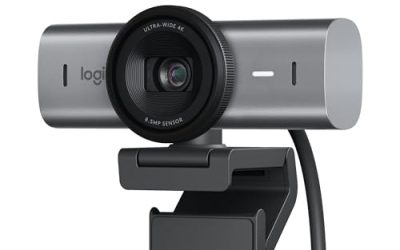
Logitech MX Brio
- Best for: presenters and managers who want the sharpest, most polished picture on client and leadership calls.
- Resolution: Ultra HD 4K at 30 fps; 1080p at 60 fps
- Sensor: 8.5 megapixel
- Focus: autofocus
- Microphones: dual noise-reducing mics
presenters and managers who want the sharpest, most polished picture on client and leadership calls.
confirm you are on the Graphite listing before ordering; the Pale Gray finish is sold under a different ASIN.
The MX Brio is the pick for people whose face carries the meeting: consultants, team leads and managers who present to clients over Teams. Its listing leads with Ultra HD 4K at 30 frames per second and 1080p at 60, backed by an 8.5 megapixel sensor, so your picture holds together when Teams crops or when you lean closer to the screen. Show Mode lets you tilt the camera down to share a sketch or document on your desk, and the dual noise-reducing microphones keep your voice forward. It connects over USB-C and includes a built-in privacy shutter.
Watch out for: confirm you are on the Graphite listing before ordering; the Pale Gray finish is sold under a different ASIN.
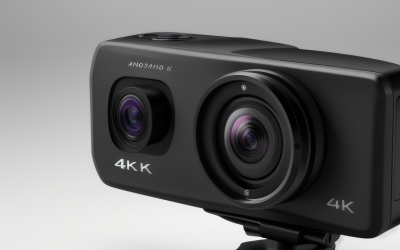
OBSBOT Tiny 2
- Best for: trainers, teachers and presenters who stand, move and demonstrate while they talk.
- Resolution: 4K at 30 fps; 1080p at 60 fps
- Sensor: 1/1.5-inch CMOS
- Tracking: AI tracking with motorised pan and tilt, auto focus
- Controls: voice control and gesture control
trainers, teachers and presenters who stand, move and demonstrate while they talk.
the motorised head needs clear space to pan and tilt, so check it can move freely where you plan to mount it.
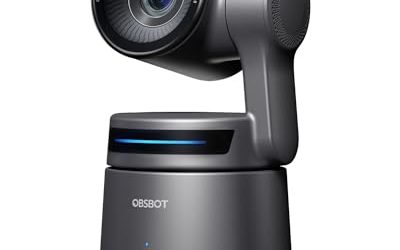
Choose the Tiny 2 if you rarely sit still on a call. It is a motorised pan-and-tilt camera with AI tracking, so it turns to follow you when you stand, pace or step to a whiteboard, and it answers to voice commands and hand gestures when your hands are full. The listing pairs a large 1/1.5-inch sensor with 4K at 30 frames per second and 1080p at 60, plus HDR light correction for rooms where the light changes through the day. For trainers, teachers and presenters, that freedom of movement is the whole point.
Watch out for: the motorised head needs clear space to pan and tilt, so check it can move freely where you plan to mount it.
Logitech Brio 500
- Best for: hybrid workers who want one dependable camera for a full week of scheduled meetings.
- Resolution: Full HD 1080p at 30 fps; 720p at 60 fps
- Sensor: 4 megapixel
- Field of view: adjustable 90, 78 or 65 degrees (diagonal)
- Light correction: RightLight 4 with auto-framing and Show Mode
hybrid workers who want one dependable camera for a full week of scheduled meetings.
this ASIN is the Graphite finish; the Rose and Off White finishes are separate listings, so check the colour selected before ordering.
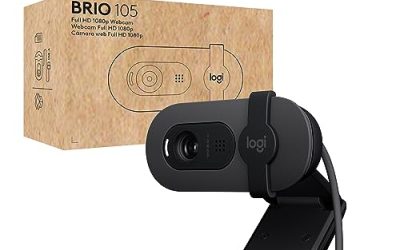
The Brio 500 covers the everyday hybrid brief: full HD video, sensible framing and light correction that forgives a gloomy room. Its listing states 1080p at 30 frames per second and 720p at 60, an adjustable field of view of 90, 78 or 65 degrees, and RightLight 4 correction with auto-framing that keeps you centred when you shift in your chair. Show Mode handles quick desk shares, the dual microphones reduce background noise, and a built-in shutter covers the lens between calls. It is the calm, no-drama option for a week of scheduled Teams meetings.
Watch out for: this ASIN is the Graphite finish; the Rose and Off White finishes are separate listings, so check the colour selected before ordering.
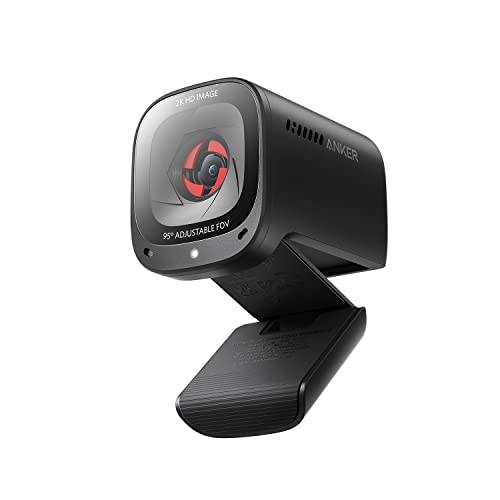
Anker PowerConf C200
- Best for: home office users upgrading a second desk or spare room without overspending on resolution they will not use.
- Resolution: 2K QHD
- Field of view: adjustable 65, 78 or 95 degrees
- Microphones: stereo mics with AI noise canceling
- Light handling: low-light correction
home office users upgrading a second desk or spare room without overspending on resolution they will not use.
this listing is sold through the AnkerDirect storefront on Amazon rather than by Amazon itself, so check the seller name on the page before ordering.
The PowerConf C200 is the value route into clearer Teams calls, and its 2K sensor still out-resolves most laptop cameras by a wide margin. Anker’s listing highlights AI noise-canceling stereo microphones, which matter if your desk sits near a kitchen, a hallway or a busy street, and a field of view you can set to 65, 78 or 95 degrees depending on how much of the room you want in frame. Low-light correction helps in rooms without a window, and the built-in privacy cover slides shut when the workday ends.
Watch out for: this listing is sold through the AnkerDirect storefront on Amazon rather than by Amazon itself, so check the seller name on the page before ordering.
Which One Fits Your Situation
You present to clients and leadership
Pick the Logitech MX Brio. When the call carries weight, its 4K sensor and calmer low-light behaviour keep your face sharp and natural, and Show Mode covers the moment you need to share a sketch, a contract page or a product sample without standing up or swapping cameras mid-meeting. It is the safest single upgrade for a client-facing desk.
You move around while you present
The OBSBOT Tiny 2 was built for you. Its motorised head follows as you stand, pace or turn to a whiteboard, and voice or gesture control means you can zoom or recentre without walking back to the keyboard. Trainers, teachers and anyone who demos physical products will feel the difference in the first week.
You want one camera for a normal hybrid week
Take the Logitech Brio 500. It asks nothing of you: clip it on, pick a field of view, and its light correction and auto-framing handle the rest across stand-ups, one-to-ones and team calls. The built-in shutter closes the lens when the day ends, which suits a laptop that also handles personal calls.
You are upgrading a second desk or spare room
The Anker PowerConf C200 makes sense where a full 4K setup would be wasted: a spare room, a second home, or a desk used for two calls a day. Its 2K picture is a clear step up from a laptop camera, the noise-canceling mics tame household sounds, and the adjustable field of view keeps a small room looking tidy.
Common Mistakes
- Buying the highest resolution and ignoring lighting, when a dim room defeats any sensor.
- Leaving the camera at laptop height so it looks up at you, instead of raising it to eye level.
- Choosing a wide field of view that shows the whole room when a tighter frame would look tidier.
- Forgetting to check the port and cable against the laptop you actually use every day.
- Relying on the meeting app to fix echo and noise that a better microphone position would prevent.
Frequently Asked Questions
Will Teams actually send my video in 4K?
Usually not at full resolution: Teams adjusts outgoing video to the call and your connection, and most meetings run at 1080p or below. A 4K camera still helps, because the app can crop into the larger sensor image without it falling apart, and the downscaled picture tends to look cleaner than one from a basic 1080p camera.
Do these webcams need extra software to work with Teams?
All four are plug-and-play USB cameras, so Teams recognises them as soon as they are connected, and you can select them in the device settings. The companion apps from Logitech, OBSBOT and Anker are optional extras: they unlock finer framing, tracking modes and image controls, but no meeting feature depends on installing them first.
Is a tracking camera worth it for ordinary desk meetings?
For a seated call where you barely move, tracking adds little, and a fixed camera like the Brio 500 covers the need for less money and zero setup. Tracking earns its place when you present standing up, teach, demonstrate products or pace while thinking, because the camera keeps you framed instead of pinning you to one spot in the chair.
Which field of view suits a small home office?
Start with the tightest setting the camera offers, around 65 degrees. It frames your head and shoulders, keeps the door, the laundry and the rest of life out of shot, and makes a small room feel deliberate rather than exposed. Widen the view only when a second person joins you at the same desk or you need to show something beside you.
Related guides
More from Amazon
Programs that pair well with the guide above. Offers and eligibility are set by Amazon and may change.
Free shipping on eligible items, Prime Video and more. Eligible new members can start with a free trial.
Start a Prime free trialAd-free music streaming. Eligible new subscribers can start with a free trial.
Try Music Unlimited freeA Prime membership for ages 18-24 with a trial period. Eligibility is set by Amazon.
See Prime for Young AdultsAudiobooks and podcasts to listen to on the go. Eligible new members can start with a free trial.
Try Audible freeAs an Amazon Associate we earn from qualifying purchases.