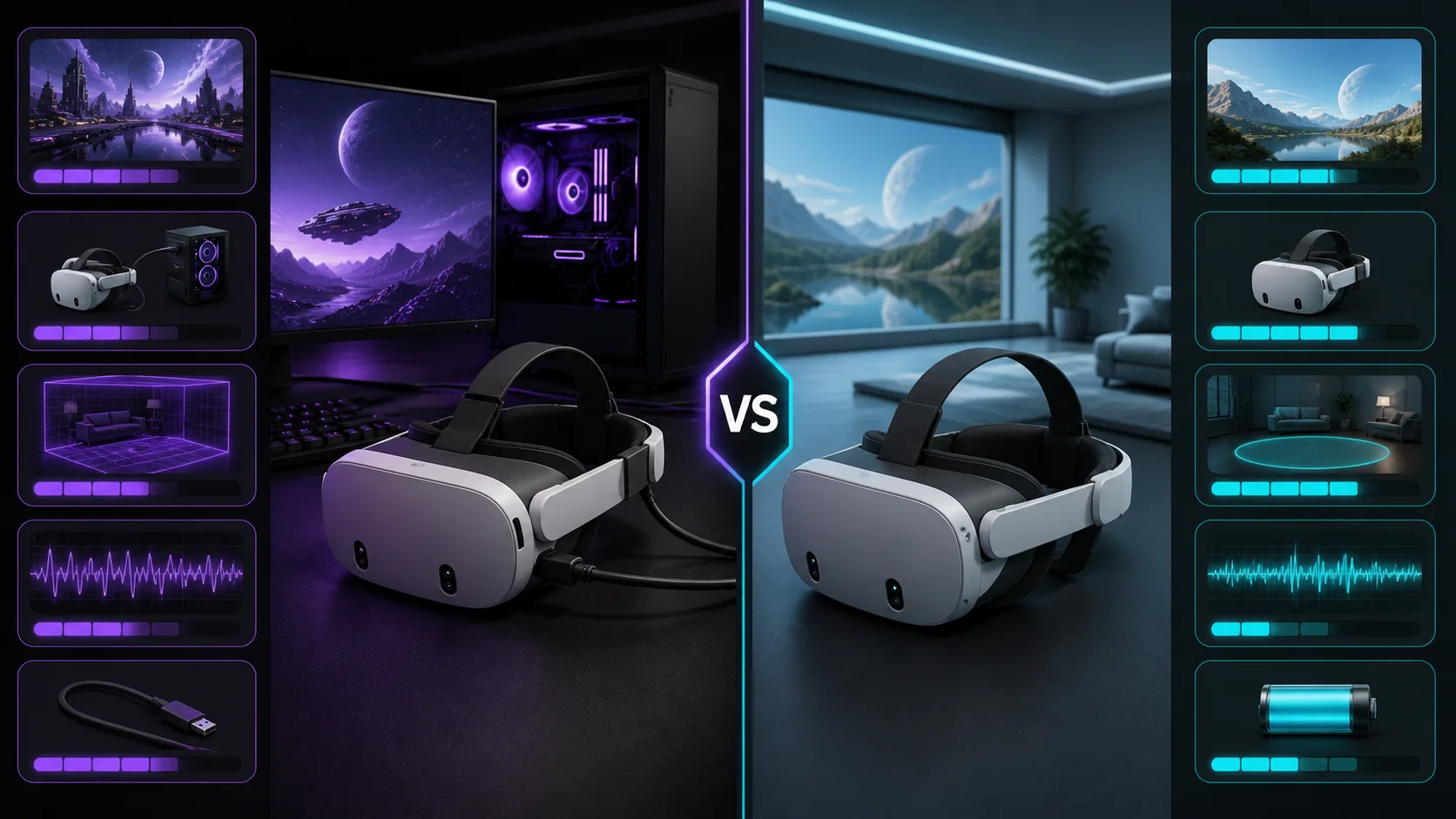
For most Quest owners streaming PCVR, Virtual Desktop is the strongest all-around wireless option thanks to its configurability and long track record, Meta’s own Link and Air Link apps are the most tightly integrated official choice, Steam Link is a solid free alternative that’s improved a lot, and ALVR is the best pick if you want a free, open-source option and don’t mind more manual tuning. None of these is universally best — network quality and how much configuration you want to do matter more than brand loyalty here.
Our Top Picks



Top 3 picks at a glance
![musikCube v 1.1 for PC [Open Source Download]](https://m.media-amazon.com/images/I/61ugV3KoqpL._SL160_.jpg)
Quick answer
Want the most configurable wireless experience: Virtual Desktop. Want the simplest official option with a cable as backup: Meta Link/Air Link. Want free and Valve-integrated: Steam Link. Want free, open source, and don’t mind tuning: ALVR.
As an Amazon Associate we earn from qualifying purchases at no extra cost to you.


![DeskFX Free Audio Effects & Audio Enhancer Software [PC Download]](https://m.media-amazon.com/images/I/41fXbDohyuS._SL160_.jpg)



| App | Cost | Connection | Best for |
|---|---|---|---|
| Meta Link/Air Link | Free | Wired or wireless | Official, simplest setup |
| Virtual Desktop | Paid, one-time | Wireless (some wired) | Configurability, tuning |
| Steam Link | Free | Wireless | SteamVR-native, no extra account |
| ALVR | Free, open source | Wireless | Tinkerers, full manual control |
Meta Link and Air Link (official options)
Link and Air Link are Meta’s own first-party solutions for connecting a Quest headset to a PC for PCVR. Link uses a wired USB connection, requiring a cable capable of data transfer speeds sufficient for VR video, not just any charging cable. Air Link does the same job wirelessly over your local network, using the same underlying software approach as Link but sending compressed video instead of running it over a physical cable.
The main advantage of using Meta’s own apps is integration: they’re built and tested by the same company that makes the headset, updates roll out in step with headset firmware, and setup requires no additional purchase or third-party account. For players who just want PCVR working with minimal decision-making, this is usually the first thing to try.
Wired Link tends to be the most consistently reliable option available for Quest PCVR, simply because a cable removes wireless network variability from the equation entirely. If your play space allows for a cable and you value consistency over freedom of movement, this remains a strong default even with good wireless alternatives available.
Some players default to wired Link for their first several weeks with a new headset specifically to establish a performance baseline before introducing wireless streaming’s additional variables, since this makes it much easier to tell later whether a wireless setup is underperforming due to the network or simply reflecting your PC’s actual rendering limits for a given game.
Air Link’s settings are generally simpler than Virtual Desktop’s, following Meta’s broader philosophy of sensible automatic defaults over deep manual configuration. This makes it a reasonable middle ground between wired Link’s guaranteed reliability and Virtual Desktop’s more configurable but more involved wireless setup, particularly for players who want to try wireless streaming without committing to learning a third-party app’s full settings menu right away.
Air Link’s wireless performance depends heavily on your network setup, following the same general router placement and interference principles that apply to every wireless streaming option covered here.
Virtual Desktop
Virtual Desktop is a paid, third-party app with one of the longest track records specifically focused on PCVR streaming quality and latency. It exposes more manual configuration than Meta’s own apps, covering bitrate, resolution scaling, and codec choice, which appeals to players who want to fine-tune their specific network and hardware combination rather than accept one-size-fits-all defaults.
Because it predates and operates independently of Meta’s own streaming stack, Virtual Desktop has built up an active user community with documented settings recommendations for a wide range of routers and network setups, which can shortcut a lot of trial and error during initial setup.
It works through SteamVR on the PC side, similar to Steam Link, meaning your existing SteamVR configuration and game library carry over without additional setup specific to Virtual Desktop itself beyond the streaming connection.
Our full Virtual Desktop vs Steam Link comparison covers the differences between these two specifically in more depth if you’re deciding between just those two.
Steam Link
Steam Link is Valve’s free official app, originally built for general PC game streaming and later extended with PCVR streaming support for compatible standalone headsets including Quest. Because it’s maintained by Valve, it stays closely aligned with SteamVR updates and doesn’t require a separate account beyond your existing Steam login.
Its configuration options are somewhat more automated than Virtual Desktop’s, adjusting streaming parameters based on detected network conditions rather than exposing every variable for manual tuning. This is a reasonable tradeoff for players who want good results without spending time in settings menus.
Being free removes the barrier to simply trying it, which makes it a sensible first wireless option to test before deciding whether Virtual Desktop’s paid, more configurable approach is worth the upgrade for your specific setup.
ALVR (open source alternative)
ALVR is a free, open-source streaming solution maintained by community contributors rather than a company. It supports a range of headsets beyond just Quest and gives full access to its underlying configuration, appealing to players comfortable with more hands-on setup and troubleshooting in exchange for zero cost and full transparency about how it works.
Because it’s community maintained rather than backed by a company with dedicated support staff, getting help when something doesn’t work usually means searching community forums or documentation rather than contacting official support. This is a real tradeoff worth weighing against the money saved.
ALVR tends to appeal most to players who already enjoy tweaking PC settings generally, or who specifically want a fully open-source software stack for philosophical or technical reasons, rather than players who just want VR working with minimal fuss.
Because ALVR is community developed, its pace of support for newly released headsets can lag behind commercial options, and specific features available on one headset model may not be available on another depending on how much community development attention that particular device has received. Checking recent community activity and documentation for your specific headset model before committing significant setup time to ALVR is worth doing, since support quality varies more by device here than with the more centrally maintained commercial alternatives.
Choosing based on your network setup
All wireless options covered here depend on the same underlying factors: a strong, low-interference wireless network, ideally on 5GHz or 6GHz rather than 2.4GHz, with your PC connected to the router by ethernet where possible. If your network is weak or congested, no streaming app will fully compensate, and troubleshooting the network itself will do more for your experience than switching apps.
If you’ve tested your network and confirmed it’s solid, the choice between apps becomes more about how much manual control you want versus how “it just works” you need the setup to be. Players who’ve had a good experience with one app’s defaults often don’t have a strong reason to switch, since diminishing returns set in once your network is the limiting factor rather than the software.
It’s also reasonable to keep more than one app installed rather than forcing yourself to pick just one permanently. Many players default to whichever app they set up first, then try an alternative specifically when troubleshooting a persistent issue, since a second app with a different underlying implementation can help isolate whether a problem is network-wide or specific to how one particular app is handling your connection.
For a fuller picture of what limits wireless PCVR quality regardless of app choice, our frame time and reprojection explainer covers why consistency, not just raw bitrate, drives how smooth streamed VR actually feels.
Tomas Berger, our VR & Handheld Editor, ran all four options through the same tracked play space and network setup to compare frame-timing logs side by side rather than relying on marketing claims from any single app.
Headset-side settings that affect streaming quality
Beyond choosing an app, your headset’s own display and refresh rate settings interact with whichever streaming software you choose. A higher refresh rate demands more bandwidth to stream cleanly, so if you’re seeing quality issues, checking whether your headset is set to its maximum refresh rate and temporarily lowering it is a useful diagnostic step, independent of which app you’re using.
Headset resolution settings, where adjustable, work similarly: streaming at your headset’s native resolution over a marginal connection is more likely to produce visible compression than streaming at a slightly reduced resolution, since there’s simply less data to transmit at lower resolution for a given quality level. Most apps let you adjust this either within their own settings or by adjusting your headset’s overall display resolution setting.
Battery level on standalone headsets can also indirectly affect streaming performance, since some headsets throttle performance as battery gets low to conserve remaining charge, which can show up as reduced streaming smoothness that has nothing to do with your app or network at all. If you notice quality degrading consistently later into a session, check remaining battery before assuming a network or software issue.
Storage space on the headset itself matters less for streaming specifically than for local content, but a headset that’s nearly full can behave unpredictably in general system performance, including background processes that affect a streaming app’s responsiveness. Keeping reasonable free space available is a small but easy thing to rule out when troubleshooting.
Wired vs wireless: when each makes more sense
Wired connections remain the most consistently reliable option for demanding games or competitive play where latency spikes are especially noticeable, since a cable removes wireless variability entirely. The tradeoff is obvious: you’re tethered, which limits movement and adds a cable management consideration to your play space.
Wireless streaming, through any of the apps above, is the better fit for casual sessions, room-scale games where movement matters, or setups where running a cable isn’t practical. Most players who own both a solid router and a decent PC find wireless quality good enough for the vast majority of their play time, reserving a wired connection for specific demanding titles if needed.
If you’re weighing whether to invest in cable management for a hybrid setup, our guide to VR cables covers options built for room-scale play without excessive drag or strain.
When streaming software isn’t the right call
If you don’t own a gaming PC capable of running PCVR content at all, none of this software matters, since all four options are transport layers between an existing PC’s rendering and your headset, not a way to add PC-level graphics power to a headset that doesn’t have it. Check our guide to VR-ready gaming PCs if you’re still deciding on a PC.
If your household network genuinely can’t be improved — apartment buildings with heavy wireless congestion from neighboring networks are a common real-world case — a wired connection is likely to give you a meaningfully better experience than continuing to chase wireless settings across different apps. A Wi-Fi analyzer app, available for most phones, can help confirm how congested your specific environment actually is before you invest more time tuning software settings that won’t meaningfully move the needle against a genuinely crowded wireless spectrum.
Troubleshooting streaming software issues
Headset won’t detect the PC in any streaming app: confirm both devices are on the same network and that your PC’s firewall isn’t blocking the specific app, since this is the most common cause across all four options.
Wired Link connection isn’t recognized: try a different USB port directly on your PC rather than a hub, and confirm your cable supports data transfer, not just charging, since low-quality cables are a frequent cause of this specific issue.
Video quality is noticeably worse than expected: check that you’re on 5GHz or 6GHz Wi-Fi rather than 2.4GHz, and lower resolution before lowering bitrate if you need to reduce load on a weaker network.
App works but disconnects intermittently: look for other devices competing for bandwidth on the same network during your play sessions, and consider router placement relative to your play space.
Performance is fine in the headset’s home environment but drops in specific games: this points to the game’s own rendering demands exceeding your PC’s capability at your current settings, rather than a streaming software issue specifically.
One app works fine but another consistently underperforms on the same network: this can happen even on a good connection due to differences in how each app negotiates codec and resolution settings by default; check whether the underperforming app’s automatic settings are choosing a higher resolution or bitrate than your network can sustain, and adjust manually if so.
Frequently asked questions
What’s the difference between Quest Link and Air Link?
Link (also called Quest Link) is a wired connection using a USB cable between your Quest and PC. Air Link is Meta’s own wireless streaming option, using the same underlying software but sending data over Wi-Fi instead of a cable, which trades some reliability for freedom of movement.
Is ALVR worth using instead of paid options?
ALVR is free and open source, and it can deliver comparable quality to paid apps on a well-tuned network, but it typically requires more manual configuration and troubleshooting than Virtual Desktop or the official Meta apps. It’s a good fit if you enjoy tweaking settings; less so if you want something that works well immediately.
Do I need a special USB cable for wired streaming?
You need a USB cable capable of data transfer at a high enough speed to handle VR video, not just a charging cable. Many headsets ship with a suitable cable, but a cheap replacement cable is a common cause of poor wired streaming performance.
Can I switch between wired and wireless streaming apps freely?
Yes, most players keep more than one option installed and switch based on the situation: wired for maximum reliability during demanding games, wireless for casual sessions where cable-free movement matters more than squeezing out maximum quality.
Does streaming software affect game performance beyond video quality?
Streaming software adds some processing overhead on both the PC and headset side for encoding and decoding video, which is generally small on modern hardware but can matter on older or lower-powered systems. This is separate from your game’s own rendering performance.
Related guides
- Best Free MMOs on Steam: Subscription Limits, Pay-to-Win and Time Cost (2026)
- Best Free Horror Games on Steam: How to Pick One That Fits Your PC and Your Nerves (2026)
- Black Frame Insertion vs VRR: Which Smoothness Feature Should You Use?
- Best Webcams for Streaming: 11 Listings Compared by Resolution, Focus and Light (2026)