A portable monitor between 13.3 and 15.6 inches hits the sweet spot for an Xbox Series S travel setup: big enough to read clearly from a normal desk distance, small enough to fit in a backpack alongside the console, and light enough that the whole rig stays under 6 lbs combined. Below is the full breakdown of sizing, power draw, cable limits, and audio routing so you can build a setup that actually works on a tray table or hotel desk instead of just looking good on a spec sheet.
As an Amazon Associate we earn from qualifying purchases at no extra cost to you.



Our Top Picks
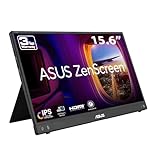
 ASUS ZenScreen MB16ACV 15.6 Inch 1080p USB-C Portable16 Inch8.85 x 14.09 x 0.41 Inches1.83 PoundsCheck on Amazon
 ASUS ZenScreen MB16AHV 15.6 Inch 1080p Portable Monitor16 Inch10 x 0.6 x 12 Inches2 poundsCheck on Amazon
 MNN 15.6" FHD 60Hz Portable Monitor USB-C HDMI15.6" 1080P14.48 x 8.85 x 0.3 Inches1.53 PoundsCheck on Amazon
Top 3 picks at a glance
Screen size vs. footprint: what fits where
The Series S itself is compact (roughly 2.5 x 6.0 x 11.0 inches), so the monitor is almost always the limiting factor for bag space and desk space. Here’s how the common portable monitor sizes translate to real-world footprint, including the folded thickness once you add a folio-style stand cover, which most portable monitors ship with.
| Screen size | Open footprint (W x H) | Folded thickness w/ cover | Typical weight | Best fit |
|---|---|---|---|---|
| 11.6″ | ~11.2 x 6.7 in | 0.3–0.4 in | 1.1–1.4 lbs | Backpack side pocket, tray tables |
| 13.3″ | ~12.6 x 7.5 in | 0.35–0.45 in | 1.4–1.7 lbs | Laptop sleeve, small desks |
| 15.6″ | ~14.5 x 8.8 in | 0.4–0.5 in | 1.7–2.2 lbs | Hotel desks, shared apartments |
| 17.3″ | ~16.0 x 9.7 in | 0.5–0.6 in | 2.4–2.8 lbs | Home base setups, not for daily carry |
For actual travel, add the Series S dimensions to the monitor’s folded footprint. An 11.0-inch console laid flat next to a folded 13.3-inch monitor needs about 12.6 x 11.0 inches of flat packing space, which fits in the main compartment of most 15-inch laptop backpacks with room left for the power brick and a cable pouch. Once you go past 15.6 inches, you’re generally packing the monitor in its own sleeve rather than alongside the console, since the combined width no longer fits most backpack laptop compartments cleanly.
Desk and tray-table space needed while playing
This matters more than raw screen size for anyone using these on planes or small desks. Budget for the monitor’s open footprint plus 4–5 inches of depth behind it for the kickstand or cover, plus room for the console and controller in front.
- 13.3″ setup: needs about 13 x 14 inches of usable surface (monitor plus stand clearance plus controller space). This is the largest size that reliably works on a standard 17-inch airline tray table.
- 15.6″ setup: needs closer to 15 x 16 inches. Fits most hotel desks and small home desks but is tight on tray tables.
- 17.3″ setup: needs 17 x 18 inches or more once you include the wider kickstand base. Treat this as a desk-only size.
Can the Series S power the screen over USB?
Sometimes, but don’t count on it as your only power path. The Xbox Series S has a single USB-A 3.1 port on the front and one on the back, and neither is designed as a display’s primary power source. Here’s the actual power math:
USB-A 3.1 ports on the Series S deliver up to 900mA at 5V, which works out to 4.5W. Most 11.6 to 13.3-inch portable monitors with an efficient IPS panel draw between 6W and 10W at typical brightness, and 15.6 to 17.3-inch panels draw 8W to 15W. That means even the smallest screens are pulling more power than a single Series S USB port can reliably supply on its own, especially once brightness is pushed above 50% or built-in speakers are active.
In practice, this shows up as the monitor’s “low power” or “connect additional power” warning icon, occasional dimming, or a stutter on wake from sleep. Some monitors will run in a degraded, capped-brightness mode off a single weak USB source, but that’s not a stable setup for extended play.
The fix: a powered USB-C hub or the monitor’s own adapter
Two reliable options:
- Dedicated wall adapter: nearly every portable monitor ships with or supports a 5V/2A (10W) to 12V/2A (24W) USB-C power adapter. Using this instead of console power removes the bottleneck entirely and is the most reliable choice for travel.
- Powered USB-C hub: if you want a single wall plug for both console and monitor, a USB-C hub rated for at least 45W passthrough can feed the monitor its full power draw while still handling video passthrough if the monitor supports USB-C alt mode input. This is bulkier to pack but cuts down on cable clutter at the destination.
Skip trying to daisy-chain power from the Series S’s second USB port to save an outlet. Both ports draw from the same internal supply budget, and neither is rated to push enough current for a monitor plus a controller charging cable at the same time.
HDMI cable length and signal limits
The Series S outputs up to 1440p at 120Hz over HDMI 2.1, though most portable monitors in this class top out at 1080p or 1440p at 60Hz, so you’re rarely pushing the port’s full bandwidth. Here’s the actual data rate math so you know how much cable slack you have before quality drops:
1080p at 60Hz needs about 4.5 Gbps of bandwidth. 1440p at 60Hz needs roughly 9.5 Gbps. HDMI 2.0/2.1 passive copper cables can carry these rates reliably up to about 6.5 feet (2 meters) without a booster. Past that length, standard 30 AWG cables start to see signal degradation, which shows up as intermittent black screens, HDCP handshake failures, or audio dropouts rather than a gradual quality loss, since HDMI is a digital all-or-nothing signal.
For a portable rig, you almost never need more than 3 feet of cable since the monitor sits right next to the console. Use a short, thick-gauge HDMI cable (look for 28 AWG or lower, which indicates thicker conductors) rather than a thin promotional-style cable, since thin cables are the most common cause of intermittent dropouts in cramped travel setups where the cable gets folded or pinched in a bag.
If you do need extra reach, for example running the console from a desk to a wall-mounted monitor, active HDMI cables rated for HDMI 2.1 can maintain full bandwidth up to about 25 feet (7.6 meters). Beyond that, you’re into fiber-optic HDMI territory, which is unnecessary for a portable setup.
Audio routing: monitor speakers vs. headphones
Portable monitor speakers are almost always the weak point of the audio chain. Most built-in speakers on 11.6 to 17.3-inch portable displays are small 1W to 2W drivers that produce thin, tinny sound with no real bass response, which is fine for menu sounds but noticeably flat for game audio.
Your routing options, in order of audio quality:
- Controller headphone jack: the Xbox Wireless Controller has a 3.5mm jack that pulls audio directly from the console’s wireless signal, bypassing the monitor entirely. This is the simplest and most reliable path for private listening and avoids any HDMI audio handshake issues.
- Monitor headphone-out passthrough: most portable monitors have a 3.5mm output that passes through the HDMI audio signal. Useful if you want to use a headset that doesn’t plug into the controller, but it depends on the monitor correctly stripping audio from the HDMI stream, which occasionally fails on lower-cost panels and requires a monitor firmware update or a menu setting to enable HDMI audio-out.
- Built-in monitor speakers: fine as a fallback for casual solo play where you don’t want to deal with a cable, but expect noticeably worse clarity in game audio with directional cues, footsteps, or dialogue.
For shared spaces like hotel rooms or flights, the controller headphone jack is the better default since it’s guaranteed to work regardless of what the monitor’s audio passthrough supports, and it keeps you from troubleshooting an HDMI-ARC style audio chain on a device that wasn’t designed for it.
Putting it together: setup by travel situation
| Your situation | Recommended size | Power setup | Audio |
|---|---|---|---|
| Flights, tray tables | 11.6″–13.3″ | Monitor’s own USB-C adapter or battery-bank passthrough | Controller headphone jack |
| Hotel rooms, short trips | 13.3″–15.6″ | Single powered USB-C hub for console + monitor | Controller jack or monitor headphone-out |
| Shared apartment / dorm | 15.6″–17.3″ | Monitor’s dedicated adapter, console on its own outlet | Headset via controller for privacy |
| Home desk, occasional travel | 17.3″ | Dedicated adapter, always plugged in | External speakers or headset, monitor speakers as backup |
The short version: pick your screen size based on where you’ll actually set it down, plan for the monitor’s own power adapter rather than relying on the console’s USB port, keep HDMI cables under 3 feet for a travel rig, and route audio through the controller’s headphone jack whenever you need clean sound without depending on the monitor’s speaker quality.
Frequently asked questions
Will a 13.3-inch monitor and Xbox Series S fit in one backpack?
Yes, a 13.3-inch monitor and the Series S can fit in the main compartment of most 15-inch laptop backpacks. The folded monitor needs about 12.6 x 7.5 inches, while the console is roughly 2.5 x 6.0 x 11.0 inches. This arrangement can leave room for the power brick and a cable pouch, although the monitor is usually the limiting item.
Can I use the monitor’s USB-C video connection directly with the Xbox Series S?
Only if the monitor supports USB-C Alt Mode input; otherwise, use HDMI for video. A powered USB-C hub can handle video passthrough when the monitor supports that input, but the monitor still needs adequate power. The Series S has USB-A ports, and those ports are not designed to serve as the display’s primary power source.
What happens if the Xbox USB port cannot provide enough power?
The monitor may show a low-power or connect-additional-power warning, dim occasionally, or stutter when waking from sleep. Some displays may operate in a degraded, capped-brightness mode, but that is not stable for extended play. Most portable monitors draw more power than a single Series S USB port can reliably supply, particularly above 50% brightness or when speakers are active.
Is a 120Hz portable monitor necessary for the Series S?
No, it is not necessary for most portable setups. The Series S can output up to 1440p at 120Hz, but many portable monitors in this size range are limited to 1080p or 1440p at 60Hz. A display with a lower refresh rate can still work, though it will not show the console’s maximum 120Hz output.
Where should I place the console when using a portable monitor?
Place the console beside or behind the monitor with enough room for the controller and cable connections. A 13.3-inch setup needs about 13 x 14 inches of usable surface, while a 15.6-inch setup needs closer to 15 x 16 inches. The monitor should sit next to the console for a travel setup, allowing a short HDMI cable of about 3 feet.