Our Short List of 3

- Best for: presenters, trainers and small groups who move around or share a whiteboard on calls.
- 4K video at 30 frames per second with a 13MP sensor
- 117-degree field of view
- Intelligent Zoom with auto-framing and picture-in-picture
- Vivid HDR with real-time lighting optimisation

- Best for: office workers and hybrid teams who take back-to-back meetings all day.
- 1080p video at 30 frames per second; 720p at 60 frames per second
- 4MP sensor
- Adjustable diagonal field of view: 65, 78 and 90 degrees
- 4x digital zoom

- Best for: home workers whose rooms are dim or unevenly lit and who want a camera tuned for meetings.
- 1080p video at 30 frames per second
- 80-degree field of view
- 4x digital zoom
- Autofocus
All 5 Picks at a Glance
| Product | Specs | Action |
|---|---|---|
| Jabra PanaCast 20 |
| Check price on Amazon |
| Logitech Brio 505 |
| Check price on Amazon |
| Poly Studio P5 |
| Check price on Amazon |
 Microsoft Modern Webcam |
| Check price on Amazon |
 Logitech C920 HD Pro |
| Check price on Amazon |
A video call puts your face, your voice and your room on display at once, and a laptop’s built-in camera rarely handles all three well. The real decision is not which webcam has the biggest resolution number on the box. It is which camera keeps you sharp when the light changes, frames you properly when you lean in or sit back, and carries your voice clearly enough that nobody asks you to repeat yourself. Those are meeting problems, not streaming problems, and they point to a different shortlist.
This guide is for remote workers, managers, teachers and hybrid teams who spend their days on Zoom, Microsoft Teams or Google Meet. The five cameras below were picked from their Amazon listing names and specifications, comparing field of view, low-light correction, microphone design and platform certification. Unlike a budget or streaming pick, every camera here earns its place on meeting performance first: how it frames a call, how it handles poor light, and how clearly the other side hears you.
Our Top Picks
Top 3 picks at a glance
Quick Picks
As an Amazon Associate we earn from qualifying purchases.
| Product | Best for | Key spec |
|---|---|---|
| Jabra PanaCast 20 | Presenters who move around on calls | 4K video with a 117-degree field of view |
| Logitech Brio 505 | All-day meetings in a managed office | 1080p video with auto-framing and Show Mode |
| Poly Studio P5 | Home offices with dim or uneven light | 1080p video with automatic low-light compensation |
| Microsoft Modern Webcam | Microsoft Teams calls with a simple setup | 1080p video with HDR and a 78-degree field of view |
| Logitech C920 HD Pro | Everyday meetings with no extra software | 1080p video at 30 frames per second with autofocus |
How to Choose
Start with the field of view
Field of view decides how much of the room the other side sees, and it matters more in meetings than anywhere else. A narrow view near 65 degrees keeps the frame on one person and hides a messy room, which suits solo calls from a small home office. A view near 78 to 80 degrees fits one person plus a little breathing room, or a colleague pulled in beside you. A wide view near 90 degrees or above fits a small group around a table or a whiteboard beside the speaker. Pick the angle that matches who sits in front of the camera, and check whether you can switch between angles, because a fixed wide lens cannot tighten the shot.
Judge low-light handling, not just resolution
Most meeting rooms are badly lit, with a window on one side and a dim corner on the other, so a camera that handles uneven light is worth more than extra pixels. A 1080p camera with good light correction will look better on a call than a 4K camera that turns your face grainy in a dark room. Look for named light correction in the listing, such as RightLight, HDR or automatic low-light compensation, and check the sensor behind it: a larger sensor gathers more light and holds detail when the room darkens. Resolution still matters for large meeting displays and for cropping, but for ordinary calls it is the second question, not the first.
Listen to the microphone before you buy
A webcam microphone decides whether your colleagues hear your words or your room. Dual microphones with beamforming or noise reduction focus on your voice and push background sound aside, which matters when a fan runs, a street sits outside the window, or a family member walks past. Check how many microphones the listing names and whether it describes noise reduction, because a single basic microphone picks up everything in the room. Also note the pickup distance: some microphones are tuned for a person sitting close to the screen and lose clarity further back. If your room is genuinely noisy, plan on a headset as well, and treat the built-in microphone as a backup rather than the main audio source.
Check platform certification and the connection
A webcam certified for Microsoft Teams, Zoom or Google Meet has been checked against the platform your meetings actually run on, so the camera, microphone and controls behave as expected when a call starts. Certification matters most in offices where IT supports many workstations, and it is worth confirming when your employer standardises on one platform. Then check the connection: a USB-C camera plugs straight into a modern laptop, while a USB-A camera needs an adapter on many new machines. Finally, look at what needs software. Basic calls work without it, but auto-framing, field-of-view switching and firmware updates usually need the maker’s app, so confirm it runs on your operating system before ordering.
The 5 Best Options
Jabra PanaCast 20
- Best for: presenters, trainers and small groups who move around or share a whiteboard on calls.
- 4K video at 30 frames per second with a 13MP sensor
- 117-degree field of view
- Intelligent Zoom with auto-framing and picture-in-picture
- Vivid HDR with real-time lighting optimisation
presenters, trainers and small groups who move around or share a whiteboard on calls.
meeting apps cap the live feed at Full HD, so the 4K sensor mainly helps digital zoom and cropping rather than the picture the other side sees.
The Jabra PanaCast 20 is the pick for people who present on camera rather than sitting still through a call. Its 13MP sensor records 4K video, and the 117-degree field of view is the widest in this guide, so it covers a presenter, a whiteboard or a small group without a second camera. Intelligent Zoom follows you as you move and reframes the shot automatically, while Vivid HDR evens out harsh window light. Three MEMS microphones handle the audio, and the camera ships with a carry case, so it travels well between home and office. It is certified for Microsoft Teams and Zoom.
Watch out for: meeting apps cap the live feed at Full HD, so the 4K sensor mainly helps digital zoom and cropping rather than the picture the other side sees.
Logitech Brio 505
- Best for: office workers and hybrid teams who take back-to-back meetings all day.
- 1080p video at 30 frames per second; 720p at 60 frames per second
- 4MP sensor
- Adjustable diagonal field of view: 65, 78 and 90 degrees
- 4x digital zoom
office workers and hybrid teams who take back-to-back meetings all day.
the auto-framing and Show Mode features need the Logi Tune app, and the attached USB-C cable needs a USB-C port or an adapter.
The Logitech Brio 505 is the office workhorse of this guide, built for people who spend the whole day in meetings. Its 1080p picture is backed by RightLight 4 auto light correction, so your face stays natural as the light shifts, and RightSight auto-framing keeps you centred when you stand or move. Show Mode tilts the view down to a desk or document, which suits anyone who shares paper or sketches on camera. Dual noise-reducing microphones carry the audio, the privacy shutter closes the lens between calls, and the camera is certified for Microsoft Teams, Zoom and Google Meet. Logitech Sync lets IT manage firmware across many workstations.
Watch out for: the auto-framing and Show Mode features need the Logi Tune app, and the attached USB-C cable needs a USB-C port or an adapter.
Poly Studio P5
- Best for: home workers whose rooms are dim or unevenly lit and who want a camera tuned for meetings.
- 1080p video at 30 frames per second
- 80-degree field of view
- 4x digital zoom
- Autofocus
home workers whose rooms are dim or unevenly lit and who want a camera tuned for meetings.
the white standalone camera is the listing used here, so confirm the listing is the standalone webcam and not a headset or speakerphone bundle before ordering.
The Poly Studio P5 is a conferencing camera made for home offices where the light is never quite right. Its 1080p picture comes with automatic low-light compensation, so a dim room or a single desk lamp does not leave your face in shadow, and the 80-degree field of view frames one person without showing the whole room. Autofocus keeps you sharp when you lean in, and 4x digital zoom tightens the framing. A built-in directional microphone focuses on your voice rather than the room around you, and the privacy shutter covers the lens between calls. The Poly Lens app handles settings, and is certified for Microsoft Teams and Zoom.
Watch out for: the white standalone camera is the listing used here, so confirm the listing is the standalone webcam and not a headset or speakerphone bundle before ordering.
Microsoft Modern Webcam
- Best for: Microsoft Teams users who want a plug-and-play camera with no tuning.
- 1080p video at 30 frames per second
- 78-degree field of view
- HDR with True Look automatic lighting and facial enhancement
- Built-in microphone
Microsoft Teams users who want a plug-and-play camera with no tuning.
some microphone features need a software download on Windows and are not supported on Mac, so check the listing notes if you work on a Mac.
The Microsoft Modern Webcam is the simplest Teams-focused camera in this guide. It records 1080p video at 30 frames per second, with HDR and True Look technology adjusting the light and the picture automatically, and a 78-degree field of view that suits one person at a desk. The built-in microphone covers everyday calls, the integrated privacy shutter switches the video off with a physical control, and the mounting system clips to a monitor or laptop or sits on a tripod. It connects over USB-A with a 1.5 m cable and is certified for Microsoft Teams, so it fits a Windows office that has standardised on Teams without extra setup.
Watch out for: some microphone features need a software download on Windows and are not supported on Mac, so check the listing notes if you work on a Mac.
Logitech C920 HD Pro
- Best for: anyone who wants a simple, dependable camera for everyday meetings without extra software.
- 1080p video at 30 frames per second
- Autofocus
- 78-degree diagonal field of view
- Dual stereo microphones
anyone who wants a simple, dependable camera for everyday meetings without extra software.
there is no built-in privacy shutter on this model, so add a separate lens cover if you want the lens physically blocked between calls.
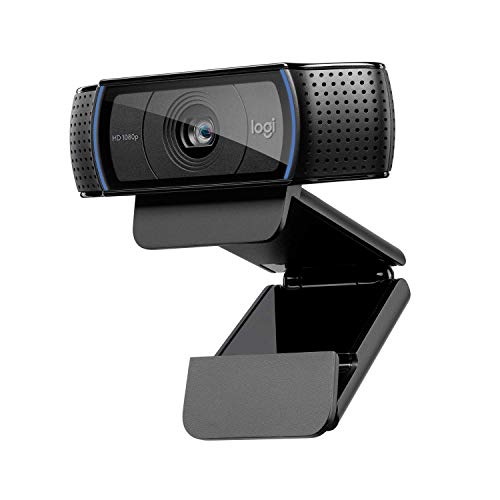
The Logitech C920 HD Pro is the long-running everyday pick in this guide, and it earns its place by doing the basics well with no extra software. It records 1080p video at 30 frames per second, autofocus keeps your face sharp when you shift in your chair, and the 78-degree field of view frames one person at a desk without pulling in the whole room. Dual stereo microphones handle ordinary calls, the universal clip mounts on a monitor or laptop, and the tripod-ready design gives you a second way to place it. It connects over USB-A as a standard USB video device, so a meeting app sees it at once.
Watch out for: there is no built-in privacy shutter on this model, so add a separate lens cover if you want the lens physically blocked between calls.
Which One Fits Your Situation
You take back-to-back meetings all day
Pick the Logitech Brio 505. RightLight correction and auto-framing handle the picture across a long day of calls with no tuning between meetings, the dual noise-reducing microphones keep your voice clear, and the privacy shutter closes the lens when the day ends. If you want fewer features to manage, the Logitech C920 covers the same daily calls with a simpler setup and no extra software.
You present, stand or move around on calls
Pick the Jabra PanaCast 20. Intelligent Zoom follows you when you stand, step aside to point at a board, or shift between sitting and standing, and the 117-degree field of view covers a whiteboard or a small group without a second camera. The carry case also makes it the easiest camera here to take between home and office.
Your room is dim or the light keeps changing
Pick the Poly Studio P5. Automatic low-light compensation is its main strength, lifting your face out of shadow in a dim room or under a single desk lamp without washing out the picture. The 80-degree field of view keeps the frame on you rather than the dark corners of the room, and the directional microphone focuses on your voice.
Your calls all happen in Microsoft Teams
Pick the Microsoft Modern Webcam. It is certified for Microsoft Teams, records 1080p video with HDR and True Look correction, and connects over USB-A with no setup beyond plugging it in. The privacy shutter gives you a physical way to switch the video off, which matters when Teams is open all day.
Common Mistakes
- Buying a 4K webcam expecting the call itself to look 4K: meeting apps cap the live feed at Full HD, so 4K mainly helps digital zoom and cropping.
- Picking a wide field of view for a messy room: a wide lens shows everything behind you, while a narrower view keeps the frame on your face.
- Forgetting the connector: a USB-A camera on a USB-C-only laptop needs an adapter, and that adapter is one more thing to carry.
- Assuming every webcam has a privacy shutter: some models rely on software alone, so check for a physical shutter or cover before ordering.
- Ordering a bundle by mistake: some listings pair the camera with a headset or speakerphone, so confirm the listing is the standalone camera you want.
Frequently Asked Questions
Is 1080p enough for video conferencing?
Yes, for almost every meeting. Video calling apps cap the live feed at Full HD, so a good 1080p camera with solid light correction and a clear microphone will look and sound better on a call than a higher-resolution camera with poor lighting handling. Spend the difference on field of view, autofocus and microphone quality, which the other side actually notices.
Do I need a 4K webcam for Zoom or Teams?
Only if you record, present or crop the picture. A 4K sensor gives you room to zoom in digitally or crop the frame without losing detail, and it helps when the recording is watched later on a large display. For ordinary live calls, the feed is capped at Full HD, so a 1080p camera with good light correction covers the meeting itself.
Is a built-in microphone enough for meetings?
For a quiet room, yes. Dual microphones with beamforming or noise reduction keep your voice clear when the room is calm, and they save you from setting up a separate microphone for every call. In a noisy room, or when you sit far from the screen, a headset or speakerphone will carry your voice more reliably than any built-in microphone.
Do these webcams need extra software?
No, not for basic calls. All five cameras in this guide work as standard USB video devices, so a meeting app will see them at once. Extra features such as auto-framing, field-of-view adjustment and firmware updates need the maker’s app, so install it only if you plan to use those controls.
Related guides
More from Amazon
Programs that pair well with the guide above. Offers and eligibility are set by Amazon and may change.
Free shipping on eligible items, Prime Video and more. Eligible new members can start with a free trial.
Start a Prime free trialAd-free music streaming. Eligible new subscribers can start with a free trial.
Try Music Unlimited freeA Prime membership for ages 18-24 with a trial period. Eligibility is set by Amazon.
See Prime for Young AdultsAudiobooks and podcasts to listen to on the go. Eligible new members can start with a free trial.
Try Audible freeAs an Amazon Associate we earn from qualifying purchases.