Our Short List of 3

- Best for: everyday video calls on a computer with a weak built-in camera, where you want a shutter you can close.
- Resolution: 1080p at 30 frames per second
- Privacy shutter
- Stereo audio
- Weight: 5.8 oz

- Best for: teaching and presenting where you show documents or a whiteboard as well as your face.
- Resolution: 1080p at 30 frames per second, 720p at 60 frames per second
- 4MP sensor
- Autofocus
- Diagonal field of view: 90, 78, or 65 degrees

- Best for: calls and recording in a room with dim or changing light.
- Resolution: uncompressed 1080p at 60 frames per second
- Sony STARVIS adaptive light sensor
- HDR at 30 frames per second
- Adjustable field of view
All 5 Picks at a Glance
| Product | Specs | Action |
|---|---|---|
| Logitech C920s HD Pro |
| Check price on Amazon |
| Logitech Brio 500 |
| Check price on Amazon |
| Razer Kiyo Pro |
| Check price on Amazon |
 Elgato Facecam |
| Check price on Amazon |
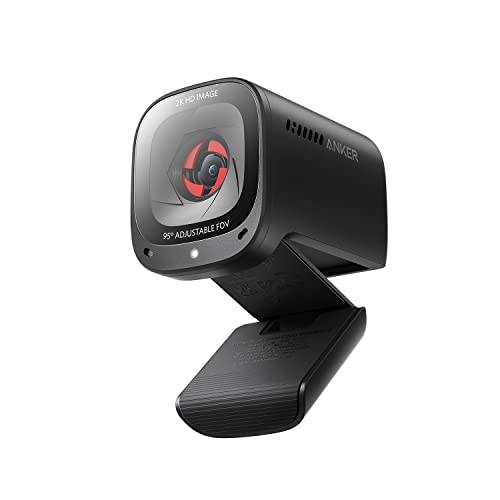 Anker PowerConf C200 |
| Check price on Amazon |
A webcam for your computer is not one decision but three: how sharp you need to look, how much of the room the camera should show, and whether the camera should carry the sound as well as the picture. A weak built-in camera makes every call look soft, and a camera bought for the wrong job only shows itself on the first call that matters. The five webcams below were picked from their Amazon titles and listed specifications, comparing resolution, autofocus, field of view, microphones, and mounting, so the choice comes down to how you use your computer.
This guide is the general one: everyday calls, classes, remote work, and recording on a desktop or laptop, not framed by the lowest cost, by a microphone, by meeting software, or by a lighting kit. That keeps it separate from the budget, microphone-first, video-conferencing, and ring-light angles on this site. It suits remote workers, students, and teachers replacing a weak computer camera with one that plugs in over USB.
Our Top Picks
Top 3 picks at a glance
Quick Picks
As an Amazon Associate we earn from qualifying purchases.
| Product | Best for | Key spec from title |
|---|---|---|
| Logitech C920s HD Pro | Everyday calls with a privacy shutter | 1080p with privacy shutter and stereo audio |
| Logitech Brio 500 | Calls where you show documents as well as your face | 1080p with Show Mode and RightLight 4 |
| Razer Kiyo Pro | Dim rooms where the light keeps changing | 1080p at 60fps with adaptive light sensor |
| Elgato Facecam | Smooth 1080p video for calls and recording | 1080p at 60fps with Sony STARVIS sensor |
| Anker PowerConf C200 | Sharper than 1080p without going to 4K | 2K at 30fps with AI noise-canceling mics |
How to Choose
Resolution and Frame Rate
Resolution decides how sharp you look, and frame rate decides how smooth your movement looks. A 1080p camera at 30 frames per second is enough for one-to-one calls and classes, and it asks less of your connection than anything sharper. The C920s and the Brio 500 both work at that level. The Kiyo Pro and the Facecam record 1080p at 60 frames per second, so gestures look natural instead of slightly stepped, which matters if you present or record. The PowerConf C200 offers 2K at 30 frames per second, so the image stays crisp when the call app crops. Pick 1080p for everyday calls, 60 frames per second for movement, and 2K for extra detail without the bandwidth 4K demands.
Autofocus and Low-Light Handling
Autofocus decides whether you stay sharp when you lean toward the screen or sit back. The Brio 500, the Kiyo Pro, and the PowerConf C200 all list autofocus, so the camera adjusts as you move. Light handling matters just as much, because most desks sit in uneven light. The Brio 500 lists RightLight 4, the PowerConf C200 lists low-light correction, and the Kiyo Pro lists an adaptive light sensor with HDR at 30 frames per second, which brightens a dim room without blowing out a window behind you. The Facecam lists advanced light correction with a fixed-focus lens instead. Check for both features before you buy, and sit facing your main light source.
Field of View and Mounting
Field of view decides how much room appears behind you. A narrow angle frames just your head and shoulders, suiting a messy room, while a wide angle includes a whiteboard or a second person. The Brio 500 lists a diagonal field of view of 90, 78, or 65 degrees, and the PowerConf C200 lists 65, 78, or 95 degrees. The Kiyo Pro lists an adjustable field of view without fixed angles. Mounting is the other half: a webcam clipped to a monitor stays put, but a heavy camera on a thin laptop lid can tilt the screen back. The Brio 500 uses USB-C, while the Kiyo Pro and the Facecam use USB 3.0, so check your free ports first.
Microphones and Privacy
Built-in microphones decide whether the other side hears your voice or your keyboard. The Brio 500 lists dual noise-reducing microphones, the PowerConf C200 lists AI noise-canceling dual stereo microphones, and the C920s lists stereo audio, so all three work without a headset in a quiet room. The Kiyo Pro lists a built-in microphone too. The Facecam is the exception: it lists no built-in microphone, so it suits people who already own a headset or a desk microphone. Privacy is the other question. The C920s, the Brio 500, and the PowerConf C200 list a privacy shutter or cover, while the Kiyo Pro and the Facecam list none, so cover the lens or unplug it if your desk sits in a bedroom.
The 5 Best Options
Logitech C920s HD Pro
- Best for: everyday video calls on a computer with a weak built-in camera, where you want a shutter you can close.
- Resolution: 1080p at 30 frames per second
- Privacy shutter
- Stereo audio
- Weight: 5.8 oz
everyday video calls on a computer with a weak built-in camera, where you want a shutter you can close.
autofocus is not listed for this model, so check the listing if you move around a lot on calls.
The C920s is the straightforward pick for anyone who wants a clear 1080p picture without learning new settings. It records at 1080p and 30 frames per second, and the stereo audio means you can join a call without hunting for a headset. The privacy shutter is the feature that sets it apart from the base model: you close it when the call ends and leave the camera plugged in all day. At 5.8 ounces it fits in a laptop bag, and it suits remote workers and students who want the built-in camera replaced, not a studio setup.
Watch out for: autofocus is not listed for this model, so check the listing if you move around a lot on calls.
Logitech Brio 500
- Best for: teaching and presenting where you show documents or a whiteboard as well as your face.
- Resolution: 1080p at 30 frames per second, 720p at 60 frames per second
- 4MP sensor
- Autofocus
- Diagonal field of view: 90, 78, or 65 degrees
teaching and presenting where you show documents or a whiteboard as well as your face.
this model has one ASIN per colour, so confirm the Graphite listing before ordering if you want this exact one.
The Brio 500 is the pick when your calls involve showing things as well as your face. Show Mode tilts the camera down to a document or a product on your desk, and RightSight auto-framing keeps you centered when you shift. It records 1080p at 30 frames per second, or 720p at 60 for smoother movement, and the field of view switches between 90, 78, and 65 degrees, to frame a whiteboard or tighten to head and shoulders. RightLight 4 handles dim rooms, dual noise-reducing microphones carry your voice, and the privacy shutter closes the lens after calls. It connects over USB-C and suits teachers and presenters demoing work live.
Watch out for: this model has one ASIN per colour, so confirm the Graphite listing before ordering if you want this exact one.
Razer Kiyo Pro
- Best for: calls and recording in a room with dim or changing light.
- Resolution: uncompressed 1080p at 60 frames per second
- Sony STARVIS adaptive light sensor
- HDR at 30 frames per second
- Adjustable field of view
calls and recording in a room with dim or changing light.
no privacy shutter is listed, so cover the lens or unplug the camera when a call ends.
The Kiyo Pro is the pick for rooms where the light is never the same twice. Its adaptive light sensor adjusts to a dim corner, a lamp, or a window that changes through the day, and HDR at 30 frames per second keeps bright and dark areas balanced in the same frame. It records uncompressed 1080p at 60 frames per second, so movement looks smooth when you gesture, and the adjustable field of view widens the frame for a second person or tightens it for a solo call. Autofocus keeps you sharp as you move, and the built-in microphone covers calls without a headset. It connects over USB 3.0.
Watch out for: no privacy shutter is listed, so cover the lens or unplug the camera when a call ends.
Elgato Facecam
- Best for: smooth 1080p video for calls and recording when you already have a microphone.
- Resolution: true Full HD 1080p at 60 frames per second, uncompressed
- Sony STARVIS CMOS sensor
- Fixed-focus glass lens
- Advanced light correction
smooth 1080p video for calls and recording when you already have a microphone.
there is no built-in microphone, so you need a headset or a desk microphone for the other side to hear you.
The Facecam is the pick for people who already have a microphone and want the camera to do one job well. It records true Full HD 1080p at 60 frames per second uncompressed, so the picture stays smooth and detailed on a large monitor, and the Sony STARVIS sensor with advanced light correction handles a room that is darker than it looks. The fixed-focus glass lens never hunts for focus while you move, and the Camera Hub software gives DSLR-style control over the image. It connects over USB 3.0 and suits creators and remote workers who record video and already own a headset or a desk microphone.
Watch out for: there is no built-in microphone, so you need a headset or a desk microphone for the other side to hear you.
Anker PowerConf C200
- Best for: calls where you want sharper than 1080p detail without moving to 4K.
- Resolution: 2K (2560 x 1440) at 30 frames per second
- Autofocus
- Adjustable field of view: 65, 78, or 95 degrees
- Low-light correction
calls where you want sharper than 1080p detail without moving to 4K.
it tops out at 30 frames per second, so fast movement looks less smooth than on the 60fps cameras in this guide.
The PowerConf C200 is the pick when 1080p feels slightly soft but 4K feels like overkill. It records 2K at 2560 by 1440 pixels and 30 frames per second, so your face stays crisp when the call app crops the frame or shows you on screen. Autofocus keeps you sharp as you lean in, low-light correction brightens a dim room, and the field of view switches between 65, 78, and 95 degrees. The AI noise-canceling dual stereo microphones cut keyboard and room noise, and the built-in privacy cover closes the lens between calls. It suits remote workers who want a step up from 1080p without the bandwidth 4K demands.
Watch out for: it tops out at 30 frames per second, so fast movement looks less smooth than on the 60fps cameras in this guide.
Which One Fits Your Situation
You call all day from a home office
Pick the C920s. The 1080p picture is enough for one-to-one meetings, the stereo audio means you can skip the headset between calls, and the privacy shutter closes the lens when the workday ends. At 5.8 ounces it stays put on a monitor or a laptop screen. If your room light changes through the day, the Kiyo Pro is the same everyday job with a sensor built for uneven light.
You teach or present and show things on camera
Pick the Brio 500. Show Mode tilts the camera down to a document or a product on your desk, RightSight keeps you framed while you move, and the adjustable field of view lets you include a whiteboard at 90 degrees or tighten to 65 degrees for a head-and-shoulders shot. The dual noise-reducing microphones cover your voice without extra gear.
Your room is dim and the light keeps changing
Pick the Kiyo Pro. The adaptive light sensor and HDR at 30 frames per second handle a lamp at your side and a window that changes through the day, and the uncompressed 1080p at 60 frames per second keeps movement smooth. If you also want a privacy shutter, the Brio 500 covers dim rooms with RightLight 4 instead.
You record video and already own a microphone
Pick the Facecam. The uncompressed 1080p at 60 frames per second and the Sony STARVIS sensor give you a smooth, detailed picture for recording, and the Camera Hub software gives you control over the image. Since it has no built-in microphone, pair it with the headset or desk microphone you already own.
Common Mistakes
- Buying a 2K or 4K webcam and running it on a slow connection, so the call app drops the picture to a soft feed anyway.
- Sitting with a bright window behind you, which turns your face into a shadow even on a camera with light correction.
- Picking a webcam with no privacy shutter for a bedroom desk, then taping over the lens and forgetting the microphone is still live.
- Buying the Facecam without a microphone plan, then finding out on the first call that the other side cannot hear you.
- Ordering the Brio 500 in the wrong colour, since each colour has its own ASIN and the listing you want is the Graphite one.
Frequently Asked Questions
Is 1080p enough for video calls on a computer?
Yes, for most calls. A 1080p camera at 30 frames per second looks clear on a laptop screen and in a one-to-one meeting. The C920s and the Brio 500 both record at that level. Move to 1080p at 60 frames per second for smoother movement, or to the 2K PowerConf C200 when you want extra detail without the demands of 4K.
Do I need a separate microphone with these webcams?
Not always. The C920s lists stereo audio, the Brio 500 lists dual noise-reducing microphones, the PowerConf C200 lists AI noise-canceling dual stereo microphones, and the Kiyo Pro lists a built-in microphone, so all four handle calls without a headset in a quiet room. The Facecam lists no built-in microphone, so use a headset or a desk microphone with it.
What is the difference between the Brio 500 and the C920s?
Both record 1080p at 30 frames per second and both have a privacy shutter. The Brio 500 adds autofocus, RightLight 4, RightSight auto-framing, Show Mode, an adjustable field of view, and a USB-C connection. The C920s is the simpler camera: the same everyday picture with stereo audio, at a lighter 5.8 ounces.
Can a webcam work with a computer that already has a camera?
Yes. Plug the webcam into a USB port and pick it in your call app’s camera settings, then pick its microphone in the audio settings if it has one. The built-in camera stays off while the external one is selected. Keep the webcam mounted on the screen or a monitor so it does not slide, and close the shutter or unplug it when the call ends.
Related guides
More from Amazon
Programs that pair well with the guide above. Offers and eligibility are set by Amazon and may change.
Free shipping on eligible items, Prime Video and more. Eligible new members can start with a free trial.
Start a Prime free trialAd-free music streaming. Eligible new subscribers can start with a free trial.
Try Music Unlimited freeA Prime membership for ages 18-24 with a trial period. Eligibility is set by Amazon.
See Prime for Young AdultsAudiobooks and podcasts to listen to on the go. Eligible new members can start with a free trial.
Try Audible freeAs an Amazon Associate we earn from qualifying purchases.