A thin laptop with only USB-C ports and a desk with a full-size monitor is a common pairing, and the adapter between them decides whether you get a crisp 4K image at 60Hz or a blurry 30Hz picture that drags the cursor. The tricky part is that two adapters can look identical and behave differently: some pass video through the laptop’s native display output, while others use a software driver that works on any USB port but has its own limits. Knowing which kind you are buying is half the decision.
This guide is for people connecting a MacBook, Windows ultrabook, Chromebook, iPad, or phone to an external display, including players who want a second screen for a launcher or chat window while the main game runs elsewhere. It compares eight adapters and docks using only the facts in their titles: output type, resolution, charging, extra ports, and device compatibility. No performance claims are added beyond what the listings state.
Our Top Picks


Top 3 picks at a glance
Quick Picks
As an Amazon Associate we earn from qualifying purchases at no extra cost to you.




| Product | Best for | Key spec from the title |
|---|---|---|
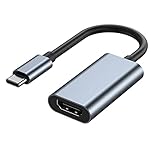
| Anker USB C to HDMI Adapter | One clean 4K display | 4K@60Hz, MacBook, iPad Pro, Pixelbook, XPS |
| USB C to HDMI Multiport Adapter with Charging | Laptop dock on a budget | HDMI, charging port, USB 3.0 at 10Gbps |
| USB C to Dual HDMI Adapter (100W PD) | Two monitors from one port | 4K@60Hz dual HDMI, USB 3.0, 100W PD |
| USB C to HDMI Adapter for Monitor | Thunderbolt 3 laptops | 4K HDMI, Thunderbolt 3 compatible |
| USB C to HDTV Multiport Hub | Living room TV connection | 4K HDTV output, charging, USB 3.0 |
| Selore USB C Docking Station | Dual monitor desk with card slots | Dual 4K@60Hz HDMI, PD, SD/microSD |
| Plugable USB C to HDMI Adapter | Mac users needing extra displays | DisplayLink, multiple displays, 4K 60Hz |
| BENFEI USB C to HDMI Adapter | Phones, tablets, and laptops | 4K@60Hz, Thunderbolt 3/4/5 compatible, iPhone 15 Pro |
How to Choose
Check that your port can output video
Not every USB-C port carries a display signal. Look for the DisplayPort logo or a Thunderbolt symbol next to the port, or check the laptop specifications for “DisplayPort Alt Mode”. Phones and tablets from the iPhone 15 Pro era onward and recent iPads support video out, but older models may not. If the port cannot output video, only a DisplayLink-style adapter that uses a software driver will help.
Resolution and refresh rate
Many adapters list 4K but at 30Hz, which feels sluggish for scrolling and games. Look for 4K@60Hz in the listing and match it to your monitor’s HDMI version: HDMI 2.0 is needed for 4K at 60Hz. If your monitor is 1440p or 1080p, almost any adapter is enough, and you can save the money.
Single, dual, and multiport designs
A plain adapter gives one HDMI port. A multiport hub adds USB-A ports, card readers, and pass-through charging, which turns one cable into a workstation. Dual-output models are useful for extended desktops, but on some laptops, especially base-model Macs, the operating system limits the number of external displays unless a DisplayLink driver is used.
Power delivery and heat
If the adapter passes charging, check the wattage it supports against your laptop’s charger. A 100W pass-through suits most thin-and-light laptops, while weaker ones will charge slowly under load. Budget hubs cut corners on shielding and heat, so a metal body and a stated charging rating are good signs.
What to ignore: brand-style marketing about “plug and play” that does not name resolution or refresh rate, and photos of ports that your laptop may not have. Instead, verify the exact generation of your laptop port, the monitor’s HDMI version, and whether you want charging in the same cable. Those three checks prevent most returns, and they take less than five minutes with the manual open.
The 8 Best Options
Anker USB C to HDMI Adapter
Anker’s listing promises 4K@60Hz over a USB Type-C to HDMI cable adapter, naming the MacBook Pro, MacBook Air, iPad Pro, Pixelbook, XPS, and Galaxy devices. It is the single-purpose option for plugging a laptop into one external monitor without extra ports.
- Strength: Stated 4K@60Hz for a smooth desktop.
- Strength: A recognized brand with a clear compatibility list.
- Trade-off: No charging pass-through or extra ports in the title.
Skip it if you also want to charge the laptop through the same connection. A simple cable adapter like this also leaves your other USB-C ports free for storage or power.
USB C to HDMI Multiport Adapter with Charging
This multiport adapter combines HDMI output with a charging port and a USB 3.0 port rated at 10Gbps. It transforms a bare-bones thin laptop into a basic dock: one cable for the monitor, a flash drive, and power.
- Strength: Charging port keeps the laptop powered while connected to a display.
- Strength: 10Gbps USB 3.0 suits external drives.
- Trade-off: The resolution and refresh rate are not stated in the title.
Skip it if you want a confirmed 4K figure before buying, or need more than one USB device at once. Because the listing is silent on video specs, treat it as a convenience dock for office work rather than a gaming display solution.
USB C to Dual HDMI Adapter (100W PD)
This adapter provides two HDMI outputs at 4K@60Hz, a USB 3.0 port, and 100W power delivery, advertised for extended displays on MacBook Air and Pro models. That makes it the pick for someone who wants two monitors from a single laptop port.
- Strength: Dual HDMI with a high power delivery rating.
- Strength: USB 3.0 port adds a peripheral connection.
- Trade-off: Dual 4K@60Hz depends on laptop and driver support, so verify on the full listing.
Skip it if you only use one display or need card readers. Anyone chasing two matching panels for a spreadsheet and a chat window will find the pairing handy, but should confirm the laptop model before trusting dual 4K output.
USB C to HDMI Adapter for Monitor
This listing offers a 4K HDMI adapter that doubles as a laptop dock, with compatibility mentioned for MacBook Pro, iPad Air, and Thunderbolt 3 video output. It reads as a generic cable-style converter with a docking angle.
- Strength: Thunderbolt 3 compatibility is named directly.
- Strength: Works with tablets as well as laptops.
- Trade-off: The title is generic, so brand support may be limited.
Skip it if you want a recognized manufacturer behind the product. Compare it with the Anker and BENFEI listings, which both state a clear 4K@60Hz figure and list the devices they support.
USB C to HDTV Multiport Hub
This hub is described as a Type-C multiport AV converter with 4K HDTV output, a USB-C charging port, and a USB 3.0 port, aimed at MacBook users. It is geared toward connecting a laptop to a television for movies or presentations.
- Strength: HDTV output handles living room screens.
- Strength: Charging and USB 3.0 are included.
- Trade-off: The title does not state refresh rate.
Skip it if your goal is a fast desk monitor setup for gaming. Media streaming, slide decks, and casual video are a better match for a hub pitched at television use.
Selore USB C Docking Station
Selore’s dock lists dual HDMI ports at 4K@60Hz each, PD charging, an SD and microSD slot, and USB-A and USB-C 3.0 ports. It is the closest thing to a full desk dock in this group, built around two monitors and a bundle of peripherals.
- Strength: Dual 4K@60Hz outputs with card readers in one box.
- Strength: PD charging and several USB ports.
- Trade-off: Larger and more expensive than single-output adapters.
Skip it if you only want a pocketable travel adapter. Docks like this are meant to stay on the desk, so the weight and cable run matter less than the number of ports.
Plugable USB C to HDMI Adapter
Plugable’s adapter uses DisplayLink for multiple displays at 4K 60Hz and names Apple M1 through M5 Macs, plus Thunderbolt MacBooks and iMacs. DisplayLink is the route when the laptop’s native output cannot drive another screen.
- Strength: DisplayLink helps when a base-model Mac limits external displays.
- Strength: Named Apple silicon compatibility.
- Trade-off: DisplayLink requires a driver and is less ideal for latency-sensitive games.
Skip it if you want a driverless setup for a single screen. For fast-paced shooters, a native video output is usually the safer route, while DisplayLink screens suit chat, browsers, and documents.
BENFEI USB C to HDMI Adapter
BENFEI lists 4K@60Hz with Thunderbolt 3, 4, and 5 compatibility, and names the iPhone 15 Pro and Pro Max, MacBook Pro and Air, and iPad Pro. It is the broadest-compatibility single-output option, covering both phones and laptops.
- Strength: One adapter for phone, tablet, and laptop.
- Strength: Clear 4K@60Hz statement.
- Trade-off: Single HDMI output only, with no charging mentioned.
Skip it if you need a hub with extra ports. Since there is no charging mention, a phone connected through it will rely on its own battery during a long presentation.
Which One Fits Your Situation
You have a MacBook Air with a single external display limit
The Plugable DisplayLink adapter is aimed at that problem, using a driver to add more screens.
You want one cable at a desk
The Selore dock bundles two HDMI outputs, charging, and card slots, so one connection serves a whole workstation.
You just want a cheap TV connection
The USB C to HDTV Multiport Hub connects a laptop to a television and keeps charging alive. It suits a family movie night or a quick slide show on a big screen, where exact refresh rate is not the priority and the extra USB port helps with a flash drive of photos.
You game on a console and use a laptop for everything else
The Anker adapter keeps things simple: one 4K@60Hz output, no drivers, and a free port left for the laptop charger. If you also present from an iPhone 15 Pro or an iPad Pro, the BENFEI adapter names both devices, which makes it the better travel companion for slides and photos on a hotel TV.
Common Mistakes
- Assuming every USB-C port outputs video.
- Buying a 4K adapter and ending up at 30Hz because of an older HDMI cable or monitor input.
- Expecting dual displays on a base-model Mac without a DisplayLink driver.
- Ignoring power delivery limits and wondering why the laptop drains while docked.
- Using a poor-quality HDMI cable that cuts bandwidth.
Related guides
- How To Check Motherboard Vrm Temperature In Hwinfo
- How To Clean Quest 3 Lenses And Facial Interface
- Micro Sd Cards For Samsung Galaxy Phones
Frequently Asked Questions
What is DisplayLink?
It is a software-driven method that sends video over USB, allowing more displays than the laptop’s native output supports. It needs a driver and can add slight latency.
Do I need HDMI 2.0 for 4K at 60Hz?
Yes. Older HDMI 1.4 inputs drop to 30Hz at 4K, so check the monitor port and cable.
Will these adapters work with a phone?
Only if the phone’s USB-C port supports video output. Some recent iPhones do, while older models do not.
Is a dock better than a simple adapter in 2026?
If you need charging, storage, and several displays, a dock saves cables. For a single monitor, a simple adapter is smaller and cheaper.
Related guides
More from Amazon
Programs that pair well with the guide above. Offers and eligibility are set by Amazon and may change.
Free shipping on eligible items, Prime Video and more. Eligible new members can start with a free trial.
Start a Prime free trialAd-free music streaming. Eligible new subscribers can start with a free trial.
Try Music Unlimited freeA Prime membership for ages 18-24 with a trial period. Eligibility is set by Amazon.
See Prime for Young AdultsAudiobooks and podcasts to listen to on the go. Eligible new members can start with a free trial.
Try Audible freeAs an Amazon Associate we earn from qualifying purchases.