A home office webcam decides how clearly your colleagues see you, how much of your room stays visible, and whether your voice comes through without strain. Built-in laptop cameras often sit low, wash out faces in mixed light, and pick up keyboard noise, so a dedicated webcam is one of the cheapest ways to make daily video calls feel professional. The right model mounts in seconds, frames you at eye level, and keeps working across Zoom, Teams, and Meet without extra software battles.


This guide is for remote workers who spend hours on video calls, freelancers who meet clients from a spare room, and anyone whose laptop camera keeps letting them down. Every product below was chosen from the name and specifications shown on its Amazon page, with attention to resolution, field of view, microphone quality, and how easily the camera clips onto a monitor or laptop lid. We also weighed privacy shutters and cable length, since small details decide whether a webcam earns a place on your desk.
Quick Picks
As an Amazon Associate we earn from qualifying purchases
| Product | Best for | Key spec from title |
|---|---|---|
| Logitech MX Brio | Sharpest 4K image | 4K at 30fps |
| Elgato Facecam Pro | Smooth 4K motion | 4K at 60fps |
| Razer Kiyo Pro Ultra | Low-light rooms | 4K at 30fps |
| OBSBOT Tiny 2 Lite | Hands-free tracking | 4K resolution |
How to Choose
Match Resolution to Your Calls
Resolution shapes how crisp you look on screen, and 4K gives the sharpest image when your connection and meeting app support it. A 4K camera also lets you crop tighter without losing detail, which helps when your desk sits far from the monitor. If your calls run over a weak connection, 1080p at 60 frames per second often looks smoother than 4K at 30, because motion stays fluid while you gesture or turn your head. Check what your meeting platform actually sends, since some apps downscale video anyway, and pick the camera whose native resolution matches how you really meet. Higher resolution also helps when you crop the frame tighter.
Mind the Viewing Angle
The viewing angle sets how much of your desk and background appears on screen, and a wide angle can expose a messy room you would rather hide. A narrower angle near 65 degrees keeps the frame tight on your face and shoulders, which suits small rooms and shared spaces. Wider angles near 90 degrees work better when two people share one camera or when you present from a whiteboard. Some cameras let you switch between angles in software, which is handy when your setup changes between solo calls and group sessions. A motorized mount can shift the angle between calls without you touching the camera.
Listen to the Microphone
A webcam microphone decides whether your voice sounds close and clear or distant and hollow, and dual microphones with noise reduction make a real difference in a busy household. Beamforming microphones focus on sound from in front of the camera while pushing room echo and keyboard clicks into the background. If your room has hard floors and bare walls, even a good microphone will pick up echo, so a rug or curtain helps more than any setting. When calls matter most, a dedicated headset still beats any built-in microphone, but a strong webcam mic covers everyday meetings well. Test the microphone in a real call before an important meeting.
Check the Mount and Privacy
A webcam needs a mount that grips your monitor firmly without wobbling every time you type, and most good models use a clip that fits both thick desktop monitors and thin laptop lids. A tripod thread adds flexibility when you want the camera at a different height or angle for presentations. Privacy matters too, so look for a built-in shutter or a lens cover that closes with a twist, because a physical cover beats any software toggle for peace of mind. A detachable cable also helps, since a damaged fixed cable can turn an otherwise fine camera into waste. A short fixed cable can force an awkward monitor position.
The 4 Best Options
Logitech MX Brio
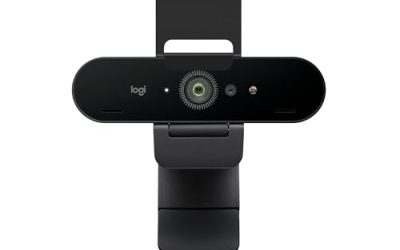
The MX Brio leads this group with a large sensor and an aluminum body that feels built to last through years of daily calls. Its 4K image stays sharp in mixed window light, and the dual beamforming microphones keep your voice forward while pushing household noise aside. Show Mode tilts the camera down to show documents on your desk, which turns the webcam into a quick overhead camera for paperwork and sketches. The aluminum body also resists fingerprints and small knocks, so the camera still looks tidy after months on a busy monitor. Setup takes minutes, and the camera remembers your framing between calls.
Specs
- 4K resolution at 30 frames per second
- 1080p resolution at 60 frames per second
- 8.5MP Sony STARVIS image sensor
- Dual beamforming noise-reducing microphones
- USB-C connection
- Integrated privacy shutter
Best for: Remote workers who want the sharpest image on every call.
Watch out for: 4K runs at 30 frames per second, so fast movement looks smoother at 1080p.
ASIN: B0CT95MXBR
Elgato Facecam Pro
The Facecam Pro is the pick for anyone who moves on camera, because its 4K at 60 frames per second keeps gestures and head turns smooth where other cameras stutter. Its large Sony sensor gathers more light than smaller sensors, so evening calls look less grainy even before you switch on a desk lamp. Autofocus locks onto your face quickly and holds it as you lean in and out, which keeps you sharp through long presentations. The lens stays put once you set the angle, so framing survives a bumped desk. It suits long recording sessions as well as live calls.
Specs
- 4K resolution at 60 frames per second
- Sony STARVIS image sensor
- Autofocus lens
- f/2.0 aperture
- USB-C connection
- Works with Camera Hub software
Best for: Presenters who move on camera and need smooth 4K motion.
Watch out for: 4K at 60 frames per second needs a strong connection and a capable computer.
ASIN: B0BJL7Q3SR
Razer Kiyo Pro Ultra
The Kiyo Pro Ultra suits dim home offices, because its oversized sensor and wide aperture pull in more light than most webcams in this class. Faces stay bright and detailed when the only light comes from a window behind you or a single desk lamp, and HDR balances bright windows against darker rooms. The large lens gives video a softer background look that flatters home setups without any extra gear. The camera handles mixed lighting well, so a lamp on one side and a window on the other rarely wash out your face. It also fits a second person beside you when a colleague joins a call.
Specs
- 4K resolution at 30 frames per second
- 1080p resolution at 60 frames per second
- 1/1.2-inch Sony STARVIS 2 sensor
- f/1.7 aperture lens
- HDR support
- USB-C connection
Best for: Dim rooms where other webcams turn faces dark and grainy.
Watch out for: The large lens and body need a sturdy monitor clip and a little desk space.
ASIN: B0CT6FFK4R
OBSBOT Tiny 2 Lite
The Tiny 2 Lite suits anyone who stands, paces, or demonstrates things during calls, because its motorized head follows you around the room. AI tracking keeps you centered as you move between a desk and a whiteboard, and gesture control lets you start tracking with a hand signal instead of reaching for a mouse. Dual microphones capture your voice clearly while the camera does the framing work for you. The tracking feels smooth rather than jerky, so viewers follow you without distraction. Gesture control means you can start or stop tracking mid-sentence, and the compact base fits crowded desks where larger cameras crowd out the monitor.
Specs
- 4K resolution
- 1/2-inch CMOS sensor
- AI auto tracking
- Gesture control
- Dual microphones
- USB-C connection
Best for: People who move around during calls and want the camera to follow.
Watch out for: Tracking needs a clear view of you, so cluttered backgrounds can confuse it.
ASIN: B0D45T2LTE
Which One Fits Your Situation
You Call All Day from a Desk
Pick the MX Brio when your workday is a long run of video meetings and you want the sharpest, most reliable image with the least fuss. Its microphones handle everyday calls without a headset, the privacy shutter closes between meetings, and Show Mode covers the odd document you need to share. Mount it once, set your angle, and it simply works from the first call to the last.
You Present and Move Around
Pick the Facecam Pro or the Tiny 2 Lite when your calls involve presenting, gesturing, or stepping away from the desk. The Facecam Pro keeps motion smooth at 4K, which suits recorded demos and live walkthroughs. The Tiny 2 Lite follows you physically, which suits teaching, training, and whiteboard sessions where you refuse to sit still. Smooth motion also helps recorded demos that clients replay later.
Your Room Is Dim or Backlit
Pick the Kiyo Pro Ultra when your office sits in a dark corner or faces a bright window that turns you into a silhouette. Its large sensor and HDR handling rescue faces that smaller cameras render as shadows, and the wide aperture keeps detail in low light. Add a small desk lamp and the image improves further, but this camera copes better than most without one.
You Share a Desk with Family
Pick the MX Brio or the Tiny 2 Lite when the room doubles as a family space and privacy matters between calls. The Brio shutter closes with a twist, so nobody wonders whether the camera is live. The Tiny 2 Lite parks itself when tracking stops, which gives a clear visual signal that the lens is not watching the room. A closed shutter also reassures family members sharing the room.
Common Mistakes
- Buying the highest resolution without checking whether your meeting app and connection can use it on a typical workday.
- Ignoring the microphone and then wondering why colleagues keep asking you to repeat yourself on every call.
- Mounting the camera below eye level, which creates an unflattering upward angle on every call and strains your neck.
- Choosing a wide viewing angle that shows a messy room behind you instead of a tight frame on your face.
- Forgetting a privacy shutter and leaving the lens uncovered between meetings in a shared home.
Frequently Asked Questions
Do I need a 4K webcam for work calls?
A 4K webcam helps when your meeting app supports it and your connection is strong, because the image stays sharp when you crop the frame or sit farther from the camera. If your connection is weak, 1080p at 60 frames per second often looks better, since smooth motion matters more than extra pixels on most calls.
Can a webcam microphone replace a headset?
A good webcam microphone covers everyday meetings well, especially dual microphones with noise reduction that focus on your voice and push room noise aside. Headsets still win in noisy rooms, on long calls, and whenever you need to hear colleagues clearly without disturbing others nearby. Many remote workers use the webcam mic for quick calls and switch to a headset for important meetings.
How high should I mount my webcam?
Mount the camera at eye level or just above, so you look straight into the lens instead of up at it or down on it. A monitor-top clip usually lands close to the right height, and a small stack of books under a laptop can fix a low camera. Eye-level framing looks natural.
What is Show Mode on the MX Brio?
Show Mode tilts the MX Brio lens down to show documents, notes, or objects on your desk, turning the webcam into a quick overhead camera. It lets you share a sketch or a form without moving the camera off its mount. It suits teachers, designers, and anyone who shares physical items during calls.
Related guides
More from Amazon
Programs that pair well with the guide above. Offers and eligibility are set by Amazon and may change.
Free shipping on eligible items, Prime Video and more. Eligible new members can start with a free trial.
Start a Prime free trialAd-free music streaming. Eligible new subscribers can start with a free trial.
Try Music Unlimited freeA Prime membership for ages 18-24 with a trial period. Eligibility is set by Amazon.
See Prime for Young AdultsAudiobooks and podcasts to listen to on the go. Eligible new members can start with a free trial.
Try Audible freeAs an Amazon Associate we earn from qualifying purchases.