Our Short List of 3
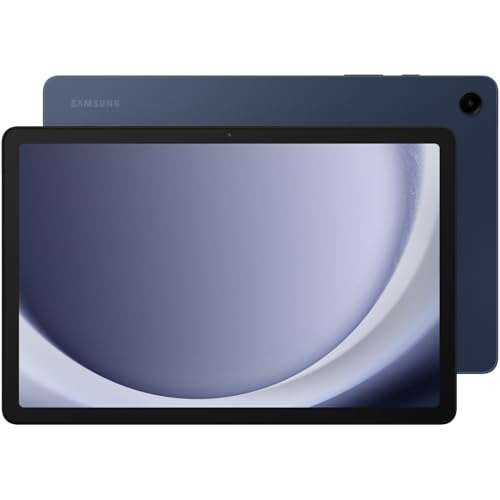
- Best for: Android households that want a large screen, loud speakers, and expandable storage at a mid-range cost, with multi-window help from family on calls.
- Screen: 11-inch display, 1920 x 1200, up to 90Hz
- Chip: Qualcomm Snapdragon 695
- Memory: 4GB RAM
- Storage: 64GB, microSD slot up to 1TB
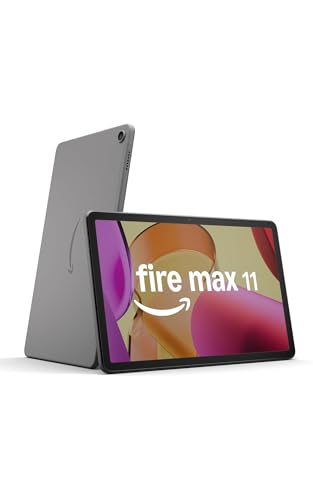
- Best for: Seniors in an Amazon household who read Kindle books, watch Prime Video, and use Alexa, and who want the longest battery life and the biggest Fire screen.
- Screen: 11-inch display, 2000 x 1200, low blue light
- Chip: MediaTek MT8188J octa-core
- Memory: 4GB RAM
- Storage: 64GB, microSD slot up to 1TB

- Best for: Seniors who want the lightest tablet for reading in bed, a low-cost first tablet, or a second tablet for the nightstand, with Alexa for music, news, and reminders.
- Screen: 8-inch HD display, 1280 x 800
- Chip: Hexa-core processor
- Memory: 4GB RAM
- Storage: 64GB, microSD slot up to 1TB
All 3 Picks at a Glance
| Product | Specs | Action |
|---|---|---|
| 2. Samsung Galaxy Tab A9+ (11-inch, 64GB) |
| Check price on Amazon |
| 4. Amazon Fire Max 11 (64GB) |
| Check price on Amazon |
| 5. Amazon Fire HD 8 (2024, 64GB) |
| Check price on Amazon |
A tablet can be the simplest way for an older adult to stay in touch with family, read large-print books, watch shows, check the news, and join a video call with grandchildren. The right tablet does all of that without menus that confuse, tiny text that strains the eyes, or a battery that dies halfway through the afternoon. This guide compares five tablets chosen for seniors, judged on the things that matter most at this age: a large readable screen, simple setup, loud clear speakers, long battery life, and light weight.
Every tablet below is a full tablet, not a kids tablet and not a business tablet with a keyboard bundle. Each one is sold on Amazon US as a standalone device, and each one can be set up by a family member in a single sitting. If you know which phone the senior uses, begin there: iPhone households will find the iPad easiest to support, while Android households will get more help from a Samsung tablet.
Disclosure: As an Amazon Associate, we earn from qualifying purchases.
Our Top Picks
Top 3 picks at a glance
Quick Picks
Here is the short answer. The iPad is the easiest tablet for most seniors, especially where iPhones are already in use. The Galaxy Tab A9+ is the best Android value, the Galaxy Tab A11+ adds memory and storage, the Fire Max 11 is the best large-screen Amazon tablet, and the Fire HD 8 is the lightest and lowest-cost way to try a tablet.
| Tablet | Screen | Battery | Best for |
|---|---|---|---|
| Apple iPad 11-inch (A16) | 11-inch | Up to 10 hours | Easiest overall, Apple households |
| Samsung Galaxy Tab A9+ | 11-inch | About 8 hours | Best Android value |
| Samsung Galaxy Tab A11+ | 11-inch | 7,040 mAh | Android families, more storage |
| Amazon Fire Max 11 | 11-inch | Up to 14 hours | Big-screen reading and streaming |
| Amazon Fire HD 8 (2024) | 8-inch | Up to 13 hours | Lightest, lowest cost |
How to Choose
Screen size comes first. A screen of 10 inches or more gives larger text and bigger touch targets, which helps with low vision, arthritis, and tremor. An 11-inch screen is the sweet spot for most seniors: large enough to read comfortably, still light enough to hold. An 8-inch tablet is easier to carry and hold in bed, but the text is smaller, so enlarge the font if you go that route.
Simple setup matters more than speed. The best tablet for a senior is the one a family member can configure once and then leave alone. Look for a system that lets you enlarge text, raise contrast, and turn on spoken text so the tablet reads aloud. Apple iPadOS has VoiceOver, larger text, bold text, and Guided Access, which locks the tablet to a single app. Samsung tablets have a display-size control and an Easy mode, and Fire tablets have large-text and magnifier options plus Alexa for voice requests.
Speakers should be loud and clear. Video calls with family are the main reason many seniors use a tablet, so four speakers beat two, and a front camera that sits on the long edge keeps the face centered on a call. All five tablets below have a front camera and speakers loud enough for a quiet room. If hearing is a real concern, pair the tablet with a Bluetooth speaker or headphones rather than relying on the built-in speakers alone.
Battery life should cover a full day. A tablet that needs charging by lunchtime will sit unused. Look for at least 8 hours of mixed use, and put the charger in one fixed place, such as a nightstand, so the tablet always goes back to the same spot. A case with a built-in stand is worth adding: it props the tablet up for video calls and protects the screen from a drop.
Weight counts more than you think. Anything over a pound feels heavy after twenty minutes of holding. The tablets below range from under three-quarters of a pound to just over a pound. If the senior reads in bed, choose the lighter end and add a stand. If the tablet will mostly sit on a table, weight matters less and screen size matters more.
Check the apps before you buy. A tablet is only useful if the apps the senior needs are available on it. iPad and Samsung tablets run the full Apple App Store and Google Play Store, so banking, telehealth, and video-call apps are all there. Fire tablets use the Amazon Appstore instead, so some clinic or bank apps may be missing. Before you buy a Fire tablet, check that the apps your parent needs are in the Amazon Appstore.
5 Best Options
1. Apple iPad 11-inch (A16, 128GB)
The 11-inch iPad with the A16 chip is the simplest tablet for most seniors, and the safest choice if the family already uses iPhones. The interface is consistent, the accessibility tools are the strongest of any tablet here, and FaceTime calls go straight through to relatives on iPhones. The screen is large and bright, the front camera is good for video calls, and the tablet stays fast for years, so it will not need replacing soon.
- Screen: 11-inch Liquid Retina display, 2360 x 1640
- Chip: Apple A16
- Storage: 128GB
- Cameras: 12MP front, 12MP rear
- Connectivity: Wi-Fi 6, USB-C
- Battery: Up to 10 hours
- Weight: 1.05 lb
- Unlock: Touch ID in the top button
Best for: Seniors in an iPhone household who want the easiest tablet to learn, the best video calls with family, and the strongest accessibility settings, including spoken text and single-app lock.
Watch out for: It is the most expensive tablet in this guide, and a case with a stand is an extra purchase. There is no microSD slot, so storage cannot be expanded later. A family member should handle the first setup, including Apple ID, contacts, and text size.
2. Samsung Galaxy Tab A9+ (11-inch, 64GB)
- Best for: Android households that want a large screen, loud speakers, and expandable storage at a mid-range cost, with multi-window help from family on calls.
- Screen: 11-inch display, 1920 x 1200, up to 90Hz
- Chip: Qualcomm Snapdragon 695
- Memory: 4GB RAM
- Storage: 64GB, microSD slot up to 1TB
Android households that want a large screen, loud speakers, and expandable storage at a mid-range cost, with multi-window help from family on calls.
It is slower than the iPad, and 64GB fills up fast with photos, so add a microSD card if the senior takes many pictures. Android has more settings menus than iPadOS, so a family member should simplify the home screen and turn on the larger display size during setup.
The Galaxy Tab A9+ is the best Android tablet for seniors who want a big screen for less. Its 11-inch display is one of the largest here, and the four speakers with Dolby Atmos sound make video calls and shows easy to hear. It runs two apps side by side, which is handy when a family member is helping on a video call while a recipe or a form is open on the same screen.
Watch out for: It is slower than the iPad, and 64GB fills up fast with photos, so add a microSD card if the senior takes many pictures. Android has more settings menus than iPadOS, so a family member should simplify the home screen and turn on the larger display size during setup.
3. Samsung Galaxy Tab A11+ (11-inch, 128GB)
The Galaxy Tab A11+ is the Android answer to the iPad for families who already use Samsung or Google phones. It pairs an 11-inch screen with a 90Hz refresh rate, quad speakers, 6GB of memory, and 128GB of storage, plus a memory card slot for thousands of family photos. The listing also notes Google Gemini features that can help with everyday tasks, and Android lets you enlarge the display size and font for easier reading.
- Screen: 11-inch display, up to 90Hz
- Chip: MediaTek Helio G99
- Memory: 6GB RAM
- Storage: 128GB, microSD slot for expansion
- Speakers: Quad speakers
- Battery: 7,040 mAh
- Connectivity: Wi-Fi, Bluetooth
Best for: Android families who want more memory and storage than the Tab A9+ offers, a large screen for video calls and shows, and room for a big photo library.
Watch out for: It costs more than the Tab A9+, and like other Android tablets it has more settings to manage than an iPad. Set the font size, display size, and home-screen layout during the first setup, and remove apps the senior will never use so the home screen stays calm.
4. Amazon Fire Max 11 (64GB)
- Best for: Seniors in an Amazon household who read Kindle books, watch Prime Video, and use Alexa, and who want the longest battery life and the biggest Fire screen.
- Screen: 11-inch display, 2000 x 1200, low blue light
- Chip: MediaTek MT8188J octa-core
- Memory: 4GB RAM
- Storage: 64GB, microSD slot up to 1TB
Seniors in an Amazon household who read Kindle books, watch Prime Video, and use Alexa, and who want the longest battery life and the biggest Fire screen.
Fire tablets use the Amazon Appstore rather than the full Google Play Store, so some telehealth and banking apps may be missing. Check the apps you need before you buy. The tablet is the heaviest here, so pair it with a stand rather than holding it for long sessions.
The Fire Max 11 is Amazon’s largest and fastest tablet, and the best Fire tablet for seniors who mainly read, stream, and make video calls. Its vivid 11-inch display is certified for low blue light, the aluminum body is durable, and the 14-hour battery is the longest in this guide. A fingerprint sensor unlocks it with a touch, and Alexa can answer questions, read the news, and make calls by voice.
Watch out for: Fire tablets use the Amazon Appstore rather than the full Google Play Store, so some telehealth and banking apps may be missing. Check the apps you need before you buy. The tablet is the heaviest here, so pair it with a stand rather than holding it for long sessions.
5. Amazon Fire HD 8 (2024, 64GB)
- Best for: Seniors who want the lightest tablet for reading in bed, a low-cost first tablet, or a second tablet for the nightstand, with Alexa for music, news, and reminders.
- Screen: 8-inch HD display, 1280 x 800
- Chip: Hexa-core processor
- Memory: 4GB RAM
- Storage: 64GB, microSD slot up to 1TB
Seniors who want the lightest tablet for reading in bed, a low-cost first tablet, or a second tablet for the nightstand, with Alexa for music, news, and reminders.
The 8-inch screen is the smallest here, so text is smaller and you should enlarge the font. It uses the Amazon Appstore only, so check that the apps you need are available. It is also the slowest tablet in this guide, so keep the home screen to a few apps and avoid heavy games.
The Fire HD 8 is the lowest-cost way to try a tablet, and the lightest pick in this guide. Its 8-inch HD display, 4GB of memory, and 64GB of storage cover reading, audiobooks, music, and video calls, and Alexa is built in for voice requests. It is a good tablet for a trial: if your parent does not take to it, you have not spent much, and if it does catch on, you can step up to a larger tablet later and keep this one in the bedroom.
Watch out for: The 8-inch screen is the smallest here, so text is smaller and you should enlarge the font. It uses the Amazon Appstore only, so check that the apps you need are available. It is also the slowest tablet in this guide, so keep the home screen to a few apps and avoid heavy games.
Which One Fits
If the family uses iPhones, buy the iPad. The 11-inch iPad is the easiest tablet to learn, the easiest for family to support from afar, and the best for FaceTime calls with grandchildren. Its accessibility tools are the most complete, and it will receive software updates for years.
If the family uses Android phones, buy a Samsung tablet. The Galaxy Tab A9+ is the value pick with a big screen and loud speakers. The Galaxy Tab A11+ is the better pick if you want more memory, more storage, and a tablet that will feel fast for longer. Both work well with Google accounts and Samsung phones.
If the senior lives in the Amazon world, buy the Fire Max 11. It is the best Fire tablet for reading and streaming, with the longest battery life and the largest screen Amazon makes. It suits a senior whose main uses are Kindle books, Prime Video, music, and Alexa calls.
If weight or cost is the main concern, buy the Fire HD 8. At under three-quarters of a pound it is the easiest tablet to hold for long reading sessions, and it is the cheapest way to find out whether a tablet will get used at all. Just remember to enlarge the text and keep the home screen simple.
If low vision is the main concern, buy an 11-inch tablet. The iPad, the Galaxy Tab A9+, the Galaxy Tab A11+, and the Fire Max 11 all have screens large enough for big text and big touch targets. Add a stand, turn on bold text and higher contrast, and set the font to the largest comfortable size.
Common Mistakes
Buying the smallest, cheapest tablet first. A small screen saves money but makes text harder to read and buttons harder to tap, which is often why a tablet ends up in a drawer. Unless the senior specifically wants a light tablet for bed, choose 10 inches or more.
Skipping the case and the stand. A tablet that falls on a hard floor can crack, and a tablet that must be held for a whole video call gets tiring. A rugged case with a built-in stand protects the screen and props the tablet up for calls, photos, and reading. Buy the case with the tablet, not after the first drop.
Handing over a tablet that is not set up yet. A new tablet with a cluttered home screen, tiny text, and no contacts loaded is confusing on day one. Spend an hour before you hand it over: sign in with a family-managed account, add family contacts to video calling, put the four or five apps your parent will use on the first screen, enlarge the text, and turn off notifications that do not help.
Forgetting to check the apps. Banking, telehealth, and church or community apps may not exist on every tablet. Fire tablets in particular use the Amazon Appstore, so a clinic app that works on an iPad may be missing there. Check the apps your parent needs before you buy, not after.
Choosing a tablet with too little storage. Photos and videos fill a tablet fast, and a full tablet slows down and stops updating. Choose 128GB if the senior takes many photos, or pick a tablet with a microSD slot and add a card at setup. The iPad has no card slot, so 128GB is the safe minimum there.
FAQ
What is the easiest tablet for a senior to use?
The iPad is the easiest tablet for most seniors because the interface is consistent and the accessibility settings are strong. If your parent is used to Android, a Samsung Galaxy Tab is a good alternative, and its Easy mode simplifies the home screen. Whichever you choose, have a family member set it up first, enlarge the text, and limit the home screen to a few apps.
What screen size is best for a senior?
Ten to 11 inches is the sweet spot for text size and touch targets. An 11-inch tablet shows large text clearly and gives buttons plenty of room, which helps with low vision and tremor. An 8-inch tablet is lighter and cheaper, but the text is smaller, so it suits reading in bed or a nightstand more than all-day use.
Do seniors need a tablet with cellular service?
Most do not. A Wi-Fi tablet works at home, and a phone hotspot covers the rare trip out. A cellular model adds a monthly cost and another account to manage, which is rarely worth it for a senior who mainly uses the tablet at home. If your parent has no home internet, a phone hotspot is the simpler fix.
Can I manage my parent’s tablet from my phone?
Yes. Apple Family Sharing and Google Family Link let you handle some settings and approvals from your own phone, and Amazon offers parental controls on Fire tablets. For urgent help, a screen-sharing video call lets you see the screen and walk your parent through a fix. Keep the Wi-Fi password and the account sign-in written on a card near the tablet so any family member can help.
Related guides
More from Amazon
Programs that pair well with the guide above. Offers and eligibility are set by Amazon and may change.
Free shipping on eligible items, Prime Video and more. Eligible new members can start with a free trial.
Start a Prime free trialAd-free music streaming. Eligible new subscribers can start with a free trial.
Try Music Unlimited freeA Prime membership for ages 18-24 with a trial period. Eligibility is set by Amazon.
See Prime for Young AdultsAudiobooks and podcasts to listen to on the go. Eligible new members can start with a free trial.
Try Audible freeAs an Amazon Associate we earn from qualifying purchases.