Setting up classic and modern multiplayer gaming sessions in 2026 often brings unexpected technical hurdles, ranging from severe network latency to frustrating cross-platform communication failures. Whether you are diving into competitive shooters or revisiting legendary couch co-op campaigns with friends, diagnosing these bottlenecks quickly is essential to saving your gaming night from endless troubleshooting.
This support guide breaks down the most frequent technical roadblocks players encounter when managing massive multiplayer libraries across consoles and PC setups. By identifying the root causes and applying targeted fixes, you can restore optimal performance and get back to uninterrupted gameplay without wasting hours guessing at settings.
As an Amazon Associate we earn from qualifying purchases at no extra cost to you.

High Input Lag During Split-Screen Sessions
Cause: When multiple players use the same hardware for local multiplayer, the console or PC must render multiple viewports simultaneously. This heavy rendering load often forces display hardware to rely on heavy post-processing, resulting in a noticeable delay between pressing a button and seeing the action on screen.
Fix: Navigate to your display settings and manually enable “Game Mode” on your TV or monitor to bypass unnecessary image processing. Additionally, reduce graphical fidelity presets within the game’s local multiplayer settings to ease the rendering burden on your hardware.
When to replace: If hardware limitations consistently drop frame rates below acceptable thresholds during local play, consider upgrading to current-gen hardware or shifting the session to separate online systems.
Persistent Voice Chat Echo and Party Disconnects
Cause: Audio feedback loops usually happen when an open microphone picks up sound from a nearby TV speaker or headset earcup. Cross-party disconnections, meanwhile, often stem from strict Network Address Translation (NAT) types blocking peer-to-peer data packets.
Fix: Switch your voice chat settings from open mic to push-to-talk, or lower your microphone sensitivity threshold. To fix party disconnects, run a network test through your system settings to ensure your console or PC registers an open or Moderate NAT type rather than a restricted one.
When to replace: If a headset continually transmits static or fails to isolate audio despite software adjustments, it is time to invest in a dedicated gaming headset with hardware noise cancellation.
Cross-Platform Party Invitation Failures
Cause: Many multiplayer titles require third-party publisher accounts (such as Epic, Activision, or EA accounts) to bridge different platforms. If these secondary accounts become unlinked, or if cross-play options are toggled off in system privacy settings, game invites will silently fail.
Fix: Double-check that cross-play is explicitly enabled in both your system-level privacy settings and the specific game menu. Log into the game publisher’s website via a browser to verify that your console profile is correctly linked to your primary master account.
When to replace: If account authorization servers are permanently down for a legacy title, your only workaround is coordinating manual lobby searches with friends using room codes.
Frame Rate Drops in Large-Scale Lobbies
Cause: Massive online player counts demand high CPU processing power to sync player movements, physics, and server tick rates. Bottlenecks occur when your system struggles to process heavy network traffic alongside local graphical rendering.
Fix: Lower background application usage, clear your system cache, and ensure your game is installed on a high-speed solid-state drive rather than an external mechanical drive. In-game, lowering particle effects and crowd density settings can drastically stabilize performance.
When to replace: When core hardware components consistently thermal-throttle under standard online player loads, a system cooling clean-out or a hardware upgrade is necessary.
Save Data Desyncs in Cloud-Enabled Co-Op
Cause: Cloud synchronization errors occur when a multiplayer session closes abruptly while game progress is actively uploading, resulting in a version conflict between your local save and the cloud server.
Fix: Manually trigger a cloud save sync through your system dashboard, choosing the most recently timestamped file. If the conflict persists, clear the local cache and download the official save file directly from cloud storage.
When to replace: If cloud storage corruption recurs frequently, disable automatic syncing for that specific title and rely solely on manual local backups.
Controller Disconnections and Input Mappings
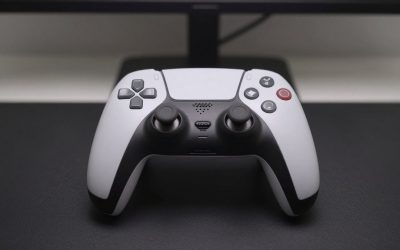
Cause: Wireless interference from nearby routers, Bluetooth devices, or low battery levels can cause controllers to desync mid-match. Furthermore, conflicting profile configurations often scramble button layouts in multiplayer menus.
Fix: Connect your controller directly using a high-quality USB data cable to bypass wireless interference entirely. Reset your controller bindings to default inside the game menu before applying custom configurations.
When to replace: If internal analog stick sensors drift permanently or physical connection ports fail, replacing the controller is the only reliable long-term solution.
Regional Matchmaking Empty Lobbies
Cause: Setting your matchmaking region incorrectly, playing during off-peak hours, or matchmaking in games with declining player populations will cause queues to time out indefinitely.
Fix: Switch your matchmaking region setting from auto-detect to a more populated geographic zone, even if it introduces slightly higher latency. Alternatively, use community discord servers or matchmaking hubs to find private lobbies directly.
When to replace: When official developer servers for an older title are permanently shut down, you must transition to community-hosted servers or peer-to-peer connection tools.
Related Guides
Integrating these technical fixes ensures your gaming sessions run smoothly, but finding the right titles to play is the next step in building your collection. If you want to expand your library with universally acclaimed titles, check out the top picks in our Best Multiplayer Games of All Time guide. For casual, family-friendly couch sessions that minimize technical setup hurdles, browse our recommendations for the Best Lego Games of All Time. If you are chasing nostalgia, community-driven netcode solutions, and timeless classics, visit our comprehensive roundup of the Best Retro Games of All Time.
FAQ
Why do older multiplayer games struggle with modern servers?
Older games often rely on legacy peer-to-peer networking code that fails to communicate properly with modern operating systems and security protocols. Without community patches or developer updates, these titles experience frequent desynchronization and connection drops.
How can I reduce packet loss during cross-play matches?
Switching from a wireless connection to a wired Ethernet cable is the most effective way to eliminate packet loss and stabilize data transmission. Additionally, restarting your home router clears out temporary routing bottlenecks.
What causes split-screen performance drops on modern consoles?
Split-screen play forces the system to render multiple independent camera angles and game worlds simultaneously, doubling the graphical workload. Lowering the resolution or in-game graphical fidelity settings helps restore a stable frame rate.
Is Wi-Fi ever stable enough for competitive multiplayer gaming?
While modern Wi-Fi standards offer fast download speeds, they remain vulnerable to environmental interference that causes latency spikes. Competitive gaming always benefits from a direct wired connection for consistent ping times.
Related guides
- Best Free MMOs on Steam: Subscription Limits, Pay-to-Win and Time Cost (2026)
- Best Free Horror Games on Steam: How to Pick One That Fits Your PC and Your Nerves (2026)
- Black Frame Insertion vs VRR: Which Smoothness Feature Should You Use?
- Best Webcams for Streaming: 11 Listings Compared by Resolution, Focus and Light (2026)