As an Amazon Associate we earn from qualifying purchases at no extra cost to you.


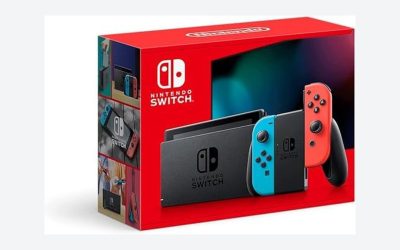
When we think about home organization, we often focus on physical clutter: overflowing bookshelves, crowded media consoles, and tangled cable drawers. However, digital clutter can be just as stressful. The Nintendo Switch Lite is a marvel of compact, handheld design, but its internal storage is notoriously small. With only 32 gigabytes (GB) of built-in space—of which only about 26 GB is actually usable after system files—you will quickly run out of room for your favorite games.
To keep your gaming library organized and running smoothly without having to constantly delete and re-download your purchases, investing in the right microSD card is essential. This guide will walk you through the physical and digital dimensions of microSD cards so you can choose the perfect storage capacity for your lifestyle.
Our Top Picks


Top 3 picks at a glance
The Short Answer
For the vast majority of Nintendo Switch Lite players, a 128GB or 256GB microSD card is the absolute sweet spot.
If you prefer a mix of physical game cartridges and digital downloads, a 128GB card (typically priced between $35 and $40) will easily hold 10 to 15 major games. If you prefer a completely digital library with no physical game cases cluttering your living room shelves, we highly recommend upgrading to a 256GB card (ranging from $48 to $75). This ensures you have plenty of room for heavy game files, future downloadable content (DLC), and system updates.
Standard Sizes
While we often talk about microSD cards in terms of their digital capacity, they also have physical dimensions that require careful handling. Because the Nintendo Switch Lite is designed for portable, on-the-go play, its storage slot is built to accommodate the standardized microSD format. These cards are incredibly tiny—about the size of a fingernail—and weigh a mere 0.25 grams (0.008 ounces).
The table below outlines both the physical dimensions of these cards and how their digital capacities translate to real-world game storage:
| Card Type & Capacity | Physical Dimensions (Inches) | Physical Dimensions (Metric) | Estimated Game Capacity (Large AAA Titles) | Estimated Game Capacity (Indie Titles) |
|---|---|---|---|---|
| 64GB MicroSDXC | 0.59″ x 0.43″ x 0.039″ | 1.5 cm x 1.1 cm x 0.1 cm | 3 to 5 games | 20 to 30 games |
| 128GB MicroSDXC | 0.59″ x 0.43″ x 0.039″ | 1.5 cm x 1.1 cm x 0.1 cm | 8 to 12 games | 50 to 80 games |
| 256GB MicroSDXC | 0.59″ x 0.43″ x 0.039″ | 1.5 cm x 1.1 cm x 0.1 cm | 18 to 25 games | 100+ games |
| 512GB MicroSDXC | 0.59″ x 0.43″ x 0.039″ | 1.5 cm x 1.1 cm x 0.1 cm | 35 to 50 games | 200+ games |
Because of their tiny physical size, these cards can easily be lost down the cracks of a sofa or swallowed by a high-pile rug during installation. Always install your card over a clean, flat surface like a kitchen table or desk.
How to Measure Your Space
Before purchasing a new card, you should “measure” your current digital footprint. Just like measuring a closet before buying storage bins, assessing your active data usage prevents you from overspending on space you do not need. Follow these steps to check your system storage:
- Access System Settings: Turn on your Nintendo Switch Lite and select the gear icon (System Settings) from the bottom row of the home screen.
- Navigate to Data Management: Scroll down the left-hand sidebar and select “Data Management.” Here, you will see a visual bar graph showing how much space is left on your System Memory versus your current microSD card (if you have one inserted).
- Audit Your Software: Click on “Manage Software” to see a list of your installed games sorted by file size. Take note of how many games are pushing your storage to its limit.
- Calculate Future Needs: Think about your upcoming purchases. Looking ahead to 2026 and beyond, game file sizes are expected to continue growing as developers pack more detailed graphics and updates into their titles. If you plan to download several major releases, add their estimated file sizes (usually found on the Nintendo eShop) to your current total to determine your target capacity.
By Room or Use Case
Your ideal storage size depends entirely on how you organize your home media and how you prefer to play. Let’s break down the best options based on your gaming lifestyle.
The Physical Cartridge Collector
If you love the look of physical media displayed on your bookshelf, you do not need a massive digital storage card. When you buy physical cartridges, the bulk of the game data is read directly from the plastic game card. You only need storage space for game saves, software updates, and occasional digital-only DLC.
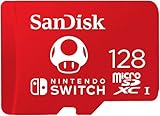
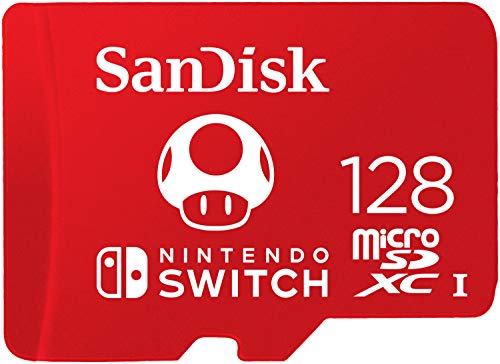
For this use case, a 64GB or 128GB card is perfect. Options like the Amazon Basics 128GB microSDXC card (priced around $35) or the officially licensed SanDisk 128GB Super Mario Super Mushroom Edition (priced at around $39) offer plenty of breathing room for save files and patches without breaking the bank.
The Balanced Everyday Player
Do you enjoy a healthy mix of physical cartridges and digital eShop sales? Perhaps you like to buy major releases on cartridge but prefer downloading casual indie games, puzzle games, and digital-only titles for quick access.
If this sounds like you, a 128GB to 256GB card is the ideal choice. The SanDisk 256GB Ultra microSD card (priced around $48) provides a great balance of speed and capacity. It allows you to keep a permanent library of 15 to 20 digital games installed on your console while leaving your cartridge slot free for whatever major adventure you are currently playing.
The Digital-Only Power User
If you prefer a minimalist home aesthetic with zero physical plastic cases cluttering your entertainment center, you will want to download every single game digitally. Digital convenience means you can swap games instantly without getting up from the couch, but it demands a massive amount of storage.
For digital-only gamers, we recommend nothing less than a 256GB or 512GB card. The SanDisk 256GB Super Mario Super Star Edition (priced around $73) is a premium option that boasts fast read speeds up to 100 MB/s, ensuring that your digital downloads load quickly. A larger card means you will rarely have to archive your games to make room for new ones.
Common Sizing Mistakes
When shopping for a Switch Lite storage upgrade, it is easy to make a few common missteps:
- Buying Too Small to Save a Dollar: It is tempting to buy a cheap 32GB or 64GB card because they are budget-friendly. However, because the Switch Lite’s internal storage is so small, you will likely fill a 32GB card within a few months. Upgrading later requires transferring files via a computer, which can be a hassle. It is always better to buy one size larger than you think you need.
- Ignoring Speed Class Ratings: The Nintendo Switch Lite requires a card that supports the UHS-I (Ultra High Speed Phase I) standard with a minimum transfer speed of 60 to 95 MB/s. Buying an outdated, slow card will result in long loading screens and occasional texture pop-ins during gameplay. Look for symbols like “U3” or “A2” on the packaging to ensure peak performance.
- Purchasing Counterfeit Cards: The internet is flooded with unbranded 1TB microSD cards priced at suspiciously low price points (like $15 or $20). These are scams that spoof your console into displaying a fake capacity, which will corrupt your save files and delete your data once you exceed the card’s true, tiny limit. Always stick to trusted brands like SanDisk, Samsung, or Amazon Basics.
FAQ
Can I use any microSD card in my Nintendo Switch Lite?
Yes, as long as it is a microSD, microSDHC, or microSDXC card. The Switch Lite does not support standard, full-sized SD cards (which are physically much larger and used in digital cameras). The console supports cards up to 2 terabytes (TB) in capacity.
Do I need a tool to install the microSD card?
No tools are required. The microSD card slot is located on the bottom-right edge of the console, protected by a small plastic flap. Simply open the flap with your fingernail, insert the card with the label facing up toward the screen, and press it in until it clicks.
Will a larger microSD card make my games load faster?
No, card capacity does not affect load times. However, the card’s transfer speed does. To ensure the fastest possible load times, choose a card with a read speed of at least 80 to 100 MB/s, such as the SanDisk Ultra or the Amazon Basics A2 card.
Can I share one microSD card between two different Switch consoles?
No. For security and copyright reasons, a microSD card is locked to the specific Nintendo Switch console on which it was formatted. If you insert a card containing games from one Switch Lite into another, the second console will prompt you to delete the existing game data before you can use the card. Save data, however, is always stored directly on the console’s internal memory, not the microSD card.
Related guides
- Best Free MMOs on Steam: Subscription Limits, Pay-to-Win and Time Cost (2026)
- Best Free Horror Games on Steam: How to Pick One That Fits Your PC and Your Nerves (2026)
- Black Frame Insertion vs VRR: Which Smoothness Feature Should You Use?
- Best Webcams for Streaming: 11 Listings Compared by Resolution, Focus and Light (2026)