Wireless headsets are convenient for calls, meetings, gaming, and hands-free work, but poor charging and storage habits can shorten their useful runtime surprisingly fast. Leaving a headset in a hot car, running the volume at maximum, using a mismatched charger, or storing it completely drained can all put extra strain on the small lithium-ion battery inside. Over time, that may mean more interruptions during calls, weaker battery performance, and earlier replacement. A few simple habits can help your headset hold a charge longer between sessions and preserve battery capacity over the long term.
Our Top Picks

What You Need
| Item | Why | Optional? |
|---|---|---|
| Headset’s included charging cable or dock | Provides the connector and charging setup designed for the headset. | No |
| Low-power USB wall adapter, 5 watts to 10 watts | Offers steady power without relying on an unknown high-output adapter. | Yes |
| Soft microfiber cloth | Removes dust and skin oils from charging contacts and ports. | Yes |
| Dry soft-bristle brush or wooden toothpick | Helps clear lint from a USB-C, micro-USB, or charging-case contact area. | Yes |
| Headset manual or manufacturer app | Helps locate battery settings, firmware updates, and supported charging guidance. | Yes |
Step-by-Step
-
Start with a full, uninterrupted charge (1 to 3 hours)
Charge the headset with its supplied cable, charging case, or approved dock before evaluating its battery life. Place it on a hard, open surface rather than under a pillow, inside a bag, or in direct sunlight. If the headset uses a charging case, make sure the earcup or earpiece contacts are seated properly and that the case itself has power.
As an Amazon Associate we earn from qualifying purchases at no extra cost to you.

Most modern headsets stop actively charging when full, but it is still wise to unplug the charger once the indicator shows a full battery whenever practical. This reduces unnecessary heat and prevents the headset from sitting warm on a charger for days. For everyday use, charging when the battery reaches roughly 20% to 30% is a sensible routine.
-
Use the right charging source (2 minutes)
Use the cable that came with the headset whenever possible. If you need a replacement, choose a well-made cable with the correct connector and avoid visibly loose plugs. Pair it with a standard 5-watt to 10-watt USB wall adapter or a powered computer USB port. A larger laptop or phone charger may still work if it follows USB power standards, but there is no benefit to trying to “fast charge” a headset that was not designed for it.
Do not charge from damaged extension cords, cheap multiport hubs that run hot, or vehicle USB ports that cut in and out. Interrupted charging can leave you with an incomplete charge and make it harder to tell whether the issue is the battery, the cable, or the power source.
-
Lower volume before turning up the battery drain (1 minute)
High volume uses more power, especially on on-ear and over-ear wireless headsets with larger drivers. Set the headset around 50% to 70% volume first, then adjust the phone, computer, or conferencing app as needed. If calls seem too quiet at moderate volume, check the source device’s audio settings instead of automatically pushing the headset to maximum.
Keeping volume below the top range also reduces listening fatigue. For work calls, a clear microphone position and a quieter room often improve intelligibility more than extra volume does.
-
Turn off features you are not using (3 to 5 minutes)
Noise canceling, ambient sound modes, multipoint pairing, voice assistants, LED lights, and high-performance audio modes can all use additional power. Open the headset controls or companion app and disable features that do not help with your current task. For example, turn off active noise canceling when working alone in a quiet office, or disable multipoint if you only need to connect to one laptop.
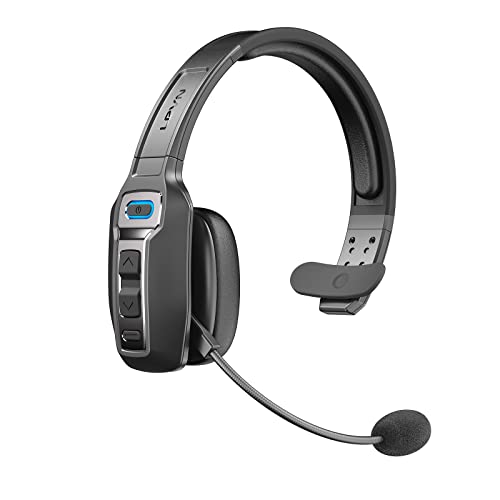
A work-focused model may still deliver long runtime with its key features enabled. The LEVN Bluetooth Headset with Microphone, priced around $36, is marketed with up to 65 hours of working time, while a charging-case design such as the COMEXION Bluetooth Headset V5.3, around $60, can be practical for users who want a place to recharge between calls. Actual runtime will vary with volume, call length, signal strength, and enabled modes.
-
Keep Bluetooth range short and clear (5 minutes to assess)
Bluetooth uses more power when the headset has to maintain a weak connection. Keep your phone or computer within about 3 to 10 feet when possible, especially during long calls. Walls, metal filing cabinets, appliances, and crowded Wi-Fi areas can interfere with the signal. If audio drops out in one location, move the source device closer rather than repeatedly reconnecting from across the room.
Also disconnect from devices you are not using. A headset that is constantly trying to reconnect to a tablet in another room may drain faster than one paired only with the device in front of you.
-
Power the headset down between long breaks (30 seconds)
If you will not use the headset for more than a few hours, turn it off instead of leaving it connected and idle. Many models enter standby mode, but standby still consumes power. This is especially helpful overnight, during weekends, or when traveling.
For a headset with a case, return it to the case after use and close the lid fully. For a single-ear office or trucker headset without a case, use the physical power button and confirm that its status light turns off.
-
Clean charging contacts and ports (5 minutes)
Once the headset is powered off and unplugged, wipe exposed charging contacts with a clean, dry microfiber cloth. If you see lint in the port, gently loosen it with a dry soft-bristle brush or a wooden toothpick. Never insert metal tools, add water, or spray cleaner directly into a charging port.
Dirty contacts can cause partial charging, which looks like poor battery life even when the battery itself is still healthy. Check that the charging cable fits snugly and that the connector does not wobble excessively.
-
Store it at a moderate charge and temperature (5 minutes)
For storage longer than two weeks, charge the headset to about 40% to 60%, turn it off, and keep it in a dry indoor drawer or case. Aim for a typical room temperature of roughly 59°F to 77°F. Avoid leaving it in a freezing garage, beside a radiator, or in a parked vehicle where temperatures can climb quickly.
Check the charge every two to three months during long-term storage. If it has dropped very low, recharge it back to the middle range rather than leaving it empty.

Mistakes to Avoid
- Running the battery to 0% every day: Occasional deep discharge is not usually disastrous, but repeated full depletion adds stress and can leave the headset unavailable when needed.
- Charging while the headset is hot: Let it cool for 15 to 30 minutes after a workout, hot commute, or long call before plugging it in.
- Using maximum volume as the default: It can reduce runtime and is harder on your ears.
- Leaving it connected to several devices: Extra connections and reconnection attempts can consume power.
- Ignoring a worn cable: A frayed cable or bent connector can cause slow, inconsistent charging.
- Assuming every issue is battery aging: Dirty contacts, outdated firmware, and poor Bluetooth range can all mimic a failing battery.
How Often
Charge based on use rather than on a rigid daily schedule. For a headset used several hours each workday, charge it when it reaches about 20% to 30%, or place it back in its charging case after use. Clean charging contacts every two to four weeks, or weekly if the headset is used during workouts, on job sites, or in dusty environments.
Review settings such as noise canceling, multipoint pairing, and firmware updates every three to six months. If you store the headset for a season, check and recharge it to approximately 40% to 60% every two to three months. These habits remain useful in 2026 because rechargeable lithium-ion batteries still perform best when protected from extreme heat, deep discharge, and constant unnecessary drain.
When to Call a Pro or Replace
Contact the manufacturer or a qualified electronics repair service if the headset becomes unusually hot while charging, smells like burning plastic, swells, leaks, or has a cracked battery housing. Stop using it immediately if any of these signs appear. Do not attempt to open a sealed headset or replace an internal lithium-ion battery yourself unless the manufacturer specifically provides a safe, user-serviceable procedure.
Replacement is often more practical when a fully charged headset lasts less than half of its former normal runtime, repeatedly shuts down at 20% to 50%, will not hold a charge after trying a known-good cable and power source, or has damaged charging contacts. Before buying a new model, confirm that the problem is not coming from the charger, charging case, or connected device.
FAQ
Is it bad to leave a wireless headset charging overnight?
Modern headsets generally include charging controls that reduce the risk of overcharging. Still, unplugging after a full charge is preferable when convenient because it limits heat and avoids leaving the battery at 100% for extended periods. Never charge overnight on a soft surface or in a place where heat cannot dissipate.
Should I drain my headset battery completely before recharging?
No. Lithium-ion batteries do not need regular full discharge cycles. Recharging at roughly 20% to 30% is usually gentler than routinely running the battery until the headset turns off.
Why does my wireless headset drain faster during calls than while listening to audio?
Calls use the microphone continuously and may activate noise reduction, sidetone, or stronger Bluetooth data transmission. Video meetings can also keep the headset busy for longer stretches. Lowering volume, turning off unused noise-control features, and keeping the paired device nearby can help.
Can a firmware update improve headset battery life?
Sometimes. Manufacturers may fix connection bugs, power-management problems, or charging-indicator errors through firmware updates. Check the manufacturer app or support instructions before updating, and charge the headset adequately before starting so the update is not interrupted.