A compact console changes the cable question. The Xbox Series S has the same gigabit Ethernet port as its larger sibling, so the speed requirement is identical. What changes is the space behind the console, the bend near the plug and how far the cable can sit from the wall. For most Series S owners, the right choice comes from the layout first and the category second. This guide covers length, jacket shape, plug fit and a quick setup check, using published specifications, manufacturer documentation and buyer reviews. The Editorial team wrote it, and every speed figure is either a published rating or a labeled estimate.
Why the Series S cable question is really about space
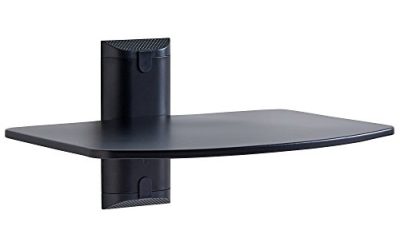
The Series S was designed to be small, and that design shapes how a wired connection fits into a room. The console often sits on a narrow media shelf or a stand that leaves only a few centimeters between the rear panel and the wall. A standard cable with a bulky boot can stand proud of the port, press against the wall and push the console forward. Over time that pressure can loosen the plug or pull on the port.
Because the console is compact, the cable often has a shorter, tighter route than it would on a larger setup. Owners tend to run the cable from a nearby router along the wall, then into a small gap at the back of the shelf. Each bend in that route adds stress, so the cable’s jacket, plug and length all matter more than they would for a console that sits in the open. Planning the route before buying saves the frustration of a cable that almost reaches.
Wi-Fi remains a valid alternative for many players, but a wired link is still the more predictable option. It removes the radio from the path and keeps the connection steady when other devices on the network are busy. The cable should be treated as part of the console setup, not as an afterthought. For other accessories that suit a compact setup, see the console accessories guide, and if you are still choosing between a console and a PC for a small room, the console vs gaming PC comparison covers the space and cost tradeoffs.
What the gigabit port means for a short run
The Series S uses a gigabit Ethernet port that follows the 1000BASE-T standard, which allows up to 1 Gbps when the router, switch and cable all support it. For a short run inside a single room, the cable does not need to exceed that requirement. Any Cat5e or Cat6 cable meets the gigabit standard over distances far longer than a home needs, so there is no advantage in buying a higher category for a short Series S connection.
A short run also has a practical benefit. Shorter cables have less total length for interference and damage to affect, and they leave less slack to manage behind the console. That makes it easier to keep the cable out of tension. The key is to get the length right rather than simply choosing the shortest one available. A cable that is too short is as much of a problem as one that is too long, because it pulls on the plug.
The speed you see in practice still depends on the router’s LAN ports and your internet plan. Older 10/100 ports cap the connection at 100 Mbps regardless of the cable, so check the router before replacing a cable that is performing well.
Cat5e, Cat6 and Cat6a for a compact setup
The table below lists the published limits from the Ethernet standards for each category. These are rated figures, not measurements of any particular cable, and they explain why category matters less than length and plug fit for a Series S.
| Category | Rated frequency | Published maximum speed | Published maximum length | Fit for a compact Series S |
|---|---|---|---|---|
| Cat5e | 100 MHz | 1 Gbps | 100 m | Covers the console’s port for short runs |
| Cat6 | 250 MHz | 1 Gbps (10 Gbps up to about 55 m) | 100 m | Suits most homes with some extra margin |
| Cat6a | 500 MHz | 10 Gbps | 100 m | Needed only for a 10 Gbps network |
For a Series S connected to a router in the same room, Cat5e and Cat6 are both sound choices. Cat6 is often the better buy because the price difference is small and it leaves more headroom above gigabit. Cat6a adds cost and thickness without a gigabit benefit, so it makes sense only when the rest of the network runs at 10 Gbps.
Choosing a length that fits behind the console
Length is where most compact setups go wrong. Measure the route from the router to the console along the wall, around any furniture and into the port. Then add about 15 percent for bends and for the slack needed to pull the console out for cleaning. The table below shows common compact layouts and the length that usually works.
| Setup | Typical route | Suggested length | Notes |
|---|---|---|---|
| Console on a shelf, router on the same shelf | Under 3 ft | 6 ft | Keep the bend at the plug gentle |
| Console in a cabinet, router on the wall nearby | 6 to 10 ft | 10 to 12 ft | Leave room to slide the console out |
| Console on a stand, router in the same room | 10 to 15 ft | 15 ft | Route behind the stand, not across the front |
| Router in another room | 20 to 35 ft | 35 to 50 ft | Use baseboard clips, and avoid door gaps |
A cable that is two or three feet longer than the measured route usually gives enough slack without creating a loop. Large loops behind a compact console are the main reason cables get pinched, so resist the urge to buy a much longer cable and coil the excess.
Flat versus round jackets
Jacket shape affects fit more than performance. A flat jacket is thin and wide, so it lies against a wall or the back of a stand with little bulge. That helps when the console has only a few centimeters of clearance. A round jacket stands off the surface more, and it can be easier to bend cleanly when it has to turn a corner, although its thickness can press the console forward.
For a Series S placed tight to a wall, flat is often the better fit. For a console on an open shelf with room to spare, round is equally good. In either case, the jacket should be free of sharp creases. A flat cable folded hard at one point can crease the jacket and, in a worst case, damage the pairs inside. Keep the bend gradual, and use a clip rather than a staple to hold the cable against the wall.
Fitting the plug behind the console
The plug is the part most likely to cause trouble on a compact console. The rear port sits close to the wall or shelf edge, and a plug with a long, stiff boot may not seat fully or may push the console out of position. Before buying, check how much space you have between the port and the nearest surface. Measure the clearance in a straight line, because that is what the plug needs.
A firm strain-relief boot molded to the jacket is the feature that matters most. It keeps the plug from being levered out when the console is moved, and it supports the cable where it enters the connector. If the boot is loose or the plug rocks in the port after a few insertions, the connection is at risk. Replace the cable rather than forcing a plug that does not seat with a clear click.
Shielding and interference on a short run
A compact setup often places the Ethernet cable close to a soundbar, a power strip or a router’s power adapter. Shielding helps in that situation by reducing interference from nearby electrical equipment. The benefit is consistency rather than speed, because the console still links at gigabit when the cable is clean. Look for a listing that explicitly states shielding. If the listing is silent, do not assume the cable is shielded, and keep it a few inches away from power cables instead.
Setting up and checking the connection
Connect one end of the cable to a LAN port on the router, not the WAN or internet port, and connect the other end to the Ethernet port on the back of the Series S. Seat both plugs until they click. Most modern routers handle the connection automatically, so no special cable type is needed. Cat5e or Cat6 is sufficient here. Once the console is powered on, press the Xbox button, then go to Profile & system, Settings, General, Network settings, and choose Test network connection. Menu names on the Series S can differ from these labels and can change with updates, so follow the on-screen labels if they do not match.
After the test, check the Current Network Status entry. It should read Wired, which confirms the console is using the cable rather than Wi-Fi. If it still shows a wireless connection, unplug the cable, check both ends and run the test again.
Check the router’s port light after connecting. A steady indicator usually means the link is running at gigabit, while a different color or a dim light can indicate 100 Mbps. Light colors differ between brands, so the router manual is the reliable reference. If the console shows a wired connection but the speed is low, the router port or the cable is the first place to look, not the console. On a university or shared dormitory network, the wired Ethernet port may be disabled until the device is registered through the network’s sign-in page. If the port shows no connection after you plug in the cable, check whether the network requires activation before troubleshooting the hardware.
Troubleshooting a loose or slow compact connection
If a Series S connection keeps dropping, begin with the plug. Remove the cable, check the latch for damage, and reinsert it until it clicks. Then look at the route. A cable pinched between the console and the wall, or pulled tight when the console is pushed back into place, can break contact intermittently. Loosen the slack, move the console slightly forward and test again.
If the connection is slow, try a different router port and a different known-good cable. A shorter route with a gentle bend often performs better than a long cable that loops behind the console. If the link still shows 100 Mbps after both changes, the router or switch is limiting the connection, and the manufacturer’s documentation is the right place to confirm port speeds. For a broader view of platform choices, see the best gaming console guide.
Frequently asked questions
Is a short Ethernet cable enough for the Xbox Series S?
Often, yes. Most Series S setups put the router within a few feet of the console or in the same room, so a 6 to 15 foot cable covers the route. The console’s gigabit port is the limit, so the cable only needs to meet gigabit requirements. Measure the path, add a small amount of slack and avoid a cable so short that it pulls on the plug when the console is nudged.
Can a flat cable fit behind an Xbox Series S on a stand?
Usually, yes. A flat jacket lies against the back of a stand or wall with less bulge than a round cable, which helps when the console sits close to a surface. Check the plug first, because a flat cable is only as useful as the plug can seat against the rear panel. If the plug catches on the stand edge, a shorter run or a low-profile plug may fit better than a different jacket shape.
Does a shielded cable help on a short run?
It can, but the gain is small on a short run. Shielding reduces interference from nearby power cables, chargers and speaker wires, and a compact setup often puts the cable close to a soundbar or power strip. It does not raise the speed above the console’s gigabit port. Choose shielding if the listing states it clearly and the cable must run beside power equipment. Otherwise, a well-built unshielded cable on a short, clear path is adequate.
Will a longer cable slow down my Series S?
Not within normal limits. A Cat6 or Cat6a cable of 50 meters still supports gigabit, so the console runs at the same speed on a longer route. The practical cost of a long cable is clutter, and extra slack can push the console away from the wall. Buy the length the route needs rather than the longest option. Shorter, tidy runs are easier to keep free of tension behind a compact console.
Should I buy a cable with a right-angle plug?
A right-angle or low-profile plug can help when the console sits flush against a wall or inside a cabinet, because it lets the cable leave the port sideways without a tight bend. It does not change the speed. The trade-off is that the plug can be harder to seat with little clearance, and some right-angle connectors feel less sturdy. If you have room behind the console, a standard straight plug with a firm boot is usually the simpler choice.
Related guides
More from Amazon
Programs that pair well with the guide above. Offers and eligibility are set by Amazon and may change.
Free shipping on eligible items, Prime Video and more. Eligible new members can start with a free trial.
Start a Prime free trialAd-free music streaming. Eligible new subscribers can start with a free trial.
Try Music Unlimited freeA Prime membership for ages 18-24 with a trial period. Eligibility is set by Amazon.
See Prime for Young AdultsAudiobooks and podcasts to listen to on the go. Eligible new members can start with a free trial.
Try Audible freeAs an Amazon Associate we earn from qualifying purchases.