Our Top Picks


The Short Answer
Whether you need a capture card depends entirely on one condition: Do you want to run a highly customized, professional-looking stream using a computer, or are you happy simply broadcasting your gameplay directly from your console?
If you want custom graphics, interactive stream alerts, overlays, and professional-grade audio mixing via broadcast software like OBS Studio, then yes, you need a capture card. However, if you are a beginner or a casual gamer who just wants to share your screen with friends directly from a PlayStation 5 or Xbox Series X/S, then no, you do not need one. Modern consoles have built-in streaming apps that let you go live on Twitch or YouTube with a single button press, completely bypassing the need for extra hardware.
As an Amazon Associate we earn from qualifying purchases at no extra cost to you.


What You Actually Get
When you integrate a capture card into your home gaming setup, you are introducing a physical bridge between your console, your display, and your computer. A capture card does not actually process or stream the video itself; instead, it acts as a high-speed translator. It intercepts the raw HDMI signal coming from your PlayStation, Xbox, or Nintendo Switch, duplicates it, and sends one lag-free signal to your television or gaming monitor (called “pass-through”) while sending the other signal via USB to your laptop or desktop computer to be broadcast to the world.
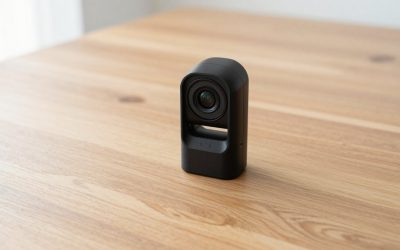
From a hardware perspective, capture cards fall into two distinct design categories that impact your desk space and aesthetic. The first is the ultra-compact, budget-friendly dongle, such as the generic 4K HDMI Video Capture Card. Priced at just around $25, these devices are incredibly discreet. They measure roughly 2.5 x 1.1 x 0.4 inches and weigh under an ounce. They plug directly into a USB 3.0 port like a thumb drive and draw a minimal 2.5 watts of power, making them almost invisible in a clean, minimalist home office setup. While they claim 4K input support, they compress the outgoing stream to a standard 1080p resolution at 60 frames per second (FPS).
The second category consists of premium, dedicated desktop units like the Elgato 4K S Capture Card, which retails for around $150. This device is built for enthusiasts who refuse to compromise on visual fidelity. With a footprint of approximately 4.4 x 2.8 x 0.7 inches and a weight of 3.8 ounces, it sits flat on your desk and requires a dedicated high-speed USB-C connection, pulling up to 4.5 watts of power. It allows for pristine 4K HDR pass-through, meaning you can play your games in gorgeous, uncompressed ultra-high definition on your main screen while your computer streams the footage at a smooth, professional rate.
By offloading the encoding work from your console to your computer, a capture card ensures your console can dedicate 100% of its processing power to rendering your game at maximum frame rates, preventing the system-level lag that often occurs during direct-from-console streaming.
Pros
- Unmatched Customization: Using a capture card allows you to run OBS, Streamlabs, or Twitch Studio on a computer. This unlocks the ability to add personalized overlays, subscriber alerts, chat widgets, and sponsor logos to your broadcast.
- Professional Audio Control: You can route your game audio, microphone, party chat, and background music into a virtual mixer on your computer, allowing you to adjust individual volume levels on the fly so your audience hears everything perfectly.
- Camera Flexibility: Instead of being locked into proprietary, low-resolution console cameras, a capture card setup lets you use high-end DSLRs, mirrorless cameras, or premium USB webcams positioned anywhere in your room.
- Multi-Platform Streaming: Through PC-based restreaming services, you can broadcast to Twitch, YouTube, and TikTok simultaneously, a feat that is impossible when streaming directly from a console.
- Easier Content Creation: Recording your gameplay directly to your PC’s hard drive makes it simple to edit high-quality clips for YouTube Shorts or TikTok without having to transfer files off a console using a USB drive.
Cons
- Increased Cable Clutter: To set up a capture card, you must run an HDMI cable from your console to the card, another HDMI cable from the card to your TV, and a USB cable from the card to your computer, creating a nest of wires that can ruin a clean desk aesthetic.
- High Financial Barrier: Beyond the cost of the card itself (ranging from a budget around $25 to a premium around $150), you must also own a reasonably powerful computer or laptop to handle the video encoding.
- Software Complexity: Setting up audio paths, resolving sync issues between your microphone and the gameplay, and managing video latency requires patience and a steep learning curve.
- No Portability: Unlike direct console streaming, which you can do anywhere you have an internet connection, a capture card setup anchors you to your desk and computer.
Who Should Buy It
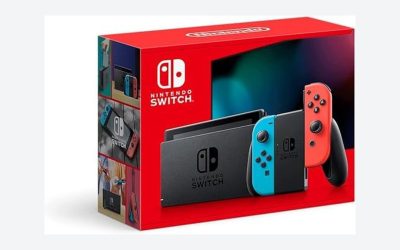
You should invest in a capture card if you are committed to building a unique brand, growing an audience, or creating high-production-value content. If you plan to stream games from the Nintendo Switch, a capture card is a absolute necessity, as the Switch does not support native streaming apps. It is also the ideal choice for gamers who care deeply about visual performance; premium cards allow you to play at high refresh rates (like 120Hz or 144Hz) on your gaming monitor while still streaming at a stable 1080p. As we look toward the landscape of digital media in 2026, the standard for online broadcasting continues to rise, making a physical capture card a sound investment for anyone planning a long-term streaming presence.
Who Should Skip It
You should skip the capture card if you are a casual player who only streams occasionally for friends, or if you are on a tight budget. If you do not own a laptop or desktop computer, a capture card is completely useless to you. Owners of the PlayStation 5 and Xbox Series X/S should utilize their consoles’ built-in streaming tools first. This allows you to test the waters of live broadcasting without spending any money or adding physical clutter to your living room or entertainment center.
Cheaper Alternatives
If you want to stream your console games but are not ready to invest in a high-end capture card setup, there are several viable workarounds to consider:
| Option | Cost | Trade-off |
|---|---|---|
| Native Console Streaming | Free (Built-in) | No custom overlays or alerts; limited camera options; potential console performance drops during intense gameplay. |
| Budget Capture Card | around $20 – around $35 | Limited to 1080p/60FPS output; lacks advanced high-refresh-rate pass-through; potential color compression and shorter hardware lifespan. |
| Console Remote Play Apps | Free | High latency; heavily dependent on home Wi-Fi stability; noticeable compression artifacts and occasional audio de-sync. |
FAQ
Can I stream on Twitch or YouTube without a capture card?
Yes. Both the PlayStation 5 and Xbox Series X/S feature integrated Twitch and YouTube integration. By pressing the “Share” or “Create” button on your controller, you can link your accounts and broadcast your gameplay, microphone audio, and even a connected console camera directly to the internet without any extra hardware.
Does a capture card improve my in-game frame rate or graphics?
No, a capture card does not boost your console’s performance or improve your in-game graphics. However, it does prevent performance drops. Because the card offloads the heavy task of video encoding to an external computer, your console does not have to split its resources between running the game and running the stream.
Is a cheap $25 capture card actually worth buying?
For beginners, yes. Budget capture cards, like the around $25 generic HDMI-to-USB models, are highly capable of capturing basic 1080p video at 60FPS. They are excellent for casual streaming or recording Nintendo Switch gameplay. However, they lack advanced features like high-refresh-rate pass-through, HDR, and dedicated software support, which you get with premium options like the Elgato 4K S.
What computer specifications do I need to run a capture card?
To stream smoothly using a capture card, your computer needs to handle the incoming video feed. Generally, you will need a laptop or desktop with at least an Intel Core i5 (8th Generation or newer) or AMD Ryzen 5 processor, 8GB of RAM, and a dedicated graphics card (such as an NVIDIA GTX 1060 or better) to ensure your stream does not stutter or drop frames.
Related guides
- Best Free MMOs on Steam: Subscription Limits, Pay-to-Win and Time Cost (2026)
- Best Free Horror Games on Steam: How to Pick One That Fits Your PC and Your Nerves (2026)
- Black Frame Insertion vs VRR: Which Smoothness Feature Should You Use?
- Best Webcams for Streaming: 11 Listings Compared by Resolution, Focus and Light (2026)