HyperX Cloud Alpha S PS5 compatibility is confirmed by the maker: the product page lists PC, PS5 and PS4 as supported platforms over USB. The headset also ships with a detachable 3.5mm cable, so it can plug into a controller. What you give up on PlayStation is the PC software, so the on-board mixer is the main control you keep.
Our Top Picks


Top 3 picks at a glance

Direct Answer: Does the Cloud Alpha S Work on PS5?
Yes. HyperX’s own Cloud Alpha S page lists PC, PS5 and PS4 as compatible platforms and gives the USB specification as USB 2.0, with stereo and 7.1 surround USB audio formats. That is the confirmed part. Everything past it is a matter of how you connect, which features survive, and what you should verify yourself.
Here is the short version before the detail:
| Question | Short answer | Confidence |
|---|---|---|
| Does it work on PS5 over USB? | Yes, listed by HyperX | Confirmed by the maker page |
| Does it work on PS4? | Yes, listed; a firmware update may be needed | Confirmed by the maker page |
| Can you use the 3.5mm cable on the PS5 controller? | Likely, reported by users of the standard Cloud Alpha | Not on a HyperX support page we found |
| Does virtual 7.1 work on PS5? | It is delivered by the USB mixer as a stereo signal | Maker page describes the mixer output |
| Does the HyperX software run on PS5? | No; the software is a PC tool | Common to all HyperX USB headsets |
This page is research-based. We did not connect a headset to a console for this article, so we report only what the maker and other published sources say, and we label anything we could not confirm.
How to Connect the Cloud Alpha S to a PS5
There are two ways to connect, and they behave differently. Pick the one that matches what you want from the headset.
Option 1: USB Audio Control Mixer
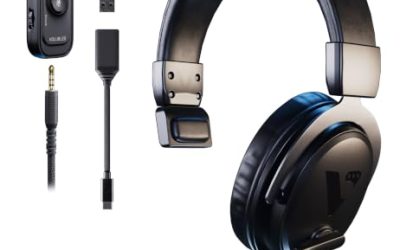
The box includes a USB audio control mixer, according to a third-party review of the headset. This is the recommended route for PS5 because it is the connection the maker lists for console support.
- Plug the detachable 3.5mm cable from the headset into the mixer.
- Connect the mixer’s USB cable to a USB port on the PS5. Use the port nearest your seat to keep the cable out of the way.
- Open the PS5 settings, go to Sound, then Audio Output, and choose the USB headset as the output device.
- Set the headset volume on the mixer and set a comfortable level in the PS5 menu, then check chat volume with a friend or in a party.
The mixer provides the physical controls, such as volume and the microphone mute button, so you do not need software for daily use.
Option 2: 3.5mm Cable Direct to the Controller
The detachable 3.5mm cable can go straight into the headphone jack on a DualSense controller. A user in a retail Q&A reported that the cable included with the standard Cloud Alpha plugs right into the PS5 controller. That is a user comment about the standard model, not a maker statement about the Alpha S. The two headsets are close relatives, so it is a useful hint, but plug it in and check that both sound and chat work before you rely on it.
The controller route gives you simplicity and no mixer. It also gives you less control, since you lose the mixer’s buttons and rely on the controller’s audio settings.
What Works and What Does Not on PS5
Works
- Stereo game audio over the USB mixer.
- Chat audio through the headset’s microphone. The Alpha S uses a detachable boom mic, per the maker’s description.
- Volume and mute controls on the mixer.
- Plain wired audio over 3.5mm into a controller, with the caveat above.
Does Not Work or Is Limited
- HyperX NGENUITY software. It is a PC application, so you cannot run it on a console.
- Equalizer presets, if you rely on them. You would have to set them on a PC first, and the mixer may not store them. Check the maker’s description for details.
- True multi-channel surround. HyperX’s page says the virtual 7.1 output is sent as a two-channel stereo signal. That means you hear a processed stereo mix, not discrete surround channels.
- Sony’s own Tempest 3D AudioTech. The PS5’s 3D audio is built around headsets that support it. Check the maker’s page and the PlayStation settings for current guidance before you count on it with a third-party USB headset.
HyperX Cloud Alpha S vs Standard Cloud Alpha on PS5
People often mix up the two. They are separate products and they connect differently.
| Feature | Cloud Alpha S | Cloud Alpha (standard) |
|---|---|---|
| Connection | USB mixer plus detachable 3.5mm cable | 3.5mm cable |
| PS5 support | Listed on the maker page | Listed in the store listing |
| Virtual 7.1 | Through the USB mixer | Not included |
| On-board controls | Mixer | Inline cable controls, depending on the version |
| Software support | PC software | Not required |
If you only want a plain wired headset for PS5 chat and game sound, the standard Cloud Alpha does the job with fewer parts. The S adds the mixer and a surround mode that sends a stereo signal.
PS4 Firmware: Do You Need an Update?
HyperX’s page says a firmware update may be required for PS4 compatibility. You perform it through NGENUITY by connecting the headset to a PC with the USB audio control mixer. The page flags this note for PS4 only, so we cannot say whether a PS5 needs it too.
The safe approach is to do the update if you have access to a PC. Connect the mixer to the PC, open the software, and see whether an update is offered. If you do not own a PC, check the maker’s support page for current guidance and try the headset with the PS5 first. If the audio and mic work as expected, you do not need to chase an update.
Troubleshooting: No Sound or No Mic on PS5
If something does not work, go through these checks in order.
- Check the output setting. In the PS5 Sound settings, confirm the output device is the USB headset, not the TV speakers.
- Check the mixer. Make sure the mute is off and the volume wheel is not at zero.
- Check the mic. The boom mic is detachable. Push it in until it seats, and check the mute switch.
- Try another USB port. A port with a hub or an extension cable can cause dropouts.
- Restart the console. Fully power down, unplug the mixer, then plug it back in after the PS5 boots.
- Try the 3.5mm route. Plug the headset cable into the controller to separate a mixer fault from a headset fault.
- Update the firmware on a PC. This is where the maker’s note about firmware applies.
If none of these helps, contact the maker’s support, because a faulty mixer is a real possibility on older units.
Does the Cloud Alpha S Mic Work on PS5?
The microphone is part of the headset and it travels over the same cable as the audio, so chat should work on the USB route and on the 3.5mm route if the controller jack supports headset audio. Chat quality is not something we can rate, because we did not use the headset. Check the PS5’s microphone level in Sound settings, and run a chat check in a party before a ranked match.
PS5 Audio Settings Worth Checking
Once the headset is connected, a few console settings decide how it behaves. Menu names can change with system updates, so look for the closest match on your console.
- Output device: choose the USB headset for audio output so sound leaves the TV speakers.
- Input device: choose the headset as the microphone input, or party chat will pick up the wrong mic.
- Volume for headphones: keep the console level moderate and use the mixer wheel to fine tune, so you avoid clipping at the source.
- Chat balance: the PS5 lets you balance game audio and chat. If friends sound too quiet, shift the balance toward chat.
- Microphone level: speak at your normal volume and look at the level meter, so teammates hear you clearly without distortion.
- Sidetone: if the headset or the console offers a way to hear your own voice, use it. It helps you avoid shouting in closed-back headphones.
USB, 3.5mm or Wireless: Which Connection Suits PS5?
| Connection | Strength | Weakness | Cloud Alpha S fit |
|---|---|---|---|
| USB mixer | On-board controls, listed support | One more box and cable on the desk | Recommended route |
| 3.5mm to controller | Simple, no extra hardware | Fewer controls, cable to the controller | Works per user reports; verify |
| Wireless dongle | No cable clutter | Needs a charge, different product | Not applicable to the Alpha S |
Most PS5 players sit a couple of metres from the TV, which makes cable length the practical limit. The mixer route usually needs a longer run than the controller route, because the cable ends at the console rather than in your hands. Plan the cable path before you commit to a setup.
Is the Cloud Alpha S Still a Good Buy for PS5?
The Alpha S is an older design, and the maker has released newer headsets since. Its appeal for PS5 is the combination of the dual chamber drivers HyperX is known for, a detachable mic, a durable build and the mixer. Its weaknesses are its age, the stereo-only nature of its virtual surround and its dependence on a PC for firmware.
Use this checklist when deciding:
- Choose it if you already own one, or can find one at a fair price, and you want a wired headset with simple controls.
- Look elsewhere if you want wireless, active noise cancelling or a mic with a long list of controls.
- Look elsewhere if you have no PC and want to be sure that firmware is current.
- Check the maker’s page for the latest compatibility list before any purchase.
How to Confirm Compatibility Yourself
Compatibility claims vary from page to page, and a retailer’s page can be out of date. Use this method for any headset, not just the Alpha S.
- Open the maker’s product page and find the platform list. Write down every console named.
- Read the connection details. USB, 3.5mm and wireless dongle each have different console support.
- Look for a footnote. Firmware notes, such as the PS4 note on the Alpha S page, often hide there.
- Search the maker’s support pages for the headset’s name and the console name.
- Check the retailer’s return window, so you can send the headset back if chat fails.
That process takes about five minutes and avoids most compatibility surprises.
Other Headsets to Consider for PS5
If the Alpha S does not suit, or if you cannot find one, these items from the store listings are real alternatives with PS5 support named in their descriptions. Always confirm current details with the maker.
HyperX Cloud Alpha
As an Amazon Associate we earn from qualifying purchases at no extra cost to you.

The standard Cloud Alpha is the simplest HyperX route to PS5. The listing names dual chamber drivers, an aluminum frame, a detachable microphone and support for PC, PS4, PS5, Xbox One, Xbox Series X|S, Switch and mobile. It connects through 3.5mm, so it plugs into a DualSense controller without a mixer. Best for: plain wired play with minimal setup. Skip if: you want the S’s virtual 7.1 mixer.
HyperX Cloud Alpha Wireless
The wireless version advertises a 300-hour battery, DTS Headphone:X spatial audio, memory foam, dual chamber drivers and a noise-canceling mic. The listing says it is made for PC, so check the maker’s page for current console support before you buy it for a PS5. Best for: PC play with an occasional console check. Skip if: you need confirmed PS5 support today.
PULSE Elite Wireless Headset
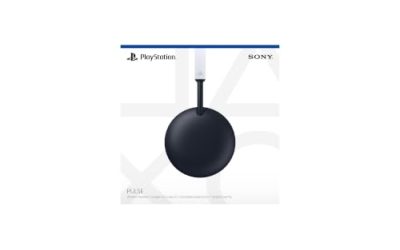
PlayStation’s own PULSE Elite is listed for PS5, PC and Mac. As a first-party headset it is built around the console, which makes setup simple. The listing gives few details, so check the maker’s page for battery, mic and codec information. Best for: players who want a headset designed for PlayStation. Skip if: you prefer HyperX’s frame and feel.
Razer BlackShark V2 X
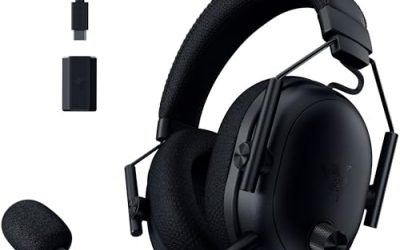
The wired PlayStation version of the BlackShark V2 X has 50mm drivers, a cardioid mic, noise isolating earcups and a 3.5mm jack, and the listing names PS5, Xbox Series X, PC and Switch. It is light and does not need a mixer. Best for: a low-cost wired option. Skip if: you want a mixer with on-board controls.
Using the Alpha S With Different PS5 Games
Because the headset sends a stereo signal to the console, game type matters less than it would for a true multi-channel headset. A few notes by genre:
- Online shooters: footsteps and gunfire direction depend on the game’s own stereo mix. The headset’s dual chamber drivers are the part doing the work. Leave virtual 7.1 off at first and compare, since processed stereo can blur direction for some players.
- Story games: volume balance and comfort matter more than positional detail. Use the mixer to keep dialogue clear and avoid loud peaks.
- Party and voice chat: mic placement matters. Keep the boom roughly a thumb’s width from the corner of your mouth, away from your breath.
- Racing and sports games: engine and crowd noise can mask chat. Lower the game volume a little in the mixer, then raise chat.
- Movies and streaming apps on the console: the headset works as a plain stereo output, so treat it like any wired headphones.
Care and Cable Tips for Console Use
Console play invites a few habits that wear cables out. Keep these in mind and the headset will last longer.
- Do not wrap the cable tightly around the headband. Loose loops cause fewer breaks.
- Detach the 3.5mm cable before you store the headset, so it does not get pulled when you lift the headband.
- Keep the mixer out of the reach of children and pets. The wheel and buttons can be knocked mid-game.
- Wipe the earpads from time to time. Pads wear faster with sweat, and replacement pads are easy to find for popular HyperX models.
- Store the detachable microphone in a safe place, since a lost boom mic can leave you without chat.
Frequently Asked Questions
Is the HyperX Cloud Alpha S compatible with PS5?
Yes. HyperX’s product page lists PC, PS5 and PS4 as compatible platforms, and the USB specification is given as USB 2.0.
Does the Cloud Alpha S work on PS5 with the 3.5mm cable?
Probably. A user of the standard Cloud Alpha reported the cable plugging into the PS5 controller, but we found no maker support page for the S.
Does virtual 7.1 work on PS5?
The maker says the virtual 7.1 is output as a two-channel stereo signal by the USB mixer, so it is processed stereo, not discrete surround.
Do I need software to use the Alpha S on PS5?
No. The mixer gives you volume and mute controls. The software is a PC tool for settings and firmware updates.
Do I need a firmware update for PS5?
The maker page flags a possible firmware update for PS4 only. For PS5 we found no such note, so try the headset first and update if something fails.
Can I use the Alpha S wirelessly on PS5?
No. The Alpha S is a wired headset. The wireless Cloud Alpha is a separate product.
Why does my Alpha S have no sound on PS5?
Check that the PS5 output device is set to the USB headset, that the mixer is not muted and that the cables are seated.
Which Setup Should You Use?
Use the USB mixer if you want the connection HyperX lists for PS5 and the on-board controls. Use the 3.5mm cable only if you are happy with a simple connection and you check that chat works. If the Alpha S is hard to find or you would prefer a wireless setup, the PULSE Elite is a console-focused alternative, and the standard Cloud Alpha is a plain wired option with listed PS5 support.
Quick Setup Summary
- Confirm the headset is the Cloud Alpha S, not the standard Cloud Alpha, because the connection differs.
- Connect the headset’s 3.5mm cable to the mixer and the mixer to a PS5 USB port.
- Set both the output and the input device to the USB headset in the PS5 Sound settings.
- Check volume and chat with a friend before a match.
- If something fails, try the controller jack, then another USB port, then a firmware update on a PC.
These five steps cover almost every PS5 setup, and each one matches what the maker and published reviews describe.
Sources
- HyperX, Cloud Alpha S product page
- Headphonesty, HyperX Cloud Alpha S review
- Best Buy, customer Q&A for the HyperX Cloud Alpha
- HyperX, NGENUITY software page
Last updated: November 2026
Related guides
More from Amazon
Programs that pair well with the guide above. Offers and eligibility are set by Amazon and may change.
Free shipping on eligible items, Prime Video and more. Eligible new members can start with a free trial.
Start a Prime free trialAd-free music streaming. Eligible new subscribers can start with a free trial.
Try Music Unlimited freeA Prime membership for ages 18-24 with a trial period. Eligibility is set by Amazon.
See Prime for Young AdultsAudiobooks and podcasts to listen to on the go. Eligible new members can start with a free trial.
Try Audible freeAs an Amazon Associate we earn from qualifying purchases.