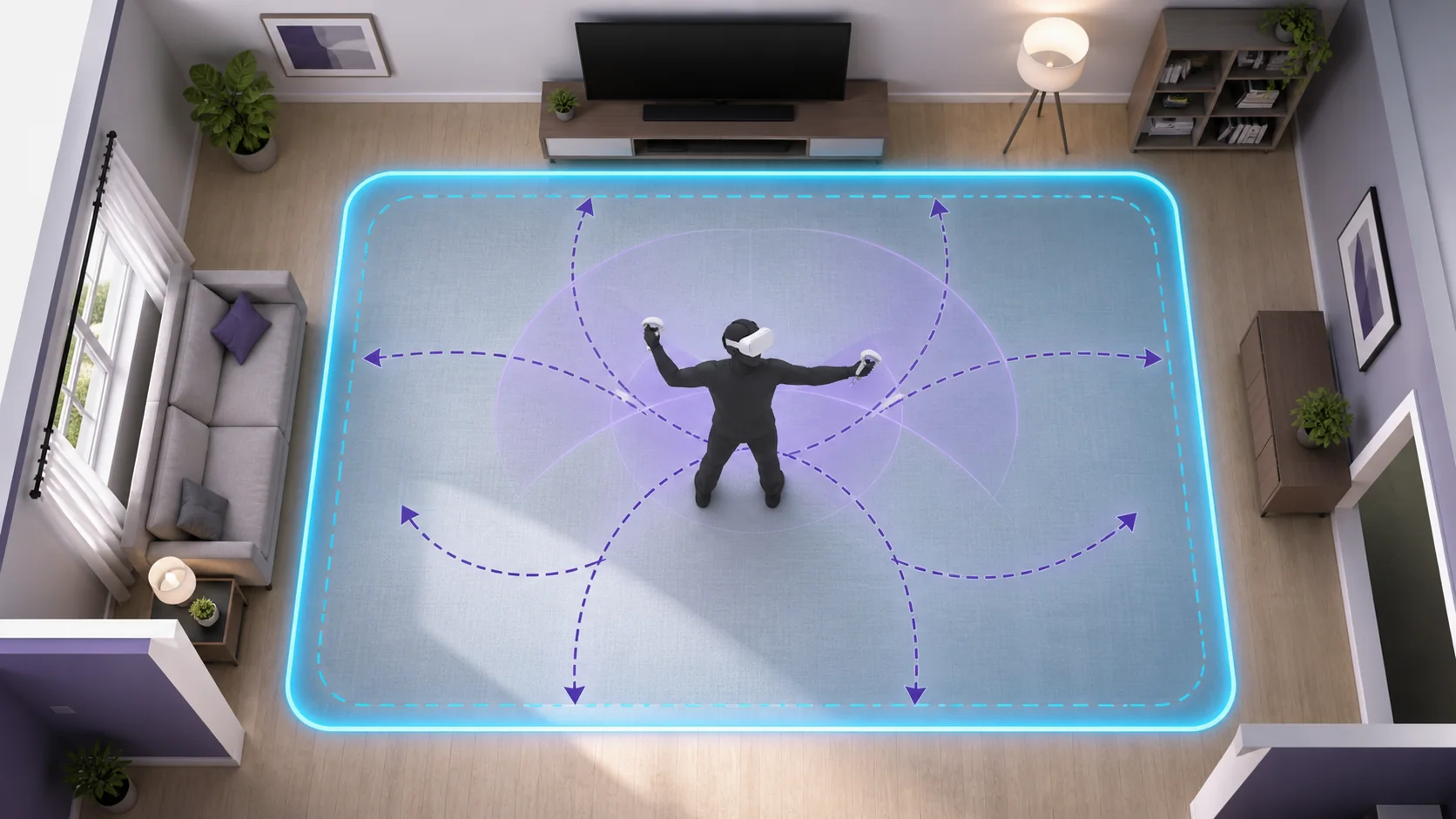
Most SteamVR tracking problems trace back to one of three causes: something physically blocking or disturbing the tracking reference (base stations, cables, or lighting), a controller or headset battery running low, or a boundary that no longer matches your actual play space. Working through these in order, from physical checks to software resets, resolves the large majority of tracking complaints without needing to reinstall anything.
Our Top Picks
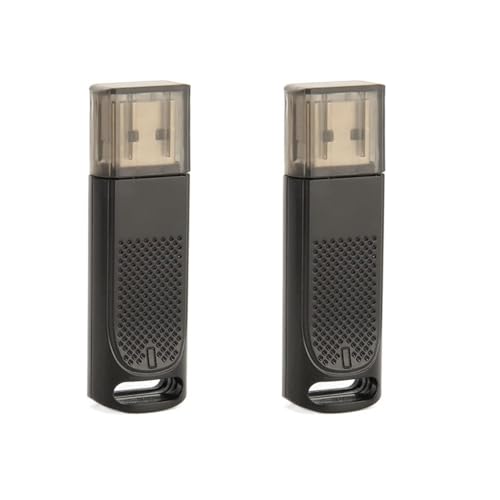
 Upgraded VR Wireless Receiver SteamVR Games USB Dongle1 Pcs2.36 x 0.62 x 0.4 inches0 poundsCheck on Amazon



Top 3 picks at a glance
Quick answer
Check physical causes first: base station or sensor position, cable connections, and lighting conditions. If tracking is still unreliable after that, redo room setup, check battery levels on controllers, and confirm nothing is obstructing line of sight between tracked devices and their reference points.
As an Amazon Associate we earn from qualifying purchases at no extra cost to you.



| Symptom | Likely cause | First fix to try |
|---|---|---|
| Slow drift over time | Reference point shifted or lighting changed | Redo room setup |
| Sudden jump or jitter | Obstruction or interference | Clear line of sight, check for reflective surfaces |
| One controller only | Low battery or damaged sensor ring | Charge/replace battery, inspect controller |
| Total tracking loss | Cable or USB port issue | Reseat cable, try a different port |
Understanding how your headset actually tracks
Before troubleshooting, it helps to know which tracking method your headset uses, since the fixes differ. Base-station tracking, used by some PC VR headsets, relies on external stations sweeping infrared light across the room that sensors on your headset and controllers detect to calculate position. Inside-out tracking, used by most modern standalone-capable headsets, relies on cameras built into the headset itself watching the room and your controllers to calculate position without external stations.
Base-station setups are more sensitive to line-of-sight obstructions and station placement, since the whole system depends on those fixed external reference points staying exactly where they were during room setup. Inside-out setups are more sensitive to lighting and visual clutter, since the cameras need enough visible detail in the room to track against, and struggle in very dark or very reflective, low-detail environments.
Both methods can lose tracking of controllers specifically when your hands move outside the tracked area during fast motion — behind your back, low at your sides, or close to your body — which is a known limitation of the tracking volume rather than a fault to troubleshoot away entirely.
Understanding which category your specific problem falls into before troubleshooting saves real time, since a fix aimed at base-station line-of-sight issues won’t help an inside-out lighting problem, and vice versa. If you’re unsure which tracking method your headset uses, checking the manufacturer’s specifications is worth the two minutes before working through a troubleshooting checklist aimed at the wrong technology.
If you’re evaluating whether your current headset’s tracking limitations are a dealbreaker for a specific game type, our guide to choosing a VR headset covers how tracking method affects real-world play differently across genres.
Tomas Berger, our VR & Handheld Editor, has logged tracking-loss events across dozens of comfort sessions in his tracked play space, and lighting changes account for a larger share of reported drift than cable or hardware issues in his own testing notes.
His practical advice for anyone troubleshooting a new tracking complaint is to check lighting and cables before anything else, simply because they’re the fastest things to rule out and, in his logged sessions, the most frequent actual cause, even when a problem initially feels like it must be a hardware fault.
Checking base station placement and cables
If your headset uses external base stations, confirm they haven’t shifted, even slightly, since they were mounted, and that both stations still have a clear, unobstructed view of your entire play space. A station nudged even a small amount can throw off tracking calibration enough to cause noticeable drift.
Check that base station cables are fully seated and that any sync cable between multiple stations, if your setup uses one, is connected correctly. A loose power connection can cause a station to intermittently drop out without an obvious symptom beyond occasional tracking glitches.
For headset-side connections, reseat the main headset cable at both ends, and if you’re using any adapter or extension between the headset and your PC, try connecting directly without it to rule out the adapter as the source of intermittent tracking loss. USB hubs in particular are a common culprit, since not all hubs provide sufficient bandwidth or power for reliable sensor data.
If cable management in your play space is a recurring hassle that’s contributing to strain or accidental disconnects, see our guide to VR cables for options built with strain relief and length suited to room-scale play.
Fixing lighting-related tracking problems
Lighting affects tracking differently depending on your headset type, but it affects both. Base-station tracking can be disrupted by other strong infrared sources in the room, including some types of sunlight and certain heaters, since the system is specifically reading infrared signals. Inside-out tracking needs enough ambient light to see room detail clearly but suffers in direct, harsh sunlight that washes out contrast the cameras rely on.
Playing in a room with closed blinds or curtains during daylight hours is a genuinely effective fix for many reported drift and jitter issues, not just a workaround. Consistent, moderate indoor lighting tends to produce the most stable tracking for inside-out systems specifically.
Reflective surfaces — mirrors, glass, glossy furniture — can also confuse inside-out tracking cameras by presenting confusing or duplicate visual reference points. If your play space includes a mirror or large glass surface, covering it during play sessions is worth testing if you’re experiencing unexplained jitter.
Fixing controller-specific tracking loss
When only one controller loses tracking while the headset and the other controller work fine, start with the simplest explanation: battery level. Low battery can cause controllers to report position less reliably before fully dying, so check and charge or replace batteries before assuming a hardware fault.
Inspect the controller physically for damage to its tracking ring or visible sensors, particularly if it’s been dropped or knocked against something during play. Physical damage to tracking components doesn’t always cause total failure — it often shows up as intermittent tracking loss instead.
Consider your play style too: fast, wide swinging motions that take a controller outside your headset’s camera field of view, or outside a base station’s line of sight, will cause momentary tracking loss that’s a hardware limitation rather than a fault. This is more noticeable in fast-paced rhythm or combat games than in slower, seated experiences.
If you’re shopping for a replacement or backup controller, our guide to VR controllers covers tracking reliability differences worth knowing before you buy.
Redoing room setup and boundary calibration
If drift or boundary mismatches persist after checking physical causes, redo room setup completely rather than trying to nudge an existing boundary. Walk the full perimeter of your play space slowly, and make sure nothing has moved since your last setup, including furniture that might now be inside what should be a clear boundary.
Do this in the lighting you’ll actually play in, since a boundary set up in different lighting than your typical play session can be slightly less accurate for inside-out tracked headsets specifically.
If you regularly play at different times of day with meaningfully different lighting, redoing room setup for each lighting condition, rather than assuming one setup works for all, can noticeably improve consistency for inside-out headsets.
Software-side checks worth ruling out
Confirm your headset’s firmware and SteamVR itself are both fully updated, since tracking-related bug fixes are a common part of both headset firmware updates and SteamVR updates. An outdated firmware version is an easy thing to overlook when troubleshooting what feels like a purely physical problem.
Check for background applications competing for USB bandwidth or system resources, particularly other camera or capture software running simultaneously, since these can occasionally interfere with headset sensor data processing on lower-powered systems.
If a specific game consistently shows worse tracking than SteamVR’s home environment or other games, the issue may be with that game’s specific implementation rather than your tracking setup generally, and is worth checking against other players’ reports for that title.
USB power management settings within Windows can occasionally interfere with headset sensor connections by allowing a port to power down during periods of inactivity, which is more relevant for accessories connected through certain hubs than for a primary headset connection, but worth checking if you’re troubleshooting an intermittent issue that hasn’t responded to the more common fixes above. Disabling selective USB suspend for the relevant ports is a reasonable step if this is suspected as a contributing factor.
Interference from other wireless devices sharing the same frequency range as your headset’s tracking or connection hardware is a less common but real cause of intermittent issues, particularly in households with many connected devices operating simultaneously. If you’ve ruled out lighting, placement, and software causes, and problems seem to correlate with when certain other devices are active nearby, this is worth investigating as a longer-shot possibility.
Preventing tracking issues before they start
A stable play space setup goes a long way toward avoiding tracking problems entirely rather than troubleshooting them after the fact. Once you’ve got a room setup you’re happy with, avoid rearranging furniture near your play area unless necessary, and if you do move something, redo room setup immediately rather than waiting until you notice a problem during a session.
For base-station setups, mounting stations securely rather than resting them on shelves or furniture that could shift reduces the chance of gradual drift in station position over time. A small bump against a shelf holding a base station is a surprisingly common, easily overlooked cause of tracking degrading slowly over weeks rather than failing suddenly and obviously.
Keep a simple mental note, or an actual note, of your typical play space lighting conditions when tracking feels its best, so you have a reference point if something later feels off. This makes it much faster to identify “the lighting changed” as a likely cause rather than assuming a hardware fault whenever tracking quality shifts.
For controllers specifically, charging them fully before a session and getting into the habit of checking battery level periodically during longer play sessions prevents the gradual tracking degradation that comes with a battery running low, which is easy to mistake for a more serious problem if you’re not in the habit of checking.
When tracking issues aren’t fixable through setup
Play spaces with a lot of moving reflective elements, large windows with uncontrollable sunlight, or significant infrared interference from other equipment may never achieve fully stable tracking regardless of how carefully you set things up, particularly for inside-out headsets. In these cases, physically relocating your play space, even temporarily, is a more effective fix than continued software troubleshooting.
Genuine hardware faults — a failing sensor, a damaged cable with intermittent continuity, or a base station with a failing internal motor — will produce tracking issues no amount of room setup or lighting adjustment fixes. A useful way to tell the two apart is consistency: a setup or environmental problem tends to correlate with specific conditions, like time of day or a recent physical change, while a genuine hardware fault tends to show up unpredictably regardless of what you’ve checked or changed, since the underlying component is simply failing rather than responding to any environmental variable. If you’ve ruled out lighting, placement, cables, and boundary setup and problems persist consistently in the same way, contact your headset manufacturer’s support for a hardware diagnosis rather than continuing to troubleshoot software settings.
Troubleshooting quick reference
Tracking is fine in SteamVR home but bad in one specific game: this points to that game’s implementation rather than your setup. Check the game’s own settings and community reports before assuming a hardware fault.
Tracking was fine yesterday, bad today, nothing moved: check lighting conditions first, since natural light changes throughout the day are the most common overlooked variable, followed by checking for any new nearby wireless or infrared devices.
Headset tracks fine but controllers constantly glitch: check controller batteries and physically inspect for damage before assuming a setup problem, since controller-specific issues are usually controller-specific causes.
Boundary keeps appearing in the wrong spot: redo room setup completely rather than trying to adjust it manually, walking the full perimeter slowly in your normal play lighting.
Tracking loss only happens during fast movement: this is often a field-of-view or line-of-sight limitation rather than a fault, particularly for inside-out tracked headsets during quick, wide arm movements.
Tracking feels worse after a Windows update rather than a SteamVR or headset update: check whether USB power management or driver settings were reset by the update, since a Windows update occasionally reverts USB-related settings you’d previously configured for stable headset tracking.
Frequently asked questions
Why does my VR headset drift even when I’m standing still?
Drift usually points to a tracking reference problem: base stations that have shifted slightly, inside-out cameras losing visual reference points due to lighting changes, or a loose sensor cable. Redoing room setup after checking these physical causes fixes most drift.
Can bright sunlight actually break VR tracking?
Yes, for both base-station and inside-out tracked headsets. Direct sunlight can interfere with infrared tracking signals and washes out the visual features inside-out cameras rely on. Playing with blinds closed or curtains drawn is a genuine fix, not a superstition.
Does a USB hub cause tracking problems?
It can. Some USB hubs don’t provide enough consistent bandwidth or power for headset sensors and controllers, leading to intermittent tracking loss. Connecting your headset directly to a motherboard USB port, ideally the specific port type recommended by the manufacturer, resolves this in most reported cases.
Why does only one controller lose tracking while the other works fine?
This points to an issue specific to that controller: a battery running low, a damaged tracking ring or sensor on the controller itself, or that controller spending more time outside your headset’s camera view or a base station’s line of sight during play.
Do I need to recalibrate tracking every time I play?
No, only after physical changes: moving base stations or sensors, rearranging furniture in the play space, or significant lighting changes. Stable setups can go many sessions without needing a fresh room setup. For the full initial setup process, see our guide to setting up SteamVR properly.
Related guides
- Best Free MMOs on Steam: Subscription Limits, Pay-to-Win and Time Cost (2026)
- Best Free Horror Games on Steam: How to Pick One That Fits Your PC and Your Nerves (2026)
- Black Frame Insertion vs VRR: Which Smoothness Feature Should You Use?
- Best Webcams for Streaming: 11 Listings Compared by Resolution, Focus and Light (2026)