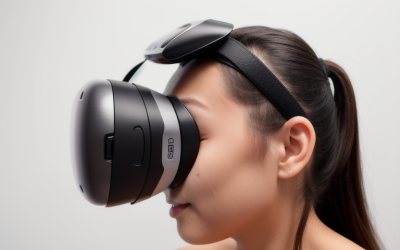
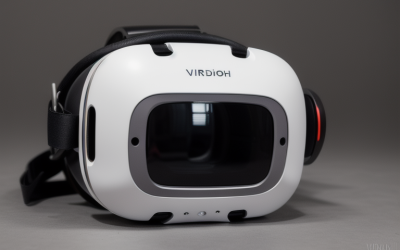
Cutting the cord on virtual reality is one of the most liberating upgrades a gamer can make. Stepping into a virtual world without a heavy tether dragging behind your neck instantly deepens immersion. However, many users who transition to wireless PC-VR streaming via platforms like Meta Air Link, Virtual Desktop, or Steam Link are met with a frustrating surprise: stuttering frame rates, pixelated compression artifacts, and stomach-churning latency.
When looking at how to choose a gaming router for wireless vr, the most common mistake is assuming that your existing home internet router—or even an expensive “gaming” router marketed with flashing RGB lights—is up to the task. Gamers often spend thousands of dollars on high-end graphics cards and headsets, only to plug their PC into a cheap, ISP-provided router that is simultaneously trying to stream 4K video to the living room TV and update smart home devices. Another common pitfall is purchasing a massive, multi-node mesh system, thinking more coverage equals better VR performance. In reality, mesh hops introduce devastating latency spikes that ruin the VR experience. To get buttery-smooth 90Hz or 120Hz gameplay, you need a highly specific local network architecture.
As an Amazon Associate we earn from qualifying purchases at no extra cost to you.


Our Top Picks
 TP-Link AXE5400 Tri-Band WiFi 6E RouterWiFi 6E, Tri-Band AXE540012.91 x 10.43 x 4.72 Inches1.5 poundsCheck on Amazon
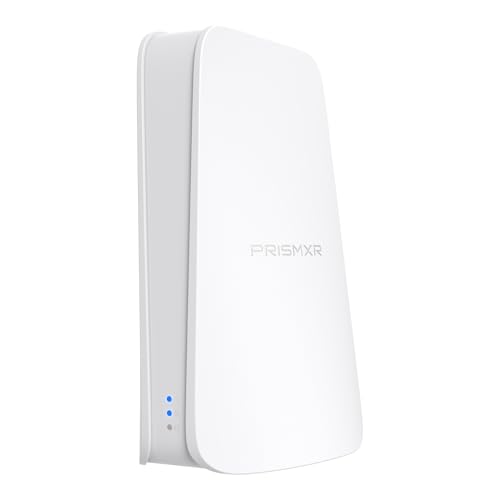


Top 3 picks at a glance
Decide These 3 Things First
Before browsing retail listings or comparing antenna counts, you must define the scope of your physical space and your current hardware ecosystem. Answering these three questions will narrow your choices immediately.
- Will this router be dedicated solely to VR? For the absolute best performance, the gold standard is a “dedicated” router. This is a secondary router connected directly to your PC via an Ethernet cable, broadcasting a private wireless network used exclusively by your VR headset. If you must use a single “shared” router for your entire home, you will need a high-bandwidth tri-band model to isolate your VR traffic on its own band.
- What is your play space layout? High-frequency wireless bands (especially 5 GHz and 6 GHz) struggle to penetrate solid objects. If your PC and play space are in the same room, a compact desktop router or USB-based wireless bridge is ideal. If your play space is one or two rooms away, you will need a robust router that can be wall-mounted or placed high on a shelf with a direct line of sight to your headset.
- What Wi-Fi standard does your headset actually support? Your router must match or exceed your headset’s capabilities. For example, a Meta Quest 2 is capped at Wi-Fi 6 (5 GHz). A Meta Quest 3 or Quest Pro supports Wi-Fi 6E (6 GHz), while the latest high-end headsets are built to leverage the ultra-wide channels of Wi-Fi 7. Buying a Wi-Fi 7 router for a Quest 2 won’t improve your immediate performance, though it does offer future-proofing.
Physical Size and Aesthetic Footprint
Because your VR router needs to be in the same room as your play space for optimal performance, you cannot hide it away in a basement utility closet. It will be a visible part of your home decor. Standard mid-range and premium routers typically measure around 10.2 x 7.9 x 2.3 inches and can weigh anywhere from 1.2 to 2.4 pounds. With their antennas fully extended, these devices can easily take up a footprint of 12 x 12 inches on a desk or shelf.
If you prefer a minimalist look, search for compact, dedicated VR dongles or specialized micro-routers. These ultra-portable devices often measure a mere 3.1 x 2.2 x 0.8 inches and weigh less than 0.3 pounds. They plug directly into your PC’s USB port or sit unobtrusively on top of your tower. However, if you opt for a full-sized router, look for models with integrated keyhole slots on the bottom plate, allowing you to mount the unit flat against a wall or the side of a desk to keep cables tidy and off the floor.
Build Quality and Thermal Construction
Wireless VR streaming is one of the most resource-intensive tasks a router can perform. It requires transferring continuous streams of data at rates of 150 Mbps to upwards of 500 Mbps, constantly encoding and decoding packets with zero tolerance for dropouts. This sustained load generates significant heat. Cheaply constructed routers made of thin, unventilated plastic will quickly thermal-throttle, leading to sudden latency spikes and dropped frames after 30 to 45 minutes of play.
When evaluating build quality, look for a chassis with generous ventilation grilles on the top, sides, and bottom. A well-engineered router should feel solid and have rubber feet to prevent it from sliding around. Premium routers often feature internal aluminum heatsinks to passively dissipate heat from the CPU and wireless chips without requiring noisy internal fans. Avoid ultra-slim, completely sealed plastic designs unless they are specifically engineered as low-power, dedicated VR air bridges.
Hardware Architecture and Port Configuration
The internal brain of the router determines how quickly it can route packets between your gaming PC and your headset. For wireless VR, look for a router powered by at least a 1.5 GHz quad-core CPU and backed by a minimum of 512MB of RAM. This processing power ensures the router can handle high bitrate streams without breaking a sweat.
Equally critical is the physical port configuration on the back of the device. Your gaming PC must be connected to the router via a physical Ethernet cable; attempting to stream PC-VR with both the PC and the headset on Wi-Fi is a recipe for unplayable lag. At a minimum, your router needs Gigabit Ethernet ports (1,000 Mbps). However, if you are looking at premium Wi-Fi 6E or Wi-Fi 7 options, prioritize routers equipped with 2.5 Gbps WAN/LAN ports. A 2.5 Gbps connection ensures that the bottleneck between your PC’s network card and the router is completely eliminated, allowing for maximum data transfer speeds.
Latency, Throughput, and Wireless Bands
This is the core performance metric for wireless VR. To prevent motion sickness, your total motion-to-photon latency should ideally remain under 40 milliseconds, with the network portion of that transfer taking up no more than 5 to 15 milliseconds. To achieve this, you need a router capable of utilizing wide channels and clear wireless bands.
Standard 2.4 GHz bands are entirely useless for VR due to extreme congestion and low bandwidth. A quality Wi-Fi 6 router uses the 5 GHz band and should support a channel width of 80 MHz or, ideally, 160 MHz, offering transmission speeds up to 2400 Mbps. Wi-Fi 6E and Wi-Fi 7 introduce the pristine 6 GHz band, which operates far away from the interference of your neighbors’ Wi-Fi networks and microwave ovens. Wi-Fi 7 pushes channel widths up to 320 MHz, delivering wireless speeds exceeding 5760 Mbps. If you live in a crowded apartment building, upgrading to a router with 6 GHz support is the single most effective way to eliminate intermittent stuttering caused by local signal interference.
Price Tiers and Value
You do not need to spend a fortune to get an exceptional wireless VR experience. The market is generally divided into three distinct price tiers:
- Budget ($45 to $80): In this range, you will find highly optimized, dedicated Wi-Fi 6 routers and specialized USB VR bridges. These devices, priced around $49 to around $79, are designed to do one thing: establish a direct, short-range link between your PC and a headset like the Meta Quest 2 or 3S. They are incredibly cost-effective but lack the range and extra ports to serve as a whole-home router.
- Mid-Range ($80 to $130): This is the sweet spot for most VR enthusiasts. For around $99, you can secure a high-performance Tri-Band Wi-Fi 6E router. These models offer a dedicated 6 GHz band for your headset while leaving the 5 GHz and 2.4 GHz bands free for the rest of your household’s devices.
- Premium ($130 to $250+): At this level, you are looking at cutting-edge Wi-Fi 7 routers, ranging from around $160 to well over $250. These routers feature multi-gigabit ports, quad-core processors, massive heatsinks, and advanced software features like Multi-Link Operation (MLO). As we look toward the hardware landscape of 2026, investing in a premium Wi-Fi 7 router ensures your network is ready for the next generation of ultra-high-resolution VR headsets.
Setup, Placement, and Software Configuration
A router’s physical specs only matter if you can set it up correctly. The physical placement of your router is the most critical factor in performance. The router should be placed at least 3 to 6 feet off the ground, ideally in the exact same room as your VR playspace, with a direct, unobstructed line of sight to your headset. Avoid placing the router behind metal computer cases, inside cabinets, or directly on the floor.
From a software perspective, the router must support an easy-to-configure Access Point (AP) mode if you are using it as a secondary, dedicated VR router. This prevents “double NAT” issues and ensures your VR headset can still communicate seamlessly with your PC on the local network. Look for routers that allow you to split the wireless bands into separate SSIDs (network names). You want to be able to name your 5 GHz or 6 GHz band something unique (e.g., “VR_Speedway”) so you can force your headset to connect only to that band, preventing it from accidentally roaming to a slower 2.4 GHz connection mid-game.
Spec Checklist
Use this quick-reference table to compare what you get across different price points when choosing a router specifically for wireless VR streaming.
| Feature / Spec | Budget Tier ($45–$80) | Mid-Range Tier ($80–$130) | Premium Tier ($130–$250+) |
|---|---|---|---|
| Wi-Fi Generation | Wi-Fi 6 (802.11ax) | Wi-Fi 6E (802.11ax) | Wi-Fi 7 (802.11be) |
| Frequency Bands | Dual-Band (2.4 GHz / 5 GHz) | Tri-Band (2.4 / 5 / 6 GHz) | Tri-Band or Dual-Band Wi-Fi 7 |
| Max Channel Width | 80 MHz (some 160 MHz) | 160 MHz | 160 MHz to 320 MHz |
| Ethernet Port Speeds | 1 Gbps WAN/LAN | 1 Gbps (some with 2.5 Gbps WAN) | Multiple 2.5 Gbps or 10 Gbps ports |
| Ideal Setup | Dedicated, single-room VR bridge | Shared family network or dedicated AP | Future-proof, multi-device, high-bitrate VR |
| Power Consumption | 12W typical adapter | 18W to 24W adapter | 24W to 36W adapter |
Red Flags
When shopping for a wireless VR router, keep an eye out for these warning signs that indicate a device may not be suitable for high-performance streaming:
- No Dedicated Access Point (AP) Mode: If a router’s firmware does not easily support AP mode, configuring it as a secondary VR-only router will be a networking nightmare, often requiring complex workarounds that can introduce latency.
- Lack of 160 MHz Channel Support on 5 GHz: Many budget-friendly “gaming” routers cap their 5 GHz channel width at 80 MHz. This cuts your potential bandwidth in half, which can cause visible compression artifacts in fast-paced VR games.
- Smart Connect Forced On: Avoid routers that force “Smart Connect” or “Band Steering” without the option to disable it. This feature automatically merges all bands under one network name and decides which band your device should use. In VR, this often results in the router suddenly dropping your headset down to the sluggish 2.4 GHz band during gameplay.
- Extremely Light Weight and No Vents: If a full-sized desktop router feels like an empty plastic shell and lacks visible cooling slots, it will run hot. High heat leads to packet loss, which translates directly to sudden, jarring stutters in your headset.
FAQ
Do I need a fast home internet plan to use wireless PC-VR?
No. Wireless PC-VR streaming occurs entirely within your local area network (LAN). The data travels from your PC, through the Ethernet cable to your router, and then wirelessly to your headset. Your ISP’s internet speed (whether you have 50 Mbps or 1,000 Mbps fiber) has zero impact on this connection. You can stream PC-VR wirelessly even if your home’s internet connection is completely offline.
What is the benefit of the 6 GHz band (Wi-Fi 6E/7) over the 5 GHz band for VR?
The 5 GHz band is highly populated by neighbor networks, smart devices, and household electronics, which can cause signal interference and micro-stutters. The 6 GHz band, introduced with Wi-Fi 6E, is incredibly clean and spacious. It offers wider channels (up to 160 MHz or 320 MHz) and has virtually no interference, resulting in a significantly more stable, low-latency connection for your headset.
Can I use my ISP-provided gateway router for wireless VR?
While it is technically possible, it is rarely a good experience. ISP-provided routers are built with cheap internal components, weak processors, and limited antenna arrays. Furthermore, because every smart device, phone, and TV in your home connects to this same router, the local network traffic is highly congested, leading to frequent latency spikes and packet loss during VR sessions.
How far away can I play from my VR router?
For the best experience, you should play in the same room as the router, ideally within 10 to 15 feet. High-frequency wireless signals (5 GHz and 6 GHz) degrade quickly when passing through walls, furniture, or even human bodies. Playing in a different room or putting the router inside a closed cabinet will drastically reduce your bandwidth and introduce noticeable latency.