Integrating gaming gear into a beautifully curated living room or home office is an art form. As home and media setup editors, we look at technology through a dual lens: it must perform flawlessly, and it must respect the design, spatial constraints, and aesthetics of your environment. When diving into the world of game streaming and content creation, understanding what to look for in a console capture card is the difference between a clean, high-performance entertainment hub and a cluttered, overheating headache.
The most common mistake buyers make is falling for deceptive labeling. A budget device priced under $25 might boast “4K HDMI Input” in bold letters, leading you to believe you will be playing and recording in glorious ultra-high definition. In reality, these entry-level cards often bottleneck your console’s output, forcing your $500 console to display at a choppy 1080p resolution at 30 frames per second on your premium television. To build a setup that looks as good on your screen as it does on your media console, you need to look past the surface-level marketing.
As an Amazon Associate we earn from qualifying purchases at no extra cost to you.




Our Top Picks


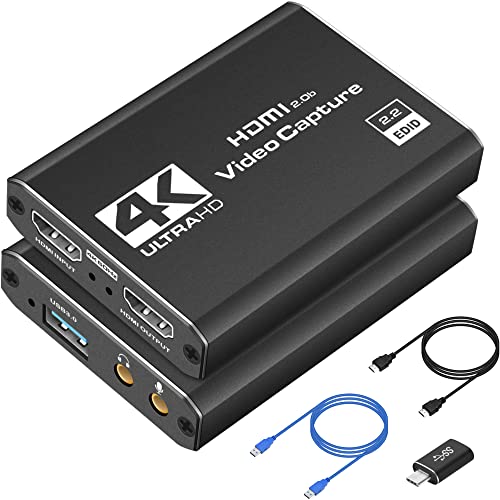
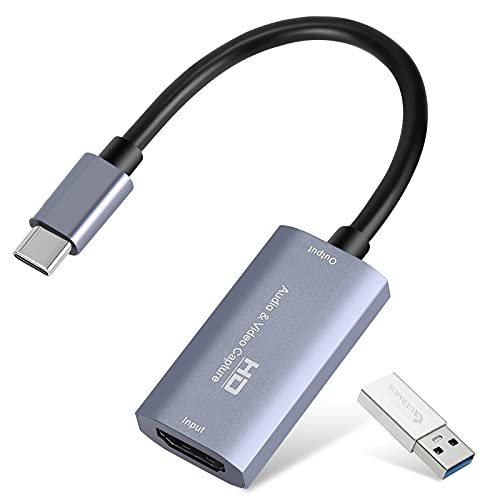
Top 3 picks at a glance
Decide These 3 Things First
Before comparing ports, latency numbers, and metallic finishes, you must define the structural boundaries of your entertainment setup. Answering these three questions will instantly eliminate 80% of the options on the market:
- Internal vs. External Form Factor: Do you want a clean, hidden setup, or do you need portability? Internal cards require a desktop PC with an open PCIe slot, keeping your desk entirely free of extra boxes and cables. External cards connect via USB, offering plug-and-play convenience for laptops and consoles but requiring dedicated desk space.
- Your TV’s Capabilities vs. Your Stream’s Resolution: You do not need to stream in 4K to enjoy playing in 4K. If you own a high-end 4K TV or monitor, you must ensure your capture card has “4K passthrough.” This allows the raw console signal to pass directly to your display lag-free, while downscaling the captured video to a manageable 1080p for your streaming software.
- Operating System Ecosystem: Are you operating within a macOS, Windows, or dual-system environment? While many basic USB cards are driverless and work across platforms, advanced companion software suites (used for adjusting color profiles, audio mixing, and firmware updates) are often optimized heavily for Windows.
Size and Workspace Footprint
A sleek media console can quickly be ruined by bulky, awkward plastic bricks dangling behind your television. When evaluating capture cards, physical dimensions and weight dictate how easily the device can be integrated into your cord-management system.
Budget “dongle-style” capture cards are incredibly compact, typically measuring around 2.4 x 1.1 x 0.4 inches and weighing less than an ounce. While highly portable, they often strain your computer’s USB port when heavy HDMI cables are plugged into them. Mid-range to premium external cards (such as the Elgato 4K S or 4K X) offer a dedicated desktop footprint, measuring roughly 4.4 x 2.8 x 0.7 inches and weighing between 4 and 5 ounces. This added heft, combined with rubberized non-slip feet, prevents the stiffness of premium HDMI 2.1 cables from pulling the device off your desk or media console shelf.
Materials and Exterior Build Quality
Your capture card sits alongside high-end consoles, premium speakers, and carefully selected decor. The materials used in its construction affect both its visual integration and its long-term durability.
Low-cost options under $30 are almost exclusively housed in lightweight ABS plastic. These housings are prone to scratching, feel hollow, and easily slide around under the tension of connected cables. Premium models utilize bead-blasted, anodized aluminum enclosures. Aluminum not only matches the premium aesthetic of modern laptops and minimalist desk accessories, but it also acts as a natural heatsink. If you plan to mount your capture card out of sight—perhaps taped to the underside of a wooden desk or tucked behind a wall-mounted TV—an aluminum chassis offers the structural integrity needed to withstand tight mounting brackets and cable ties.
Thermal Management and Passive Cooling
Capture cards process massive amounts of high-bandwidth video data, which generates a surprising amount of heat. In a closed media cabinet or a compact desk setup, thermal management is critical to prevent signal dropouts or permanent hardware degradation.
Cheap, plastic-housed capture cards have virtually no passive cooling elements, often running hot to the touch (reaching temperatures upward of 50°C/122°F) after just an hour of use. This intense heat can cause the video feed to stutter or desync from the audio. Premium aluminum capture cards are engineered with internal thermal pads that transfer heat directly to the metal exterior. These devices operate efficiently at a safer, stable temperature range of 35°C to 42°C (95°F to 107°F). Look for cards with subtle ventilation grilles if you plan to keep your gear inside an entertainment center with limited airflow.
Performance: Passthrough vs. Capture Resolution
As we look ahead to 2026, the standard for living room entertainment has shifted toward high-refresh-rate gaming. To preserve your gaming experience, you must understand the distinction between passthrough performance and capture performance.
Budget cards operate on older HDMI 1.4 or standard HDMI 2.0 architectures. They limit your passthrough to 4K at 30Hz or 1080p at 60Hz. If you plug a PlayStation 5 or Xbox Series X into these cards, you will lose the ability to play at 120Hz, and you will lose HDR (High Dynamic Range) and VRR (Variable Refresh Rate) capabilities. Premium capture cards utilize high-bandwidth USB 3.2 Gen 2 (10 Gbps) interfaces and HDMI 2.1 chips. These support up to 4K passthrough at 144Hz (or even 1080p at 240Hz) with full HDR10 pass-through and ultra-low latency (under 20 milliseconds), ensuring your television display remains buttery-smooth while your stream captures a perfect 1080p at 60fps.
Price Tiers and Investment Mapping
How much should you actually spend? The market is divided into three distinct price tiers, each serving a very specific type of user:
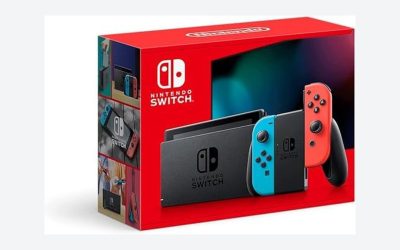
- The Entry-Level Tier ($15 to $35): These are generic USB-A dongles. They are perfect for casual gamers wanting to stream Nintendo Switch games (which are capped at 1080p anyway) or those using a DSLR as a webcam. They offer basic 1080p 30fps/60fps capture but lack high-end passthrough, software customization, and HDR support.
- The Mid-Range Tier ($50 to $120): This segment offers a balance of reliability and performance. You will find aluminum enclosures, reliable 4K 60Hz passthrough, and stable 1080p 60fps capture. They are ideal for dedicated hobbyist streamers who want a plug-and-play desktop setup without paying a premium for cutting-edge HDMI 2.1 specs.
- The Premium Tier ($130 to $250+): Home to industry leaders like Elgato and AVerMedia. These devices feature HDMI 2.1, supporting up to 4K 144Hz passthrough, VRR, HDR10, and high-bitrate capture (up to 4K 60fps or 1080p 240fps). This tier is essential if you own a high-refresh-rate monitor and refuse to compromise your gameplay visual quality for the sake of your stream.
Setup Complexity and Cable Management
A clean workspace is a productive workspace. When selecting a capture card, map out how many cables will be running across your desk or behind your media console. An external capture card requires at least three cables: an HDMI cable from the console to the card, an HDMI cable from the card to the TV, and a USB cable from the card to your computer.
Pay close attention to port placement. Some capture cards have ports on opposite sides, creating a “tug-of-war” aesthetic that makes clean cable routing nearly impossible. Look for designs where all primary connections (HDMI In, HDMI Out, and USB-C power/data) are aligned on a single side. This allows you to bundle the cables neatly into a single sleeve, running them discreetly behind your desk or entertainment center shelf.
Spec Checklist
Use this quick reference table to compare the baseline specifications you can expect across different price points:
| Feature / Spec | Budget Tier ($15 – $35) | Mid-Range Tier ($50 – $120) | Premium Tier ($130 – $250+) |
|---|---|---|---|
| Chassis Material | ABS Plastic | Plastic or Light Alloy | Anodized Aluminum |
| Max Passthrough | 1080p @ 60Hz (No HDR) | 4K @ 60Hz (HDR10) | 4K @ 144Hz / 8K @ 60Hz (VRR & HDR) |
| Max Capture Resolution | 1080p @ 30fps / 60fps (MJPEG) | 1080p @ 60fps (NV12 / YUY2) | 4K @ 60fps / 1080p @ 240fps |
| USB Interface | USB 2.0 (Often disguised as 3.0) | USB 3.0 (5 Gbps) | USB 3.2 Gen 2 (10 Gbps, Type-C) |
| Audio Support | 2-Channel Stereo (Compressed) | 2-Channel PCM Stereo | Multi-channel Surround / Chat Link Port |
Red Flags to Avoid
When shopping online, certain buzzwords and design elements should immediately trigger caution:
- “4K 60FPS” under $30: If a card costs less than a fancy lunch and promises 4K 60fps *capture*, check the fine print. It almost certainly means it can *input* a 4K signal, but it will compress and output a muddy 1080p 30fps stream to your computer.
- No Mention of “Passthrough” Specs: If the product listing lists capture specs but completely omits the passthrough resolution and refresh rate, assume it will downgrade your TV’s display to 1080p 60Hz.
- USB-A Only with USB 2.0 Speeds: Some cheap cards use a blue plastic insert inside the USB plug to mimic a fast USB 3.0 port, but internally operate on slow USB 2.0 protocols. This results in heavy video compression and noticeable input lag.
FAQ
Do I need a capture card if my console has built-in streaming?
While consoles like the PS5 and Xbox Series X allow you to stream directly to Twitch or YouTube, a dedicated capture card routing to a PC offers far more control. It allows you to use professional broadcasting software (like OBS) to add custom overlays, alert widgets, high-quality camera feeds, and custom audio mixes that console-native streaming simply cannot support.
What is VRR passthrough, and why does it matter?
Variable Refresh Rate (VRR) allows your TV or monitor to dynamically match its refresh rate to the console’s frame rate, eliminating screen tearing and stutter. If your capture card does not support VRR passthrough, you will have to disable this feature in your console’s settings, which can lead to a less fluid gaming experience on your main screen.
Can I use a capture card with a single-monitor setup?
Yes, but it requires careful routing. If you only have one monitor, you will need to use the “Instant Gameview” or preview window within your capture software on your PC desktop to play. This is where ultra-low latency (under 20ms) becomes crucial; cheap cards with high latency (100ms+) make playing games through the preview window impossible due to the delay between your controller inputs and the screen action.
Does a capture card put a heavy load on my computer’s CPU?
The capture card itself does not process or encode the final video file; it merely acts as a bridge translating the HDMI signal into a format your computer can read. The actual encoding work is handled by your computer’s graphics card (GPU) or processor (CPU). Therefore, you still need a reasonably modern PC or Mac with a dedicated graphics card to stream or record high-bitrate video smoothly.
Related guides
- Best Free MMOs on Steam: Subscription Limits, Pay-to-Win and Time Cost (2026)
- Best Free Horror Games on Steam: How to Pick One That Fits Your PC and Your Nerves (2026)
- Black Frame Insertion vs VRR: Which Smoothness Feature Should You Use?
- Best Webcams for Streaming: 11 Listings Compared by Resolution, Focus and Light (2026)