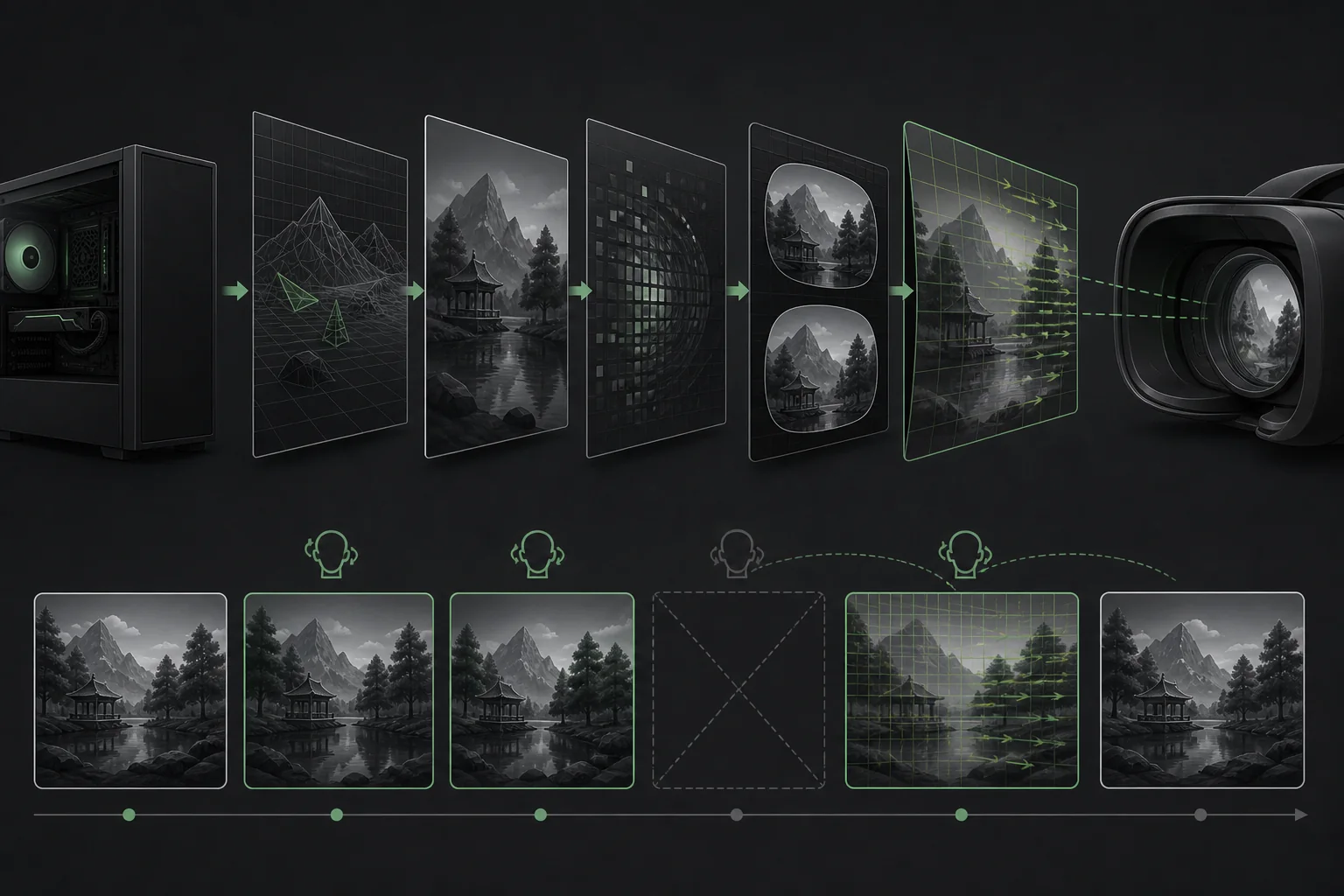
PC VR performance is governed by a deadline, not just an average FPS target. The headset refreshes on a fixed schedule, and the application must deliver each new frame before the compositor needs it. When a frame misses that deadline, the runtime can reuse and reproject an older frame to keep the view aligned with recent head rotation.
Our Top Picks
 ASUS SFF-Ready Prime NVIDIA GeForce RTX 5070 GraphicsRTX507012 x 5 x 2 Inches3.3 poundsCheck on Amazon


Top 3 picks at a glance
Why the frame-time budget matters
Higher refresh rates provide less time for the CPU and GPU to prepare each frame. Meta’s current developer guidance gives budgets of about 13.9 ms at 72 Hz, 11.1 ms at 90 Hz and 8.3 ms at 120 Hz. Those are deadlines, not suggested average values. Work that finishes after the deadline cannot be displayed as the intended fresh frame.
What reprojection does
The compositor sits between the application and the display. If a new frame is late, it can redisplay the most recent completed image while adjusting it for the user’s newer head rotation. This rotational reprojection reduces perceived latency and helps the world remain stable during occasional missed frames.
Reprojection cannot recreate every change. Head translation introduces parallax, moving objects continue to age, and repeated misses can produce judder or peripheral artifacts. A runtime feature can make a brief miss less disruptive, but it is not a replacement for adequate performance headroom.
How to recognize a timing problem
- The headset reports a stable refresh rate but motion still looks uneven.
- Performance overlays show stale or dropped application frames.
- GPU or CPU frame time repeatedly crosses the refresh deadline.
- Lowering render resolution improves comfort more than changing monitor settings.
- Stutter appears during encoding or link-quality spikes in streamed PC VR.
Do not diagnose from desktop FPS alone. PC VR can involve game rendering, compositor work, video encoding, USB or wireless transport and headset decoding. A bottleneck in any stage may affect the experience.
A practical tuning order
- Choose a refresh rate the system can sustain consistently.
- Return render resolution and supersampling to a known baseline.
- Reduce settings that strongly affect GPU frame time, such as resolution, shadows and heavy effects.
- Check CPU-heavy simulation settings if GPU headroom remains available.
- For streamed headsets, test the physical link or network separately from game rendering.
- Record performance data during the same repeatable scene after each change.
Headroom is more useful than a single pass
A scene that barely meets the deadline may fail as soon as combat, particles or background activity increases. Leave measurable headroom for difficult moments. Test a demanding section rather than an empty menu or tutorial room, and repeat the test after the headset and PC reach normal operating temperature.
If the tuning order above still leaves you short on headroom, the bottleneck is usually the graphics card. These are the cards with enough frame-time margin for VR.
As an Amazon Associate we earn from qualifying purchases at no extra cost to you.


Source and scope
This article is a research-based explanation, not a headset review. It draws on Meta Horizon OS documentation covering the compositor and missed frames and frame recovery. Runtime terminology can differ between platforms, so use the performance tools supplied for the headset and software being tested.
Frequently asked questions
What happens when a VR frame misses the display deadline?
When a frame misses the deadline, the runtime can reuse and reproject the most recent completed frame. The compositor adjusts that image for the user’s newer head rotation, helping reduce perceived latency and keep the world stable during an occasional miss. The result is not the intended fresh frame, however, and repeated misses may cause judder or peripheral artifacts.
Why can a headset feel uneven even when its refresh rate is stable?
A stable headset refresh rate does not guarantee smooth motion because application frames may still arrive late. Performance overlays may show stale or dropped frames, while CPU or GPU frame time repeatedly crosses the refresh deadline. In streamed PC VR, encoding, USB or wireless transport, and headset decoding can also contribute, so desktop FPS alone is insufficient for diagnosis.
Why does reprojection not fully solve movement problems?
Reprojection mainly adjusts an older image for newer head rotation, so it cannot recreate every change in the scene. Head translation introduces parallax, moving objects continue to age, and repeated missed frames can produce judder or peripheral artifacts. It can make a brief miss less disruptive, but it is not a replacement for adequate performance headroom.
What settings should be changed first when PC VR performance is poor?
First choose a refresh rate the system can sustain consistently and return render resolution and supersampling to a known baseline. Then reduce GPU-heavy settings such as resolution, shadows, and heavy effects. If GPU headroom remains available, check CPU-heavy simulation settings. For streamed headsets, test the physical link or network separately from game rendering.