The Short Answer
For most Nintendo Switch owners, an SSD upgrade is not worth it — because the Switch doesn’t have a user-serviceable SATA or NVMe storage bay to begin with. The one condition where the answer flips to yes: you run your games from external storage on a Switch-compatible setup (or you’re talking about emulators and docked PC-based setups that can read Switch-format libraries), and your current microSD card is a slow, budget-class model. In that case, moving to faster storage meaningfully cuts load times — but it’s faster storage, not an internal SSD swap, because the console simply doesn’t offer one.
Here’s the honest breakdown of what you can and can’t do, what it actually buys you, and where your money is better spent.
As an Amazon Associate we earn from qualifying purchases at no extra cost to you.

What You Actually Get
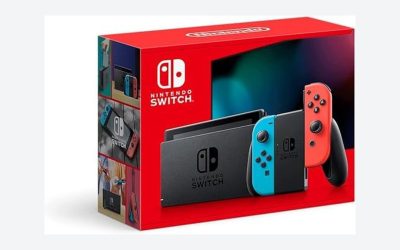
The Nintendo Switch stores system data on internal eMMC and runs games from game cards or microSD. There is no 2.5-inch drive bay, no M.2 slot, and no SATA controller. A drive like a 2.5-inch SATA SSD — for example, something in the class of the Intel 1.2TB SATA3 SSD (SSDSC2BB012T701), which measures a standard 100mm x 70mm x 7mm and weighs around 78 grams — physically cannot be installed in a Switch. That form factor is designed for laptops, desktops, and external enclosures, not a 102mm x 239mm x 13.9mm handheld console weighing roughly 398 grams.
So what does “an SSD upgrade for Switch load times” actually mean in practice? It usually means one of two things:
- An external SSD connected through the dock via USB. This can work for some use cases, but the Switch’s USB 3.0 ports on the dock are not officially supported for game storage on stock firmware, and behavior varies. Expect read speeds capped well below what the same drive delivers on a PC — the console’s controller is the bottleneck, not the drive.
- A faster microSD card. This is the legitimate, supported upgrade path. Games installed to a quality microSD card load faster than from a slow, counterfeit, or bargain-bin card, and it’s the only storage expansion Nintendo officially supports.
What you actually get from any of these is reduced load screens and slightly faster asset streaming in games that pull large textures from storage. What you do not get is a higher frame rate, better resolution, or faster downloads — those are limited by the GPU, the game’s code, and your internet connection respectively.
Pros
- Faster load screens compared with a slow or low-end microSD card, particularly in large open-world titles that stream assets continuously.
- A quality microSD upgrade also adds capacity, solving the Switch’s most common practical complaint: running out of room for digital games.
- An external SSD in a USB enclosure is reusable — if you move on from the Switch, the drive drops straight into a laptop, desktop, or console that supports it.
- Enterprise-class SATA drives like the Intel 1.2TB model hold up well under sustained reads, so as external drive duty they won’t throttle the way cheap DRAM-less sticks can.
Cons
- There is no internal SSD upgrade path on the Switch. Anyone selling you an “internal SSD mod” for stock hardware is describing something the console can’t use.
- External SSDs are bulky relative to a microSD card. Even a compact portable drive adds 30–60 grams and dangles off the dock; a microSD card weighs about half a gram and disappears inside the console.
- Cost per gigabyte is terrible at Switch scale. A good 1.2TB enterprise SATA SSD runs several hundred dollars — the Intel 1.2TB SATA3 model listed here retails around $641 — while a 1TB microSD card costs roughly $80–$150 and is the supported solution.
- Load-time gains plateau quickly. Once your storage outpaces the console’s controller, spending more buys nothing. Going from a slow card to a decent one is a real improvement; going from a decent card to a premium SSD is largely invisible.
- Portable-drive setups add a cable and a failure point to what should be a grab-and-go console.
Who Should Buy It
You’re a reasonable candidate for a storage upgrade — of the right kind — if you own 20 or more digital games, you’re constantly deleting and redownloading titles to make room, and you’re still running the small card that came with your setup or a no-name card of uncertain speed. In that situation, a quality 256GB–512GB microSD card (UHS-I, U3/V30 rated, from a reputable brand) will run you roughly $25–$60 and delivers both capacity and the load-time improvement that’s actually available on this hardware.
An external SSD via USB makes sense in a narrower case: you already own a spare drive, you use your Switch docked nearly exclusively, and you want a single large library in one place on a setup that supports it. Even then, buy an enclosure, not a new drive.
Who Should Skip It
Skip a dedicated SSD purchase entirely if any of these describe you:
- You mostly play physical game cards and only need storage for patches and saves — a 128GB card for $15–$20 covers you.
- You were picturing opening the console and swapping in a 2.5-inch drive. It doesn’t fit, it doesn’t connect, and the 100mm x 70mm drive would be larger than a good chunk of the console itself.
- Your load times bother you in one specific game. That’s more likely a function of how the game was coded than of your storage.
- You were considering a high-end enterprise drive like the Intel model above. It’s a fine drive for workstations and servers where its sustained-write behavior and power draw (typically 2–5 watts under load) matter. On console-adjacent duty it’s paying for headroom you’ll never touch.
Cheaper Alternatives
| Option | Cost | Trade-off |
|---|---|---|
| Reputable 128GB UHS-I microSD card | $15–$20 | Small capacity; fine for physical-game owners who only need patches and a few indies |
| Reputable 256GB–512GB U3/V30 microSD card | $25–$60 | The sweet spot: big library plus the real-world load-time gains available on this console |
| 1TB UHS-I microSD card | $80–$150 | Maximum supported capacity without dongles; marginal speed difference versus a good 256GB card |
| USB microSD card reader for faster PC-side transfers | $10–$20 | Doesn’t affect in-game load times, but cuts game-install and redownload time dramatically when managing your library |
| Existing spare SSD in a $15–$25 USB enclosure | $15–$25 (if you own the drive) | Unofficial on stock firmware and clunkier than a microSD card; only worth it if the drive is already paid for |
FAQ
Can I install an internal SSD in a Nintendo Switch?
No. The Switch has no drive bay, no SATA or NVMe connector, and no supported internal storage upgrade. Its internal eMMC chip is soldered to the board. The only supported storage expansion is a microSD card in the slot under the kickstand.
Will a faster microSD card really reduce load times?
It helps compared with a slow or counterfeit card, especially in games that stream large assets. But the console’s controller sets a ceiling, so once you move from a bargain card to a reputable UHS-I U3 card, further speed increases deliver diminishing — often imperceptible — returns.
Why is a 2.5-inch SATA SSD so much more expensive than a microSD card at similar capacity?
Enterprise-class drives like the Intel 1.2TB SATA3 model are built for sustained datacenter workloads, power-loss protection, and long-duty-cycle reliability — features a console will never exercise. For Switch use, you’d be paying roughly $641 for performance headroom a microSD card costing $80–$150 already exceeds in practical terms.
Is a storage upgrade more worthwhile heading into 2026?
As game installs keep growing and more titles ship as digital-only releases, the capacity argument for a bigger microSD card gets stronger every year. But the speed argument stays the same: buy a quality card once, and the load-time improvement you get on current hardware is the improvement you’ll have. Spend for capacity, not for speed you can’t unlock.
Related guides
- Best Free MMOs on Steam: Subscription Limits, Pay-to-Win and Time Cost (2026)
- Best Free Horror Games on Steam: How to Pick One That Fits Your PC and Your Nerves (2026)
- Black Frame Insertion vs VRR: Which Smoothness Feature Should You Use?
- Best Webcams for Streaming: 11 Listings Compared by Resolution, Focus and Light (2026)