High GPU usage means your graphics card is working near its full capacity, and in a demanding game that is usually a good sign: the card is doing the job you bought it for instead of sitting idle. It becomes a problem when the load comes with climbing temperatures, stuttering, or dropped frames in VR, or when background apps keep the card busy while you do nothing demanding. VR pushes the load further than a flat screen, because the headset renders a view for each eye at a high refresh rate, so heat builds up faster and a struggling card shows up as discomfort.

PCVR players whose desktop runs hot during headset sessions will get the most from the picks below, especially anyone with a card a few years old that has never been cleaned or repasted. Each pick comes from its Amazon listing name and specifications, and each tackles a real cause of heat and instability: dried-out thermal paste, weak case airflow, or dust choking the cooler fins.
Quick Picks
As an Amazon Associate we earn from qualifying purchases
| Product | Best for | Key spec from title |
|---|---|---|
| ARCTIC MX-6 (4 g) | Repasting a hot-running graphics card | Ultimate Performance Thermal Paste, 4 g |
| Noctua NT-H1 3.5g | A first repaste with easy cleanup | Pro-Grade Thermal Compound Paste, 3.5g |
| be quiet! Silent Wings 4 120mm PWM | Quiet extra case airflow | 120mm PWM, 1600 RPM Premium Low Noise Cooling Fan |
| Dust-Off Falcon DPSXL 10 oz | Routine dust cleaning of fins and fans | Compressed Gas Duster, 10 oz |
How to Choose
Judge load by temperature, not alone
A load reading by itself says little, so pair it with temperature and frame timing before judging the card. When the headset runs smoothly and temperatures hold steady, a busy GPU is doing exactly what a demanding VR title asks of it. The same load paired with rising temperatures, a fan screaming at full speed, or frames that arrive late is a different story, because the card is likely shedding clock speed to protect itself. Check for other demands on the card before blaming the game: a browser with hardware acceleration, video playing on a second monitor, or a capture tool can all keep the GPU busy in the background.
Why VR Pushes a GPU Harder Than a Monitor
A flat-screen game renders one view at the refresh rate of your monitor, while a VR headset renders two views, one for each eye, and usually at a higher refresh rate than a typical display. On top of that, many PCVR setups stack resolution multipliers without the owner noticing: a headset app setting, a SteamVR render resolution above its default, and an in-game render scale can all multiply together and quietly double the work. Wireless headsets add encoding on top of the render load. That is why a card that copes fine on a monitor can feel overwhelmed the moment the headset goes on, and why cooling headroom matters more for VR than for desktop play.
Fix Airflow Before You Touch the Paste
Repasting a graphics card is the most involved job on this list, so start with the easier wins and see how far they take you. A case with no clear path for air will cook any card: warm air pools around the GPU, the cooler recycles its own exhaust, and temperatures climb no matter how fresh the paste is. Adding a quiet intake or exhaust fan, clearing cable clutter from the airflow path, and keeping dust filters clean can drop temperatures enough that the card holds its speed through a whole session. Only when airflow and cleaning have done their part, and temperatures still climb early in a session, does opening the card for new paste earn its place.
Clean First, Then Repaste on Evidence
Dust is the slowest and most common cause of a hot card, because it settles on fan blades and packs between cooler fins where you cannot see it from outside the case. A can of compressed gas clears it in minutes, and the job is worth doing before any deeper work: short bursts, the can held upright, and a finger holding each fan still so the blades do not spin freely. If temperatures stay high after a thorough clean with airflow sorted, the thermal paste between the chip and the cooler is the next suspect, since old paste dries out and stops moving heat. That order matters, because repasting a dusty card fixes only half the problem.
The 4 Best Options
ARCTIC MX-6 (4 g)
The MX-6 is the paste to reach for when a graphics card that used to run cool now heats up quickly in VR, even after the fins are clean and the case has decent airflow. Its carbon filler formula is built for direct-die cooling on graphics cards, which is exactly the layout inside a GPU cooler, and it reaches full performance straight after application with no burn-in period to wait through. A single tube covers several applications, so one purchase handles the card now and leaves enough for a cooler swap or a second machine later.
Specs
- 4 g resealable syringe of carbon filler-based thermal paste
- Silicone gel carrier for even distribution under contact pressure
- Neither electrically conductive nor capacitive, so no risk of short circuits
- Reaches maximum performance without burn-in, directly after application
- Suitable for direct-die cooling scenarios on graphics card GPUs
- Continuous use temperature from minus 50 to 150 degrees Celsius
Best for: Repasting an older graphics card that heats up fast during VR sessions.
Watch out for: Repasting means opening the card, so check your warranty terms first and keep the cooler screws organized during the job.
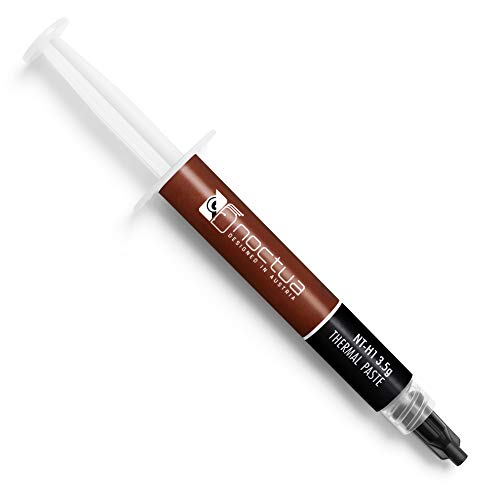
Noctua NT-H1 3.5g
The NT-H1 suits anyone doing a first repaste and wanting the process to stay simple. The listing says there is no need to spread the paste before fitting the heatsink, and cleanup needs only a dry paper towel, with no cleaning alcohol required, which removes two of the steps beginners worry about most. It works with air and liquid coolers alike, and the tube holds enough compound for several applications, so a mistake or a second card does not mean buying another tube. Long-term stability is the other draw: the listed storage time runs to three years and the recommended usage time on a CPU runs to five.
Specs
- 3.5 g pack, enough for around 3 to 20 applications depending on chip size
- No need to spread before heatsink installation
- Easy to clean with a dry paper towel or tissue, no cleaning alcohol required
- Not electrically conductive and non-corroding, safe with copper or aluminium coolers
- Recommended storage time up to 3 years, recommended usage time on the CPU up to 5 years
- For air and liquid coolers, moving heat from CPU or GPU to the heatsink
Best for: A first-time repaste where easy application and cleanup matter most.
Watch out for: The standard 3.5 g pack includes no spatula, and the number of applications varies a lot with the size of the chip.
be quiet! Silent Wings 4 120mm PWM
A single quiet fan can change the airflow picture of a whole case, and this 120 mm model is built for exactly that job. It moves air through a standard case mount at up to 1600 RPM while staying quiet enough that it disappears under game audio, which matters when the headset already isolates you from the room and fan noise becomes part of the session. The fluid-dynamic bearing is listed with a long lifespan, so the fan is a fit-and-forget upgrade rather than a part you plan to replace. It suits intake duty at the front, exhaust duty at the rear, or a radiator mount.
Specs
- 120 mm PWM case fan, 4-pin connector, model BL093
- Maximum rotational speed of 1600 RPM
- Airflow of 48.7 CFM
- Noise level of 18.9 decibels
- Fluid-dynamic bearing with a listed lifespan of 300,000 hours
- Suited to cases, radiators, and heatsinks
Best for: Adding quiet intake or exhaust airflow to a case that traps heat around the GPU.
Watch out for: The pack holds a single fan, so count your free mounts before ordering, and check the listing if you need the higher-speed variant instead.
Dust-Off Falcon DPSXL 10 oz
Cleaning is the least glamorous fix on this list and the one most people skip, which is why a can of compressed gas earns its place here. The DPSXL is the larger 10 oz size in the Dust-Off line, so one can lasts through a full clean of the GPU cooler, the case fans, and the filters in a single session. The 152a gas is ozone-safe, and the can is aimed squarely at electronics, so it suits the tight gaps between cooler fins that a cloth cannot reach. Regular cleaning keeps temperatures steady between deeper maintenance jobs.
Specs
- 10 oz can of compressed gas duster, single count
- 152a compressed gas formula, ozone-safe
- Model DPSXL, built for removing dust and lint from electronics
- Larger can size in the Dust-Off line for longer cleaning sessions
Best for: Routine cleaning of GPU fins, fans, and case filters between deeper maintenance.
Watch out for: The can is disposable and cannot be refilled, so check the listing for whether an extension straw is included before you start on tight gaps.
Which One Fits Your Situation
Your VR Sessions Start Smooth, Then Stutter
When the first minutes feel fine and the trouble arrives later, heat soak is the likely cause: the card and the case warm up together until the cooler cannot keep pace. Start with the duster to clear the fins and fans, then look at airflow and consider adding the quiet case fan as an exhaust. These two steps cost little effort and often steady a session before any paste work is needed.
An Older Card That Runs Hot From the First Minute
A card that heats up immediately, even in a clean case with good airflow, is pointing at the thermal interface rather than the surroundings. The paste between the chip and the cooler dries out over years of heat cycles, and once it stops moving heat well, no amount of case airflow fixes the gap. Repasting with the MX-6 or the NT-H1 is the direct answer, with the NT-H1 the friendlier choice for a first attempt.
A Quiet Room and a Loud PC
Some setups stay cool only because the fans run hard all session, and the noise wears you down long before the temperatures do. A quieter fan with a fluid-dynamic bearing can move the same air with less noise, and clean fins let every fan in the case run slower for the same cooling. Pair the Silent Wings 4 with a duster cleanout and the whole system gets quieter without giving up thermal headroom.
You Want a Simple Maintenance Routine
If the goal is prevention rather than rescue, keep the two cheapest items on hand and use them on a schedule. A quick clean with compressed gas every few months stops dust from packing into the fins, and a tube of paste in the drawer means a repaste is a weekend job instead of a research project. The fan only enters the picture if cleaning and the existing airflow stop keeping temperatures steady.
Common Mistakes
- Treating near-full GPU load as a fault on its own, without checking temperature and frame timing first.
- Changing several settings at once, such as SteamVR resolution, refresh rate, and in-game render scale, so you cannot tell which change helped.
- Blasting a fan with compressed gas without holding the blades still, which lets them spin far faster than they were built for.
- Repasting before cleaning dust and sorting airflow, which fixes only half of a heat problem.
- Wiping cooler fins with a damp cloth or poking at them with a vacuum nozzle instead of using short bursts of compressed gas.
Frequently Asked Questions
Is high GPU usage bad for my graphics card?
No, heavy load is not harmful. A graphics card is built to run near full load for hours, and a demanding VR game using the whole card is normal behavior. The real risk is sustained heat: if temperatures climb and stay high, the card sheds speed to protect itself and the session stutters. Keep the cooler clean and the case airflow clear, and high usage stops being a worry.
Why is GPU usage higher in VR than on a monitor?
VR renders two views, one per eye, at a high refresh rate, which is double the rendering work of a single flat-screen view. Many setups add resolution multipliers on top, through the headset app, SteamVR, or the game itself, and wireless headsets add video encoding as well. That stacked workload is why a card that feels relaxed on a monitor runs hard the moment the headset goes on.
Will a new case fan lower my GPU usage?
No, a fan does not change how much work the game asks the card to do, so usage stays high while the game runs. What the fan changes is temperature: cooler air lets the card hold its clock speed instead of slowing down to shed heat. The result is steadier frames at the same load, which is what matters in VR, even though the usage number itself barely moves.
How often should I clean my GPU and repaste it?
Cleaning depends on your room: a dusty space or a case on the floor needs a compressed-gas cleanout every few months, while a clean room stretches the interval. Repasting has no fixed schedule and should follow evidence, not the calendar. Clean first, check temperatures under load, and only repaste when heat stays high after cleaning. The NT-H1 listing gives a usage time of up to five years.
Related guides
More from Amazon
Programs that pair well with the guide above. Offers and eligibility are set by Amazon and may change.
Free shipping on eligible items, Prime Video and more. Eligible new members can start with a free trial.
Start a Prime free trialAd-free music streaming. Eligible new subscribers can start with a free trial.
Try Music Unlimited freeA Prime membership for ages 18-24 with a trial period. Eligibility is set by Amazon.
See Prime for Young AdultsAudiobooks and podcasts to listen to on the go. Eligible new members can start with a free trial.
Try Audible freeAs an Amazon Associate we earn from qualifying purchases.