The best Microsoft Flight Simulator 2024 settings start from the Ultra or High preset and then lower the few options that cost the most: Terrain Level of Detail, Trees, Objects Level of Detail, Volumetric Clouds and Raytraced Shadows. Benchmarks from PCOptimizedSettings show those five settings account for most of the frame rate you can recover, while shadows, ambient occlusion and anti-aliasing modes change performance far less. In VR, the rule is different: target a steady 36 to 45fps with reprojection on a 72Hz to 90Hz headset mode, use DLSS Quality on NVIDIA or TAA on AMD at 80 to 100% render scaling, and keep clouds at Medium or High.
Our Top Picks
 GIGABYTE Radeon RX 9070 XT Gaming OC 16GRADEON9070XT11.34 x 5.2 x 2.2 Inches3.9 poundsCheck on Amazon




Top 3 picks at a glance
Verdict at a glance
- Best overall approach (flat screen): Ultra preset, then Terrain Level of Detail 100 to 200, Objects Level of Detail 100 to 150, Volumetric Clouds High, Raytraced Shadows Off, Shadow Maps 2048, as SimTuts recommends.
- Best for entry GPUs (RTX 3060, RTX 4060, RX 6600): Medium base, Trees Medium, Terrain LOD 70 to 100, Volumetric Clouds Medium, upscaler in Quality or Balanced mode.
- Best for high-end GPUs (RTX 4080 and up): DLAA at 1440p or DLSS Quality at 4K, Terrain LOD 140 to 200, frame generation on RTX 40 and 50 cards.
- Best for VR: headset at 72Hz or 80Hz with reprojection, DLSS Quality (NVIDIA) or TAA (AMD), render scaling 80 to 100%, Volumetric Clouds Medium, Glass Cockpit Refresh Rate Medium.
- Biggest single fix for stutter: lower Trees and Terrain LOD if you are CPU-limited; lower Volumetric Clouds and render resolution if you are GPU-limited.
MSFS 2024 PC system requirements
Microsoft published three official tiers. The Ideal tier targets 4K with Ultra settings.
| Component | Minimum | Recommended | Ideal |
|---|---|---|---|
| CPU | Ryzen 5 2600X / Core i7-6800K | Ryzen 7 2700X / Core i7-10700K | Ryzen 9 7900X / Core i7-14700K |
| GPU | RX 5700 / GTX 970 | RX 5700 XT / RTX 2080 | RX 7900 XT / RTX 4080 |
| VRAM | 4GB | 8GB | 12GB |
| RAM | 16GB | 32GB | 64GB |
| Storage | 50GB | 50GB | 50GB |
| Internet | 10 Mbps | 50 Mbps | 100 Mbps |
The small install size is because MSFS 2024 streams most of the world from the cloud, which is why internet speed is part of the spec. An NVMe SSD is still strongly recommended for the local cache and rolling cache. Microsoft does not publish separate VR requirements.
Which settings cost the most frames
PCOptimizedSettings measured the impact of each option. On an RTX 4090 with a Core i9-12900K at 4K in New York, the presets ranged from about 95fps on Low to about 72fps on Medium, 60fps on High and roughly 50fps on Ultra. Its per-setting results, and its separate low-end testing on RTX 3060, RTX 4060 and RX 6600 systems with a Ryzen 5 5600, point to the same culprits:
| Setting | Measured cost (source) | Load type | Recommendation |
|---|---|---|---|
| Trees | About 40% at Ultra (PCOptimizedSettings); lowering it gained over 60% on low-end systems | CPU heavy | Medium on entry, High on mid and high-end |
| Terrain Level of Detail | Around 30% at the highest values; reducing it gained 36% on low-end systems | CPU heavy | 70 to 100 entry, 100 to 150 mid, 140 to 200 high |
| Volumetric Clouds | About 26 to 27% from Ultra to Low (PCOptimizedSettings, Switchblade Gaming) | GPU heavy | Medium entry, High mid and high |
| Objects Level of Detail | About 14% | CPU moderate | 100 entry and mid, 150 to 200 high |
| Raytraced Shadows | About 10% | GPU | Off for most systems |
| Shadow Maps | About 7 to 9% | GPU | 1536 to 2048 |
| Buildings | About 7% | Mixed | High to Ultra |
| Texture Supersampling | About 3 to 5% | GPU | 4×4 or above if you have headroom |
| Ambient Occlusion | About 3 to 4% | GPU | High |
| Contact Shadows | Minimal | GPU | High to Ultra |
PC Guide found that switching anti-aliasing modes on the Ultra preset changed average frame rate by only a couple of frames, while dropping the overall preset to Medium was worth about 10fps on its system. That confirms where to focus: the LOD, tree and cloud sliders, not the small effects.
Know whether you are CPU or GPU limited
MSFS 2024 is unusual among games because much of its load lands on the CPU main thread, especially in airliners, dense cities and busy airports. Enable the developer mode FPS counter, which shows whether the main thread or the GPU is limiting. Then:
- If limited by the main thread: reduce Trees, Terrain Level of Detail, Objects Level of Detail, and AI, road and live traffic. Lowering the Glass Cockpit Refresh Rate helps in airliners.
- If limited by the GPU: lower Volumetric Clouds, render resolution or the upscaler quality mode, Raytraced Shadows and Shadow Maps.
Changing a GPU setting when you are CPU-limited will not help, and the reverse is also true, so check first.
Best MSFS 2024 settings by GPU tier (flat screen)
| Setting | Entry (RTX 3060, RTX 4060, RX 6600) | Mid (RTX 4070, RX 7800 XT, RX 9070) | High (RTX 4080, RTX 5080, RX 9070 XT and up) |
|---|---|---|---|
| Resolution | 1080p | 1440p | 1440p or 4K |
| Global Rendering Quality | Medium base | High base | Ultra base |
| Anti-Aliasing | DLSS or FSR Quality / Balanced, or TAA | DLSS or FSR Quality, or TAA | DLAA at 1440p, DLSS Quality at 4K |
| Render Scaling | 80 to 90 if using TAA | 90 to 100 | 100 |
| Terrain Level of Detail | 70 to 100 | 100 to 150 | 140 to 200 |
| Objects Level of Detail | 100 | 100 | 150 to 200 |
| Trees | Medium | High | High to Ultra |
| Volumetric Clouds | Medium | High | High to Ultra |
| Texture Resolution | Medium on 6GB to 8GB | High | Ultra with 10GB or more of VRAM |
| Off Screen Terrain Pre-Caching | Low on 8GB cards | Medium to High | Ultra |
| Shadow Maps | 1024 to 1536 | 1536 to 2048 | 2048 |
| Raytraced Shadows | Off | Off | Off, or on with frame generation |
| Glass Cockpit Refresh Rate | Low to Medium | Medium | High |
| Traffic (AI, road, live) | Low | Medium | Medium to High |
| Frame Generation | Off, or FSR 3 frame generation if supported | On for RTX 40 and 50 cards | On for RTX 40 and 50 cards |
These tiers combine guidance from SimTuts, Flight Simulation Showcase and a Flightsim.to optimization guide, which recommends DLAA at 1440p or DLSS Quality at 4K with frame generation on RTX 40 and 50 cards, Terrain LOD around 140, Objects LOD around 150 and High trees, clouds and textures for high-end systems. For enthusiast systems with an RTX 4090 or RTX 5090 and 64GB of RAM, the same guide suggests the Ultra preset with Terrain LOD 180 to 200.
Entry tier notes
On 8GB cards, the biggest risk is running out of VRAM over photogrammetry cities. Keep Texture Resolution at Medium or High and set Off Screen Terrain Pre-Caching to its lowest value, as SimTuts advises. Use an upscaler rather than lowering render scaling far below 80, which blurs cockpit instruments.
Mid tier notes
Mid-range cards can hold High settings at 1440p. If you fly airliners, lower the Glass Cockpit Refresh Rate and traffic first; the GPU is rarely the limit in a heavy airliner at a busy hub.
High tier notes
Frame generation is effective in a flight sim, because aircraft motion is relatively smooth and latency matters less than in shooters. Keep Raytraced Shadows off unless you have headroom; the 10% cost is hard to justify visually in most scenes.
Best MSFS 2024 VR settings
MSFS 2024 supports VR directly through OpenXR, so you do not need translation layers. Set up the correct runtime, start the sim on the monitor, then press Ctrl+Tab to switch into VR.
Step 1: choose one OpenXR runtime
- Meta Quest via Link cable or Air Link: set Meta Horizon Link as the active OpenXR runtime.
- Meta Quest via Virtual Desktop: use the VDXR runtime selected in Virtual Desktop Streamer.
- Pimax: set the runtime in the Pimax client.
- SteamVR headsets: set SteamVR as the active OpenXR runtime.
Buying the sim through Steam does not force SteamVR. Do not mix routes, and keep runtime resolution at 100% with extra supersampling disabled at first, so you do not stack resolution multipliers, as FlyAway Simulation’s guide advises.
Step 2: pick headset refresh rate and reprojection
SimTuts recommends 72Hz or 80Hz rather than 90Hz or 120Hz, with reprojection enabled. The goal is a steady native 36 to 40fps that reprojection doubles to 72 to 80fps perceived. A stable lower frame rate feels far better in VR than an unstable higher one.
Step 3: VR graphics settings by GPU tier
| VR setting | Entry VR (RTX 3070, RX 6800) | Mid VR (RTX 4070 Ti, RX 7900 XT, RX 9070 XT) | High VR (RTX 4080, RTX 4090, RTX 5080, RTX 5090) |
|---|---|---|---|
| Headset refresh | 72Hz, reprojection on | 72Hz to 80Hz, reprojection on | 80Hz to 90Hz |
| Anti-Aliasing | DLSS Quality or Balanced; TAA on AMD | DLSS Quality; TAA on AMD | DLSS Quality or DLAA; TAA on AMD |
| Render Scaling | 80 | 90 to 100 | 100 or above |
| Terrain Level of Detail | 70 to 100 | 100 | 100 to 150 |
| Objects Level of Detail | 70 to 100 | 100 | 100 to 150 |
| Volumetric Clouds | Medium | Medium to High | High |
| Texture Resolution | High | High | Ultra |
| Off Screen Terrain Pre-Caching | Medium | Ultra | Ultra |
| Glass Cockpit Refresh Rate | Low to Medium | Medium | Medium to High |
| Ambient Occlusion, Contact Shadows, reflections | Low | Low to Medium | Medium to High |
| Traffic | Off or Low | Low | Low to Medium |
| Motion blur, depth of field, V-Sync | Off | Off | Off |
SimTuts describes an RTX 4070 Ti as delivering a smooth experience at medium-high VR settings with DLSS, and an RTX 4080 or 4090 as able to push render scaling above 100% at photogrammetry-heavy airports. It describes a GTX 1080 as playable but compromised, around 30fps with heavy reprojection.
DLSS vs TAA in VR
TAA at 100% gives the clearest cockpit text, but it is very demanding; one Steam community user reported that TAA at 100% was close to impossible even at the Quest 3’s resolution and recommended Medium clouds, 80Hz and a 40fps target with reprojection. DLSS Quality is the practical choice on NVIDIA cards when GPU-limited. Some VR users report artifacts during head movement with frame generation, so SimTuts treats it as optional in VR rather than a default.
Virtual Desktop encoding tips
Virtual Desktop offers several codecs. FlyAway Simulation notes that on a Quest 3 you can use H.264+ at high bitrates, HEVC 10-bit, or AV1 10-bit on RTX 40 series and RX 7000 or newer GPUs. Use a dedicated Wi-Fi 6 or 6E router close to your play area, and wire the PC to the router.
Settings for specific situations
Airliners at busy hubs
Study-level airliners with multiple glass displays are the hardest case for the CPU main thread. Set Glass Cockpit Refresh Rate to Medium or Low, reduce AI and road traffic, and drop Terrain LOD by 20 to 40 points compared with your general-aviation profile. Many simmers save two profiles, one for small aircraft and one for airliners, and switch before each flight.
Low and slow over photogrammetry cities
Helicopters and light aircraft over dense photogrammetry areas stress VRAM and streaming. Keep Texture Resolution within your card’s memory, set Off Screen Terrain Pre-Caching appropriately, and make sure your internet connection meets at least the recommended 50 Mbps.
Bush flying and scenic flights
Away from cities, the CPU load drops and you can raise Trees and Terrain LOD for better distant scenery, and add Volumetric Clouds on High for dramatic weather.
Single-monitor ultrawide or triple screens
Wider fields of view increase both CPU and GPU load. Start one preset lower than your single-monitor settings and use an upscaler in Quality mode.
Windows and system tweaks that help MSFS 2024
- Enable Resizable BAR or Smart Access Memory in the BIOS; Flightsim.to’s guide notes the sim’s constant scenery streaming makes it more useful here than in most games.
- Turn on Hardware-Accelerated GPU Scheduling in Windows graphics settings.
- Use a high-performance power plan to stop the CPU from throttling during load spikes, which can cause regular-interval stutters.
- Install on an NVMe SSD and give the rolling cache enough space.
- Close background overlays you do not need, particularly in VR.
- Keep GPU drivers current and let the sim rebuild shaders after updates before judging performance.
Common mistakes
- Maxing Terrain LOD: values far above 200 cost a lot of CPU time for distant detail you rarely notice.
- Lowering Render Scaling instead of using an upscaler: native scaling below 80 blurs instruments; DLSS, FSR or XeSS Quality usually looks better at the same frame rate.
- Leaving traffic on maximum in airliners: AI, road and live traffic load the main thread heavily.
- Stacking supersampling in VR: combining runtime supersampling, in-sim render scaling and Virtual Desktop’s own quality settings can multiply the load without you noticing.
- Pushing for 90fps in VR: a stable 40fps with reprojection at 80Hz usually feels smoother than a fluctuating 60 to 90fps.
- Raytraced Shadows on a mid-range card: about 10% of performance for a subtle visual change.
Products Mentioned in This Guide
These are the specific headset and hardware tiers the settings and VR sections above are built around.
Meta Quest 3 512GB
As an Amazon Associate we earn from qualifying purchases at no extra cost to you.

The headset our VR setup steps cover, connected through Link cable, Air Link or Virtual Desktop with the matching OpenXR runtime.
MSI Gaming RTX 5080 16G Ventus 3X OC

A high-tier card for both flat-screen and VR settings, able to run DLAA or DLSS Quality with frame generation on RTX 50 cards.
GIGABYTE Radeon RX 9070 XT Gaming OC 16G

The AMD option in our high flat-screen tier and mid VR tier. Use TAA at 80 to 100% render scaling in VR.
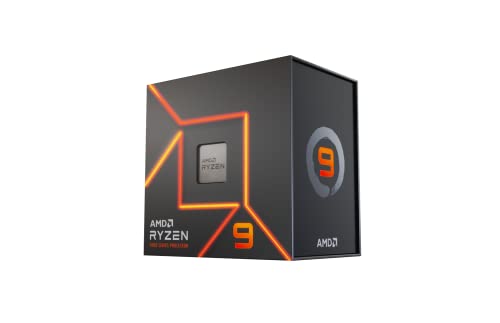
AMD Ryzen 9 7900X 12-Core Desktop Processor

The CPU in Microsoft’s Ideal tier, which matters because much of the sim’s load lands on the CPU main thread in airliners, dense cities and busy airports.
G.SKILL Flare X5 DDR5 64GB (2x32GB) 6000MT/s CL30

64GB matches the Ideal 4K Ultra tier and helps with heavy add-on scenery and airliners. 32GB is enough for most users.
Samsung SSD 990 PRO 2TB PCIe 4.0

An NVMe SSD for the local and rolling cache, which the guide strongly recommends even though the install itself is small.
How we compared
We compared these settings using Microsoft’s official requirements, independent performance measurements from the sources named above, and owner reports from the community. We did not bench-test these settings ourselves. Patches can change how much each setting costs, so adjust one option at a time and check the frame counter.
Sources
- Microsoft and Asobo Studio, Microsoft Flight Simulator 2024 system requirements
- PCOptimizedSettings, MSFS 2024 optimization guide and low-end PC settings guide
- Switchblade Gaming, best MSFS 2024 PC settings
- PC Guide, best settings for Microsoft Flight Simulator 2024
- SimTuts, MSFS 2024 graphics settings guide and VR setup guide
- Flightsim.to, complete MSFS 2024 performance optimization guide
- Flight Simulation Showcase, MSFS 2024 graphics and performance guide
- FlyAway Simulation, MSFS VR settings, OpenXR setup and Quest 3 guides
- Steam Community, Microsoft Flight Simulator 2024 VR discussions
- Chillblast, MSFS 2024 PC specs and requirements
Frequently Asked Questions
What is the most demanding setting in MSFS 2024?
Trees and Terrain Level of Detail, both CPU heavy. PCOptimizedSettings found lowering Trees improved frame rate by over 60% on low-end systems and reducing Terrain LOD gained 36%.
Should I use DLSS or TAA in Flight Simulator 2024?
On a flat screen, DLAA or DLSS Quality looks excellent on RTX cards. TAA at 100% gives the sharpest instruments but costs more. In VR, DLSS Quality is the practical choice on NVIDIA cards; AMD users should use TAA at 80 to 100% render scaling.
What frame rate should I target in MSFS 2024 VR?
A steady 36 to 45fps with reprojection on a 72Hz to 90Hz headset mode, as SimTuts recommends, rather than trying to reach native 90fps.
Is 32GB of RAM enough for MSFS 2024?
Yes for most users; it matches Microsoft’s recommended tier. The Ideal 4K Ultra tier lists 64GB, which helps with heavy add-on scenery and airliners.
How do I play MSFS 2024 in VR on a Quest 3?
Connect with Link cable, Air Link or Virtual Desktop, set the matching OpenXR runtime, start the sim on the monitor and press Ctrl+Tab to enter VR.
Does frame generation work in MSFS 2024?
Yes on a flat screen, and it suits flight sims well. In VR some users report artifacts with head movement, so treat it as optional there.
Why does MSFS 2024 stutter even on a fast GPU?
Usually the CPU main thread is the limit. Lower Trees, Terrain LOD, Objects LOD and traffic, use a high-performance power plan and make sure the sim is on an NVMe SSD.
What GPU do I need for MSFS 2024 in VR?
SimTuts suggests an RTX 4070 Ti class card for smooth medium-high VR settings and an RTX 4080 or 4090 to push render scaling above 100%.