Keyboard and mouse support on Xbox works two ways: a growing list of games (Warzone, Fortnite, Minecraft, and most Halo titles among them) accept a USB or Bluetooth keyboard and mouse plugged directly into the console, while everything else needs a hardware adapter that translates mouse movement and key presses into fake controller signals. Which path you take determines your budget, your desk setup, and whether you actually get an aiming advantage or just extra hassle.
As an Amazon Associate we earn from qualifying purchases at no extra cost to you.


Our Top Picks
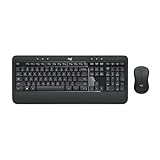
 Logitech MK540 Full Size Advanced Wireless Keyboard andFull-size17.5 x 6.5 x 3.5 inches1 poundsCheck on Amazon
 Logitech MK850 Performance Wireless Keyboard and Mouse ComboOne Size21 x 9 x 3 inches0.1 PoundsCheck on Amazon
 Logitech MX Keys S Combo Performance Wireless KeyboardKeyboard + Mouse Combo17.91 x 5.75 x 3.15 inchesCheck on Amazon

Top 3 picks at a glance
Native Support vs. Adapter: How to Tell Which You Need
Xbox has supported keyboard and mouse at the OS level since 2018, but individual games still have to opt in. Microsoft doesn’t publish one definitive master list, so the fastest check is in-game: go to Settings > Controller/Input inside the title itself. If there’s a dedicated mouse sensitivity or keybinding menu, it’s native. If mouse movement does nothing or just mimics a stick, you need an adapter.
| Game | Native KB/M? | Notes |
|---|---|---|
| Call of Duty: Warzone / Black Ops series | Yes | Full rebinding, separate mouse sensitivity curve |
| Fortnite | Yes | Input-based matchmaking option to avoid mixed lobbies |
| Minecraft | Yes | Basically identical to PC controls |
| Halo Infinite | Yes | Crossplay input matching enabled by default |
| Sea of Thieves | Yes | Full remap support |
| Diablo IV / Diablo Immortal | Yes | ARPG-style hotbar binding |
| FIFA/EA Sports FC series | Partial | Menu navigation only in most versions, no in-match support |
| Forza Horizon / Motorsport | No | Adapter required for wheel-style keyboard control |
| Elden Ring, most Souls-likes | No | Adapter required |
| Most third-party single-player titles | No | Assume adapter needed unless confirmed otherwise |
This same split applies if you’re checking mouse and keyboard for PS5. Sony’s list of native titles is smaller (Fortnite, Warzone, a handful of others), so PS5 players lean on adapters more often than Xbox players do. If you’re deciding between the best keyboard and mouse for PS5 versus Xbox, the practical answer is the same peripherals work on both consoles, since neither platform requires special drivers for standard USB HID devices.
Adapters: What They Actually Do and Their Limits
An adapter (Xim Matrix, Reasnow, Cronus Zen-class devices) sits between your keyboard/mouse and the console’s USB port, converting inputs into a virtual controller signal. This unlocks keyboard and mouse for Xbox One and Xbox Series X|S in games that never added native support, but it comes with tradeoffs:
- Input lag: Adapters add roughly 3-8ms of processing latency on top of your peripherals’ own response time, since they’re translating and re-encoding the signal.
- Aim assist conflicts: Some games detect adapter-based mouse input and either disable aim assist (fair) or flag the account for review (a real risk in competitive titles with strict anti-cheat policies).
- Cost: Adapters usually run $50-$100, on top of the keyboard and mouse themselves.
If your target games are on the native-support list, skip the adapter entirely. It’s a pure cost and latency penalty with no upside.
Polling Rate: What Actually Reaches the Console
Gaming mice advertise polling rates up to 4000Hz or higher on PC, but Xbox’s USB HID input stack processes mouse reports at a fixed 125Hz-250Hz depending on the title and dashboard version, based on how Microsoft’s input framework handles peripheral polling. Practically, that means a 1000Hz mouse and an 8000Hz mouse feel identical on console. You are not losing anything by using a mid-range mouse instead of a flagship one. Don’t pay a premium for polling rate specs that never get used on Xbox.
Wireless mice add their own bottleneck. A 2.4GHz dongle mouse typically reports at 1000Hz on PC but drops to whatever the console’s polling ceiling allows, same as wired. Bluetooth mice, however, poll noticeably slower, often in the 60-125Hz range depending on the connection interval negotiated with the console, which shows up as slight rubber-banding on fast flicks. For competitive shooters, wired USB is the safer bet purely for polling consistency, not raw speed.
USB Ports and Hub Limits
The Xbox Series X has three USB-A ports (one front, two rear); Series S has two. That’s enough for a wired keyboard and mouse without a hub in most setups. Problems start when you add a headset dongle, a controller charging dock, or an external drive to the same console.
- Each USB-A port on Series X|S supplies up to 900mA. A mechanical keyboard with RGB lighting can draw 300-500mA on its own, and a gaming mouse with RGB pulls 100-200mA, so two peripherals rarely trip the power limit individually.
- Passive USB hubs (unpowered) can cause dropped inputs once you exceed roughly 1.5A total draw across all connected devices, since the hub is splitting one port’s power budget across everything plugged into it.
- If you’re running a keyboard, mouse, headset dongle, and charging dock simultaneously, use a powered USB hub. It has its own power supply, so peripherals aren’t fighting over the console’s limited per-port budget.
A simple math check: keyboard (400mA) + mouse (150mA) + wireless headset dongle (100mA) = 650mA, comfortably under a single port’s 900mA ceiling if you can consolidate onto one hub port, but too much for a passive hub splitting three low-power ports from one source without a power supply of its own.
Desk Depth for a Lap Board or Console-Side Tray
Since Xbox is usually paired with a couch or TV setup rather than a desk, physical space is a real constraint people underestimate.
- Lap boards: Look for a minimum depth of 11 inches (28cm) to fit a tenkeyless keyboard plus 3-4 inches of mouse room beside it. Full-size keyboards need 14+ inches.
- Console-side trays: If mounting a tray to a TV stand or side table, 16 inches of depth gives comfortable room for a keyboard, mouse, and mousepad without the mouse running off the edge mid-flick.
- Cable length: Measure the distance from your seating position to the console’s USB ports before buying. Most wired keyboards ship with 1.5-1.8m cables; if your couch is more than 2 meters from the console, you’ll need an extension or a wireless setup.
DPI and Sensitivity: Matching Controller Aim Speed
The biggest practical issue with keyboard and mouse on Xbox is that in-game sensitivity sliders are often tuned for controller stick input, not mouse counts, so a setting that feels right on a pad can feel wildly fast or slow with a mouse. Here’s a starting point that keeps mouse aim close to controller-equivalent turn speed in shooters:
- Set mouse DPI to 800 or 1600. These are the two most common baseline values because they divide evenly with most in-game sensitivity multipliers, avoiding awkward fractional scaling.
- Start in-game sensitivity at the lowest available value (often 1-3 out of 10 or 100), then increase in small steps. Native KB/M titles usually default their mouse sensitivity far higher than intended for precision aiming.
- Disable mouse acceleration entirely if the game exposes the option. Acceleration curves are built for menu navigation, not consistent flick shots, and they make your aim inconsistent between slow tracking and fast flicks.
- Match your horizontal sensitivity to a real-world 360° turn distance if the game supports it, generally 25-40cm of mouse movement for a full turn is a competitive standard across PC shooters, and using the same number on Xbox keeps muscle memory consistent if you also play on PC.
A concrete example: at 800 DPI with a 360° distance target of 30cm, you’re moving the mouse roughly 24,000 counts per full turn (800 DPI × 30cm ÷ 2.54cm per inch ≈ 9,450 inches… more directly, 800 DPI × 11.8 inches ≈ 9,450 counts, which some games express as a sensitivity multiplier around 4-6 in their in-game scale). The exact in-game number varies by title’s internal scaling, but the calculation method, counts per inch times inches per turn, is what determines the multiplier you actually need, rather than copying a number from someone using a different DPI setting.
Choosing Gear: What Matters and What Doesn’t
| Spec | Matters on Xbox? | Why |
|---|---|---|
| Polling rate above 250Hz | No | Console input stack caps well below flagship mouse specs |
| Wired vs. wireless (2.4GHz) | Minor | Both hit the same polling ceiling; wired avoids battery anxiety |
| Bluetooth mouse | Yes, negatively | Lower polling consistency than wired or 2.4GHz |
| N-key rollover on keyboard | Yes | Prevents dropped inputs during multi-key combos in fast games |
| DPI above 1600 | No | Console sensitivity scaling makes ultra-high DPI unnecessary |
| USB-A wired connection | Yes | Most consistent, lowest-latency option for Xbox’s input stack |
In short, a mid-range wired mechanical keyboard and a wired mouse in the 800-1600 DPI range covers everything Xbox’s input pipeline can actually use. The best keyboard and mouse for PS5 setups follow identical logic, since it’s the console’s polling and input processing, not the peripheral’s top-end specs, doing the limiting.
Quick Setup Checklist
- Confirm native support in the specific game’s settings menu before buying an adapter.
- Plug wired peripherals directly into the console’s rear USB ports rather than a passive hub if you’re also running other USB accessories.
- Set DPI to 800 or 1600, then tune in-game sensitivity from the lowest setting upward.
- Turn off mouse acceleration wherever the option exists.
- Measure your lap board or tray depth (11 inches minimum, 16 inches comfortable) before purchase.
- Use wired connections over Bluetooth for anything competitive; reserve Bluetooth for menu navigation or non-shooter genres.
Frequently asked questions
Can I use the same keyboard and mouse on Xbox and PS5?
Yes, the same standard USB HID keyboard and mouse peripherals work on both Xbox and PS5 without special drivers. Xbox has broader native support, while PS5 has a smaller list of native titles and therefore relies on adapters more often. Fortnite and Warzone are among the games with native support on both platforms, according to the article.
How can I tell whether a game supports keyboard and mouse natively?
Check the game’s own Settings > Controller/Input menu for a dedicated mouse-sensitivity or keybinding option. If that menu exists, the title supports keyboard and mouse natively. If mouse movement does nothing or only mimics an analog stick, an adapter is needed. Microsoft does not publish one definitive master list of supported games.
Will an adapter make keyboard and mouse work in every Xbox game?
An adapter can enable keyboard and mouse in games that lack native support by translating inputs into virtual controller signals, but it does not remove every limitation. Adapters add processing latency, may conflict with aim assist, and can create account-review risks in competitive games with strict anti-cheat policies. Native-support games should generally be used without one.
Is Bluetooth a good choice for Xbox keyboard and mouse gaming?
Bluetooth can work, but it offers lower polling consistency than wired or two-point-four-gigahertz wireless connections. The article says Bluetooth mice often poll in the sixty-to-one-hundred-twenty-five-hertz range, depending on the connection interval, which may appear as slight rubber-banding during fast flicks. Wired USB is presented as the safer option for competitive shooters.
How much space do I need for keyboard and mouse gaming from a couch?
A lap board should provide at least eleven inches of depth for a tenkeyless keyboard and mouse room, while a full-size keyboard needs fourteen or more inches. A console-side tray should offer sixteen inches for comfortable keyboard, mouse, and mousepad space. Also measure the seating-to-console distance because wired cables are commonly one-point-five to one-point-eight meters long.